For this next step in our journey we review cloud video storage as it can be one of the biggest sources of confusion and costs when it comes to post-production storage. All major cloud providers offer a range of storage solutions, all optimized for different uses and price points.
In this article we’ll review some of the primary cloud storage options for editing in the cloud as well as the tradeoffs and associated costs.
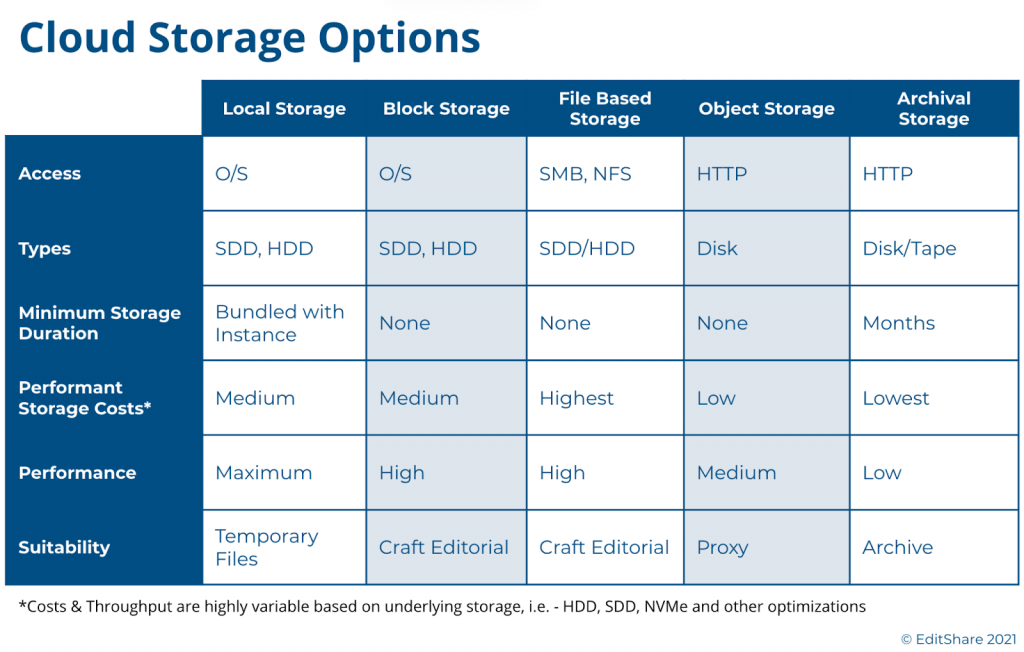
A Look into Cloud Based Storage Much like the traditional storage models, cloud-based storage options fall into one of five major categories:
Local Storage: Analogous to a local computer configuration, this is an HDD or SSD physically attached to the cloud compute instance.
Block Storage: This is network attached storage that must be provisioned against a compute instance during deployment time. Similar to local storage, it relies on the compute instance operating system to make it useful to applications. For those familiar with SAN’s (Storage Area Networks), block storage is similar in concept.
File Storage: These are storage systems that act similar to a NAS (Network Attached Storage), and provide higher-level file-based access to a shared network of computers, typically using NFS.
Object Storage: In this tier, files are stored as data objects referenced using an ID. The benefit is that there is no structural scale inhibiting storage growth. HTTP is the protocol for access.
Archive Storage: A type of object-based storage, this is a lower-cost tier that is typically less accessible and requires a commitment of storage duration for several months or longer.
With the exception of local storage, these storage tiers can be highly scalable and extend dynamically during run-time or via deployment scripts. All of the storage tiers have trade-offs between costs, performance, scalability, and availability. We explored a bit of this in our prior Journey to the Cloud blog, where we focused on backup and archival storage.
For the purposes of video editing, one must focus on the usefulness of these storage types to the needs of the application as well as the costs. This requires a storage layer with low-latency, that can ideally scale to multi-TBs, and can be used by the editing application in a cost effective manner. A general rule of thumb is the further down in the above list you go the cheaper the storage, but that is not always the case. Offerings of SSD, NVMe, HDD, highly-performant file systems, and other permutations offered in each of these tiers make price/performance reviews a very complex analysis.
While costs are generally based on storage sizes and performance, other factors typically apply. As an example, depending on the vendor and storage tier, transferring content out of a tier may incur a fee and so will the actual I/O calls themselves, such as an HTTP GET and PUT, which read and write the data.
Video Editing Storage Choices These considerations leave us with three choices for editing: Local Storage, Block Storage, and File Storage. Let’s review the usefulness of these choices.
Local storage has long been the tried and true means for editing workstations. These local disks come in a variety of sizes and speeds, and while they may be useful for a single, stand-alone editor, there are a few drawbacks. First, they can’t be resized dynamically so as a project grows you could find yourself short on space. Perhaps more importantly in this virtualized cloud world, once you shutdown the system you lose all your data, applications, and settings. This is not a factor in the on-premise world, but in a virtual environment the cost of running virtual workstations full-time is significant and you will want to shut-down these instances when not in use. Unless you can finish your project in one sitting or you have money to spare, this may not be the best option.
Block-based storage is a far more effective solution for video editing environments. In a virtual environment, you can provision the exact amount of low-latency storage you require and attach it to your editing environment when you spin up your system. Done correctly, you can even expand it as your needs grow. In addition, all of the public cloud vendors provide various types of block storage optimized for different performance and cost points so you can dial in exactly what you need for your editing applications.
From a cost point of view, block storage can have a permanence distinct from the compute instances. When you shutdown your cloud compute instances, whether that’s a virtual editing workstation or an asset manager, you can continue to maintain your storage so you don’t lose anything. Yes it’s not free, but it is far more economical than having to keep your entire environment running all of the time.
File storage is another possible option for video editing environments. Much like your NAS in the office, these systems provide a shared storage pool to multiple clients. They typically rely on NFS as the protocol. These file-based storage systems are sometimes offered with different performance characteristics, some optimized for higher throughput, but at a cost. These NAS-like systems, however, have limited storage capacity and performance. They are fine for IT applications, but video production environments can quickly run into issues.
Finally, object storage is a popular and cost-competitive storage tier, and you only pay for what you use, however for video editing it has its drawbacks due to latency and native application support. And while there are solutions for translating object storage to file-system calls, these gateways will continue to be hampered by the latency issues and often require caching workarounds. This is not ideal for professional or collaborative editing purposes.
The Best of all Worlds For many teams exploring cloud production for the first time, the choices are overwhelming. Between the major cloud vendors, there are hundreds of choices of cloud storage tiers, performance choices, and tradeoffs. Too many choices can result in analysis-paralysis and leave organizations behind in the technology curve.
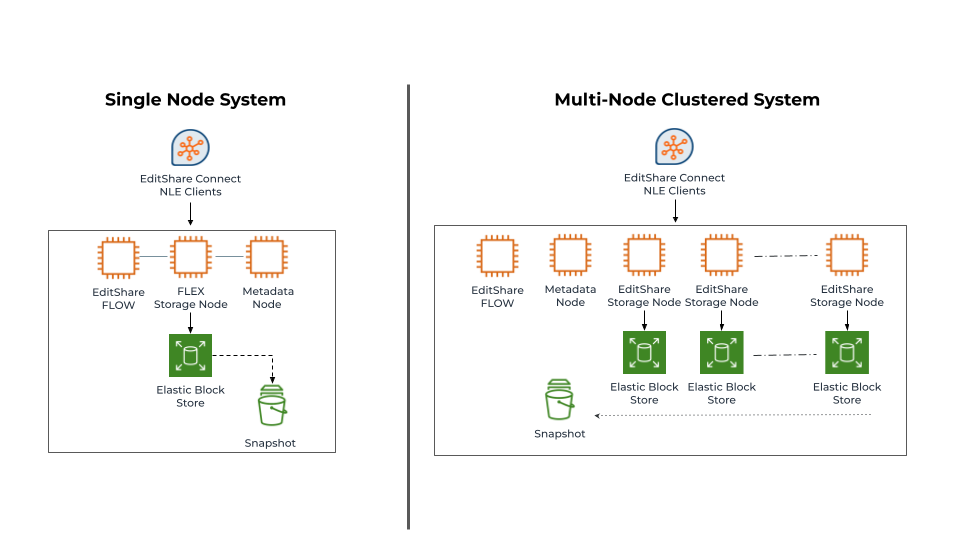
EditShare developed FLEX Storage as a software-defined-storage layer to abstract these complexities and provide high-performance, cost-optimized, video production storage. FLEX uses a mix of both block storage and object storage to provide that balance between storage performance and costs, and this mix can be altered to meet any workflow or budget. We’ve also benchmarked and tested the various storage performance types within these tiers – such as SSD, HDD, etc – to find the right balance for different application mixes.
As many of our customers require editing libraries of 10’s or 100’s of TBs of media, often captured at high bit-rates, we found a need to be more clever about storage cost optimizations. In 2020 we began offering FLEX Seamless Proxy Editing, which provides a cost optimized workflow that leverages proxy editing, but in a unique simple workflow. For those interested in learning more, you can read more here.
EditShare offers FLEX as both a standalone node or a cluster of nodes. Both configurations can be scaled out or scaled up to meet different performance requirements. The important thing to note, is FLEX is not a one size fits all solution. At EditShare we focus on openness and choice, giving our customers the ability to deploy what’s right for them, as well as the ability to adapt their environments as their needs change.
Boston, MA – October 21, 2021 – EditShare® invites InfoComm 2021 attendees to booth 2809 to discuss how its award-winning FLOW media management and EFS shared storage solutions can simplify storytelling for video workgroups across Advertising, Broadcast, Corporate, Education, House of Worship, News, Production and Post-production. A perfect fit for any scenario ranging from a smart replacement of direct attached storage to building a high-performance, high-capacity enterprise workflow, FLOW and EFS offer customers flexible on-premise, cloud and hybrid configurations that facilitate a better on-premise and remote creative collaboration experience.
About EditShare Solutions FLOW is EditShare’s media management platform for creative workflows. It serves as a control layer across storage pools, offering fast-production tools and exceptional asset and metadata tracking. Easy-to-configure automation simplifies and expands workflows. Underpinning FLOW is EFS, a software-optimized storage layer that securely centralizes content with features and performance to build small to enterprise production environments. EFSv virtualizes EditShare solutions offering exceptional media workflows, including patent pending seamless proxy editing, in the cloud.
EditShare’s workflow solutions can be configured for productions of all sizes and complexities, on premise, in the cloud, or a hybrid of the two. Users can work with anyone, anywhere. The robust EditShare API and extensive partner network allows customers to augment their media ecosystem with familiar editorial and production tools that make them more productive, freeing their workflows from conventional limits and taking them into new directions and business opportunities.
About EditShare EditShare is a technology leader that enables collaborative media workflows on-premise, in the cloud, or in a hybrid configuration. With customer and partner success at the heart of EditShare’s core values, our open software solutions and robust APIs improve workflow collaboration and third-party integrations across the entire production chain, ensuring a world-class experience that is second to none. The high-performance software lineup includes media optimized shared storage management, archiving and backup, and media management, all supported with open APIs for extensible integration.
EFSv streamlines production with remote workflow flexibility
Boston, MA – June 8, 2021 –EditShare®, a technology leader that enables collaborative media workflows for storytellers, today announced that public media producer GBH, the largest content creator for PBS, has invested in EditShare’s EFSv cloud solution, hosted in Amazon Web Services, to modernize media workflows across its post-production operations. An early adopter of cloud technologies for its broader IT needs, GBH’s move to EFSv extends video production into the cloud, maximizing operational efficiencies and reducing overall costs. The open EFSv platform facilitates both hybrid and cloud post-production workflows which optimize content access and enhance the user experience for video editors who create critically acclaimed programs such as NOVA, ANTIQUES ROADSHOW and AMERICAN EXPERIENCE and for PBS’ WORLD Channel.
“We require adaptable, efficient media systems for all of our clients,” said Tim Mangini, senior director of production technology for GBH. “EditShare’s cloud solution gives our producers flexibility and scalability. They can work wherever they want, with whomever they want, whenever they want, and only pay for the resources they actually use. They upload their media once and work from anywhere as if they were working in any GBH edit suite.”
EditShare’s approach to open platform development, specifically its support for multiple cloud providers and public APIs for integration and workflow expansion, was a key factor in GBH’s decision to select EFSv. Additionally, access to key technologies, such as artificial intelligence and content usage analytics will enable GBH to unleash new media workflows.
“Shifts in video production require more agility and demand the ability to accommodate changing work habits. As GBH embraces those shifts, open and flexible cloud-based solutions enable new workflows while protecting the investments made in on-premise platforms,” comments Tracy Geist, chief marketing officer, EditShare. “EFSv offers GBH as well as our other customers the best of both worlds, providing frictionless storytelling workflows that are flexible and secure, while accommodating change.”
About EFSv Cloud Solution
EFSv redefines the economics of editing in the cloud while significantly enhancing the user experience. The tiered solution approach supports customers at every stage of their journey to the cloud. Offerings include cloud-based backup solutions that serve as the foundation for building cost-effective, distributed cloud editing and seamless proxy editing workflows, up through full production environments in the cloud. EditShare’s cloud innovations offer unparalleled flexibility, allowing customers to easily adapt to cloud or hybrid environments and benefit from a lower total cost of ownership.
EditShare is a technology leader in networked shared storage and smart workflow solutions for the production, post-production, new media, sports, and education markets. Whether you need on-prem, cloud, or hybrid solutions, our products improve efficiency and workflow collaboration every step of the way. They include media optimized high-performance shared storage, archiving and backup software, a suite of media management tools and a robust set of open APIs that enable integration throughout the workflow. Customer and partner success are at the heart of EditShare’s core values ensuring a world-class experience that is second to none.
Press Contact Cat Soroush Zazil Media Group (e) catherine@zazilmediagroup.com (p) +1 (631) 880-9534
In our previous entry in the Journey to the Cloud series, we reviewed virtual workstations. In that article we covered the advantages and concerns of using cloud-based workstations as non-linear video editing machines. For teams that are shifting their video production away from on-premise environments, it is important to consider how these workstations are managed, operationalized, and costs are controlled. That is what we will discuss in this article.
Virtual Workstation Recap In a video production environment, a virtual workstation is an on-demand compute server running applications for editing, ingesting, and other functions of a video workflow. These workstations are appropriately sized to the tasks at hand – which in this case will be non-linear video editing. Offered with a variety of CPU speeds and cores, along with memory and video graphics acceleration, they can be right-sized for the needs of the codecs being processed and edited.
An important consideration in virtual workstation usage is managing the uptime of that workstation properly. In an ideal world, this would be similar to simply powering on the system when in use and then remembering to shut it down when no longer in use. In a cloud environment that process is not straight-forward. For one, users may not always be diligent about shutting down their computers, and if they were diligent they may find the process of spinning workstations up and down more complicated than a power button. Often it’s necessary to have access, and training, to operate the cloud management console where this operation is controlled. Alternatively the IT cloud team needs to get involved manually or write scripts to perform this operation. This is not a simple process, but it is perhaps the most important step in controlling cloud costs. Because of this, a need for workstation management tools has emerged.
What Will Workstation Management Do For Me? There are a number of capabilities that workstation management solutions provide to make users’ lives easier, help them save money, and maintain control of their cloud environments. Let’s walk through a few of them.
Workstation Scheduling: Ideally, a workstation manager will allow team administrators to control the uptime of their virtual workstation environments. That’s as simple as turning them on in the morning and turning them off in the evening. The primary advantage here is cost savings. Instead of running a GPU assisted compute node 24×7, a workstation management system can control the overall uptime and usage schedule. The savings is straightforward here – there are approximately 722 hours in a month, yet typically only 173 working hours. Providing a simple scheduling management function can result in a 76% savings against your cloud bill.
Now there are solutions, such as AWS Instance Scheduler, that can provide similar functions, but will require the user to have the IT and programming skills to implement them. For video production teams, a simpler solution is almost always preferred.
Connection Management: This element of workstation management orchestrates the connection of users to virtual workstations and watches over the use of those connections. When logging in, a connection manager will find an idle workstation and connect that user to their new environment for the duration of that session. This element also has the ability to monitor the workstation usage. If the environment goes idle the connection manager will sense this and shutdown the workstation in order to minimize costs. Typically this idle period can be set to find that right balance of idle time acceptable to users.
To ensure productivity within a team, when users are disconnected from their virtual workstations, the compute instance is also suspended. This suspended mode often means that the storage associated with this workstation is maintained, not deleted. However, the compute instance is released and is no longer incurring a cost. The storage is maintained separately but these fees are relatively small, for example, AWS Elastic Block storage for a 200 GB volume will only be around $8-16/month. Once that user comes back online, that storage volume is connected to a new virtual workstation and users can become productive again.
Authentication: An important element is the ability to ensure only authorized users can access workstations. A workstation management solution will integrate smartly into your company’s security solutions and map to the correct policies set by your information security team.
Provisioning and Management: The ability to provision new workstations into your workstation pool is an important element of workstation management. For example, you may have 20 workstations available to your team, but find yourself facing a new project which will require an extra 5 workstations. The administrator of the workstation management system will have the rights to provision these new workstations, and later delete them when no longer in use. Similarly new video production workloads may arise requiring workstations capable of editing very high resolution video. These higher-end workstations can be created and provisioned specifically for these requirements, and then deleted when no longer in use.
Cost Insights: In a video production environment, workstations used for editing or ingest may be among the most costly cloud elements in use. The ability to have visibility into these costs will allow teams to maintain controls on their spend, well ahead of any surprise bills. In addition, this capability can make it much simpler for production groups to easily shift to an OpEx model where revenues from projects can be tightly aligned with the costs associated with that work.
The advantages of virtual video productions have become more compelling to teams as cloud costs plummet and bandwidth increases. However, as this world has emerged it has required a new set of skills and oversight that differs from on-premise solutions. For some organizations, tracking on-going costs can be more challenging than the analysis behind a CapEx investment of new equipment. A workstation management solution with visibility into costs can help manage this concern and provide clear visibility into spend.
Operationalizing Cloud Virtual Video Production Moving to a cloud environment today may require team members to become familiar with a cloud vendor’s console administration, operations, coding, and cost calculators. Not exactly a set of skills a creative department may want to invest in. Some market solutions address this complexity with a Software-as-a-Service (SaaS) offering, allowing users to subscribe to a video production environment of fixed sizes and capabilities. This can sound compelling but it also eliminates the advantages of a scalable cloud approach, and requires customers to pay staggering fees as the SaaS vendor must over-provision their cloud infrastructure to account for worst case usage models.
EditShare’s approach has been to truly embrace the cloud offering a scalable solution which its customers can use cost-effectively in their cloud account. This ensures our customers receive the best pricing possible for their cloud infrastructure uses and allows them to maintain control and oversight. To provide further operational and cost oversight we have partnered with workstation management vendors such as 7FiveFive, and together we can provide the end to end solution that is manageable and operationally controlled by our customers. The entire environment – performant storage, asset management, archiving and ingest all operationalized in the cloud with full control over usage and cost management.
Our Director of Business Development, Jeff Barnes, sat down with SVG’s Chief Editor, Jason Dachman, to provided an update on our EFS collaborative storage and FLOW media management solutions and to highlight some of the key partnerships that are strengthening our presence in the sports industry.
In this journey stage, we will explore the concept of ‘editing in the cloud’. Here editors connect to cloud virtual workstations to perform post-production work with their video content management systems.
What is a Virtual Workstation?
Conceptually, a virtual workstation is simple.
The editing suite and assets don’t run on a high-powered local computer. Instead, the same software runs on a virtual machine in a cloud data center.
This virtual machine provides cost savings since you only pay for the time you use it.
You also don’t have to:
Maintain the server
Apply security patches
Deal with broken hardware
Have all of the other headaches associated with that workstation in your office
Virtual workstations in the world
Similar to workstations in the physical world, virtual workstations come in all configurations suitable for different workloads.
One can pick from hundreds of combinations of CPUs, RAM, storage, network interfaces and other features.
For video editing, workstations configured with GPUs are generally required. This allows the software configuration to run optimally for this video-processing-heavy software stack.
Virtual workstations and non-linear editing
Virtual workstations are considered headless systems. Like all cloud servers, they don’t have a monitor, keyboard or mouse.
Running a database is easy, but running a graphics-heavy program like a non-linear editing suite is more challenging.
To make this workstation useful, it is necessary to be able to attach a monitor. To do this, we rely on a remote desktop client.
Remote desktop software such as Remote Desktop for Windows or VNC Connect permits a remote user to log into a workstation. They allow the desktop window, keyboard and mouse controls to become remotely accessible, much like they are being accessed locally.
However, many of these general-purpose remote software desktop packages don’t cut it for video editing. They were not designed for the high-resolution and high-refresh rates required to project an editing interface remotely.
Fortunately, there are solutions to meet those challenges.
Virtual workstations for media
Teradici Cloud Access Plus and Nice DCV are software packages that address these video-intensive needs.
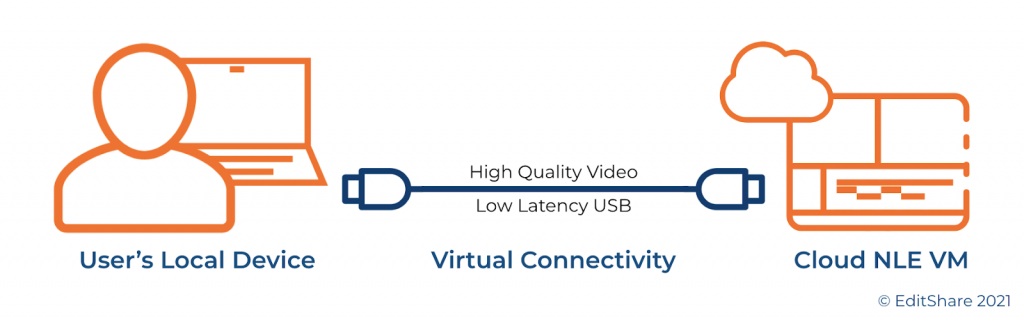
These applications are installed on virtual workstations. The workstation’s GPU encodes and sends video, keyboard, mouse, and USB data to a remote client. It’s as though you are running a very long HDMI and USB cable from the cloud data center to your local computer.
Additionally, these solutions can support two monitors for many environments, giving you a larger work area.
While these high-performance applications make it feel like a remote computer sits on your desktop, there are practical limits. The primary limitations are physics, the internet, and WiFi.
Even over the best network, the further the physical distance between the virtual workstation and your local computer, the more perceptible the lag will be.
For that reason, when deploying a cloud editing solution, it’s essential to choose a cloud data center physically close to your local office or home.
The internet routing itself will have an impact. Aside from distance, ensure IP connectivity, typically measured using ping times and throughput, is considered.
Lastly, it’s a well-known fact that the WiFi network most computers connect to is the biggest culprit.
For that reason, hardwiring your local computer to a router can help eliminate many sources of headaches. In addition, EditShare recommends a broadband download speed of at least 10-15 Mb/s per workstation monitor for best performance.
Workstation Instances and Software Images
Virtual workstations comprise server hardware and software, so let’s look closely.
Compute Instances
All major cloud vendors offer a family of GPU-enabled compute instances suitable for video editing. Like buying a PC or Mac, you can choose how powerful a system you want and how much you’re willing to pay.
You’ll want to choose the appropriate compute instance depending on your typical workload:
What codec bit rates are being edited?
How many concurrent streams are being accessed and edited?
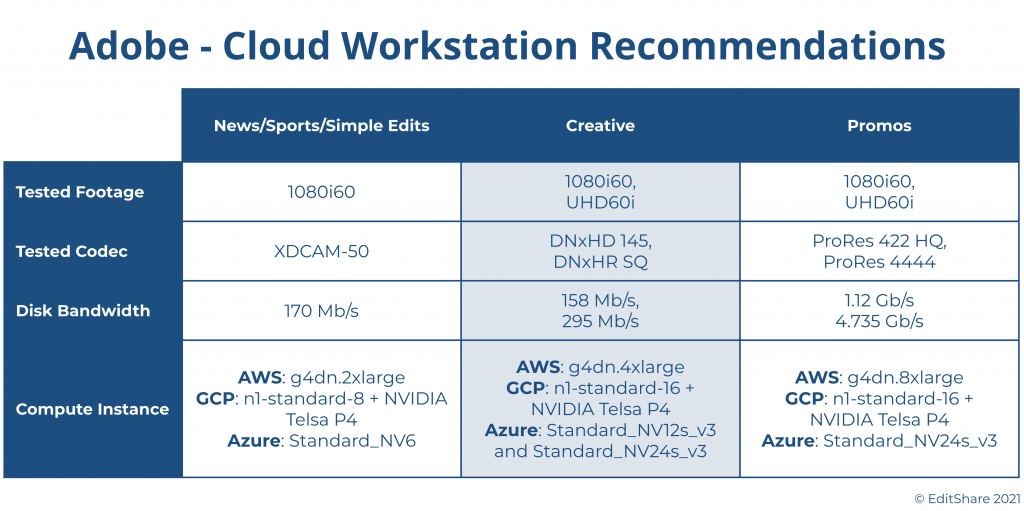
Adobe has done a great job of publishing guidelines for selecting the appropriate workstations for different personas of video editors.
Here’s a table summarizing their choices for AWS, GCP and Azure:
The beauty of the cloud is your choice is never final.
If you choose the right cloud production solution, you can easily migrate from a low-end workstation to a high-end workstation and back again. Moreover, you can do this while preserving your editing process, environment and projects.
Software Images
In a virtualized environment, software images can easily be deployed to a machine. They can operate for a while and then spin back down when not in use.
Software images are pre-baked into a golden image to make this process efficient. This means they are pre-configured and ready to go when they are deployed to a virtual machine.
AWS calls these Amazon Machine Instances, GCP refers to them as an Image, and Azure names them Virtual Disk Image. The concept is the same. An image is created with the operating system, applications and optimizations. This image can then be quickly deployed to a system, and no further software installations are necessary.
In our example, this software image will include the remote desktop software, editing applications, and other supporting software. It provides a fully-function environment to start working right away.
Once deployed, users can then make changes to their specific environment – customizing their environment, updating software, and adding plug-ins.
Then, using persistent storage such as block storage, each individual workstation can be shut down while preserving that software image. This frees up the expensive compute instance. It also saves the image at a reasonable cost, ready to be used by the user at a later point on-demand.
As virtual workstations are equipped with GPUs, the editing applications often require the use of Microsoft Windows. Therefore, the cost of running a virtual workstation 24×7 can get pricey.
Saving the software environment to persistent storage allows users to only use workstations when they are active. Since a 40 hour work week is about 24% of the total hours in a week, the savings can be fairly substantial.
Cloud-based video editing
For the most part, the major non-linear application vendors are embracing cloud-based video editors.
Adobe Premiere Pro can operate in virtual environments. Adobe has done a great job documenting its best practices for Virtual Desktop Infrastructures on the prominent three cloud vendors.
DaVinci Resolve can operate in virtual environments. You can read about DaVinci on AWS here.
With the other non-linear editor vendors, we expect to see a progression towards cloud-based video editing tools as well.
Final Cut Pro is limited by MacOS not being available in cloud environments for editing use cases. (Macs have recently been supported in AWS specifically for the development of software applications and at this moment, don’t support FCP).
Avid Media Composer is also offered in the cloud via an add-on VM license. There are restrictions Avid applies to the use of their software.
Who can help me create virtual workstations for cloud video editing?
The EditShare team can help you create your virtual workstation for cloud video editing.
The ability to support multiple workstations and scale editing bandwidth to meet the challenge of production teams is dramatically more flexible in FLEX. Servers and storage can be scaled up and down to accommodate the needs of any budget or project.
Multiple editing stations, with any mix of horsepower, non-linear editing applications, and workflow requirements, can be instantly provisioned to meet a workgroup’s demands.
** This webinar has passed. Please fill out the form to access the recording.
May 12 Session 2: 3:00 PM USA Eastern Time (duration 1 hour)
Join EditShare’s VP of Business Development, Tom Rosenstein, and Lead Pre-sales Engineer, Nathan Rausch, as they outline the pragmatic steps toward a complete end-to-end production workflow in the cloud. Each stop along the way brings maximum value for an incremental investment. We’ll share sample diagrams, demos, and cost comparisons for cloud production workflows to help begin your Journey to the Cloud.
Save Your Seat
Webinar Speakers
Dan Schaffer, Director of Partner Strategy and Enablement, EditShare
Tom Rosenstein, VP of Business Development, EditShare