UK’s top-tier post-production company selects EditShare’s automation, security and storage platform to increase future production efficiencies and add new services
Boston, MA – November 12, 2020 – EditShare®, a technology leader that specializes in collaboration, security, and intelligent shared storage solutions, today announced that leading UK post-production house Clear Cut Group, comprising of Clear Cut Pictures, The Edit Store and Clear Cut Nations and Regions, has made the decision to place EditShare’s next generation media storage EFS at the center of their operation with FLOW workflows significantly increasing the services offered to clients. The award-winning post-production team is known for their outstanding creative work on original factual, drama, short form and feature films. Producing content for global broadcasters, multiple co-productions, and OTT, the 24/7 operation boasts more than 120 edit suites on site and, since lockdown, has supported over 400 remote editors, clients and staff. Always noted for their innovative and flexible services, Clear Cut Group is building on its successful technology approach by adopting the high-tech but proven EditShare platform, maintaining its ability to work at the cutting edge of the most demanding distributed post-production workflows. EditShare expands storage and opens doors to new innovative service offerings and efficiencies that immediately benefit clients.
“With EditShare, you are buying a storage solution with so much more,” comments Jess Nottage, Technical Director, Clear Cut Group. “It ticks all of the boxes in terms of reliability, performance and capability, but it’s the extras, designed to enhance the creative process that will make us stand out from our competitors. EditShare’s FLOW, EFS and File Auditing platforms, enable us to expand our service offering with innovative creative solutions that benefit our clients without compromising on security. It’s a media foundation to underpin our business.”
With more high-profile projects produced in 4K, EFS media engineered storage architecture and file auditing capability gives Clear Cut Group the scalable capacity and enterprise-grade security they require. Native OS drivers eliminate data bottlenecks, while comprehensive file tracking provides a complete audit trail for content within the system, providing clear insight into users’ activities, including who accessed content, when they did it and where. With FLOW media management in action across all Clear Cut Group locations, the company has a new level of automation and remote capability that delivers new and innovative services for clients. Clear Cut Group’s Managing Director Rowan Bray explains, “We are only as good as our solutions we offer our clients. Every project is bespoke and thus, we approach each one uniquely. That uniqueness is inherent in EditShare products and people. EditShare is totally focused on creating fit for purpose solutions for its customers and a company where we feel we have a voice. This is more than a purchase, it’s a joint venture.”
Collaborating to #wintogether, the EditShare team worked closely with Clear Cut Group to ensure solutions and services supported the vision for the technical uplift with opportunities for future expansion through EditShare’s open APIs. Jess concludes, “Offering open APIs tells us a lot about the company and its culture. We are not locked in and that is attractive. If you want to do something, EditShare will enable it regardless of the vendor product with a can-do attitude.”
“We work with our customers on every level to ensure EditShare’s open solutions bring the resiliency they require to navigate the constant change in which they live,” states Robin Adams, vice president EMEA sales, EditShare. “It’s a true partnership in which customers are empowered and feedback has a direct impact on product evolution to ensure EditShare delivers the industry’s best performing media management capabilities and open storage platform.”
About Clear Cut Group Clear Cut Group comprises four companies: Clear Cut Pictures, The Edit Store (acquired by Clear Cut Pictures in January 2019), Clear Cut Nations & Regions (providing post production outside the M25), and ClearMotion (for VFX). Established in 1993, the business is renowned for providing highly creative post-production to a wide range of broadcasters and production companies. Offering full end-to-end post-production across four sites in London and across the regions, with location services as needed, Clear Cut offers 4K, HDR and SDR capabilities with bespoke solutions to deliver content to screen. The Group offers over 120 suites across their locations, as well as remote services, most recently exceeding 400 remote users of their edit suites since lockdown.
Contacts for Clear Cut Group:
Rowan Bray Managing Director Clear Cut Group (e) rowan@clearcut.cc (p) 020 7605 1755
Jess Nottage Technical Director Clear Cut Group (e) jess.nottage@clearcut.cc (p) 020 7605 1747
About EditShare
EditShare is a technology leader in networked shared storage and smart workflow solutions for the production, post-production, new media, sports, and education markets. Whether you need on-prem, cloud, or hybrid solutions, our products improve efficiency and workflow collaboration every step of the way. They include media optimized high-performance shared storage, archiving and backup software, a suite of media management tools and a robust set of open APIs that enable integration throughout the workflow. Customer and partner success are at the heart of EditShare’s core values ensuring a world-class experience that is second to none.
Press Contact Cat Soroush Zazil Media Group (e) catherine@zazilmediagroup.com (p) +1 (631) 880-9534
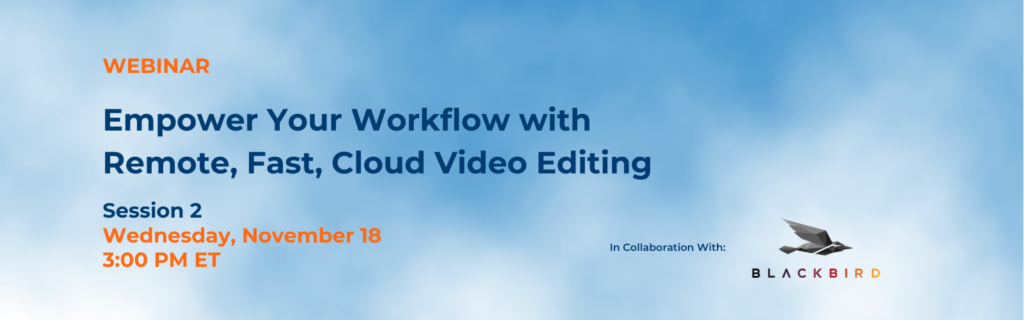
** This webinar has passed. Please fill out the form to access the recording.
Join EditShare and Blackbird to explore best practices to enable rapid editing of your media from anywhere on any device. EFS and FLOW give media creators unprecedented performance and control over their media. When media creators need additional workflow flexibility for editors on a variety of devices, and remote locations, Blackbird and EditShare make the all difference. Blackbird is a fast and powerful cloud video editing and publishing platform that supports remote, collaborative video production with minimal system requirements. Together with FLOW and EFS, media creators can store, index, manage, edit, and export their stories.
Access the Recording
Webinar Speakers
Stephen Tallamy, Chief Technology Officer, EditShare
Oliver Parker, VP Commercial, International, Blackbird
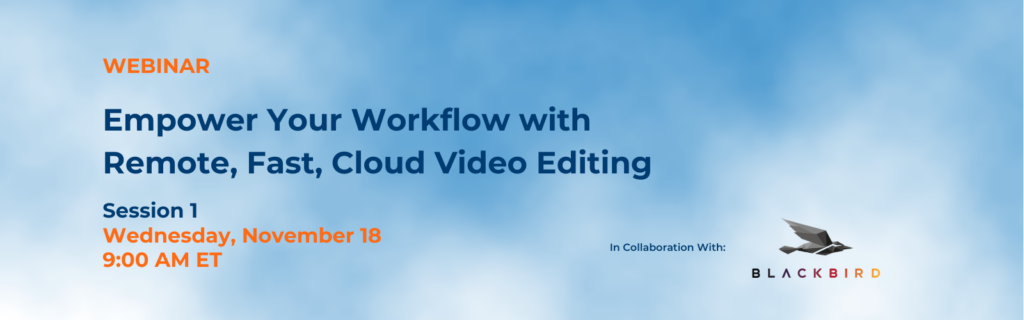
** This webinar has passed. Please fill out the form to access the recording.
Join EditShare and Blackbird to explore best practices to enable rapid editing of your media from anywhere on any device. EFS and FLOW give media creators unprecedented performance and control over their media. When media creators need additional workflow flexibility for editors on a variety of devices, and remote locations, Blackbird and EditShare make the all difference. Blackbird is a fast and powerful cloud video editing and publishing platform that supports remote, collaborative video production with minimal system requirements. Together with FLOW and EFS, media creators can store, index, manage, edit, and export their stories.
Access the Recording
Webinar Speakers
Stephen Tallamy, Chief Technology Officer, EditShare
Oliver Parker, VP Commercial,International, Blackbird
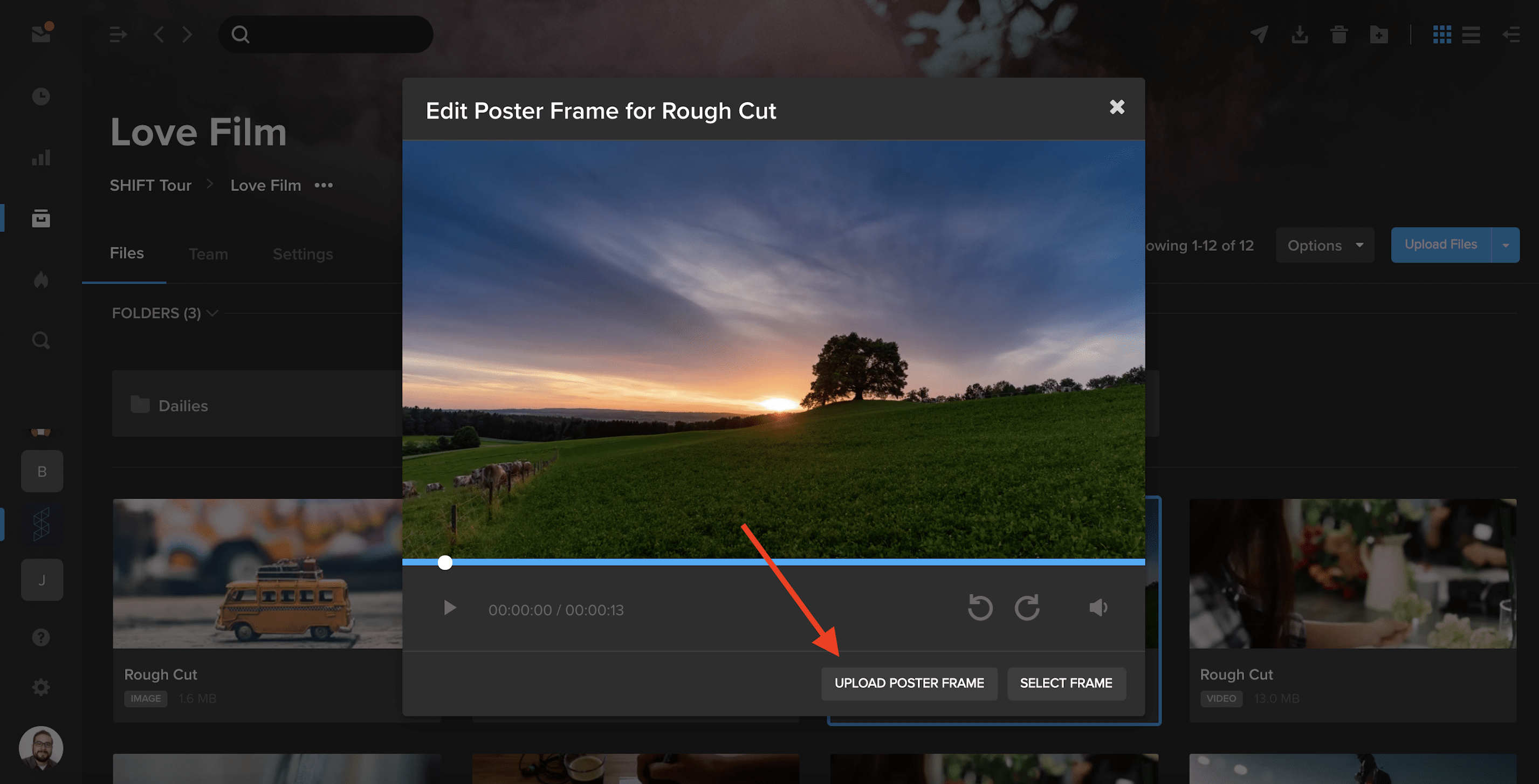
You can now use our Poster Frame tool to upload custom images as your video thumbnails.
In a project where you have editing permission, select the three dots in the bottom-right of a video asset tile to open the action menu. Choose Advanced, and then select Edit Poster Frame.
In addition to selecting a frame as your thumbnail, you can now click Upload Poster Frame and choose a .jpg from your computer to display as your video thumbnail.
Our guest Alex Minor talks through how to get started with video at your company, and why it’s so important, no matter your industry.
The following interview is an excerpt from our video series, Marketing – In Conversation. To watch the full interview and see more video content, click here. Or you can listen to the Shift In Conversation podcast here.
Alex Minor – Video Marketing Strategist – Eye AM Media Grace Amodeo – Marketing Manager – Shift Media
Grace: Tell us about yourself, and how you got interested in marketing and video production.
Alex: I started out as a musician growing up. Music led me into going to school in Florida, a school called Full Sail which focuses on various forms of digital media, movies, video games, and audio. I eventually started freelancing in the corporate audio visual market as an audio guy, but I saw there was way more opportunity on the video side of things. I eventually bought some of my own equipment and started shooting my own stuff. I worked on indie films and some documentary shorts, and that really felt right to me. Learning people’s stories and helping them showcase that. And somewhere along the line the concept of video for business came up, and it was just like documentary filmmaking of another sort.
Grace: Tell us a little more about your company, Eye AM Media.
I feel a kinship with the smaller business owners, the ones that don’t have endless gobs of money to throw at the marketplace, because I feel like I can really make a difference there.
Alex: We’re a video marketing agency. Most of our clients are either coaches, consultants, or small business owners in the Orlando area. I really like working with the decision maker of the company, I’m not really trying to service humongous brands. I feel a kinship with the smaller business owners, the ones that don’t have endless gobs of money to throw at the marketplace, because I feel like I can really make a difference there. I can really make an impact. And that’s what I want to do at the end of the day, I want to help people grow their brands, change their lives, and help them help more people.
Grace: Why should all brands be adding video into their marketing strategy?
Alex: Because if they’re not, they’re already behind. Video marketing or commercials used to be only for the biggest brands, for the people with all the money. That used to be because the barrier of entry was really, really high. These days, the barrier is gone. The internet has become the great equalizer. You don’t need broadcast television, you’ve got multiple channels that are completely under your control where you can put video content. Most of us are walking around with a small creative studio in our pocket.
These days, the barrier is gone. The internet has become the great equalizer. You don’t need broadcast television, you’ve got multiple channels that are completely under your control where you can put video content.
Grace: How do you decide what type of video is best for each brand?
Alex: The two main types of content that businesses should be cognizant of are macro content and micro content. Macro content is the stuff you want to call somebody like me for. That’s going to be your highly produced, maybe scripted out, very intentional videos that are supposed to last for several years. They represent your brand in the most epic way possible. But keep in mind that the content shouldn’t be all about you, that content should be focused on your customers, their needs, and the type of change that you can make in their lives. Yes, you’re going to sneak in your products and services, but the main point of the conversation in all of that content should be your customer, it’s really about what’s in it for them. Micro content is the stuff that usually ends up on social media. It’s the top of funnel content, the stuff that keeps you top of mind. Stuff that’s going to be showing people that you’re human, bringing them into the business, giving them good advice. It’s not only going to showcase your expertise, but empower them at the same time. You don’t have to shoot it with a legit camera and have the gorgeous lighting. The message is what’s the most important thing.
Grace: What are some of the questions you ask as a marketer before you get started on a video project?
Alex: The first thing that I need to know is why they think they need video content. Why now? Why do you think it’s going to work for your purpose, and what is that purpose? That’s going to inform all the choices that we make. I also have to understand what your business is, and how it works. How have you been acquiring customers before, and how do you want to be acquiring customers now? What is the action that you’re hoping people will take once they see the content? Those conversations can lead in different places. And it might turn out that you don’t need the thing that you think you need.
Grace: You also offer something called the “video business card”, what is that?
Alex: The video business card is a multifaceted tool. A lot of people might call this your “about us” video or your “brand” video, your brand story. I don’t like to call it those things because the mistake I see in so many of these videos is that the point of view is very selfish. It’s about us, who we are, what we’ve accomplished. Everything in a video business card should be about the client, it’s about the customer. It’s about the change that you make in people’s lives. It’s about the service and why you do the service. What’s your personal motivation? I work mostly with smaller businesses, individuals who are growing a brand, people who tend to have very close relationships with the people they serve. People want to do business with people, and the video business card does a great job of humanizing you, making you real to somebody, and giving them all the tools and information they need to make 90% of their decision before they even meet with you.
People want to do business with people, and the video business card does a great job of humanizing you, making you real to somebody, and giving them all the tools and information they need to make 90% of their decision before they even meet with you.
Grace: Talk me through the distribution strategy for a marketing video. What is the difference between all the available channels, and which one is best for a business?
Alex: It’s about knowing your audience, and knowing where they live. If your target audience is over 30-35 years old, they’re probably on Facebook in some capacity. If you’re targeting early twenties or late teens, then they’re probably on TikTok and Instagram, maybe Snapchat. Everybody in the world is on YouTube, but is YouTube a good place for your business? It really depends on what kind of content you’re trying to put on YouTube. If all you’re trying to do is make sales videos, don’t bother with YouTube, because you’re not going to get any traction there. But if you want to actually inform and educate your customers, or have your videos be a resource that people can find over a long period of time, then YouTube might be the spot for you. Maybe your content doesn’t necessarily live on YouTube, but your commercials do.
Grace: Do businesses always have to allocate budget for an outreach strategy, or is there a way to do it organically?
Alex: It depends on your larger strategy. If Facebook is going to be your vehicle of choice and you don’t want to spend time growing a Facebook community or audience like that, then yes you probably need to put money behind your content. Organic reach on Facebook is pretty much dead, people are not on Facebook to look at businesses. If you think you’re just going to post content to your Facebook business page and it’s going to get seen by tons of people, you’re crazy. Unless you already have a humongous audience that are super fans, then maybe you don’t need to pay a lot of money. But even Facebook is trying its best to make it so that you finally give in, and start to pay. And my last piece of advice to anyone in the audience is that if you are a business owner and you’re not on LinkedIn, you should be!
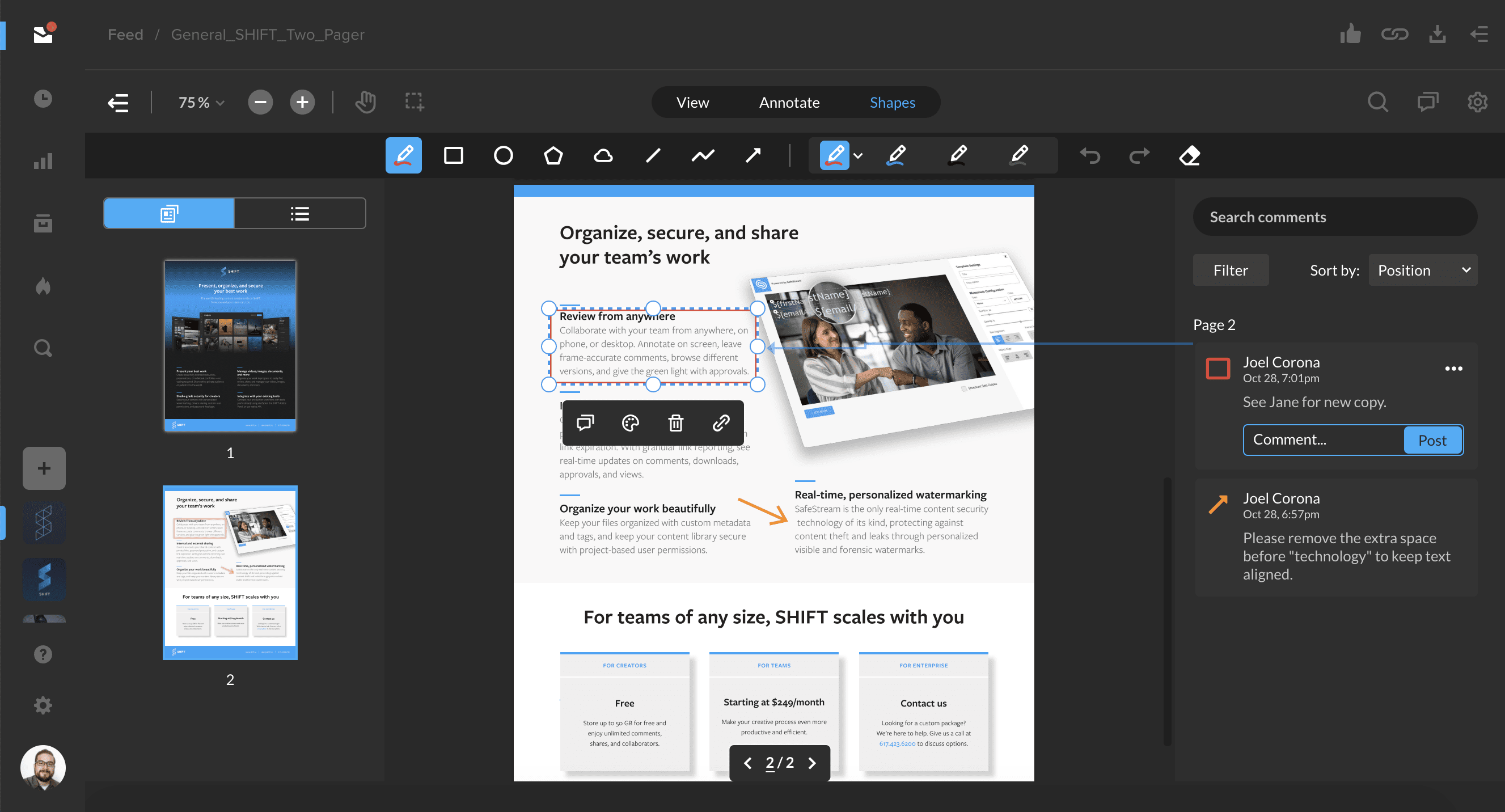
SHIFT now offers review and approval for document files! After sharing a document for review, you and your recipients can now annotate pages with comments, drawings, and a variety of customizable shapes.
Document review is supported for common file types, including PDF, Word Document (doc, docx), PowerPoint (ppt), and Rich Text Format (rtf) files.
Click below to learn all about document review functionality in SHIFT.
You’ll now be able to quickly search through your file metadata on the right-hand side of the Projects screen. With an asset selected, click the filter icon next to the “+” button to display the metadata search bar. Enter a search term to find custom metadata or metadata that is automatically extracted when you upload a file, such as bit rate and codec information.
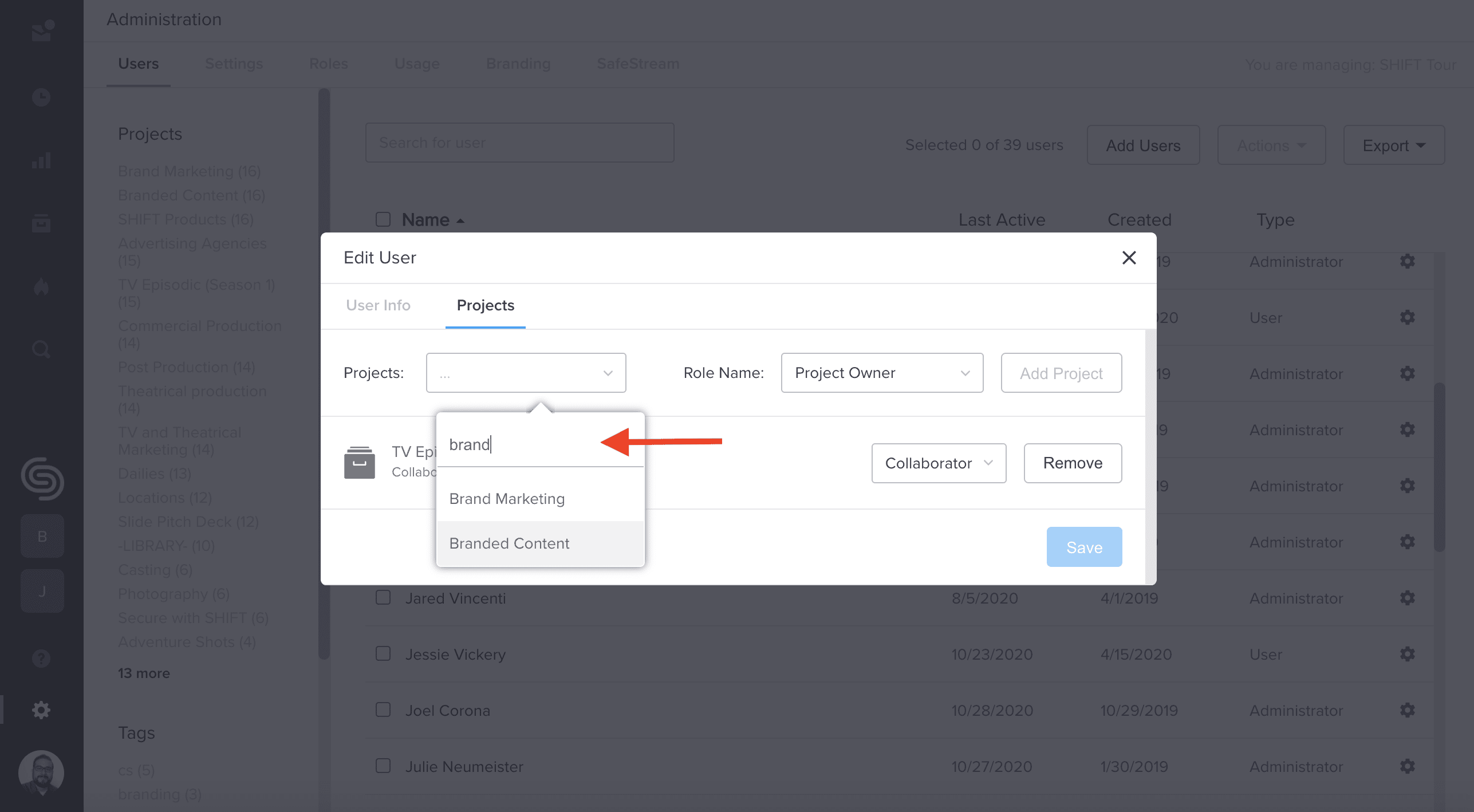
In addition, you can now search for projects in Administration. When assigning projects to new or existing users, you can now use the search bar to easily find specific projects.
Join us to look at the opportunities and economics of production in the cloud using EFS shared media storage, with Seamless Proxy Editing, and FLOW media management. This cloud production workflow solution allows you to reduce costs by up to 75%, without compromising the workflow experience you expect using the creative tools you love.
From our tutorial sessions at Adobe MAX 2020, watch this video to learn:
How to import media from FLOW media management, edit and send for review all within the EditShare panel for Adobe Premiere Pro
How remote users collaborate online through the AirFLOW web UI with results returned by to the panel
How to work with high resolution media or proxies and seamlessly pull in markers from FLOW asset data
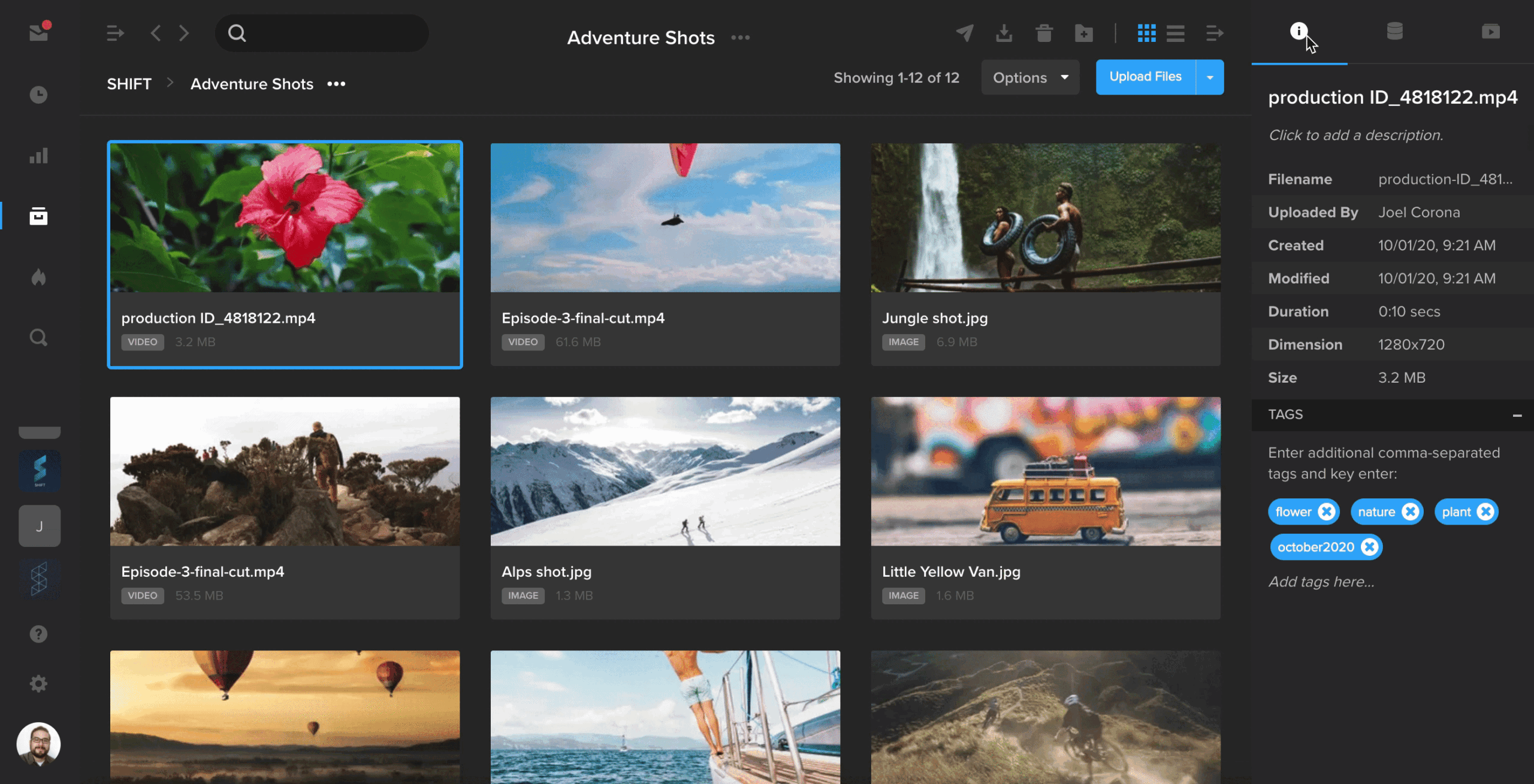
The right-hand drawer in Projects has been expanded to include a separate tab for metadata.
When you have an asset selected, click the first tab to view your asset tags and basic information about your file, including file size, dimensions, and the date and time it was uploaded.
Select the second tab to view all of your asset’s metadata, including the metadata that is automatically extracted when you upload a file. To enter custom metadata, click the blue “+” button and enter your metadata key and value.