MediaSilo Product Update: Type-ahead improvements, sort by size [Release Notes November 3rd]
Latest Improvements:
The newest release makes some of the most common functions you perform in Shift even faster and more streamlined than before, from typing-ahead recipients’ names to sorting your projects.
You can quickly add auto-suggested users to a Recipients field by hitting the comma, enter, space, or tab keys. This applies to the Distribution List and Share windows.
When you open an options menu by clicking the three dots on a project or asset tile, no need to carefully move your cursor to stay inside the box – the menu will stay open until you either select an option or click outside the menu.
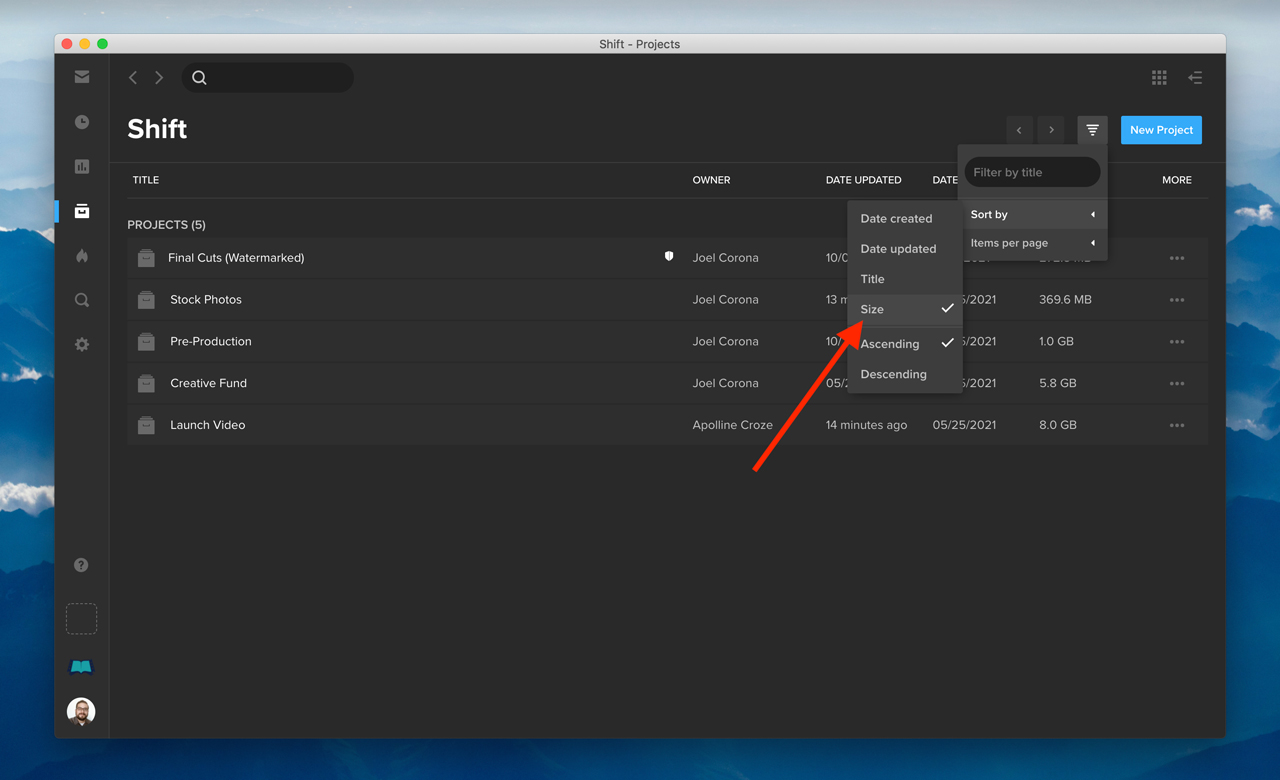
Find what you’re looking for faster. You can now sort your projects according to size. On the Projects landing page, click the filter icon in the top right, and select Sort by > Size. Or, if you’re using list view, just click “Size” in the Size column.
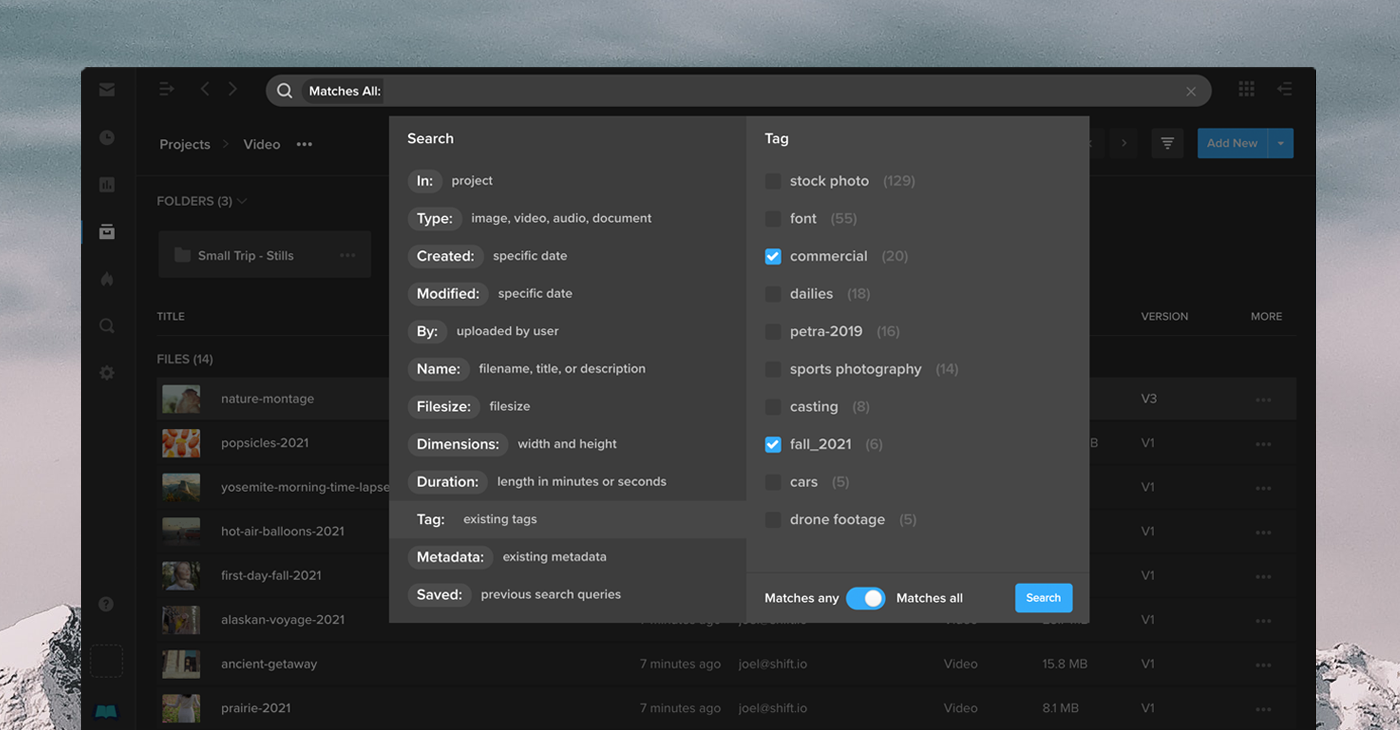
The search menu has been updated to display your newly created asset tags.
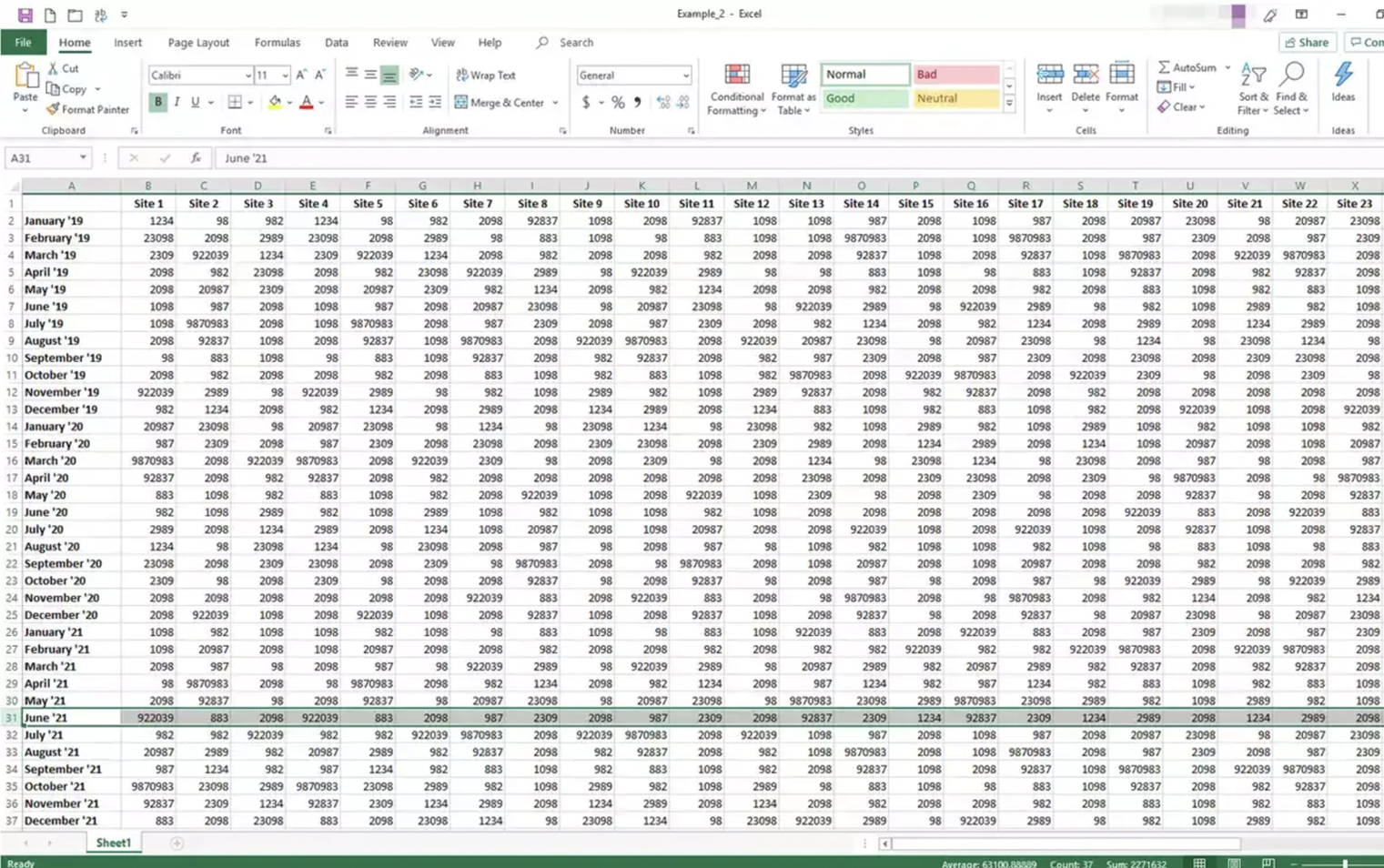
Love it or hate it, one of the most inescapable software tools in all of TV, film and video production is the ubiquitous spreadsheet. Studios, crews, agencies and teams of all types and sizes track their schedules, gear, assignments, call sheets, and locations using the infinite rows, columns and cells of a trusty pivot table.
But when it comes to the media assets that are vital to delivering productions for your business, it’s time to lift the spell of the spreadsheet and shine the light on real insights instead.
Fact #1: Spreadsheets are notorious for errors
From the age-old report that 88% of spreadsheets contain errors, to more recent studies showing that 20% of genetics scientific papers contain errors caused by spreadsheets, it’s commonly known that trusting your important stats to Excel is far from reliable. Even if the data itself isn’t complicated, tiny mistakes – whether from repetitive manual user input, imports of incorrectly formatted data into existing files, or simple miscalculations in formulas – can all make spreadsheets prone to errors.
Fact #2: Spreadsheets require expertise
Unless you and your stakeholders are professional data wranglers, spreadsheets can be difficult to analyze. Why? Because on one hand, rows upon rows of raw data are hard to gain insights from without the necessary filtering, graphing, and sorting it takes to really discern their importance. And on the other hand, although many software tools have visualization features built-in, it’s too easy for anyone to use them to interpret data incorrectly.
Whether you send out a spreadsheet nightly, weekly, or quarterly, it’s outdated the moment you hit “export.”
Fact #3: Spreadsheets are stale
How often do you have to update a dashboard, create a report, or provide analytics on your shared media files? Whether you send out a spreadsheet nightly, weekly, or quarterly, it’s outdated the moment you hit “export.” And that means the knowledge your stakeholders gain from the data may no longer apply – introducing potentially costly delays, and making important decisions too late. Without real-time data, your perfectly formatted, color-coded spreadsheets are simply not actionable.
A better way to track your content
There’s no trick to tracking your shared media assets with Insights, the media analytics engine within MediaSilo.
Insights is accurate.
There’s no mistaking the accuracy of analytics on your project, assets, and viewers; all the data comes directly from your MediaSilo system, not a separate software tool. How much is the file being viewed? Who is viewing the file? When are these people viewing the file? And how often are files being viewed vs. downloaded? No matter how granular you need the data, you never need to create a separate tab, formula, or file. From an entire project, right down to a single asset.
Insights is confusion-free.
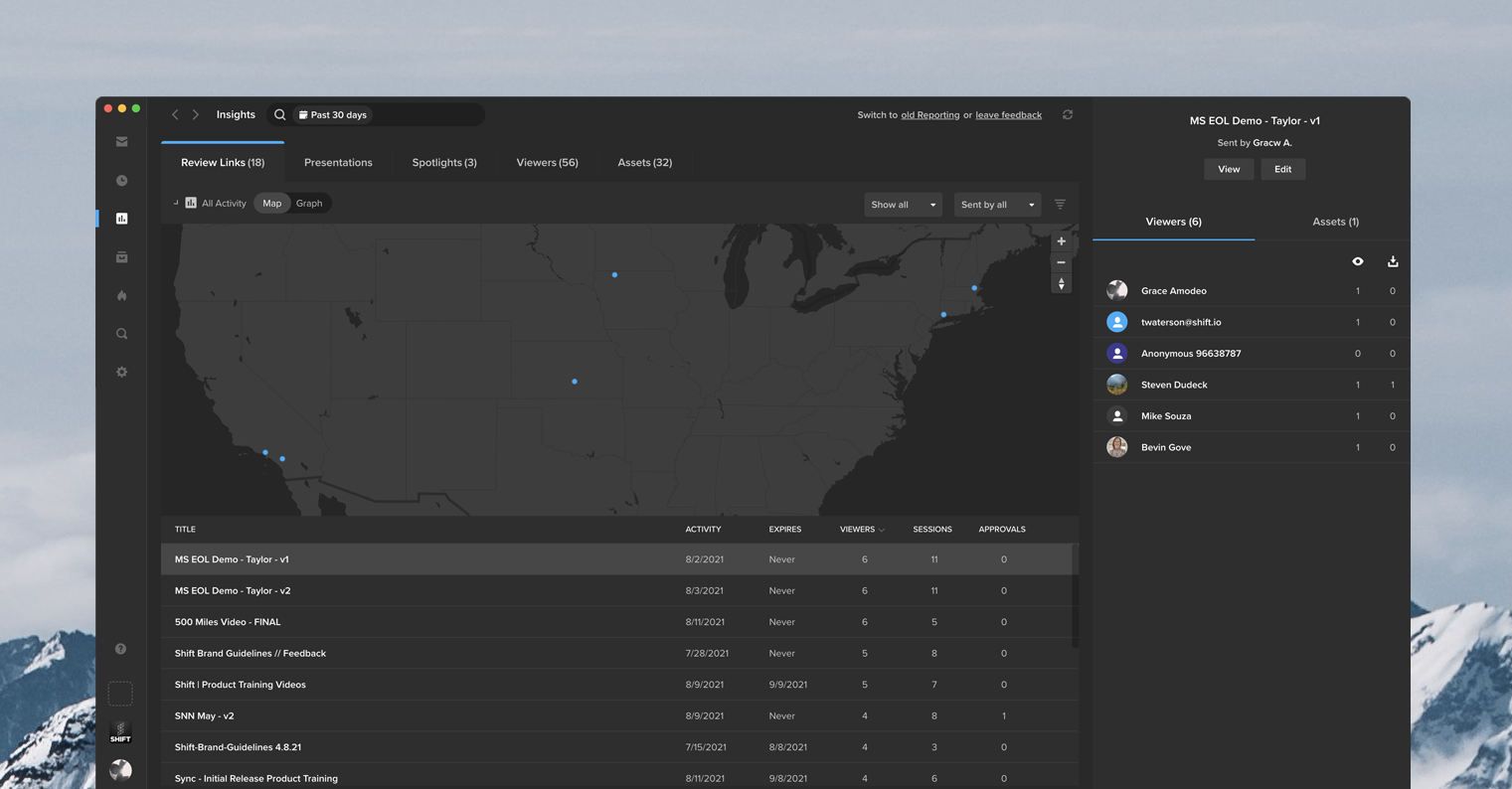
The Insights dashboard is designed to answer questions about your assets, regardless of how you ask them. Want to see where your videos are being viewed? No need to create a graph from scratch — the IP address map will show you. Wonder when a video was viewed the most? Look at the timeline view. Happy that twenty people watched the clip, but you want to know which twenty? See them for yourself. Insights gives you easy access to visualize your data, with tools that can’t be tricked.
Insights is actionable.
One of the most important uses of your data will be in helping your business make quick decisions about your media assets — and better ones, too. You can gain intel, for instance, about how far into clips a viewer gets before viewership drops off, and have your team make changes to the content. Even more immediately, if you notice content activity in locations you don’t recognize, you can pivot your security on the fly by editing expiration dates, password protection, or presentation and link settings in the dashboard. With Insights, media security is like a crystal ball in your hands.
Break the spell
Media assets are the backbone of a studio’s or agency’s intellectual property. So when it comes to quickly tracking, analyzing, and reporting on them, it’s important to avoid the demons that plague spreadsheets. Make your sharing, reviewing and usage data more accurate, more understandable, and more actionable – instantly – using Insights in MediaSilo.
Tour De Force Born out of sheer determination and passion, 3P Studio has earned its place in Australia’s creative landscape as one of the industry’s hardest working boutique post-production houses. Founded and led by artisan Haley McDonald, 3P Studio’s eclectic portfolio of post-production work includes desirable commercial brands such as Subway, Allianz, Isuzu Motor Company as well as iconic and defining shows like Sesame Street.
“There are a few projects that we are particularly proud of at 3P Studio and one that stands out is the work we did with Brisbane-based advertising agency, Carbon Creative, for the Australian Department of Premier and Cabinet’s ‘Stop the Hurting: End Domestic Violence’ campaign,” comments McDonald. “It was the first large-scale national campaign that we undertook in the studio; it was an honor that they selected 3P to work on such an important campaign.” A testament to their quality and influence, 3P Studio was recognized for their outstanding work on the “Stop the Hurting” campaign, receiving a silver medal in the Brisbane Advertising and Design Awards.
Humble Beginnings Leads to a Local First With almost two decades of experience in the media and entertainment industry, McDonald has worked for some of Australia’s largest post facilities. Passionate about her craft, McDonald always knew that working as a creative storyteller was her true path. “I got my love of TV from my late father. I never had a bedtime as a child and he used to let me watch TV with him whenever I wanted. This led to a lifelong obsession of working with media and creatively telling stories. On the flip side, I got my work ethic off my mum, who worked in a hospital laundry for 30 years. I grew up in a housing commission until I moved to Brisbane when I was 18 and worked in a supermarket there until I saved enough money to go university and study film.” Drive and passion work hand in hand and proved to be incredible assets to McDonald as she forged her own path in a male-dominated industry.
It was after the birth of McDonald’s son in 2013 that life took an unexpected change and really challenged her commitment to being an artist. “I had left for maternity leave in 2013 to have my first child, Dash, who is now eight. When I came back to work after six months, my position had been made redundant and I no longer had a job to return to.” While most would see this as a devastating blow, McDonald turned it into the opportunity of a lifetime. “For some time I had wanted to open my own shop. But, like most people, I had a mortgage, daycare and other bills. So, venturing off on my own was just too risky, but with no job in hand, I had nothing to lose. It was my chance to follow a dream and I gave it everything I had.” Starting out as a freelance editor and designer, McDonald took every job that came her way. “I would never say ‘no’ to a job. I would never say I was booked. I would just say, ‘Yes, no problem, I can do that.’ Even if I had three jobs in one day, I would just take them and work out how I was going to deliver. Eventually, I started hiring people to help as I took on more demanding projects. Since I had been in the industry and was so well connected, I was able to get projects out the door with a very high degree of quality thanks to very talented colleagues. This, of course, translated to very happy clients and exceptional word of mouth marketing.”
Working 7 days a week, McDonald transformed the busy freelance business into one of Brisbane’s few woman-led post-production houses. “I bought my office in 2016 and took six months to fit it out. On Christmas Eve 2016, they handed me the keys to the office and they went, ‘There you go.’ And as 1st of January 2017, 3P Studio was officially in business.”
Purpose Built for Business and Creative Content McDonald built the stunning boutique facility from the ground up. And the chic design took into account installing an EditShare shared-storage solution in late 2017. “When we were wiring the office I made sure I had the cable runs and all the infrastructure shared down the track. I always knew that I wanted to install EditShare because I had used it before, and I really liked the way it supported the content flow. We just needed to save for the investment.” For the first six months, the team worked off the old hard drive system where they had RAIDs that were backing up to other RAIDs overnight and doing mirroring for redundancy. “So, we’d put a project in motion and eventually come to the point where someone would say, ‘Oh, that operator needs to use the project on that,’ meanwhile someone else also needed to use it too, then we’d copy off the data onto another drive and it just became unmanageable so we made the leap to EditShare.”
McDonald quips that she could have purchased other gear, but the EditShare scale-out shared storage nodes were the solution to power her successful business. “I could have gone out and purchased a Mac Pro and hooked it up to a couple of hard drives. Would it have done the same thing? To a certain degree, but it hasn’t been tried and tested like in EditShare. After talking with the guys at EditShare and getting the rundown of the specs and performance reports, investing in EditShare gave me the peace of mind I needed. In addition, my previous experience with using EditShare on very demanding projects assured us that this system would take a beating and keep performing.”
3P Studio installed an EFS 200 single node scale out shared storage solution connecting 10 creative Mac and PC-based workstations over 10-GB Ethernet comprising a mix of Adobe® Premiere® Pro and After Effects®, The Foundry’s NUKE, Maxon’s Cinema-4d, Autodesk Maya, 3D Studio Max, DaVinci Resolve for grading and the premium hero suite, Autodesk Flame Premium while Avid Pro tools is utilized to provide audio post production. With advanced support for project and media sharing, EditShare features helped tremendously with the boutique’s retail clients who, more often than not, required an incredibly fast turnaround. It allowed the team to work simultaneously on projects with one person recording voice-overs while another artist works on the graphics and another edits. “Because the EditShare system is designed for content sharing, it makes the workflow as fast and as collaborative as possible. This means higher quality projects completed on time and of course most importantly, happier clients.”
A Business in Overdrive The successful post-production company tripled its staff between the years of 2017 and 2021, requiring an expanded media infrastructure. Upgrading to EFS 450 and adding FLOW and AirFLOW, the team was able to facilitate traditional editorial campaigns and the growing number of fast-turn projects targeted for social, digital, and other marketing channels. McDonald adds, “More and more client requests are project-specific rather than a campaign. While the content still needs to be delivered across all channels, it has a short-shelf life and smaller budget. The pace from start to finish is accelerated. With our expanded EditShare installation, we have a content factory workflow that gives our clients a first-class post-production experience meeting both their tight timeline and budget requirements.”
The addition of EditShare’s remote media management solution, AirFLOW, to the workflow allowed 3P to offer a “content warehouse” service to its clients. Clients can log in from anywhere, browse through content at their convenience, review work-in-progress and submit project changes. The service removes the burden of clients needing to maintain their own drives or storage servers as all content is stored on the EFS storage platform, maintained by 3P. It also enabled remote collaboration, which was key during the pandemic restrictions.
McDonald notes of the growth, “Our business has reached a point where we need to utilize advanced tools to refine our service offering and delivery. EditShare workflow solutions and creative tools like Adobe have enabled us to make those advancements across our business and deliver a superior level of service.”
Setting a Great Example As a woman-run and owned post facility, Haley is in a very rare category. “I am very proud to be a female post house owner and can definitely say there is room for more of us to take the lead! Running my own shop has given me the opportunity to work with female directors, producers and operators and I take great pleasure in collaborating with them in my studio. In addition, I also have the support of a fantastic group of young men who are sound designers, VFX artists, animators and videographers and I am very lucky to have them. I also have the support of loyal clients that have been with me since I started and most of my work comes from word of mouth which is nice.” As for EditShare, we are very proud to be a part of this success story.
EFS, FLOW, and AirFLOW and Adobe integrations support workflow demands and enable new client service offerings
Boston, MA – October 26, 2021 – EditShare®, a technology leader that enables collaborative media workflows for storytellers, today announced that Brisbane’s leading post-production facility, 3P Studio (3P) has expanded its investment in EditShare’s FLOW media management and EFS storage solutions to manage its growing editorial business. The full-service post-production house, which produces creative content for top brands like Isuzu Motor Company, Subway, and Allianz, has tripled its team over the past three years to support the rise in client projects and campaigns across broadcast, digital, and social channels.
“Our business has reached a point where we need to utilize advanced tools to refine our service offering and delivery,” states Haley McDonald, Founder and Managing Director, 3P Studio. “EditShare workflow solutions and Adobe creative tools have enabled us to make those advancements across our business and deliver a superior level of service.”
3P upgraded their EditShare environment to facilitate traditional editorial campaigns and the growing number of fast-turn projects targeted for social, digital, and other marketing channels. The EditShare media foundation connects the facility’s premium creative tools which include Adobe® Premiere® Pro and After Effects®, Avid Pro Tools, Autodesk Maya and Flame, DaVinci Resolve, NUKE, and Maxon’s Cinema 4D, creating a well-integrated ecosystem that optimizes post-production workflows. The talented 3P team of compositors, editors, and color graders can seamlessly collaborate on projects utilizing FLOW and EFS to manage the nuances of file sharing, asset tracking, file formats, and package delivery for multiple channels.
McDonald adds, “More and more client requests are project-specific rather than a campaign. While the content still needs to be delivered across all channels, it has a short-shelf life and smaller budget. The pace from start to finish is accelerated. With our expanded EditShare installation, we have a content factory workflow that gives our clients a first-class post-production experience meeting both their tight timeline and budget requirements.”
The addition of EditShare’s remote media management solution, AirFLOW, to the workflow allowed 3P to offer a “content warehouse” service to its clients. Clients can log in from anywhere, browse through content at their convenience, review work-in-progress and submit project changes. The service removes the burden of clients needing to maintain their own drives or storage servers as all content is stored on the EFS storage platform, maintained by 3P. It also enabled remote collaboration, which was key during the pandemic restrictions.
“EditShare is designed to make it easier for customers like 3P to collaborate with their clients from anywhere,” Paul Hayes, Regional Sales Manager for Asia, EditShare “Rather than having clients send in individual drives to work with, 3P houses all of their content and clients simply log in, browse, and give direction. EditShare speeds up the entire workflow enabling 3P to create space and scale their business in new directions while creating a more personalized service for their clients.”
“We love seeing studios such as 3P tap into the power of our Adobe Creative Cloud apps, like Premiere Pro and After Effects,” said Sue Skidmore, head of partner relations for Adobe video. “EditShare takes advantage of Adobe panel APIs and other integration features that bring media management right into the creative applications, enabling users to pivot their productions and deliver high-quality content quickly.”
About EditShare EditShare is a technology leader in networked shared storage and smart workflow solutions for the production, post-production, new media, sports, and education markets. Whether you need on-prem, cloud, or hybrid solutions, our products improve efficiency and workflow collaboration every step of the way. They include media optimized high-performance shared storage, archiving and backup software, a suite of media management tools and a robust set of open APIs that enable integration throughout the workflow. Customer and partner success are at the heart of EditShare’s core values ensuring a world-class experience that is second to none.
Church services are increasingly attended in living rooms as well as traditional venues. Well produced content can significantly increase the reach of a church and make services, events, and activities accessible to remote audiences.
From gathering in person to connecting online The ongoing global health emergency acted as a giant reset for many aspects of society. Churchgoers unable to attend services in person often found their local house of worship offered online programming of church services and other activities. Like most TV viewers, these online audiences have come to expect polished production values, easy to digest program segments, and ways to engage with the content.
Producing programs for both in-person and virtual congregations involves creating everything from full-length services to byte-sized segments. For this level of production, you need a media infrastructure that enables you to pay attention to lighting, sound, the number of cameras and their positioning, stagecraft, and editing.
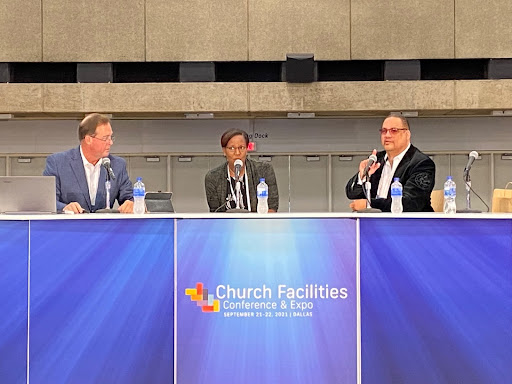
Fletcher Garrett
Recommendations from a top house of worship video engineer For nearly 8 years, Fletcher Garret was the engineer in charge of TV operations at The Potter’s House Dallas. In that role, he was charged with setting the direction for technical innovation, and made it all work, under the pressure that will be familiar to anyone involved in live broadcasting.
The 10,000 capacity of The Potter’s House building is dwarfed by the 30,000 strong membership of the church, with a following many times that on social media. Essentially, The Potter’s House has a lot in common with broadcasters, except it produces all its own content.
We asked Fletcher what advice he’d give to churches, big and small, as they embrace TV production.
The importance of planning up front “I’d say it’s crucial for churches to plan their systems properly. They must plan for what they want to do and buy the systems that support the objective. Are you going to merely stream your “conventional” services? Or are you going to make the production more “theatrical”? The more complex your ambitions, the more consideration you need to give to the hardware and the software that are going to bring those experiences to life.”
Fletcher adds, “I have witnessed organizations blame the system for their workflow issues when in reality it was the lack of planning. The equipment has the potential to do what you need, but it’s the plan that enables that potential and makes your media infrastructure work for you!”
The media server is at the heart of your system set up A church typically purchases cameras, a switcher, and some storage. However, everything centers around your media and what ultimately matters is how you manage that content. A production media server is much more than a hard drive. It is the heart of the entire operation that allows you to manage the content and your video production workflow. If you just think of storage in terms of capacity, it’s like walking into a bookshop and saying, “I’d like a book, please”. The media server finds the right book for you and puts it in your hands immediately. You need a media server to effectively manage your media and maximize efficiency.
EditShare’s Mike Mahoney, The Potters House A. Ty Ayers Allen and Engineer Fletcher Garrett
Technical experience is important Also, there is a distinction between production staff, and engineers. Essentially, engineers assist in planning and make the technology work. The engineers keep it working, enabling the production staff to make programs. If churches don’t have an engineer on staff, there are good system integration companies out there that they can partner with. Experience matters when dealing with any system planning and engaging a good system integrator early on would be in your best interest.
Plan for ROI To get the best return on your investment, it’s absolutely essential to design your system and your workflow to make the type of material you have in mind but also do it efficiently. The more time you spend on planning, the more time you’ll have to make great programs. So, consider all the types of productions you want to deliver to your audience. Then, talk to EditShare. They’ll help and make sure you get the right system to achieve your goals.
The power of EditShare’s integrated media production platform for church productions While cameras, lighting, video switchers, and audio mixing desks might be the most visible parts of a TV production, it’s the “back-end” that makes it all work together. That back-end is EditShare’s EFS, a media-optimized shared storage solution. EFS connects to a high-speed network and is capable of moving very large files around quickly. It takes the place of tapes, external hard drives, “sneaker-net” and recording devices.
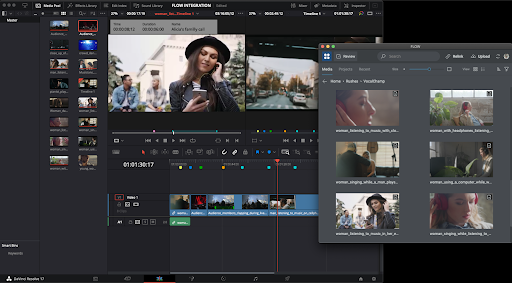
Combine EFS with FLOW, a clever media management solution, and you have an integrated platform for video production.
FLOW Panel for Resolve. FLOW integrates post-production into the workflow.
You can keep track of your files, always with frame accuracy. You can generate “proxies” – small versions of the original files that are still high quality but easy to move over even a broadband connection which are essential for remote working. You can convert files into multiple formats for distribution. The platform also allows multiple people to work on either the same or different projects at the same time, keeping track of permissions so that one editor doesn’t overwrite another editor’s work.
Most of all, EFS and FLOW keep complexity away from the users, and when technical administration is needed, it is highly optimized and easy to learn.
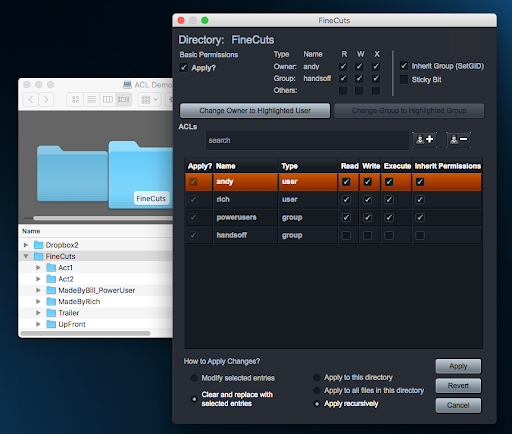
All storage appears as a single volume – a single storage space, even though it’s composed of potentially dozens of drives. Management software allows parts of the space to be allocated to individual users or groups. Security is built in.
EFS Active Directory gives users a familiar windows explorer view.
With so much storage, some of it is used to provide resilience against disk drive failure. If a drive fails, the overall system won’t even slow down while it is removed and replaced. It certainly won’t lose any material.
To sum up, the core of a “back-end” integrated video production system can:
Ingest multiple camera feeds and other files and media
Store the content centrally
Make this content available to authorized users (editors, etc) simultaneously
Allow editors to collaborate on stories
Make small versions of the media files (“proxies”) that can be used remotely
Allow editors to work anywhere
Take the place of tapes and portable disk drives
Look after your content security
Store media long term in an archive
Use AI to search for keywords and phrases making it easy to find relevant material, even from years ago
Keep this extremely advanced technology simple to use, reliable and productive in ways that would be impossible with previous-generation products
Streamlined layout: Shift is optimized to fit better on screens of all sizes. By grouping certain options and reducing excess space throughout the app, it’s easier to see more of your projects and files at once. The “New Folder” button is now located under the “Add New” options, and the delete button remains accessible by right-clicking any file.
Organize projects – your way: Hovering over a project or folder in the project tree now reveals an options menu, so you can quickly create subfolders and organize your content. To access your project tree, open any project and click the arrow button in the top-left corner of the screen.
Smoother, faster searches: The search menu makes it easier than ever to search using a single tag or multiple tags. Too many results? Narrow down your search by using the “is” and “is not” options. Your saved searches now appear in their own section at the bottom of the search menu.
Bug Fixes:
Review links now send properly when first copying the link before saving or sharing it.
Insights reports exact video views when a Spotlight is viewed on a mobile device.
Long titles no longer overlap with dates in Insights.
Asset thumbnails are displayed without an extra space when your thumbnail preferences are set to “fit.”
When you view a Spotlight, your video starts playing automatically if autoplay is enabled on the video or stage element.
When you share an asset that is protected by an email watermark, the “Create Link” button is disabled until you specify your link recipients.
The Media panel for adding files to a Review Link or a Spotlight now includes text to indicate the Projects menu is searchable.
Content creators put a lot of effort into presenting their work the way they’d like it to be seen, but what happens if the right people aren’t looking?
Add in the fact that your films, videos, creative assets, and pitch decks can be seen on mobile, laptops, tablets, and desktops and can be shared, streamed, and tagged, and it quickly becomes hard to track who is seeing what content where. And, perhaps most importantly, why some content trends more than others.
That’s why the team at MediaSilo has come together to create an all-in-one reporting dashboard to help you measure value, track consumption, and calculate ROI for all of your creative content.
The result?
MediaSilo’s Insights dashboard gives each member of your team the power to dissect data on specific content, weave together trends from across your portfolio, and paint a picture of who your audience is and the types of content they love to consume. Even better? You can customize the data you are looking for to see exactly what you need.
So what does deploying MediaSilo’s Insights mean for each of your teams, and how can they use it to drive next-level value?
Gain Insights for Every Team
From production and sales to editing and content security, Insights puts powerful reporting tools, filters, and analytics at your fingertips, giving every team member the ability to track, understand, and act on your content’s performance.
Use data to help sales and marketing educate, iterate, and win business.
Take a deep dive into your content’s viewership back to day one to see what is resonating with your audience, tagging content with filters and features that can be summarized to enlighten your team and fuel data-driven decisions about what and who to target next.
MediaSilo’s Insights can also help your team keep track of prospects and the types of content that is resonating with them, providing personalized data that can be used to facilitate new connections with potential buyers when they are most engaged.
Finally, step into your customer’s shoes during a sales pitch in real time with viewer-level reporting. Take the feedback to improve your sales pitch and present your most impactful content at the forefront.
Empower production to engage, track, and collaborate.
Looking for additional opportunities to streamline your production lifecycle and amplify the impact of each contribution?
Use Insights to track team viewership across the production lifecycle to develop a deeper understanding of internal engagement with your content to refine your workflows and identify choke points.
Your team can then use the data to remove barriers, hold team members accountable for meeting their timelines, and consolidate engagement and feedback data whether they’re sitting in the office or participating in remote collaboration across the globe.
Waiting for feedback from colleagues or collaborators? Use Insights to discover who is reviewing which assets and who might need a reminder.
Understand, optimize, and evolve content security.
With team members on the go and using a range of platforms, security has never been so critical.
Leverage the power of Insights to validate your security controls to confirm that your content stays in the hands of your intended audience and know the exact point when data began to flow outside of your area of trust, complete with viewer locations on an interactive map.
Seeing content behavior that you don’t like? Pivot your content security on the fly by editing expiration dates, password protection, or presentation and link settings in the dashboard.
Take Production to the Next Level with MediaSilo
Your team works hard to make the best creative content possible for your customers, clients, and audience to enjoy.
Every word, image, and frame has been carefully crafted to be impactful and engaging, so why would you depend on your best guess as to what will strike a chord with your viewers?
When it comes to taking your content to the next level, don’t guess. Drive an intelligent content strategy with Insights.
No two creative teams are the same, so it’s not efficient to force them to use the same collaboration and digital asset management tools. Given that the review and approval process varies by team and content type, a versatile platform capable of meeting a team’s needs without sacrificing visibility and structure is essential.
With MediaSilo’s customized and flexible asset-based commenting feature, teams can implement the processes that work best for their specific needs while providing different options required by other teams.
MediaSilo’s Flexible Digital Asset Management
No matter the file type—including documents, images, and videos—or stage of development, MediaSilo makes it easy for teams to collaborate on content, wherever and whenever your reviewers choose to do their work.
With the digital asset already in your MediaSilo workspace, the process can get started with a click of the “Review Mode” button. You are then presented with a history of past comments, and users have the ability to add their own feedback.
Collaborate directly on an asset.
Whether it is one large piece of content or a broad portfolio MediaSilo makes it easy to collaborate with a larger group.
As comments and feedback are made, team members can review, respond, and track the history of an edit. Using MediaSilo means all comments are consolidated in one place, making communication seamless and transparent and allowing constructive dialogue to flow all in one forum.
Find a resolution to a comment or want to make a specific suggestion? Mark the comment as resolved or make an edit. These comments can then be hidden to help streamline the review process.
Once the feedback period closes, everyone will be on the same page, and your team will spend less time tracking down edits and more time reviewing and approving the next steps.
Provide specific asset feedback.
MediaSilo even allows team members to comment on a specific section or portion of an asset.
Just select the area of the asset with the built-in toolbar and record the comment. As team members review the feedback, the relevant area of the media will be highlighted along with the comment.
Collaborate with review links.
Need to reach beyond your team for feedback and input? MediaSilo makes that easy too.
You can quickly generate and send a private review link to a target audience, easily bringing them into the loop while still maintaining the peace of mind that comes with knowing that your content is for certain eyes only.
To get started, select the files you want to share, enter the email addresses of your collaborators, and hit “Share.” If you want the feedback to stay within that group, select “Limit comments to this link” before sharing.
After the review period, access to the asset can be quickly turned off, but the comments or annotations will remain directly tied to the file itself, allowing the entire team to review feedback together.
Take the Next Step
With a constantly evolving design and digital asset management workflow, you need a platform that is able to evolve and flex with your team.
With features like Review Mode, your team is free to work in whatever way is best for them all while staying on the same page.
Ready to learn more about the MediaSilo platform and other innovative ways to enhance how your team manages digital content? Set up a time to chat with one of our experts.