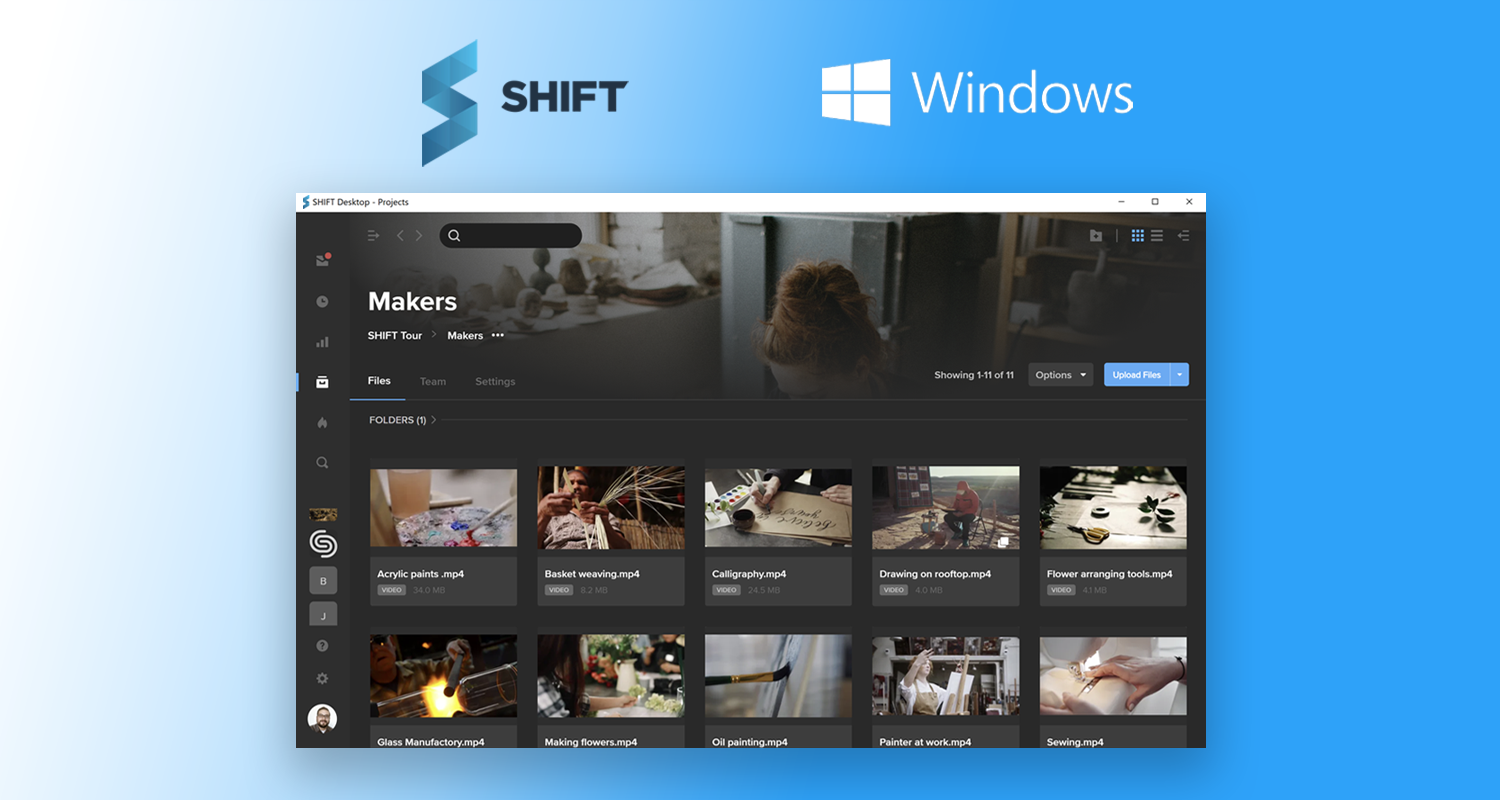
You can now download the SHIFT desktop app on your Windows computer for the full SHIFT experience. From uploading assets to sharing links for review and approval, you can access every SHIFT feature from the desktop app.
In addition to the features available on the browser version of SHIFT, the desktop app also offers bulk download functionality, desktop notifications, and greater speed.


Our guest Dustin Schultz talks all things team-building for your next video production. Bringing together the right kinds of people in the right roles is key for a successful on-set experience.
The following interview is an excerpt from our video series, Production – In Conversation. To watch the full interview and see more video content, click here. Or you can listen to the Shift In Conversation podcast here.
Dustin Schultz – Executive Producer – Union
Grace Amodeo – Marketing Manager – Shift Media
Grace:
Tell us about yourself and about Union.
Dustin:
I’m a husband to my beautiful wife, Rochelle. As of five months ago, I am the father to two newborn twin girls. Ten years ago I started a video production studio kind of by accident, and it came to be known as Union. Union is the secret weapon for connection and clarity in content marketing. We’re a video-first agency, and most of our work is with the brands directly. We like to say, it’s not good to play a concert for an empty stadium. And so if we can think about where your video is going to end up and make sure that the right people are seeing it, then you’re going to end up winning with it.
Grace:
When you’re getting ready to staff up for any given production, what is your first step? Where do you start?
Dustin:
Often we bring in a lot of our higher level, above-the-line people even before a project is awarded. We’ll bring in our producers and directors and we’ll do what we call our “Creative 30”, which is a 30 minute spaghetti against the wall, no holds barred creative session. Nothing is off the table. This is a chance for our upper level team to come in and have a voice even before we do our final pitch for a project. We definitely have a top tier of highly trusted producers, directors, and DPs that we get involved off the top. And part of the trust that we’ve given to them is that they pull in the people they trust below them, and the people that those people trust below them. It becomes this cascade effect of networks.
Grace:
On the highest level, what kind of people are you looking for when you are building a production team?
There’s a great author, Patrick Lencioni, who said — when hiring people, look for people who are humble, who are hungry, and who are smart . . . If you’re seeing those qualities come through a person consistently, I think you end up with some winners.
Dustin:
There’s a great author, Patrick Lencioni, who said — when hiring people, look for people who are humble, who are hungry, and who are smart. So what does that mean? Humble people are going to be putting others before themselves. They’re not doormats, but at base level they are courteous. A hungry person is not desperate, but they are very action-minded. They are going to jump in there. A smart person on a production is someone who studies their role, and is a constant student of their role. We’ve had great success applying these filters. If you’re seeing those qualities come through a person consistently, I think you end up with some winners.
Grace:
How important is it that you are hiring people that you have worked with before vs someone who is unknown?
Dustin:
I do really like a good mix. Within your top level people, your director, DP, even maybe your camera operator or audio engineer, it’s important that most of those people you’ve been on set with multiple times before. The tone of the project can only be set if the majority of those people are known versus wild cards. Having a group of “known”s to help set that tone is really, really key. I’m also fine with people being one or two degrees away from a person that I trust. And that comes back to extending that trust, I trust you to do a good job and I also trust your judgement on the person below you.
Grace:
Talk to me about the balance between hiring someone who is really great at their job vs someone who is really great to have on set. Where is that line for you?
Dustin:
If you’re really good at your role, part of your role is being a team player. We have had total jerks on set, someone for example whose job it was to help make beautiful images. It was a bad experience across the board, and even though they did make beautiful images we vowed to never hire that person again. Within production circles it is so easy to get blackballed for attitude. It’s a dangerous game to play. On the other hand we’ve hired people who are just great to be around, but you end up doing way more than you should be doing to help them. And as a producer or a leader you have a level of responsibility to have hard and honest conversations with people. A good producer can pull someone aside to let them know how they are coming across to other people, and the ability to have that conversation is not just for their betterment but the betterment of the industry.
A good producer can pull someone aside to let them know how they are coming across to other people, and the ability to have that conversation is not just for their betterment but the betterment of the industry.
Grace:
When you are hiring for on-set roles, do you consider not only how two people might get along but also how the various roles will all have to work with each other?
Dustin:
Absolutely I do. Especially in today’s age, production scales so much in terms of number of people on set. When it comes to person-to-person relationships, I think we’ve done a really good job of finding people that are just, in general, great to get along with. So whether you have three of them or thirty of them on set, it doesn’t become a concern. When it comes to the connection between the roles, I think it comes down to communication and code books, for lack of a better term. If I am a director and I’m trying to communicate something to my DP, is what I am saying clear to them? Do they come from a different background where the terminology I’m using doesn’t line up in the same way as it did for them? That’s why we try to bring those top-of-the-line people in pretty early on to be a part of the creative conversation.
Grace:
What would you say is the percentage of new faces vs usual team members on most of your sets?
Dustin:
On every set we definitely have new faces, especially at the production assistant level. Part of it is geography based, if the job is in a market that we haven’t worked in a lot then we’re going to send some of our top-tier people, but we’re probably going to also have gaffers and grips and lots of folks that we’ve never worked with. And things get a little bit riskier there. When we’re close to home then most of the time we’re going to pull together that same team, but availability says not everybody is going to be able to be there. So you’re going to end up with maybe 75% people that you’ve worked with in the past, who then use their referrals and their networks to pull in those other people. You can’t be so reliant on that one person being available, if you have most of your team together and a couple of new faces then you have the opportunity to learn who those people are and build trust with them and vice versa. Within verticals of production, we’ll sometimes do pre-interviews with folks even when there’s not a project yet. We interview dozens of people so we can really find the people that we work well with, for those desperate moments when your normal team is not available.
Grace:
What does it feel like when you’ve done everything right and you really have that A-team on a production with you?
It’s magical when that happens. You have those people who are anticipating needs, and getting them done. They feel empowered to go ahead and make decisions, you can hand off the micro-managing.
Dustin:
It feels like it’s your birthday or Christmas morning and someone happened to see your list ahead of time, but you didn’t share it with anybody. You open a present and you’re like, “Wait, how did you know?”. It’s when you write every email where you tell them that you were thinking about getting something done, and they already thought about it and already did it for you. There’s been a lot of projects like that for us. It’s little things, like when you have to do a company move within the same building that wasn’t expected. And the producer had the PAs move craft services from one floor to the other, so suddenly you walk into the barren new room and the coffee you need is already up there. It’s magical when that happens. You have those people who are anticipating needs, and getting them done. They feel empowered to go ahead and make decisions, you can hand off the micro-managing. To be a good leader, you have to be willing to pass off your anxieties to other people and say, “I trust you with this worry of mine, and I know you will make it happen”.
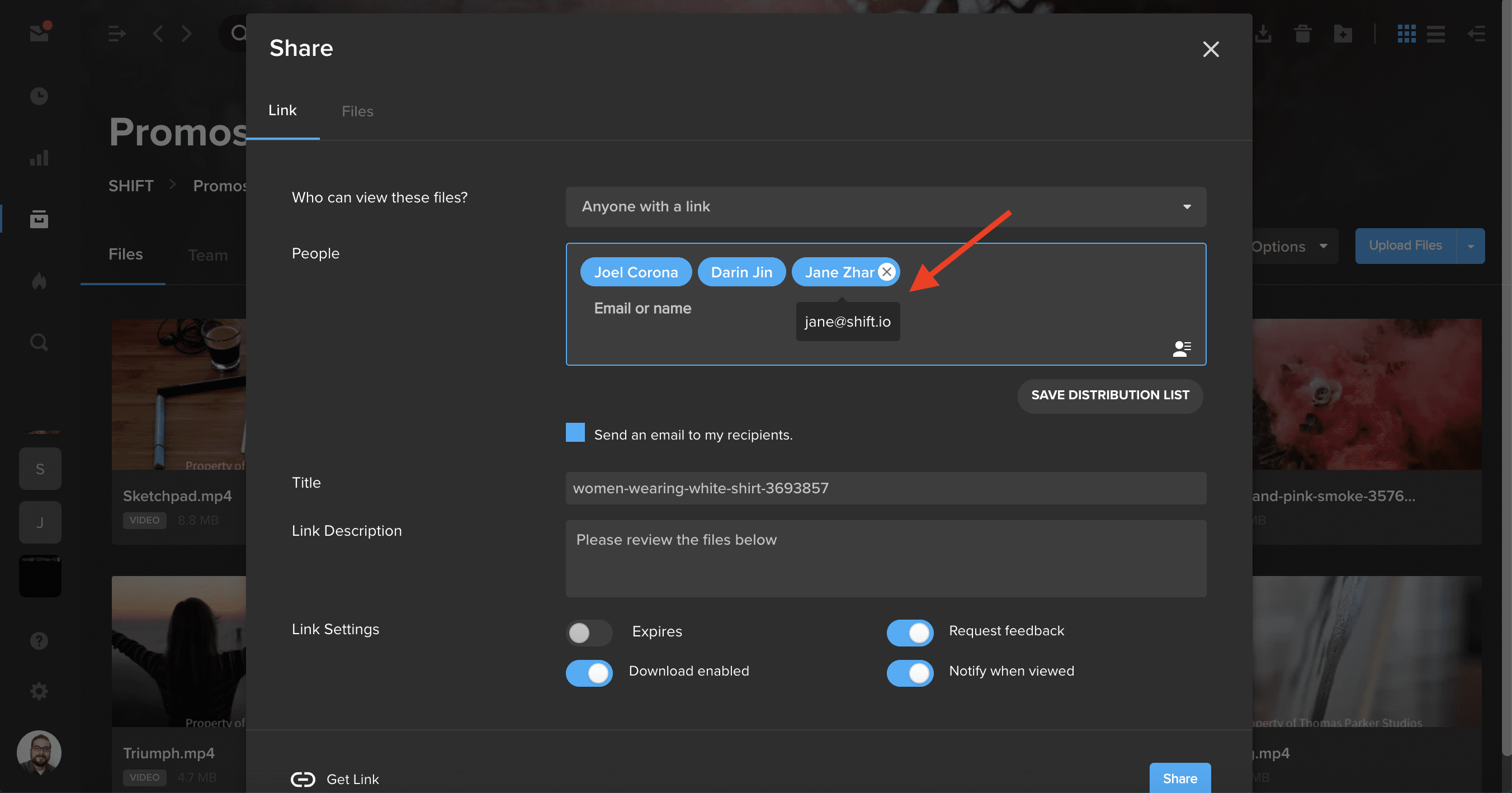
When sending or editing a review link, you can now see the email address associated with a user’s name. Simply hover over a user’s name to view their email address at a glance.
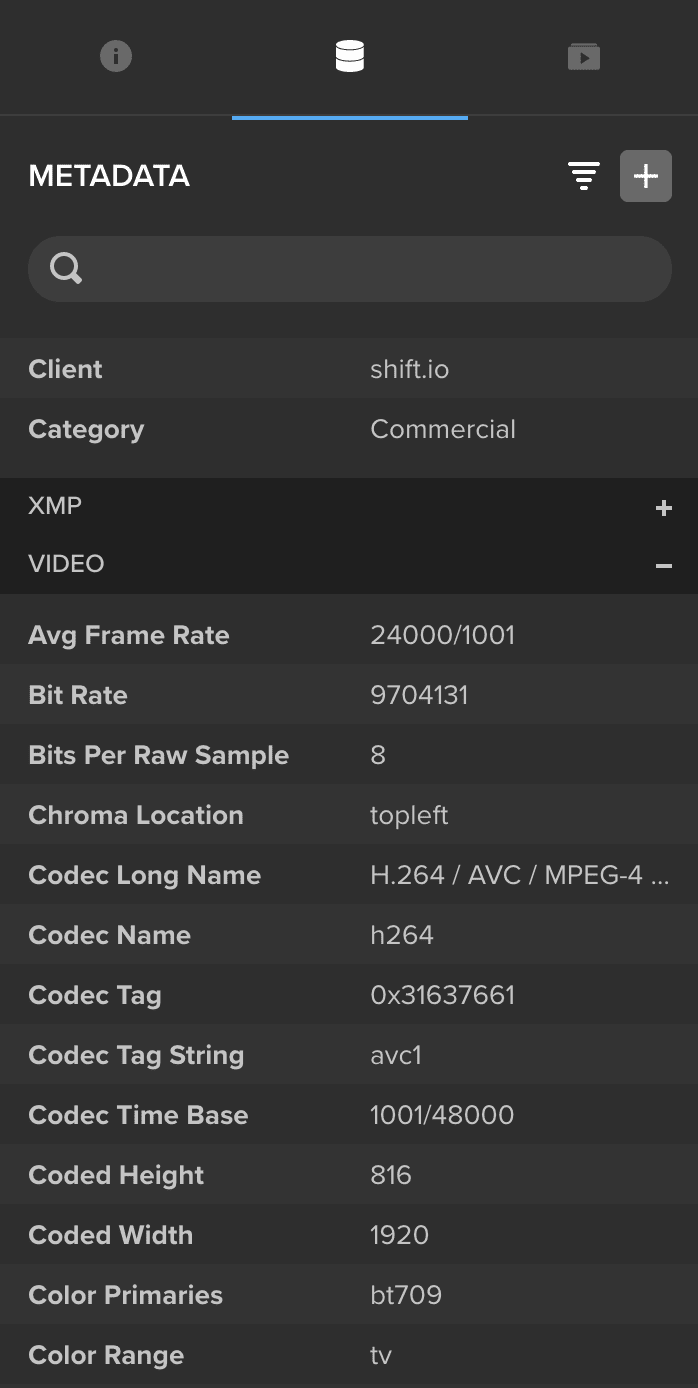
When you upload a new video file, SHIFT now collects and displays additional metadata in the General and Video sections of the Metadata tab of the right-side drawer in Projects. Use the search bar at the top of the drawer to quickly find the metadata you are looking for.
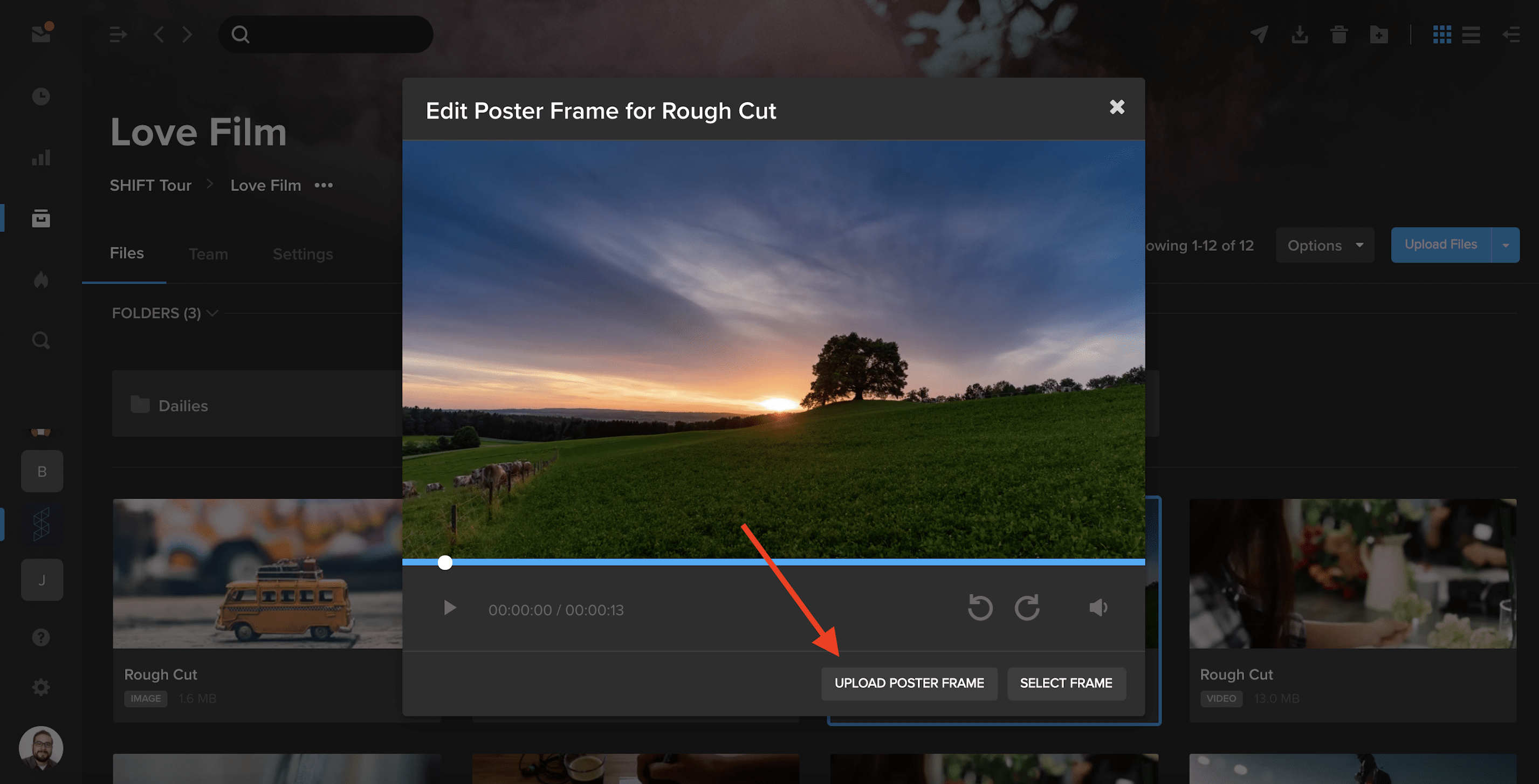
You can now use our Poster Frame tool to upload custom images as your video thumbnails.
- In a project where you have editing permission, select the three dots in the bottom-right of a video asset tile to open the action menu. Choose Advanced, and then select Edit Poster Frame.
- In addition to selecting a frame as your thumbnail, you can now click Upload Poster Frame and choose a .jpg from your computer to display as your video thumbnail.

Our guest Alex Minor talks through how to get started with video at your company, and why it’s so important, no matter your industry.
The following interview is an excerpt from our video series, Marketing – In Conversation. To watch the full interview and see more video content, click here. Or you can listen to the Shift In Conversation podcast here.
Alex Minor – Video Marketing Strategist – Eye AM Media
Grace Amodeo – Marketing Manager – Shift Media
Grace:
Tell us about yourself, and how you got interested in marketing and video production.
Alex:
I started out as a musician growing up. Music led me into going to school in Florida, a school called Full Sail which focuses on various forms of digital media, movies, video games, and audio. I eventually started freelancing in the corporate audio visual market as an audio guy, but I saw there was way more opportunity on the video side of things. I eventually bought some of my own equipment and started shooting my own stuff. I worked on indie films and some documentary shorts, and that really felt right to me. Learning people’s stories and helping them showcase that. And somewhere along the line the concept of video for business came up, and it was just like documentary filmmaking of another sort.
Grace:
Tell us a little more about your company, Eye AM Media.
I feel a kinship with the smaller business owners, the ones that don’t have endless gobs of money to throw at the marketplace, because I feel like I can really make a difference there.
Alex:
We’re a video marketing agency. Most of our clients are either coaches, consultants, or small business owners in the Orlando area. I really like working with the decision maker of the company, I’m not really trying to service humongous brands. I feel a kinship with the smaller business owners, the ones that don’t have endless gobs of money to throw at the marketplace, because I feel like I can really make a difference there. I can really make an impact. And that’s what I want to do at the end of the day, I want to help people grow their brands, change their lives, and help them help more people.
Grace:
Why should all brands be adding video into their marketing strategy?
Alex:
Because if they’re not, they’re already behind. Video marketing or commercials used to be only for the biggest brands, for the people with all the money. That used to be because the barrier of entry was really, really high. These days, the barrier is gone. The internet has become the great equalizer. You don’t need broadcast television, you’ve got multiple channels that are completely under your control where you can put video content. Most of us are walking around with a small creative studio in our pocket.
These days, the barrier is gone. The internet has become the great equalizer. You don’t need broadcast television, you’ve got multiple channels that are completely under your control where you can put video content.
Grace:
How do you decide what type of video is best for each brand?
Alex:
The two main types of content that businesses should be cognizant of are macro content and micro content. Macro content is the stuff you want to call somebody like me for. That’s going to be your highly produced, maybe scripted out, very intentional videos that are supposed to last for several years. They represent your brand in the most epic way possible. But keep in mind that the content shouldn’t be all about you, that content should be focused on your customers, their needs, and the type of change that you can make in their lives. Yes, you’re going to sneak in your products and services, but the main point of the conversation in all of that content should be your customer, it’s really about what’s in it for them. Micro content is the stuff that usually ends up on social media. It’s the top of funnel content, the stuff that keeps you top of mind. Stuff that’s going to be showing people that you’re human, bringing them into the business, giving them good advice. It’s not only going to showcase your expertise, but empower them at the same time. You don’t have to shoot it with a legit camera and have the gorgeous lighting. The message is what’s the most important thing.
Grace:
What are some of the questions you ask as a marketer before you get started on a video project?
Alex:
The first thing that I need to know is why they think they need video content. Why now? Why do you think it’s going to work for your purpose, and what is that purpose? That’s going to inform all the choices that we make. I also have to understand what your business is, and how it works. How have you been acquiring customers before, and how do you want to be acquiring customers now? What is the action that you’re hoping people will take once they see the content? Those conversations can lead in different places. And it might turn out that you don’t need the thing that you think you need.
Grace:
You also offer something called the “video business card”, what is that?
Alex:
The video business card is a multifaceted tool. A lot of people might call this your “about us” video or your “brand” video, your brand story. I don’t like to call it those things because the mistake I see in so many of these videos is that the point of view is very selfish. It’s about us, who we are, what we’ve accomplished. Everything in a video business card should be about the client, it’s about the customer. It’s about the change that you make in people’s lives. It’s about the service and why you do the service. What’s your personal motivation? I work mostly with smaller businesses, individuals who are growing a brand, people who tend to have very close relationships with the people they serve. People want to do business with people, and the video business card does a great job of humanizing you, making you real to somebody, and giving them all the tools and information they need to make 90% of their decision before they even meet with you.
People want to do business with people, and the video business card does a great job of humanizing you, making you real to somebody, and giving them all the tools and information they need to make 90% of their decision before they even meet with you.
Grace:
Talk me through the distribution strategy for a marketing video. What is the difference between all the available channels, and which one is best for a business?
Alex:
It’s about knowing your audience, and knowing where they live. If your target audience is over 30-35 years old, they’re probably on Facebook in some capacity. If you’re targeting early twenties or late teens, then they’re probably on TikTok and Instagram, maybe Snapchat. Everybody in the world is on YouTube, but is YouTube a good place for your business? It really depends on what kind of content you’re trying to put on YouTube. If all you’re trying to do is make sales videos, don’t bother with YouTube, because you’re not going to get any traction there. But if you want to actually inform and educate your customers, or have your videos be a resource that people can find over a long period of time, then YouTube might be the spot for you. Maybe your content doesn’t necessarily live on YouTube, but your commercials do.
Grace:
Do businesses always have to allocate budget for an outreach strategy, or is there a way to do it organically?
Alex:
It depends on your larger strategy. If Facebook is going to be your vehicle of choice and you don’t want to spend time growing a Facebook community or audience like that, then yes you probably need to put money behind your content. Organic reach on Facebook is pretty much dead, people are not on Facebook to look at businesses. If you think you’re just going to post content to your Facebook business page and it’s going to get seen by tons of people, you’re crazy. Unless you already have a humongous audience that are super fans, then maybe you don’t need to pay a lot of money. But even Facebook is trying its best to make it so that you finally give in, and start to pay. And my last piece of advice to anyone in the audience is that if you are a business owner and you’re not on LinkedIn, you should be!
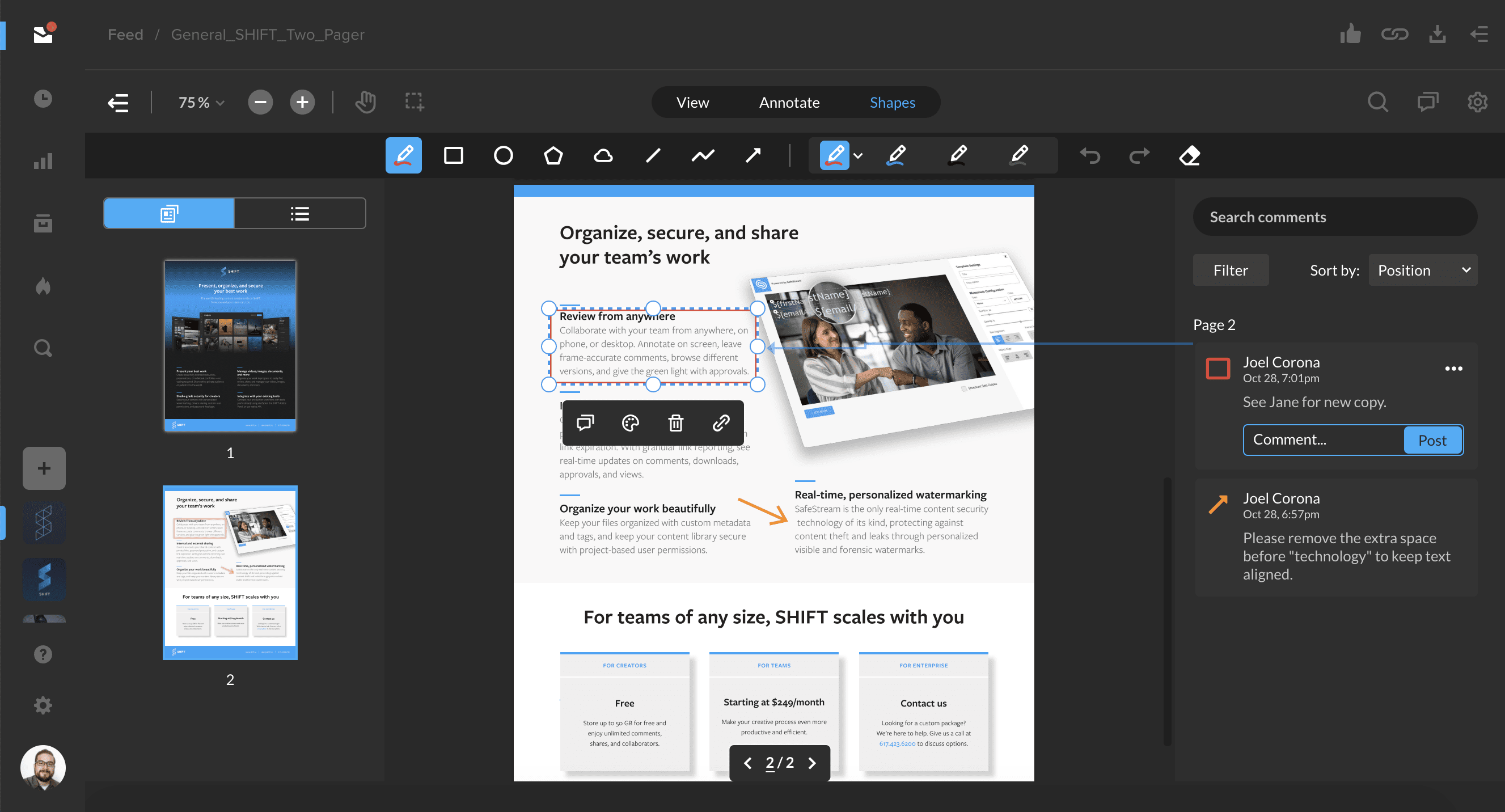
SHIFT now offers review and approval for document files! After sharing a document for review, you and your recipients can now annotate pages with comments, drawings, and a variety of customizable shapes.
Document review is supported for common file types, including PDF, Word Document (doc, docx), PowerPoint (ppt), and Rich Text Format (rtf) files.
Click below to learn all about document review functionality in SHIFT.
You’ll now be able to quickly search through your file metadata on the right-hand side of the Projects screen. With an asset selected, click the filter icon next to the “+” button to display the metadata search bar. Enter a search term to find custom metadata or metadata that is automatically extracted when you upload a file, such as bit rate and codec information.
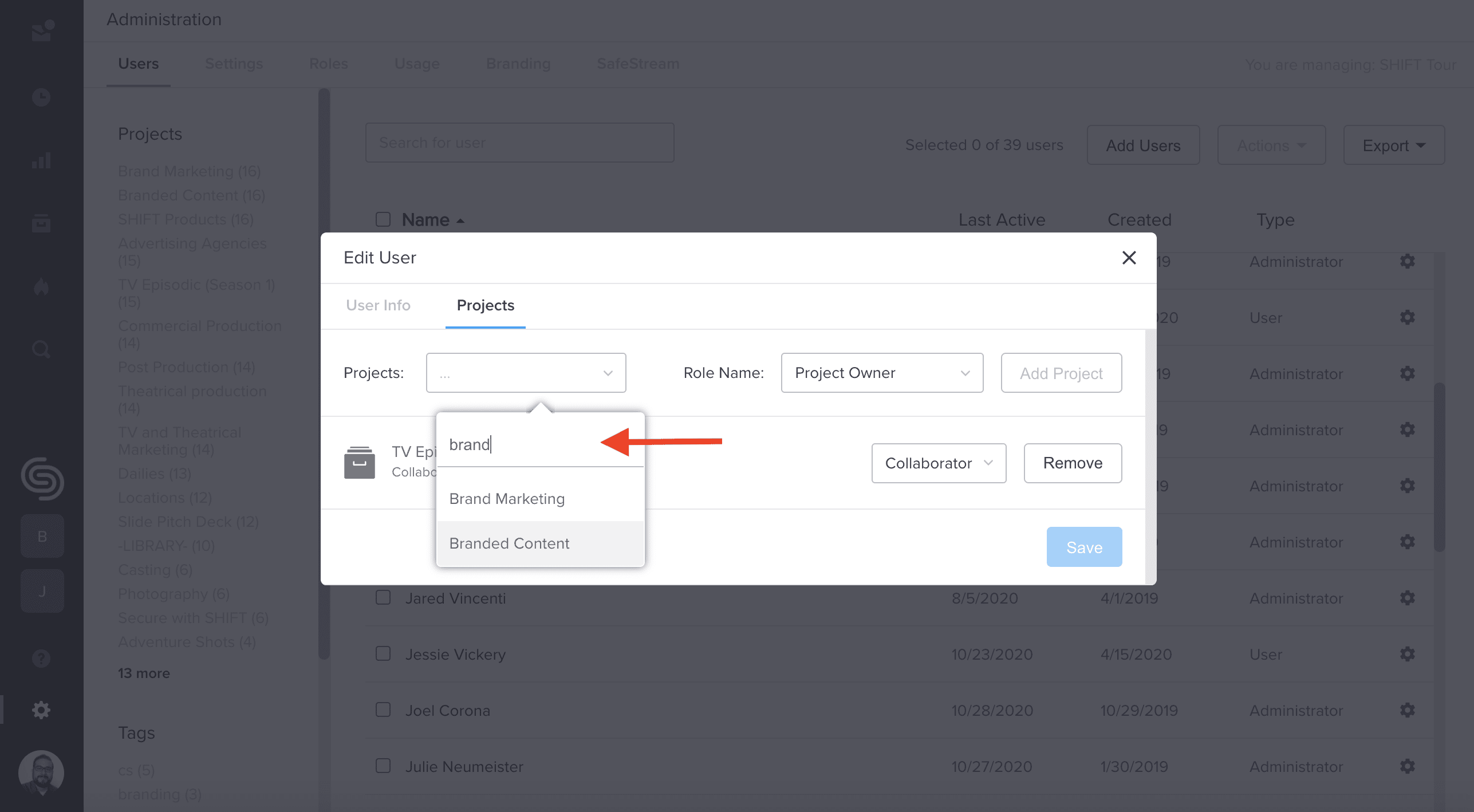
In addition, you can now search for projects in Administration. When assigning projects to new or existing users, you can now use the search bar to easily find specific projects.
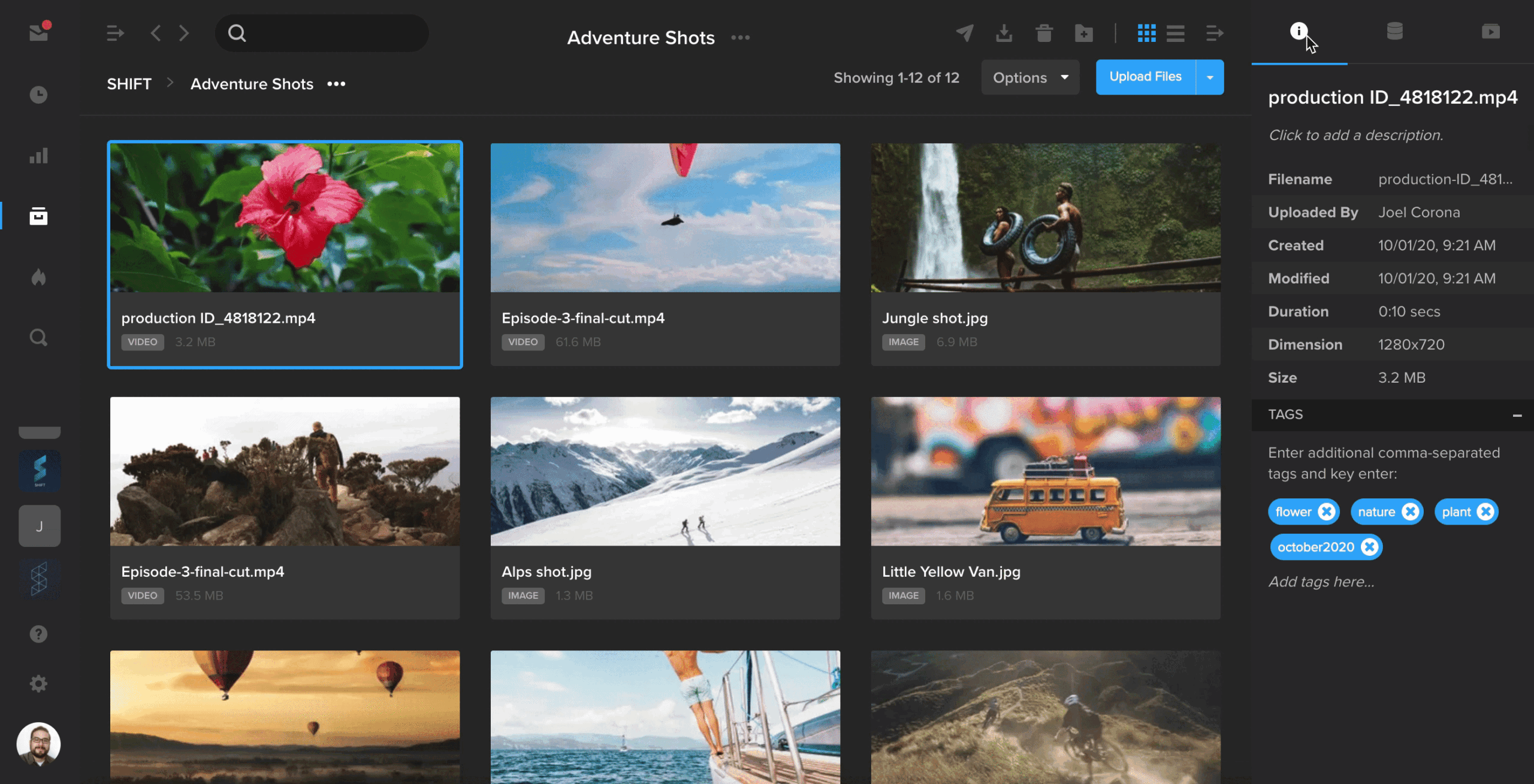
The right-hand drawer in Projects has been expanded to include a separate tab for metadata.
When you have an asset selected, click the first tab to view your asset tags and basic information about your file, including file size, dimensions, and the date and time it was uploaded.
Select the second tab to view all of your asset’s metadata, including the metadata that is automatically extracted when you upload a file. To enter custom metadata, click the blue “+” button and enter your metadata key and value.
Over the past year, we’ve received a ton of feedback from SHIFT users and customers of our legacy platforms MediaSilo and Wiredrive on what they’d like in a media management system. The most common themes were metadata file-tagging, better global search and navigation, and smaller file tiles to make better use of screen space.
Good news: We’ve solved for all of those requests — and more! Take a look at SHIFT’s new and improved Projects. It’s the most secure and user-friendly asset management platform you’ll find to manage your content at scale.
Here are the major improvements you’ll see in SHIFT:
New navigation, global search, and resizable sidebars
The first step to a productive workflow is a clean interface. You’ll notice that the project header collapses as you scroll, and folder tiles are now condensed. The new top navigation includes back and forward buttons, and the search bar helps you find what you need no matter which page you’re on in Projects. Plus, the left and right sidebars are resizable, so you can stretch your folder tree to reveal long folder names or hide it altogether for a more minimalist look and feel.
List view and resizable file tiles
List view is here! That’s right — now you can get a more compact view of your files. In both gallery and list view, you can customize your page size and the number of asset tiles that appear on the page. In gallery view, you can also adjust the size of asset tiles.
New upload manager
Here, we added the option to open a file’s asset detail page or its file location directly from the Upload Manager once the upload has finished processing. Other features remain intact: SHIFT still offers private network uploading, so you can enjoy faster upload speeds than the rest of the Internet.
Need to move or copy files between folders and projects? You can still do that by dragging single or multiple files and dropping them onto the folder tree.
Metadata tagging
When you have hundreds or thousands of files, it’s important for your team to know how to find the right ones at the right time. That’s why we introduced metadata tagging. In addition to plaintext tags, you can now create categories like location, director, and client. Set your categories and tags and quickly find files with the advanced search and filters on every page.
In-line Team and Settings tabs
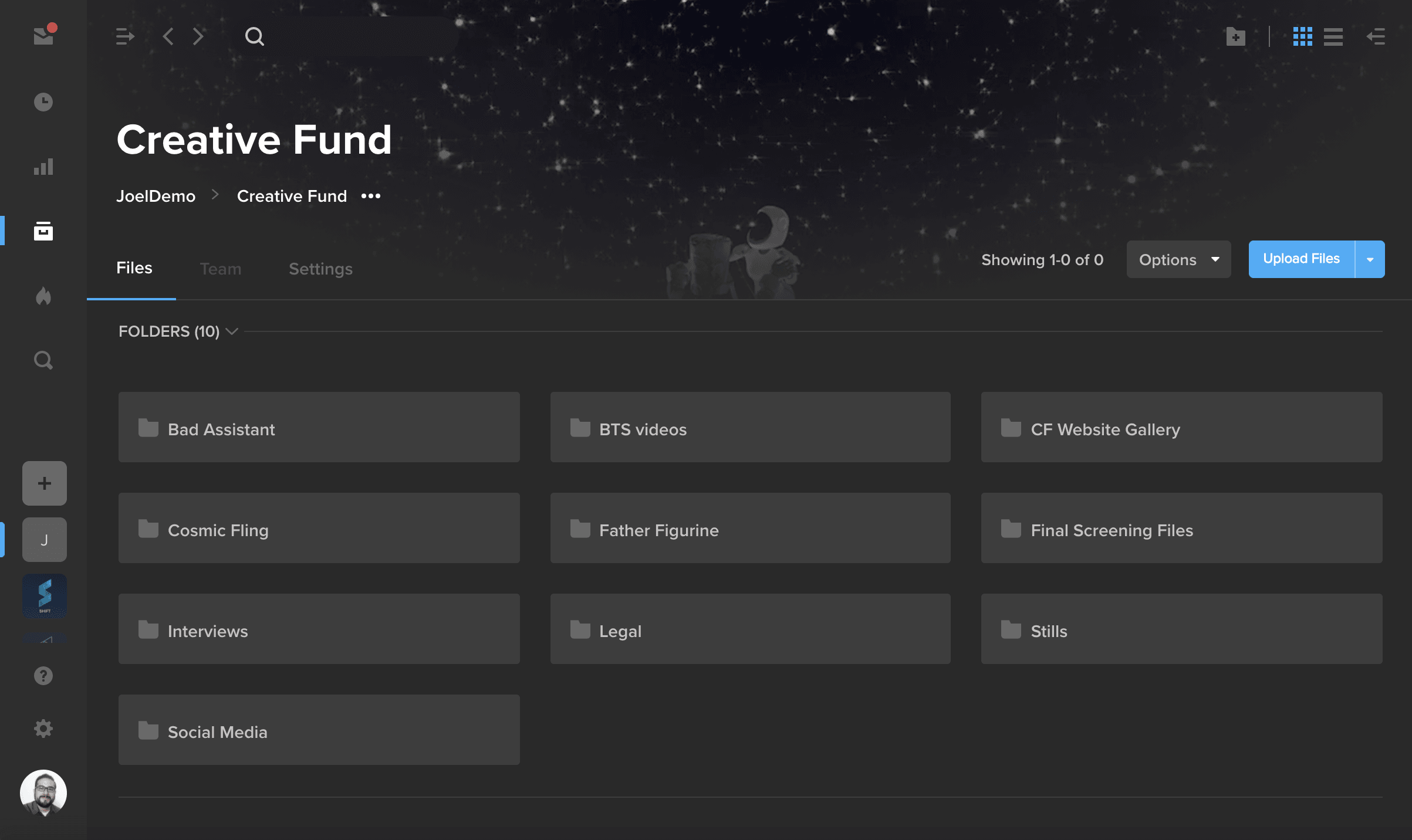
To make things easier for admins and project owners, we took what previously lived in the Edit Project pop-up window and created a new home for it in your new Team and Settings tabs. Use the Team tab to view, add, or delete project members or to change their roles.
Settings is where you can brand your project thumbnail and banner images, as well as manage things like lifecycle policies and SafeStream (our real-time, personalized watermarking feature for keeping your content cybersecure) if you’re on a paid account.
Explore all these changes and more by logging into app.shift.io. Don’t have a SHIFT account yet? Sign up for a free account or reach out to sales@shift.io with any questions.
You can now use SHIFT’s SFTP integration to upload both files and folders.
To get started, right-click on any project or folder, go to the Advanced options, and select “Create SFTP Credentials.” Enter these credentials in your SFTP application, connect to SHIFT, and start uploading folders to your SHIFT projects.





