
Today’s post-production teams are often highly distributed, with team members scattered across towns, cities, and even time zones. Fortunately, collaboration technology has made huge advances over the past few years, making working with your far-flung colleagues as seamless as working with someone in the next room.Although collaboration technology1 has revolutionized how we work, it has also helped open up the floodgates for potential data breaches. In 2020, when millions of workers suddenly pivoted to remote environments, security experts marked a significant increase in cyberattacks2, including phishing, ransomware, and brute-force password attacks, often enabled by poor cyber hygiene, lax password protocols, and unsecured remote access points.
In fact, a report by the Identity Theft Resource Center3 states that data breaches increased by 68 percent in 2021. These 1,862 security events surpassed the number of breaches in 2020 (1,108) as well as 2017’s record of 1,506.
Effective data protection is crucial for video production projects.
The media and entertainment industries have always been popular targets for hackers and other malicious users. But with cyberattacks on the rise and remote work environments likely here to stay, it has never been more important to make sure your collaboration software is secure enough to meet the challenge.
It has never been more important to make sure your collaboration software is secure enough to meet the challenge.
Some of the more common threats video post-production teams encounter include:
- Intellectual property theft
- Unauthorized access to files
- Accidental or malicious file corruption
- Ransomware
Depending on the type and the extent of the media breach, the consequences can be devastating to you and your clients.
For example:
- File encryption/deletion can delay post-production work and require expensive remediation to restore lost or damaged footage.
- Exposure of personal data can result in compliance penalties, fines, and legal fees.
- Leaked film footage can reduce potential revenue and impact the success of the asset.
- All of these scenarios can cause irreversible reputational damage to your brand, resulting in loss of customers—both current and future.

Look for these security features in collaboration software.
With security being a key requirement for your collaboration software, it’s important to find a solution that is tailored to the specific security and productivity needs of post-production teams.
MediaSilo studio-grade technology makes asset security a priority with three key capabilities:
1. Watermarking
Video watermarking is an effective way to deter unauthorized release of assets, track who is viewing and sharing content, and indelibly brand your shared content. MediaSilo’s SafeStream watermarking technology provides enterprise-grade security for your assets at multiple levels:
- Visual watermarks: User-specific information is burned directly onto the video to create a robust layer of theft deterrence.
- Forensic watermarks: Invisible tags trace a video to the user who requested playback, making it possible to trace leaks to the source.
- Ad-hoc watermarking: Send review links with custom watermarks for one-off use cases.
- Workspace or project-level watermarking: Create watermarking standards for specific projects or entire workspaces.
2. Role-Based Security
The post-production process requires the input of many different people—from video editors and sound technicians to graphic designers and visual effects artists. And while all of the players will need access to the project files, not every user needs the same level of access.
While all of the players will need access to the project files, not every user needs the same level of access.
Role-based provisioning lets the project administrator define who can access what and when by assigning permissions for standard or customized roles to provide flexibility and control over what a user can do in a given project.
For example, the project owner can delete a project, modify watermark settings, invite users to a project, or modify a user’s role within a project while an internal collaborator can only view, edit, and share assets within the team.
In addition to limiting permissions by roles, lifecycle policies can be used to set expiration dates for project assets and review links to control who has access to what and when.
3. Access Management
With so many employees now working outside of the traditional firewall, organizations are having to change tack and make the people the perimeter.
There are several ways to add additional layers of security to ensure only authorized users have access to your collaboration platform:
Multifactor authentication (MFA)
MFA requires credentials to be verified by more than a password alone. For example, when logging in, a user may be asked to enter something they know (a password) as well as an additional code sent to their phone or email.
Single sign-on (SSO)
SSO lets a user log in to multiple applications with one set of credentials. This increases security because it reduces the number of potential entry points (i.e., attack surfaces) for malicious users.
Passwordless login
This security approach creates a one-time link that confirms browser and machine identity each time before granting access tokens for login, and removes the possibility of a password being hacked or stolen.
Turn to MediaSilo to protect your assets.
Preventing data and media breaches is a top priority for every post-production team. MediaSilo’s secure collaboration technology can help ensure assets are only accessible by the right users and that videos are watermarked for protection against unauthorized sharing and leaks.
1: https://cisomag.eccouncil.org/security-gaps-in-collaboration-apps/
2: https://www.bbc.com/news/business-57847652
3: https://www.idtheftcenter.org/post/identity-theft-resource-center-2021-annual-data-breach-report-sets-new-record-for-number-of-compromises/

Once the camera stops rolling, it requires monumental effort from a team of professionals to take that video through post-production to the final product. During post-production, the video files will be reviewed, changed, shared, and saved by editors, artists, graphic designers, sound editors, members of the marketing and distributing teams, and many, many others.
In addition to the internal post-production team members, there’s also a multitude of external users that will need access to at least some of your files some of the time.
For example, on any given project, you may need to share the asset with freelance sound editors, VFX contractors, technology vendors, your clients, and other outside stakeholders that need to sign off on their portion of the project before it can officially be labeled as “done.”
With this many cooks in the proverbial kitchen, it is essential for the project administrator to control who can access which assets, what they can do with those assets, and when they can do it. This is where role-based provisioning comes in.
Why Role-Based Provisioning Is Important in Post-Production
Role-based provisioning keeps your workflow flowing and your content protected from theft, corruption, cyberattacks, unauthorized access, and even accidental file damage.
Although all of the different users have a legitimate need to access files and assets, not every user requires the same level of access. And it’s very likely that a given user won’t need the same access and user permissions for the entire post-production process.
To prevent overprovisioning and permissions misuse, users should only be granted the minimum amount of access needed to do their jobs.
Role-based provisioning lets administrators—and in some cases project owners—grant permissions on an as-needed basis. By customizing access for each user based on their specific role on a specific project during a specific time frame, it’s easier to control who is accessing files and footage at any point in the post-production process.
To prevent overprovisioning and permissions misuse, users should only be granted the minimum amount of access needed to do their jobs, and those user permissions should be revoked when the assignment is complete or after a predetermined amount of time. This helps prevent security and quality control issues due to vulnerabilities from unmonitored accounts and unauthorized access to critical systems and files.
How MediaSilo Makes Role-Based Provisioning Intuitive and Customizable
MediaSilo recognizes the importance of limiting and controlling access to video assets and files. We have prioritized access management and security by making role-based provisioning easy to implement and customizable to meet the needs of each project.
In MediaSilo, roles are created by the administrator using custom user permissions templates. These roles govern the level of access a user has to a project.
For example, MediaSilo administrators can assign role-based permissions that determine how a user can interact with a particular asset. For example, they may only be able to:
- Upload into assigned project rooms
- View
- Share internally
- Manage and share but not delete or download
Users can be assigned different roles on different projects, which may grant the user more or less access to assets on each project. But if a user is not assigned a role on a project, they won’t have access to that project’s files and resources.
Account Level Permissions
There are three user types that determine account-level permissions:
Administrator
This user has unlimited permissions. They are automatically added as a project owner on every project in the workspace, and only an admin may add and remove users in the workspace.
Manager
A manager is granted standard user permissions, but they also have the ability to create new projects. Creating a project automatically makes the manager the project owner (in addition to the administrator).
User
A user cannot create new projects, and they are limited to the default or custom roles assigned by a project owner.

Project Level
At the project level, roles are used to define who can perform certain actions and who has access to which assets:
Project Owner
This role, which cannot be modified or deleted, can be either the user who creates a project or an administrator. The project owner has every project-level permission, and only project owners can delete a project, modify watermark settings, invite users to a project, or modify a user’s role within a project.
Default Roles
These are premade roles that are available in every workspace. Default roles are based on industry or project needs, and they may be modified or deleted by an administrator as appropriate.
MediaSilo’s default roles include:
- Uploader: view and create new assets
- Asset manager: create, view, edit, delete, and share assets internally
- Internal collaborator: view, edit, and share assets internally
- Public collaborator: create, view, edit, download, and share assets
Custom Roles
Custom roles can be created in the Role Editor found on the Administration page. These roles are workspace-specific with custom permission selections assigned by the administrator. Custom roles are a good solution for team members who may need a unique set of permissions, for example:
- VFX artist
- Marketer
- Content Editor
Role-Based Provisioning in the Era of Remote Work
With post-production teams increasingly working from disparate locations and the rising risk of cyberthreats and other bad actors, using role-based provisioning to control who can access video assets and sensitive files is a common-sense security measure.
Download MediaSilo’s Guide to Post-Production Workflows to learn more about how post-production is evolving in the era of remote work and how you can increase efficiency, productivity, and security no matter where your team is located.

Even before the drastic changes many businesses have undergone the past few years, creative professionals were known for their ability to share their talents with one another to take a project from rough cut to final masterpiece.What has changed for those in post-production, however, are the collaboration tools that are now available to help them do their work more efficiently, securely, and effectively—from audio to visual effects—all within one purpose-built platform.
So whether you are in the market for a new post-production collaboration tool or if you are just beginning your research, here’s what today’s industry-leading platforms can offer your team.
How Modern Post-Production Tools Deliver for Remote Teams
Post-production teams have unique requirements when it comes to their collaboration platforms; not only do they need a logical and intuitive way to manage their assets, but they also need the right blend of security, communication, and functionality to streamline their workflows.
Fortunately, today’s modern post-production tools blend the latest innovations and industry best practices to help your team take its content to the next level.
Here are six of the key benefits:
1. Centralize projects and ease management, which saves time.
Retire manual workarounds, cloud drives, email, and texts as the primary way to manage, collaborate on, and complete projects. Instead, manage your entire portfolio from idea to customer delivery in one platform. This helps save your team time and ensures everyone is working from the same foundation.
2. Boost communication.
Go beyond chat messages and email, and use features such as in-asset tagging and frame-specific comments to pinpoint edits and feedback for follow-up action, helping to reduce turnaround times and prevent key details from being overlooked. Modern post-production tools also keep an audit log of all edits and feedback for each project so teams can track the evolution of a creative asset.
3. Provide version and user access control.
Assets can take a long and varied journey until they reach their final, locked version. A post-production tool makes it easy for editors to keep track of all of the versions and related elements until the cut is locked and keep careful watch over which users have access to your content and projects.
4. Make personalization and administrative management easy.
An industry-leading post-production tool can offer your team the ability to personalize how it shares content with customers and audiences. At the same time, you can gain access to enhanced audience analytics, advanced SafeStream watermarking, and multifactor authentication to keep your proprietary assets in the right hands.
5. Simplify storage and security.
A modern post-production tool provides an easy and secure way to centralize file storage. It also has the ability to introduce user- and asset-based access controls and customizable tagging and organization. This can even apply to collaborators outside of your organization or customers, providing them private links with time- or user-based access controls.
6. Deliver must-have production features and tools.
The last thing you want to do is introduce more tools and technologies for your team to juggle during their workflow. Today’s post-production tools not only integrate into your team’s existing creative ecosystem but can also enable them to natively add visual and audio effects, make color and text edits, and share works in progress.
MediaSilo is Designed for Post-Production Collaboration
While it seems like all of these benefits could easily turn into a long wish list, MediaSilo is specifically designed to provide these features—and so much more—to your team.
From real-time feedback and file sharing to customizable, secure, and web-based user access, no matter the size of your portfolio or your industry, MediaSilo is designed to help your team do their best work, regardless of where they are.
If you are ready to learn more about how MediaSilo can enhance your post-production workflow, we recommend you check out our Guide to Post-Production Workflows to take a deep dive into the power of the MediaSilo platform.

By the time your video content reaches post-production, it has worked its way from idea to reality. Along the way, many people applied their skills and talent to take that concept from storyboard to camera.
Now that the video is ready for the post-production team, it’s important not to assume the hard work is over. In reality, post-production is a time-consuming, multistep process that, depending on how well it’s done, can make or break your project.
There is too much at stake when moving content through post-production not to ensure the team is working efficiently, collaboratively, and securely. In other words, you need to create a great post-production user experience to maximize the ROI in time and budget spent on the project.
How to Improve the Post-Production User Experience
The term “user experience” gets thrown around a lot today, but that doesn’t diminish its importance.
No matter what industry you are creating a product for, good user experience—both for in-house and end users—is essential for building trust in your organization so you can attract and retain customers. When it comes to post-production, user experience will determine the level of talent you attract, whether they will choose to stay on the team long term, and even the quality of the end product the team produces.
In recent years, the post-production landscape has evolved. These changes have had a huge impact on workflow, adding a lot of complexity to the process that, in many cases, has had a negative effect on innovation and user experience.
For example, many post-production teams now work remotely across different locations and time zones. This new way of working affects everything from collaboration and file sharing to cybersecurity and data analytics.
To help combat today’s increasingly complex post-production environments and provide a high-quality user experience, many organizations are adopting feature-rich, easy-to-use collaboration software to help them navigate the new normal.
Video management and collaboration solutions, such as MediaSilo, can improve the user experience for all post-production team members by:
- Giving the right people the right access to the right resources
- Making file sharing friction-free
- Automating updates, so team members don’t have to guess which version is the most current
- Securing files against theft and accidental or malicious corruption
- Generating actionable insights through metrics and analytics
How MediaSilo’s Technology Enhances Your Post-Production User Experience
MediaSilo’s cloud platform for video teams provides an exceptional user experience by seamlessly connecting each member of the team with the tools, technology, and data they need to perform their best at every step of the post-production process.
To ensure every team member and stakeholder has the best possible user experience, MediaSilo focuses on seven core capabilities that maximize collaboration, organization, security, and more.
1. Access Management
Access to the right resources by the right people at the right time is essential for creating a secure but user-friendly workflow.
MediaSilo’s platform decentralizes management so each project manager can customize user access with workspace permissions and role-based user management at the project level.
2. Collaboration and Sharing
Collaboration is key in the fast-paced post-production environment, but it can be hard to keep the team aligned.
MediaSilo helps teams stay on track and on schedule with fast file upload; one-click sharing; internal, external, and private review capabilities; and asset-based commenting.
3. Organization
Unintuitive asset organization is a leading source of user dissatisfaction. If your team can’t find the right files, documents, and assets fast, productivity and user experience suffer.
MediaSilo’s platform provides multiple ways to keep your projects organized, including intuitive search, webhooks, and tagging. These features give users easy access to the resources they need to work efficiently.
4. Versioning and Updates
With multiple users updating and changing files, it’s easy to lose track of which version is the most current. Working on the wrong version will lead to schedule delays, expensive rework, or worse.
MediaSilo helps your video post-production team streamline versioning by allowing users to manage multiple versions of assets, view comments across all versions of a file, and compare versions of assets in a side-by-side view.
MediaSilo also automates publishing and updates, so you never have to wonder whether the working version is the most current version.
5. Integrations
Simplicity plays a huge role in user experience. The film post-production process is complex enough without adding extra steps, roadblocks, and incompatible tools.
MediaSilo’s video management and collaboration solution eliminates compatibility conflicts by letting users connect seamlessly from their existing creative and project management tools to import, export, and sync feeds. MediaSilo integrations also provide a secure environment to edit your content and collaborate with your team without switching between systems.
6. Security
Unreleased film and video projects are a popular target for criminals. To prevent unauthorized access, content theft, or file encryption, the post-production team must ensure their clients’ projects are well protected from cyberthreats.
MediaSilo’s enterprise-grade security is trusted by some of the biggest names in the business and entertainment industries. The platform provides multilayer security against both internal and external threats, including:
- SOC 2 Type 2 Certification
- SafeStream real-time security
- Multifactor authentication and SSO
- Lifecycle policies
- Visible, forensic, and ad-hoc watermarking
7. Analytics
MediaSilo’s powerful analytics enhance the user experience with in-depth insight into your post-production project’s progress and performance.
Capabilities include activity tracking that lets you track individuals across review links and presentations; see comments, approvals, and views; and play-through to measure drop-off points and user engagement.
Today’s already complex post-production environments are further complicated by the shift to remote workplaces, increased cybersecurity threats, and fast-changing technology.
By taking a proactive approach to creating an excellent user experience for your post-production team, you can improve workflow efficiency, increase team productivity, and deliver high-quality assets to your clients.
Download MediaSilo’s Guide to Postproduction Workflows to learn how this all-in-one collaboration platform empowers your post-production team at every step of the process.

Before the pandemic, remote work was a luxury enjoyed by employees in higher-level management or IT-type roles. Today, remote or hybrid workplaces are the norm in many organizations, with millions of workers conducting business while dispersed across geographies.
For example, tech giants Microsoft and Facebook offer flexible hybrid options, while Twitter maintains a fully remote business model and offers office space in key markets for workers who want it.
It’s clear that we will be living with COVID-19 indefinitely. However, for many businesses, embracing a remote work environment is about more than navigating a public health crisis.
The Pros and Cons of Remote Work
As businesses chose—or were mandated—to shift to a remote work model, the benefits of this new way of working quickly became apparent.
With no office space to maintain, businesses realize significant cost savings, including a reduction in operational costs and—for the truly committed—the elimination of real estate expenses.
And for employees, working remotely increases productivity and flexibility, improves job satisfaction, and positively impacts employee retention.
Companies that offer remote work opportunities also have access to a broader talent pool. With no geographical constraints, remote organizations can source skilled employees from anywhere in the world.
Although there are many reasons to appreciate a remote workplace, the model isn’t without its challenges.
For example, some employees miss the personal connection of working face to face with their colleagues. Others find communication breakdowns are more likely in remote environments. Another common complaint when working from home is that it is harder to “switch off” at the end of the day, leading to burnout.
Those in leadership positions cite security as a leading concern when supporting a remote workforce and find employee oversight more challenging in this type of environment. Executives have also found that setting up and supporting a non-centralized workforce can increase equipment and infrastructure expenses significantly.
Challenges of Managing the Post-Production Process Across a Distributed Team
According to some digital production experts, many post-production teams plan to permanently adopt remote or hybrid work environments.
Like so many workers, these teams switched to a remote model out of necessity but found that the flexibility of working remotely has made them more productive and efficient.
That said, achieving this efficient workflow isn’t seamless. There are several factors post-production teams must address to keep video content flowing in a remote work environment.
Structure
Without a centralized workspace, it is imperative to ensure that users at every stage of the post-production process have the equipment they need.
Due to the nature of this type of work, the team will need access to high-quality audio and video technology, the appropriate software and hardware, and a reliable and secure network connection.
Accountability
Post-production is a multi-step process, with each step dependent on the others to succeed.
In a remote work environment, accountability and visibility are key. To ensure the process stays on track, the team needs highly efficient project management, automated versioning capabilities, and reliable progress tracking.
Security
Securing remote post-production activities is challenging but essential. These teams work with valuable intellectual property frequently targeted by cybercriminals and would be extremely expensive to replace if lost or damaged.
To ensure the post-production process is secure, remote teams need to implement cybersecurity and data loss prevention initiatives that include:
- Role-based permissions
- Access management protocols
- Comprehensive data protection strategies
- Secure storage
- Multiple backups
Connectedness
Post-production teams must work closely with colleagues and stakeholders throughout the entire process.
Remote workers may find it difficult to communicate when they aren’t sharing a space with their team. Because collaboration is such an essential part of the post-production process, it’s important to invest in collaboration tools and file-sharing solutions that enable and encourage open communication.
Five Ways Collaboration Software Enhances the Productivity of Your Remote Post-Production Team
For many post-production teams, remote or hybrid work environments are here to stay. With the right tools and infrastructure, this evolution has the potential to supercharge efficiency and create a streamlined process that saves both time and money.
Collaboration software is an essential ingredient in a remote post-production team’s success. By providing these five core capabilities, the right collaboration software allows teams to work together seamlessly regardless of where members are located.
1. Management
Housing all of your video production assets on one platform makes it easier to manage the post-production process using features such as:
- File tagging and metadata
- Versioning
- Role-based user management
- Webhooks
2. Collaboration
Maintaining open communication channels between the post-production team and stakeholders keeps everyone apprised of project progress. It also ensures everyone knows when they need to provide input by using:
- Internal and external review options
- Tag-driven sharing
- Distribution list management
- Automated notifications
3. Presentation
In addition to facilitating creative cooperation, good collaboration software allows users to turn content into remarkable visual experiences that can be shared using presentation capabilities like:
- Templates
- Access controls
- Automated publishing and updates
4. Security
By the time your video gets to post-production, there are many costly resources involved in the project. A security-focused collaboration tool will protect your investment with industry-best features, such as:
- Visible, forensic, and multi-level watermarking
- Multi-factor authentication
- Single sign-on (SSO)
- Role-based project permissions
5. Analysis
No matter how much data you collect, it is only valuable if you can turn it into actionable insights. Good data can be a key driver of decision-making, so be sure your collaboration software is equipped with robust analytics. Ideally, your solution will allow you to:
- Track user activity across review links and presentations
- Track asset activity to gauge popularity and interest
- Export data in multiple formats
- Pinpoint dropoff points to measure user engagement
According to a recent survey conducted by MediaSilo, 94 percent of our customers are doing their post-production work in fully remote or hybrid environments. MediaSilo’s feature-rich, all-in-one collaboration platform helps post-production teams work together seamlessly, from delivering dailies to finishing the final cut. Download MediaSilo’s Guide to Post-Production Workflows to see how MediaSilo is taking the lead in remote post-production collaboration software.

In a time when production teams have to be comfortable collaborating remotely to meet tight deadlines and increasing customer expectations, scenarios like this can seem eerily familiar:
Your audio engineer is tasked with creating the final cut of your latest video project for a new client, working against a rapidly approaching deadline in their home office. When they look for the approved audio clip to add to the project, they can’t find it. They search Dropbox, hunt through their email, and try to contact team members via text, email, and Slack—all to no avail.
Now flip the script:
What if your team had one source of truth that helped each member of your team stay organized, collaborate, and share files, drafts, and communications, all with an intuitive, secure interface?
That’s what today’s industry-leading post-production collaboration tools are built to deliver.
So what are post-production collaboration tools, and how can they help your team?
What are post-production collaboration tools?
Simply put, post-production collaboration tools provide a centralized and secure place for your team to store, manage, and shape production assets.
Having “too many cooks in the kitchen” can be a hindrance in other industries. However, when it comes to creative projects that involve film, audio, and other visual arts, having as many experts in editing, sound, color, and other specialties as possible makes for even more impact.
Post-production tools are designed to help teams coordinate and integrate these perspectives and skill sets into the project. This is especially crucial now, with everyone in different work environments or even different time zones.
What can post-production tools offer your creative team?
At any given time, your creative team is juggling multiple campaigns with creative assets in various stages of completion. Add in the complexities of collaborating with teammates and customers worldwide, and the limits of email, chat, and video conferencing are quickly surpassed.
Post-production tools like MediaSilo provide the benefits of modern collaboration, secure storage, file sharing, and asset management solutions, all in one platform.
In turn, your team can:
The result is less time spent on inefficient workarounds and administrative tasks and more time delivering high quality content.
How can you pick the best post-production collaboration tools for your team’s needs?
Although every team and creative project is unique, there are design and collaboration best practices that are consistent across the industry and help teams boost their productivity.
So what are the features that should be at the top of your post-production collaboration tools must-have list?
You should seek a solution that:
- Is designed for your industry, offering the roles, tools, and features your team needs (e.g., editing, branding, review, annotation) in a remote-friendly, intuitive interface.
- Integrates the latest best practices in collaboration and presentation (e.g., audience analysis, multi-factor authentication (MFA), watermarking).
- Offers advanced file uploading and management (e.g., file tagging, metadata).
Take your post-production process to the next level.
Choosing a post-production platform isn’t easy, especially for teams still adjusting to remote work and cloud-based environments.
However, platforms like MediaSilo are designed to offer your team members new ways to share, collaborate, and grow their post-production workflows no matter where, when, and how they choose to do their best work. From offering a variety of file-sharing features to providing a source of truth without time-consuming workarounds, MediaSilo is trusted by some of the biggest names in entertainment and advertising.
If you and your team are ready to learn more about how MediaSilo can enhance your post-production workflow with additional security and productivity features, then we recommend you take a look at MediaSilo’s Guide to Post-Production.
With remote work environments now more common, modern media management tools and technologies empower post-production teams by providing a flexible, secure way to work and collaborate across time zones and geographies.
To better understand today’s workflows, we are taking a closer look at each stage of the post-production process and how today’s tools support a distributed, often global, workforce.
We covered post-production stages 1 through 4 in “A Shift in Postproduction Workflow: Taking Content from the Camera to the Rough Cut” and “A Shift in Postproduction Workflow: Taking Audio and Video from Concept to Reality.”
In part three of the series, we explore the final post-production phase: delivering and distributing the content.
Workflow Stage 5: Delivery
Once the creative work is finished and all of the elements are in place and approved, the finished piece is ready for final touches and the transition into the distribution, sales, and marketing workflows.
Versioning
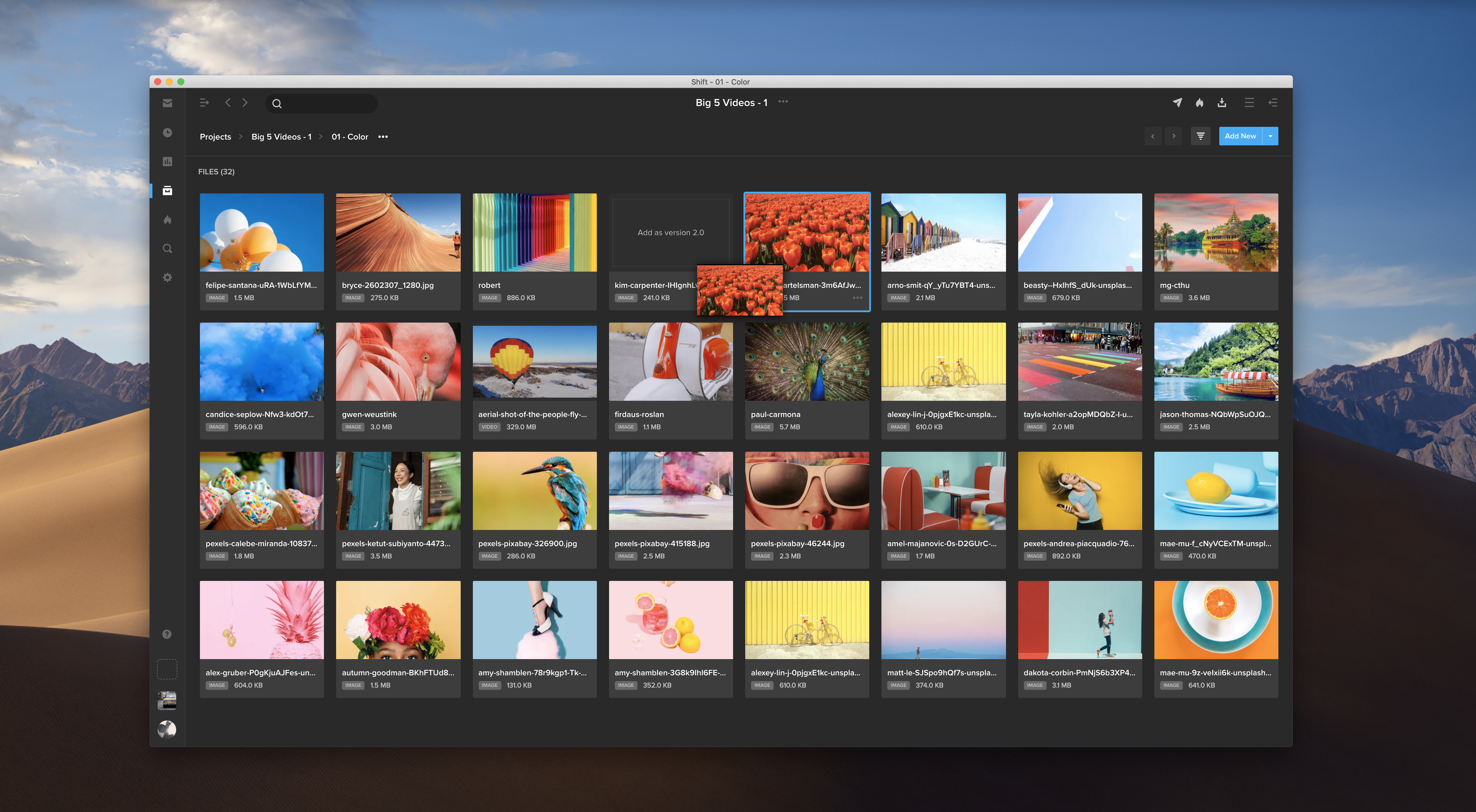
At this point in the post-production process, it may be necessary to create different versions to meet the specifications of the various end users and applications. An assistant editor, editor, or output specialist will conform and create generic masters and multiple versions based on the anticipated requirements. This can often require dozens of different versions and file sizes, all of which can be organized and tracked in an all-in-one media management tool, such as MediaSilo.
Archiving
Many hours of work go into creating video assets, so it is crucial to ensure the outputs and elements used in the piece are stored appropriately. Your archiving strategy should include everything—original camera footage, camera logs, XML files of metadata, sound elements, visual effects elements, graphics, and all versions of the masters.
A cataloging and naming convention and a versatile, robust storage platform are critical to being able to find assets later for revisions or to create future versions if needed.
Localization and Captioning
If a film, show, or ad is going to be shown in multiple regions or countries, the post-production team will often create different versions for each audience based on language, political climate, or accessibility. For example, the team may add dubbing or subtitles for non-U.S. audiences or closed captioning for audiences who are deaf or hard of hearing and viewing platforms that exhibit without sound.
Marketing Materials
In addition to the work itself, promotional materials are often generated that may include trailers and teasers; photographic assets; printed posters and artwork; and even tie-in promotional products, such as T-shirts, mugs, and hats.
Many of these materials are in the works throughout the post-production process, and they are often subject to versioning and team approvals, similar to the film. Centralizing storage and access to the marketing and promotional content and the associated stakeholder input ensures that marketing creates promo content from the latest version of the film.
Distribution and Traffic
When the finished work is ready for distribution, a traffic manager or broadcast business manager should oversee the process. The piece will likely need to be sent to multiple recipients, including networks, studios, theaters, and digital portals, each of which is likely to have its own preferred specifications.
Although remote production workflows are new to many people, distribution and traffic teams have been remotely coordinating delivery to end users long before the pandemic.
Although remote production workflows are new to many people, distribution and traffic teams have been remotely coordinating delivery to end users long before the pandemic. Media management tools let them deliver assets in the file size, format, or compression algorithm that is best suited to the client’s systems. These tools also help maintain file security at rest or in transit to protect proprietary content and intellectual property that might be attractive to overzealous fans, competitors, or hackers.
MediaSilo Supports Nontraditional Workflows
Today’s increasing use of remote collaboration makes nontraditional workflows almost mainstream. Because these new ways of working make designing workflows more challenging, flexibility is key to making sure work is done efficiently.
For example, time-consuming visual effects may have to get underway before the picture is locked. Or music may be composed before the shoot is even complete so that it can be played on set and the characters can react to it.
The key to managing a nontraditional workflow is organization. Without a well-synchronized team and a solid post-production structure, a huge amount of time, effort, and money will be wasted.
The MediaSilo platform was built for the flexibility and organization required by nontraditional workflows. It supports the creative team and provides ideal tools for keeping every team member up-to-date and working toward the same goal, even when the post-production situation is complicated.
MediaSilo provides robust solutions for managing, storing, versioning, and distributing all of your final assets and is a critical tool in the marketing of your project. It also helps to protect your intellectual property by ensuring it gets into only the right hands.
Start your free trial today and see how MediaSilo’s all-in-one media management platform empowers distributed post-production teams to deliver media content seamlessly and securely to marketing and sales teams, clients, and end users.

Once upon a time, post-production teams were colocated, working together in dark rooms staring at a screen. But new and innovative technology, and a global health crisis, have permanently changed our approach to post-production.
Today, it’s not unusual for key players to be sitting in a different country rather than a different room. Remote work environments and the production tools that support creative workflows have created a global talent pool and enabled successful collaboration across time zones and geographies.
To better understand how workflows are empowered with modern tools and technology, we are taking a closer look at each stage of the post-production workflow as it relates to our new ways of working. We covered stages 1 and 2 in A Shift in Post-Production Workflow: Taking Content from Camera to Rough Cut.
Here, we continue to learn about post-production stages 3 and 4, video and audio finishing, and how an all-in-one media management solution streamlines the process from picture lock to final mix.
Workflow Stage 3: Video Finishing
The Online Edit or Conform
The online editing, or “conform,” step is when the original, full-size footage files are inserted into the final cut in place of the smaller, lower-quality proxies. This is the stage when visual effects are created and inserted into the sequence, replacing the placeholder graphics used in the rough cut.
Close collaboration between the offline editor and the finishing and online artists during this stage is critical. When working remotely, they will all need access to the same elements in order to transition accurately from locked rough cut to final online conform.
Visual Effects
Once the picture is locked, the final visual effects and CGI work will be completed by the VFX team. The creation of visual effects is a painstaking process that may require working on each frame of the footage individually.
Tiny details, such as shadows and lighting, can throw off the realism of an effect for even the most casual viewer.
Tiny details, such as shadows and lighting, can throw off the realism of an effect for even the most casual viewer. To ensure every effect is convincing, each visual effect or piece of CGI work will go through multiple rounds of revisions and approvals before being inserted into the online edit.
Graphics and Credits
The online phase of post-production is when the placeholder credits and title cards are swapped out, and real type treatments, fonts, and logos are designed and chosen and overall composition is determined for any graphic elements.
A separate company is often in charge of the titles and graphics. They will provide options of graphics to the entire team, and the team will give input, just as in the other phases of the cut. Once reviewed and approved, usually remotely, the finished elements will be placed into the final piece.
Color Grading
When the colorist and director collaborate during the color-grading phase, they can bring a whole new level of magic to the piece. Good color grading can bring out unseen details in dark scenes or add moodiness and depth to a scene that was overexposed.
At the end of the color-grading work, the team will view the project on monitors of all sizes and qualities to simulate the experience of viewers using a variety of devices. What might seem pleasantly dark and moody on one device may simply be impossible to see at all on another. So it’s usually a good idea to share color-corrected files with team members to view on as many screens as possible.

Workflow Stage 4: Audio Finishing
Scoring and Music
When the editor first starts composing the rough cut, temporary music is often used to give a sense of how the scene will feel with music in place. But once the picture is locked, the final music needs to be locked down too.
If original music is to be created, the composer will begin scoring the picture. This process often includes several rounds of compositions and revisions for each piece or scene, and tracking the versions and evolution of the score can be quite challenging. Team members may be able to visit the studio to hear the music as it’s being developed, but more often, they will access shared files remotely.
If an original music score isn’t used, the team will need to source an existing piece of music from a music library, artist, producer, or record label. As with the offline edit, it’s important to keep track of the score versions; the various edits that are used to demo different options of songs or tracks; and input from the editor, director, producers, and creative team.
Sound Design
In addition to the actual music in the piece, sound design is an important element in bringing a film, TV show, or commercial to life. While the natural production audio captured at the shoot often has the most realistic and natural sounds for the action taking place, filmmakers may need to add sound elements that were not captured on shoot day.
Choosing sounds is a creative endeavor, and having the team review and agree on them is an important part of the post-production process.
There are a number of ways that sound effects and sound design can be added to a film. The simplest is to use effects from a sound effects library. These are usually quite inexpensive and provide a wide range of options.
Sometimes, the perfect effect just doesn’t exist, or your requirements are too specific. In those cases, foley artists can create the unique sounds you need. Choosing sounds is a creative endeavor, and having the team review and agree on them is an important part of the post-production process.
Voice-over and Automated Dialogue Replacement
Voice-over recording happens during the final stages of post-production. Narration and voice-overs are done in tandem with the final mix to ensure the audio lines up with all the other elements of the cut.
Automated dialogue replacement (ADR) is done in a controlled studio environment, but unlike voice-overs, ADR also includes video playback so that actors can try to match dialogue to their own movements and timing of the shots being used. An automated system then helps insert the dialogue in a way that’s lined up as perfectly as possible with the action, so it is difficult to detect.
Final Mix
One of the final stages of finishing a film, episode, or commercial is the final sound mix. This process brings together all the audio elements and balances them so that they work well together.
The key members of the creative team will either attend the mix sessions or weigh in remotely. When working remotely, they can either be patched into the session in real time or use a remote online platform, such as MediaSilo, to help the team compare what was done to the mix with what the elements sounded like beforehand.
How MediaSilo Empowers Post-Production Audio and Video Teams
MediaSilo’s unified platform helps audio and video finishing teams manage all of the final elements of the project, including:
- Music and sound design
- Voice-over and ADR elements
- Final mix assets
- Camera source footage
- Visual effects
- Color-corrected footage
MediaSilo provides seamless collaboration and file sharing between post-production team members regardless of their location. MediaSilo provides a secure yet accessible platform for reviewing mix sessions, voice-over recording, ADR, and even testing final outputs on various platforms. It’s also an excellent platform for reviewing mix graphics and titles, VFX work, and color grading.
Start your free trial to experience firsthand how MediaSilo can help you stay ahead of the rapidly changing needs of your post-production audio and video finishing workflows.

Content production has undergone a sea change in recent years in ways that have impacted both innovation and workflow. In this new era of content creation where key players in the workflow may be scattered across different cities and time zones, production and postproduction have become more complex than ever.
To overcome this complexity and the inherent risk it adds to your projects, it’s time to take a longer view of your current workflows and embrace new approaches to managing assets, sharing works in progress, collaborating with stakeholders, and even selling your projects.
Let’s take a closer look at how post-production workflows are evolving to accommodate changes in how and where we work and the technology available to make it all run smoothly.
Workflow Stage 1: From Camera to Editing Bay
Getting the Dailies to the Editor
Although we no longer have to worry about actual physical cans of film or videotapes, there are still assets from the camera that have to be integrated into the post-production process. This requires obtaining the dailies, camera logs, and production notes from a shared storage platform or physical drive.
Keeping these assets where anyone on the team can review them is crucial in an era when remote workflows are often the norm. Ideally, all of the relevant files will be organized in one place, allowing project managers to add, revise, delete, and update documents as needed so that the entire team is always working from a single source of truth.
Reviewing Dailies
Once the dailies are collected and loaded in the system, the team can narrow down the footage into the best material and moments. Traditionally, the production team watched the dailies on set each day as they became available. But modern remote workflows now make it necessary for some team members to review the dailies from a variety of places and give their input without holding up the production and post-production delivery timelines.
Remote viewing of dailies has become increasingly popular as productions reconsider the need to have a large number of people on set at one time.
Remote viewing of dailies has become increasingly popular as productions reconsider the need to have a large number of people on set at one time. Everyone on the team being able to access the dailies as soon as they are available, whether on-set or remotely, means that input can happen while there’s still time to address any issues.
Logging and Digitizing Footage
After dailies have been viewed, the editing team starts preparing the footage for editing. This may involve creating smaller versions of the footage files for editing so that the offline editing system isn’t slowed down by huge file sizes. These smaller files, or proxies, are used by the offline editor until larger ones are required for finishing, visual effects, color correction, and mastering.
The assistant editor will usually be in charge of logging and digitizing all of the footage as the proxies are created and creating related databases, metadata collections, tags, naming conventions, and storage plans.
Workflow Stage 2: From Raw Footage to Rough Cut
Creating a Rough Cut
The rough cut, or offline edit, is where your show, commercial, or film becomes a story rather than just a sequence of shots. But before the rough cut is complete, it must be reviewed and commented on by multiple team members who are often in different locations.
After the first assembly is created by the editor, the next step is usually to bring in the director, who will work with the editor in creating a “director’s cut” version of the project for review. That collaboration can happen in person in the editing room or remotely by either posting work in progress or using a real-time screen-sharing system. Regardless of whether you are in person or not, all of the comments and input need to be collected and tracked so that revisions can be made efficiently.
Temporary and Placeholder Elements
The rough cut phase is also when temporary or placeholder graphics, sound elements, music, visual effects, and color correction are introduced to the cut for reference. The editor will often source the materials from font libraries, stock footage collections, music libraries, and sound effects catalogs. Other team members may also provide music samples for reference, graphics or copy to try out, or images for visual reference.
Many of the placeholder elements will have temporary visual or audio watermarks from the companies that own them. The watermarks prevent the files from being used in a final piece without official permission and are removed if the element is licensed for use in the final product.
Testing and Versioning
Managing the element selection process is a big part of post-production. As the different ideas are tried, the editor and assistant editor must keep track of all the versions as well as the elements for each option until the final ones are chosen.
Careful file organization, detailed database management, and a well-thought-out naming convention can make the process run more smoothly. Because there are almost always changes made after versioning, using a naming convention that incorporates dates, revision numbers, and sometimes even colors—instead of simply “final”—can help manage a project that has had a large number of changes made to it.

When all of the elements are in place and agreed upon in the rough cut, the cut is locked. This “picture lock” stage means that there will be no more changes made to the overall structure of the edit and that it’s time to move on to finishing.
How MediaSilo Simplifies Post-production
MediaSilo’s unified platform provides a seamless way for the whole team to collaborate during every step of the post-production process, wherever they may be. MediaSilo provides centralized file storage, frame-specific commenting, and intuitive tagging, so it’s easy to keep track of footage, compile input, and create a single, always-up-to-date version of the asset that is accessible to all.
Start your free trial to experience firsthand how MediaSilo can help you stay ahead of the rapidly changing needs of your post-production workflows.
Latest Improvements:
Safer collaboration, easier asset recordkeeping, and a few new commenting fixes – these are a few improvements you’ll find in the latest release of Shift.
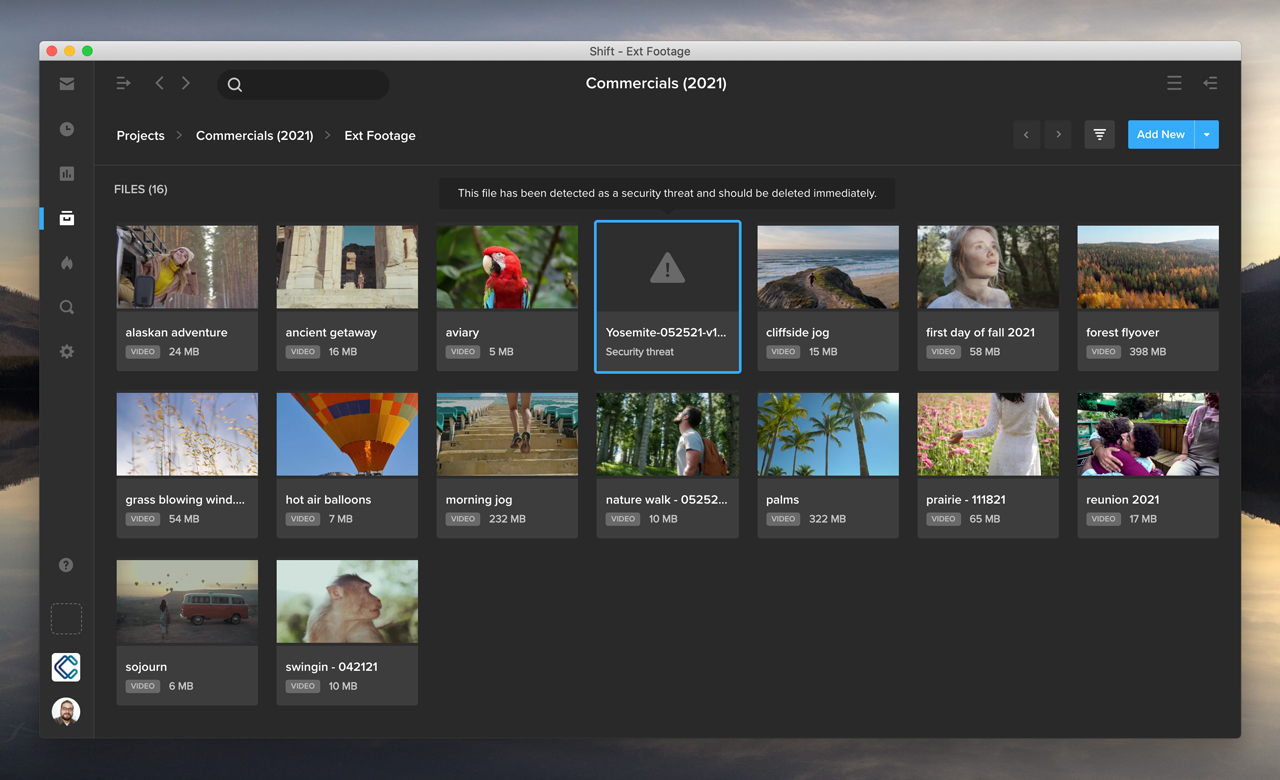
- Eliminate risky files: Shift now performs an automatic scan for viruses whenever you upload files. If a security threat is detected, a warning message is displayed on your asset thumbnail, and users are prevented from opening, downloading, sharing, or interacting with the infected file in any way, except to delete it.The virus scanning happens automatically – behind the scenes during upload – eliminating extra steps in the quality control process. This prevents team members from inadvertently passing along a malicious file to others in the organization or to external reviewers and clients.

Additional Updates
- Simplify recordkeeping: You can now export asset lists from both the Projects and Search Results pages. For example, you can search for assets matching a particular tag, click the Filter icon in the top right, and select Export to export your list of search results in a CSV or XLS file.
- Never miss a comment: This release resolves an issue that displayed only the first ten Review Link comments in Review Mode if more than 10 comments were made.
- Make comments easier to read: Users will now be able to add line breaks to their comments when commenting on static files such as documents and images.





