Ultra-fast shared media storage for the most demanding creative video production workflows, including VFX & finishing workflows.
At first glance, video storage for post-production seems so simple. Just buy a big external hard drive and start editing. (Of course, we know professional post-production storage solutions need to be more robust than that.) For a lot of editors, when the project is done, they just put the hard drive on the shelf. Rinse and repeat. Many shops have used this method and end up accumulating a closet full of hard drives. The lead editor has the inventory of what was shot and when it was shot in his or her head. So, if a junior editor needs a clip, they just ask their lead. As long as there wasn’t a disaster, teams would keep going with this system.
But then remote work became a thing. Post-production teams became distributed and immediately encountered the shortcomings of the “closet full of hard drives” approach. Scalable storage infrastructure was needed. Granted, dedicated post-production facilities had “SAN” (Storage area network) systems connected by fiber channel for their post-production data storage. Some teams even deployed a NAS to help them share projects in the office along with various other post-production workflows. However, a typical NAS setup will quickly come up short for a team of distributed video editors, and it is vulnerable to a single point of failure.
We’re seeing more and more cloud storage systems come online today, but many of them have unpredictable fees and complex systems of per-seat licenses, storage tiers, and even fees for accessing your data.
At the end of the day, you know your footage is valuable. For data to remain valuable it has to be accessible. And it has to be quickly accessible. Data also needs to remain accessible if there is a malfunction or a hard drive goes bad.
This is why your video team needs a shared video storage solution.
Why do I need a video storage solution?
It isn’t uncommon for a video shoot to produce 2-4TB of data in a single day of shooting. If you have just a single editor on your team, storage is pretty straightforward. You need a primary copy of your footage and a backup copy. If you are smart, you’ll make another copy and put it in an offsite location.
When you add a second editor things get a little bit more complicated. Both editors may need to access the same footage. Duplicating footage is wasteful. So the answer is to use a NAS (network attached storage) device. This enables a couple editors to access the same data at the same time.
It doesn’t take much to max out the performance of a typical NAS. Video editors need to playback timelines with multiple tracks of 4K video. That kind of demand can cause a NAS to slow down and stutter during playback.
If your team has a remote editor, you need flexible storage that can be accessed securely and remotely. The moment you start working remotely, content security is at the top of everyone’s mind.
If you have multiple people who need to access the same footage, you’ll need video storage and infrastructure that allows your storage silos to be accessed securely (Content is valuable. You want to keep it safe), remotely, and without getting bogged down.
What is infrastructure for post-production?
A post-production infrastructure is a hardware and software solution. The hardware is designed to facilitate delivering uninterrupted playback to multiple video editors. The software handles the organization of clips and efficiently manages the traffic on your system. Shared video storage isn’t like other kinds of servers. Video files have different demands than PDFs.
EditShare EFS is a simple, yet powerful open storage platform designed to work with all creative applications in the VFX and post environment. It works on Windows, Mac, and even Linux. The hardware and the software applications work together to deliver the performance that will keep your team cranking away without costly delays.
How is shared video storage different from a regular server?
You might have the unpleasant experience of trying to upload large files to a cloud service like Google Drive only to run into slowdowns and failed uploads. That’s because it just isn’t designed to handle those kinds of files well. Why is that? There are different ways to format a file system. Some favor speed, others favor stability, and so on. Video editors and VFX artists need both. They need performance and bandwidth. The system needs to be fast, not just for one computer but for multiple users.
Typical storage solutions are often designed like the streets through downtown with a lot of stoplights. Data comes and goes in starts and stops. However, editors need their data to flow like an interstate. If your video starts and stops, you can’t feel for the edit. This video does a wonderful job of explaining the difference between a NAS and a SAN.
Active Storage
EditShare EFS simplifies storage by putting everyone on the interstate. Editors can get uninterrupted performance while working off the same system at the same time. The software that comes with the system can also serve remote editors as well.
When working on an active project, you want the highest performance available for your footage. That is why the part of your infrastructure that supports the fastest performance is called “Active Storage.” It uses an underlying technology called “block storage.” This helps everything to perform at its peak.
Nearline Storage
Your team probably has a bunch of older footage that needs to be available, but it doesn’t necessarily need to be on the fastest hardware. Stock clips would be a good example of this. You might have a stock library that you go to every now and then.
“Nearline storage” can utilize “object storage” instead of “block storage.” This technology is great for long-term archival or parking media long term. If you want to learn more about the difference between these kinds of storage, check out this video.
Archive Storage
The third tier of storage to consider is “archive storage.” When you are storing footage long term, it is crucial that you can find what you need when you are looking for it in the years to come. Archive storage can be slower than nearline storage. This is for projects that may not be accessed, except once in a blue moon. You don’t want to delete it, but it might be accessed very infrequently. Some teams might want to use an online service for their archive storage, and EditShare’s software can handle that whole process of archival for you.
Backup Storage
If you have ever lost data, then backup storage is a prerequisite for you. If you haven’t been through data loss you might be tempted just to skip this section. Backup storage is critical because files can be lost in two different ways. You might experience mechanical failure, or it can be caused by human error. A robust, reliable, redundant storage solution will not protect you against someone accidentally deleting the wrong files. EditShare EFS features different hardware tiers for each of these storage needs. EditShare’s software can automate your backup process as well.
Organizing Footage
Video files use obscure naming conventions that aren’t helpful when you are searching for a clip. Some cameras, like ones on drones, always name the files in the same way, which can cause serious organizational issues. EditShare helps you organize all your data by project instead of folder. This is also important if your team members have permission to access certain media but not others.
EditShare’s software effectively replaces the “file system” in the head of your lead editor with an interface that everyone can search. Now, team members can find favorite clips and even a specific moment that has been marked on a clip.
EditShare EFS is agnostic to which video editing app you use. If you like to edit in Premiere, there is an integration. If you prefer DaVinci Resolve, you’ll find that it works seamlessly with it as well.
Remote Editing
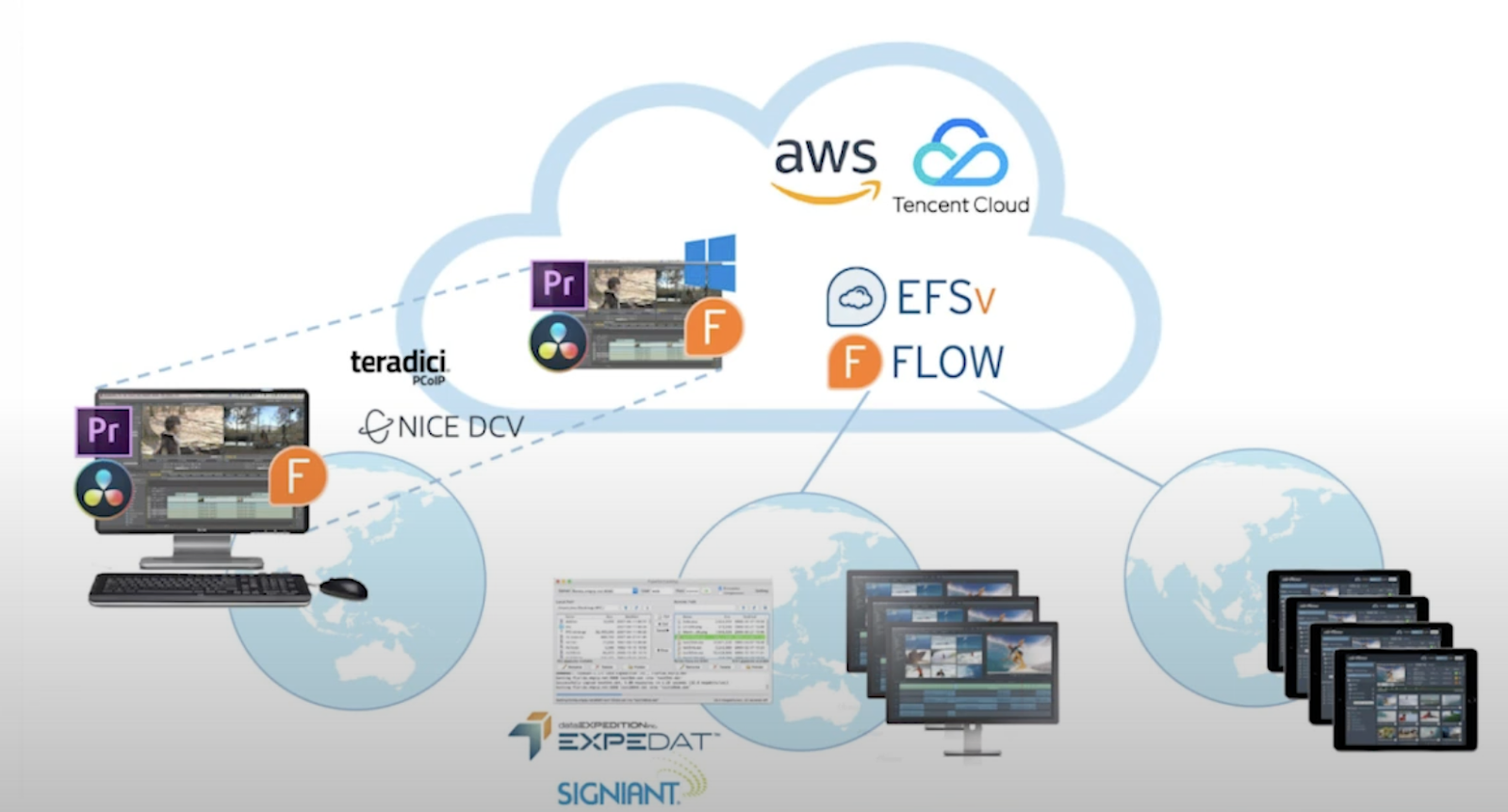
Some teams are fully local. Some teams are hybrid, with local editors and remote collaborators. We’re now seeing the rise of fully remote teams, where there is no physical “post-house.” That’s where EditShare FLEX comes in.
You can set up the ability to remotely access instances of these NLEs in the cloud. This is cutting-edge technology that became critical during the early days of lockdown. It does require a few more pieces of gear and software, but the ability to edit from anywhere with a solid internet connection is now a reality.
Conclusion
Now, you have an overview of how EditShare EFS can benefit your team. It removes the most significant roadblock to the growth of your post-production business: your storage. Editshare automates the tedium of data management, enabling editors to be in their NLE editing, instead of wading through files systems, passing around hard drives, or wondering which hard drive a certain clip lives on.
Your team can collaborate locally, remotely, or even in a hybrid environment. Your data retains its value because it is organized, accessible, and backed up.
Producers, directors, editors, and VFX artists can now collaborate without friction or wasted time. This is the flow that you want your team to be in, and it’s why EditShare goes “Beyond Storage.”If you are ready to see if EditShare is a good fit for your team, just reach out here.
It’s hard to believe we participated in our 20th National Association of Broadcasters (NAB) show in Las Vegas last week! As always, NAB provided a fantastic opportunity for us to showcase our latest innovations, like the new NVMe unit, EFS swift link technology and the new review enhancements for MediaSilo. It’s a lot of work, but it allows us to connect with industry experts, bring together our globally distributed team and gather valuable feedback from our esteemed customers and partners. We had a terrific show, and we appreciate everyone who made time to visit the booth.
NAB reports that more than 61,000 people attended the show this year, with more than 27 percent coming from outside the United States.
“We’re blown away to see over half of our attendees this year experiencing NAB Show for the first time,” said Karen Chupka, incoming executive vice president and managing director of NAB Global Connections and Events. “This, and the strong international attendance, proves that NAB Show is where global storytellers come to find the tools and technologies needed to create, distribute and monetize content.”
From AI-powered production tools to immersive virtual reality experiences to the evolving creator economy, seeing the innovation in tech for broadcast and delivery and everything in between is always inspiring. Here are a few highlights that we noticed at this year’s NAB.
AI is everywhere
Artificial intelligence is on everyone’s mind, from production to sports to the newsroom. Touching every industry, AI dominated the conversation at this year’s NAB, where cutting-edge technology and innovative strategies are redefining how we create, share, and consume content. These are a few trends in conversation:
Decreasing costs and increasing efficiency: When automating repetitive tasks and business processes, AI frees up employees’ time to focus on more strategic and creative tasks. Most people believe AI can also help businesses make data-driven decisions, leading to more accurate forecasts and reduced risk.
Language translation technology: Translation tools and software are more refined than ever, making it easier for individuals and businesses to communicate effectively.
Metadata: Tagging and logging assets is tedious, time-consuming and prone to human error. AI-powered capabilities open doors to innovative possibilities, propelling our productions at an accelerated pace
Learn more about how FLOW’s AI solutions can help you work more efficiently.
Virtual production
Vegas, where the ridiculously cool Sphere shines brightly in the sky at all hours of the day and night, is perhaps the perfect place to promote virtual production.
The 360 / virtual video industry continues to grow, with more channels for consuming immersive content than ever before. Combine these advancements with new, affordable and evolved spherical cameras that simplify how you capture footage, and you have an industry on the verge of exploding.
Showcasing its evolution into a mature and immersive technology, companies showed off their seamless synergy between cameras, lights, and screens in real-time, revolutionizing the creative process for professionals and enthusiasts alike. LED walls drew audience members in like flies. We particularly enjoyed this display by YesTech.
Creator economy
In response to the thriving creator economy, NAB launched the Creator Lab and expanded show programming to include more pioneering creators to share their insights with the next generation. Covering topics from streaming and television to global distribution, AI, shifts in the media landscape and innovative audience-building methods, sessions offered insights from digital disruptors influencing and directing the movement.
Inside the Creator Economy editor and publisher Jim Louderback confirmed for attendees that “short form [content] is not going anywhere,” despite some articles proclaiming a return to long-form media. “People will be consuming a lot of it in those gaps of time between when they’re living their real life,” he says.
See how EditShare can help small teams in the creator space get more done with EFS storage solutions and our new FLOW + MediaSilo integration.
Everyone needs faster storage
Audiences are demanding higher resolution, which means creators need more storage. Luckily, our new NVMe node does just that, which led to great conversations on its impressive performance and stats – three times more bandwidth and throughput compared to traditional SSD storage solutions, which, by definition, were 5-times faster than HDD nodes. Specifically designed for high-end finishing work and file-per-frame workflows in the post-production and VFX market, EFS NVMe enables creative editors to stay in their creativity zone without any limitations on codec, frame rate or plate size.
While the MovieLabs 2030 vision is still a ways off from reaching its goal of a fully cloud-based workflow, attendees at this year’s conference were still interested in integrating the cloud in some fashion in the future. A study of NAB attendees found that while current usage and interest varies, there’s a clear path towards considering or planning for increased cloud-based storage and hybrid workflows, driven by the need for greater efficiency, scalable resources and the creative influence of real-time collaboration.
One of the biggest perks of NAB is getting to spend time with our channel partners! The night before the show, we had a wonderful meeting with partners from around the world, where we awarded Key Code Media as Channel Partner of the Year! Thank you to everyone who came out to learn about the latest EditShare news.
Integration between MediaSilo and Atomos Cloud Studio unlocking rapid transfer of content from on-set to editors to be showcased at NAB 2024
Boston, MA – April 11, 2024 – EditShare®, a technology leader that enables storytellers to create and manage collaborative media workflows, today announced it has partnered with Atomos to bring camera to cloud workflows to MediaSilo, the leading video collaboration platform. MediaSilo will be integrated with Atomos’ pioneering cloud connected range of camera mounted monitor-recorders, which can be attached to virtually any HDMI or SDI camera source. Camera to Cloud workflows accelerate the creative process. By shrinking the capture-to-edit time frame, editors can begin working on media instantly instead of waiting for hard drives or delayed file transfers. The Atomos MediaSilo integration unlocks these capabilities elegantly. Simply connect your camera to your cloud enabled Atomos device via HDMI or SDI. After pairing your device via your Atomos Cloud Studio account and adding MediaSilo as your destination, you can select the target project and folder for media upload. Once you hit record, proxy files will automatically sync to the MediaSilo project or folder you have selected. Team members can then jump in to start reviewing the footage as it arrives. MediaSilo also creates dynamic review links that automatically update as more footage is shot, so external collaborators have one destination for feedback.
Access to your MediaSilo account is included in Atomos Cloud Studio’s Camera to Cloud plan. Anyone purchasing an Atomos Connect (for Ninja V, V+, Ninja or Ninja Ultra), a Shogun, or Shogun Ultra automatically receives a free all-inclusive subscription. Both plans include single/dual recording, 4K upload, and progressive upload, Atomos’ unique progressive file transfer technology that gets content into MediaSilo while you are still shooting.
EditShare CEO Ramu Potarazu said, “We’re extremely excited to start MediaSilo’s camera to cloud journey with Atomos. Our decision was rooted in the EditShare brand ethos of flexibility: we want our customers to work with creative tools of their choice. Integrating MediaSilo to Atomos products such as the Shogun and Ninja lets people choose the right camera product for each project. We look forward to seeing our customers benefit from the speed and flexibility they’ll see with MediaSilo + Atomos camera to cloud.”
“I’m delighted to announce another camera to cloud integration with Atomos Cloud Studio. We’ve always considered ourselves to be a neutral ‘gateway’ to a wide selection of secure destinations for our customers’ content,” said Jeromy Young, CEO of Atomos. “MediaSilo is highly respected in the post production world for accelerating collaboration, and its addition to our online platform offers our DNx-orientated customers in particular a route into Camera to Cloud. It’s very much a win-win scenario for both parties.”
The integration will be on display at NAB 2024 at both the Atomos booth (Central Hall – C4931) and the EditShare booth (South Hall Lower – SL8087), and will be generally available in mid Q2 of 2024.
For more information on all EditShare solutions, please visit the website at www.editshare.com. Information on the Atomos product portfolio can be found at www.atomos.com.
#
About EditShare EditShare is a technology leader that enables collaborative media workflows from storyboard to screen on-premise, in the cloud, or in a hybrid configuration. With customer and partner success at the heart of EditShare’s core values, our open software solutions and robust APIs improve workflow collaboration and third-party integrations across the entire production chain, ensuring a world-class experience that is second to none. The high-performance software lineup includes media optimized shared storage management, archiving and backup, and media management, all supported with open APIs for extensible integration. EditShare’s cloud-enabled remote editing and project management technology was recently recognized by the National Academy of Television Arts and Sciences (NATAS) with a prestigious 2021 Emmy® Award for Technology and Engineering.
About Atomos Atomos is a video technology innovator. When we started just over a decade ago, we combined high-quality touchscreen monitors, removable storage, and Apple ProRes to dramatically improve the quality of video captured by almost any camera. For the first time, video makers could take the uncompressed output from the camera and store it in Apple’s professional, easy-to-edit format.
With Connect, Atomos extends the capabilities of its monitor-recorders with a host of cloud-based tools and services. Content creators now have greater peace of mind as their footage is simultaneously stored on the camera, in the cloud and on the Atomos recorder. Workflows anywhere in the world can access media from a cloud connected Atomos device. Our online services extend our physical products’ capabilities, empowering filmmakers, and video creators with essential tools for camera-to-cloud, collaboration and review, cloud editing, live multi-cam production, wireless timecode, and streaming. It is a flexible ecosystem of subscription-based services that can grow with customers’ needs.
Review workflows can be tiring and confusing. On most projects, numerous reviewers and stakeholders share, review and comment on any number of assets from pre-production to distribution. Even when all feedback is contained in a single platform, comments can get lost among the different versions and people can easily miss questions in different threads. While stacking versions is helpful for organization, toggling between screens makes it difficult to track what changes are pending and what you can mark complete.
These problems might sound insignificant, but they all add up to time and money wasted, and you cannot afford delays. MediaSilo aims to provide users with a way to collaborate with their team and clients more efficiently with new features to our review tools.
Range-based commenting
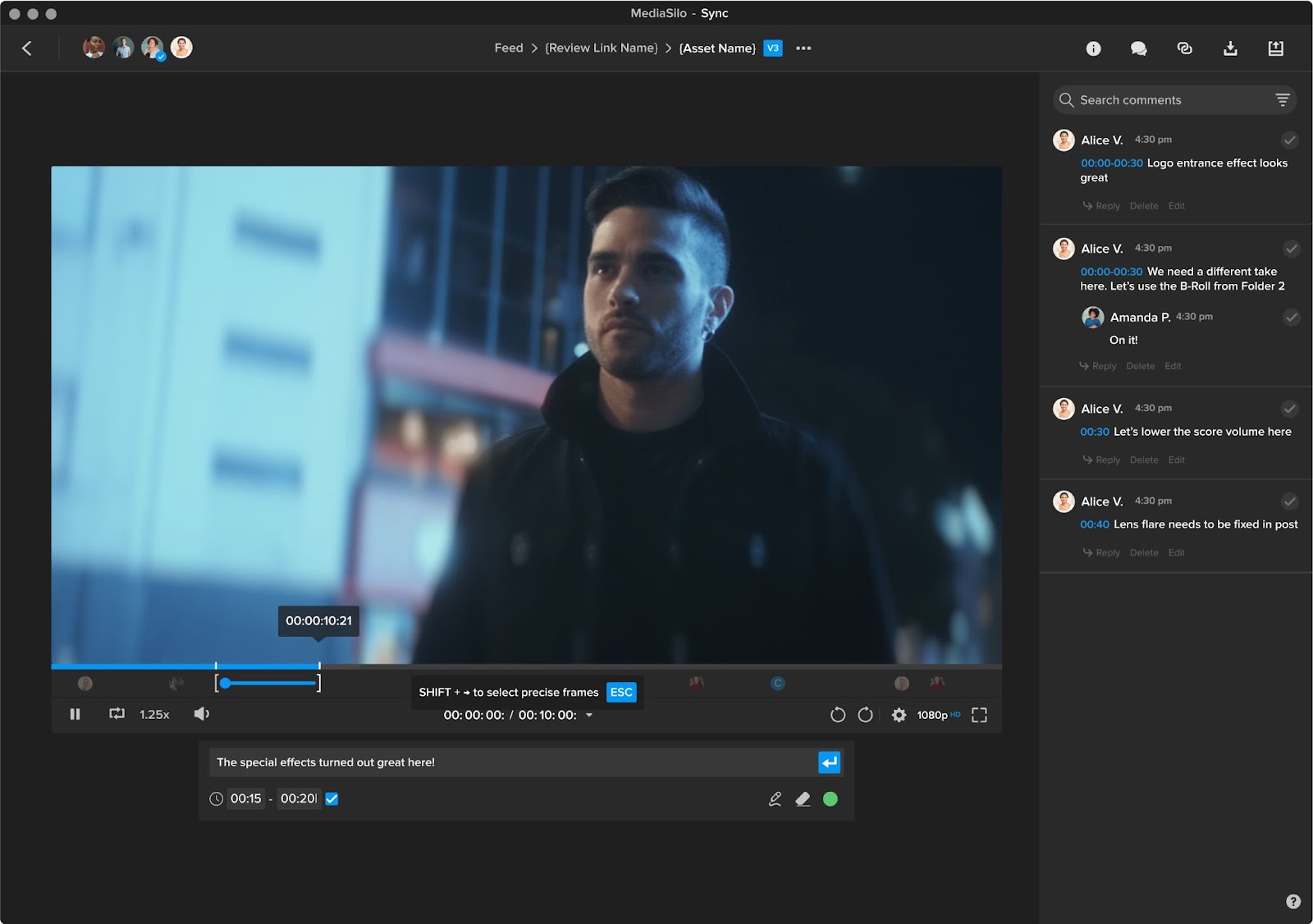
Sometimes feedback on a single timecode doesn’t say it all. With range-based commenting, you can select a range of time on your video content to leave a comment.
Drag in and out points and use keyboard shortcuts to make your comment frame accurate.
Ranged comments highlight on the timeline during playback.
Easily edit your in and out points on your comments.
Loop a comment range to hone in on the changes made.
Side-by-Side Review
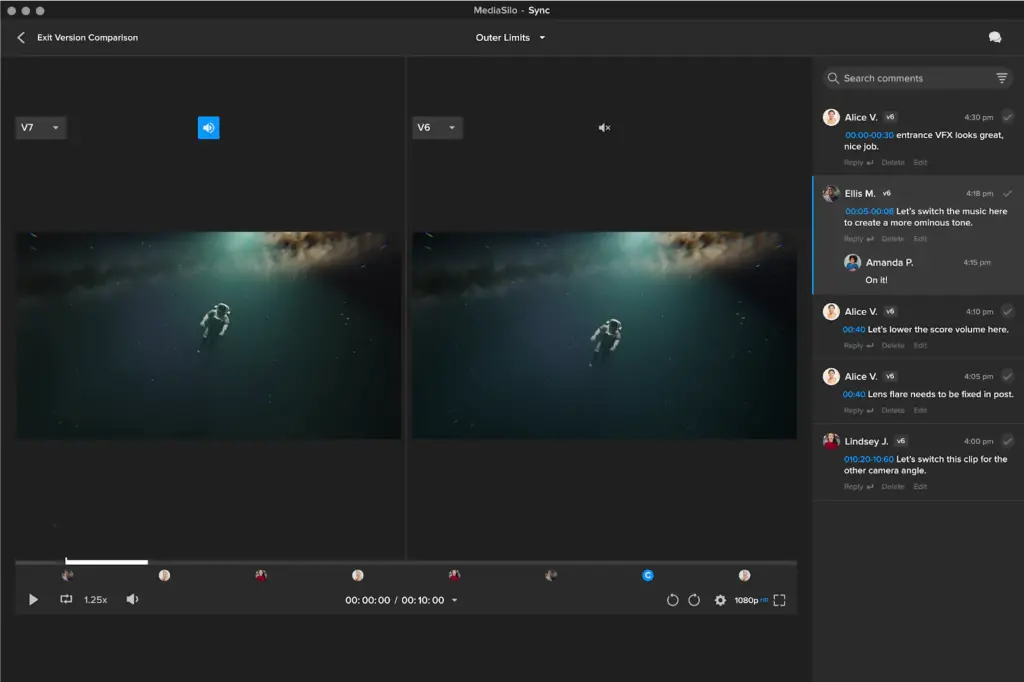
When making changes during the editing process, it’s helpful to see edits all in one place. With side-by-side version review, you can compare versions of the same file to ensure the feedback is properly implemented.
Playback two versions of the same file at once.
Select which version’s audio track you’d like to listen to.
@user mentions
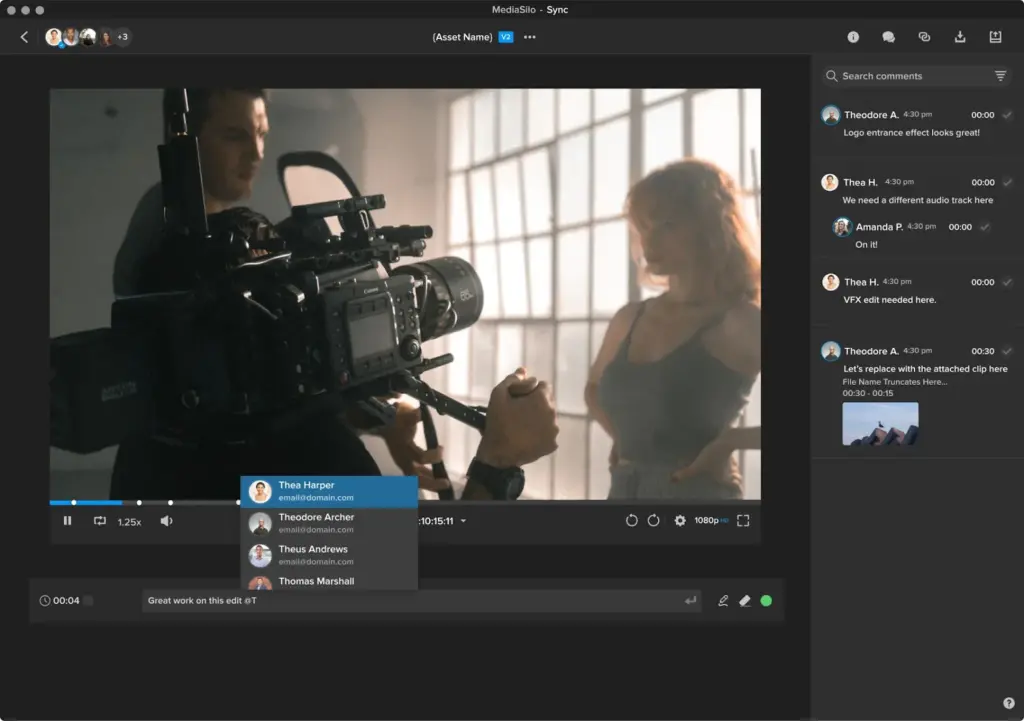
The review process is all about collaboration and, more importantly, prompt responses to notes. With @user mentions, you can tag your team in comments to send them an email notification that something requires their attention. By clicking on the notification, they are brought right to the file and comment to take the next step.
Tag team members in Review Mode who are a part of your workspace or who you share a project with, depending on workspace privacy settings.
Get email alerts when you’re tagged in a new comment so you never slow down the workflow.
Simply tag and add users who don’t currently have access to a file to seamlessly continue communication
A massive upgrade to throughput is one of the latest innovations from EditShare, set to revolutionize the world of media and entertainment storage.
3x more bandwidth and throughput
Built on our trusted media-aware EditShare file system (EFS), EFS NVMe harnesses the power and speed of NVMe (Non-Volatile Memory Express) drives to deliver a superior storage experience. With three times more bandwidth and throughput compared to traditional SSD storage solutions, which, by definition, were 5-times faster than HDD nodes, EFS NVMe enables creative editors to stay in their creativity zone without any limitations on codec, frame rate or plate size.
Storage specifically for high-end finishing work and file-per-frame workflows
Specifically designed for high-end finishing work and file-per-frame workflows in the post-production and VFX market, EFS NVMe is the perfect fit for creatives who demand the highest level of performance with an added intelligent layer of control over projects, permissions and users who can access and modify the content.
Improvements to the EFS native drivers now allow a single Mac or Windows workstation to read file-per-frame content in excess of 3 GB/sec. This extreme workstation performance, once unheard of for a NAS, means that EFS NVMe is perfect for workflow territory that was previously reserved for only the highest-end SANs or direct attached storage.
Whether you’re working on UHD video projects, complex visual effects or real-time editing tasks, EFS NVMe delivers smooth multi-layer playback and lightning-fast access to your original media assets.
Seamless integration and scalability
What sets EFS NVMe shared storage apart is its seamless integration with the EditShare ecosystem. Existing EditShare storage clusters can easily incorporate EFS NVMe, allowing users to expand their storage capacity and workflow without disruption. Whether you’re a small production house or a large-scale studio, EFS NVMe fits perfectly into an existing EditShare environment, or if you’re starting with EditShare, it will provide a scalable and future-proof storage solution that will meet your needs for years to come.
Technical Specifications/ Hardware Platform
HPE DL380 Gen 11 Hardware (2RU)
Rack mountable HPE 2U server with 24 NVMe disks
Intel 4th Gen Xeon Processor (Sapphire Rapids)
128GB DDR-5 RAM
Operating System (OS) Boot Drives: 2 x M.2 NVMe SSDs, hot-swappable, rear-accessible, hardware RAID-1 mirror protection (1+1)
Storage disks: 24 enterprise-grade read-intensive NVMe drives in 2, 4, 8, or 16 TB capacities. Hot-swappable, front-accessible. One DWPD (Drive Write Per Day) endurance drives. **
Dual HW RAID Controllers, RAID-50
Hot-swappable Power Supplies, Fans, NVMe Media Drives
4 x 1 Gb network ports included + HPE iLO OOB management port
10GBASE-T, 10 GbE SFP+, single & dual 10/25G SFP28, and single & dual 100/50/40G QSFP28 NIC options available
And if you’re headed to NAB, schedule a demo with us in the South Lower Hall at Booth SL8087!
We use the expression “asset management” so regularly today that we can be forgiven for overlooking the critical significance of the words. Content – production material and completed programmes – are the core assets of the media business. You invest heavily in the content, creating business assets, and subsequently expect to earn a fair return.
Any leak of the material risks those returns. Movie and premium drama producers are notoriously averse to any risk of leaks and spoilers, and every facility in the production and post chain will have to demonstrate the highest levels of content protection.
Broadcasters pay very large sums for the rights to cover major sports events. They invest heavily in must-watch programming like Traitors or Love Island: if these are leaked before transmission then the audience disappears completely – along with the substantial advertising revenues.
When we talk about security in media systems, we are looking to protect the intellectual property. As technology develops to help us create even better content, so its security layer must grow to ensure the content cannot be pirated. The entirety of the financial investment in the content is at risk.
The same applies to other cyber threats. In court we are asked to tell “the truth, the whole truth and nothing but the truth.” In media asset management, we want to know that the file is what the metadata says – complete as originally created, and nothing has been added. That means we must consider security a central part of any file-based environment.
Responsibilities
The major cloud providers, like AWS, Microsoft and Google, have adopted a shared responsibility model. Put simply, this draws a distinction between protection “of” the cloud – the infrastructure itself – and protection “in” the cloud – the user’s data and processes.
Protection “of” the cloud is the provider’s responsibility, and they are very good at it. AWS has a page on its website about how its security allows it to provide services to the US intelligence community.
Protection “in” the cloud is the responsibility of the user. That includes ensuring tight control on identity and access management.
In practice, users share responsibility with their technology partners. A post house, for example, which uses EditShare cloud-enabled shared storage, will look to us to provide the structures necessary to secure the content. Indeed, we would like to think that one of the primary reasons our customers choose EditShare is that we have thought through the security implications of the cloud and have the tools and certifications in place to make it simple to implement.
Remember that protection “in” the cloud is your responsibility. If material is pirated or systems corrupted because of a failing in your security, you have no-one to blame but yourself.
Identities
The core of that protection is knowing who can get into your content and workflows. This is IAM: identity and access management.
Every individual in your operation must be uniquely identifiable. Individuals must also be cross-certified in a matrix so that they can only access the parts of the system and the specific content they need.
This is vital for security, of course, but it is also an operational benefit. Editors are immediately presented with just the materials for their project, rather than having to wade their way through the whole of a large asset management system, wasting time and potentially compromising the security of other projects,
Powerful IAM is part of a new generation of cloud-appropriate security systems, which must be integral to any media system. The goal, as always, is to let creative people focus entirely on creativity with no worries about building and protecting workflows wherever the technology sits.
That could include multiple cloud providers. Your commercial and operational decisions should not be limited by technical and security considerations.
With secure client-side security “in” the cloud, users can work with content that happens to be stored on different sites. Or, perhaps more likely, the assets are in one cloud, and the deliverables must go to another.
In conclusion
Security is vital. No one wants content pirated, and no one wants to be at risk of cyber-crime like ransomware. Cybercrime Magazine estimates that ransomware could cost victims up to $42 billion this year, with a new attack occurring every two seconds.
Piracy is an existential threat to your business. You have invested in creating great content, and you must ensure you get the full return on that investment. Data leaks mean significant, perhaps total, financial losses.
Cyber-crime is on the rise, and we are all aware of high-profile cases where operations have been halted for extended periods. In 2023, one of the largest entertainment groups in the world, Sony, suffered a number of ransomware attacks. Also in 2023 – and probably also by the same criminal group, Rhysida – the online catalogue of the British Library was compromised, causing damage likely to take more than a year to rectify,
Security is vital for any media enterprise. Understanding the issues around security and how they can be addressed has to be at the top of the agenda when specifying systems and developing workflows. When looking for a technology partner to implement collaborative systems and cloud operations, make sure they really understand just how important it is to get the security right.
FAQs
Why is security important?
You have invested a lot in your content: you do not want anyone taking that content without paying for it. Or blocking it by ransomware so you cannot exploit it commercially,
Content can also be leaked for malicious purposes, like spoilers or to harm some of the performers. And content can be changed or damaged by adding to the files in your store.
Keeping your content safe is business-critical.
Who is responsible for cloud security?
The roles are shared. The cloud provider is responsible for securing the infrastructure, to ensure it keeps working. You are responsible for securing access to your data and processes.
How do you secure content?
Primarily, by ensuring that only those authorised to do so can access your data and processes. A careful sign-on process will ensure only those who should be there can get there.
In a multi-tenant operation like a post production facility, that means only granting access to the content relevant to each individual. An editor working on production A cannot see anything of what is going on with production B, for example.
That incidentally makes it easier for the editor, who is presented with just the content they need for the part of the project they are working on.
What is IAM?
IAM is identity and access management.
Through a system of secure log-ins and validated paths, IAM ensures that only authorised people get onto your site, and then only see the media and processes they need. Good IAM will keep everyone else out.
What happens if IAM is compromised?
Criminals can get in. They may be seeking to pirate your content, but more worryingly they may want to hold you to ransom: pay a large sum of money or your content is destroyed. Ransomware gangs are international in scope, and it can prove impossible to even isolate where in the world they are before they carry out their threats.
Can I carry security from one cloud to another?
Work in AWS but need to deliver to Microsoft Azure? With good IAM and other security practices, this is simple.
Remember the difference between the cloud providers protecting the infrastructure and you protecting the data. Your own security systems should move transparently and seamlessly with the data across barriers.
Amy and Drive to Survive producer updates collaborators simply and securely
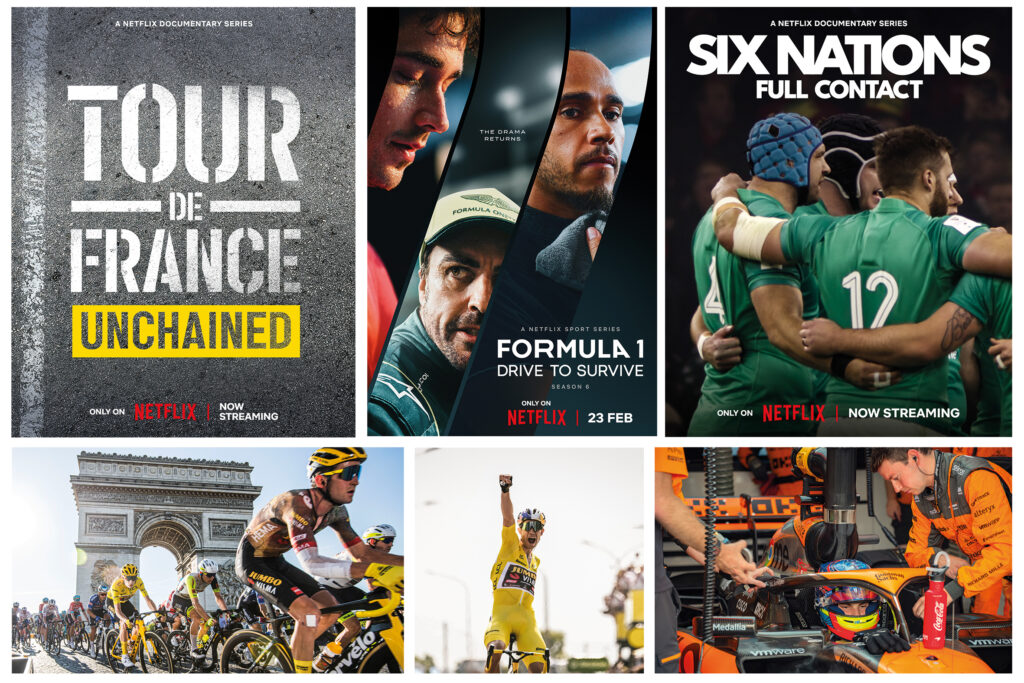
Boston, MA, March 18, 2024 – Box to Box Films, an Emmy® award winning producer of high end documentaries and factual entertainment, has extended their agreement with EditShare and will continue to leverage MediaSilo for delivering work-in-progress content to collaborators. The software allows clips and completed content to be distributed simply and securely, for viewing on any platform.
Box to Box is the producer behind the acclaimed documentary Diego Maradona, which chronicles the career of celebrated football player Diego Maradona. Its Formula 1: Drive to Survive inside motorsports documentaries reached series six on Netflix in February 2024. The company prides itself on its ability to create dynamic and dramatic narratives for international audiences.
For these and many more one-offs and series, each project is managed independently, with different managements, clients, post facilities and producers. MediaSilo gives Box to Box a ready way to distribute dailies and cuts, just to the team involved in that particular production. It provides a completely flexible storage space, allowing it to serve the requirements of different projects, and to allow multiple users to access it.
“On a typical project we would send a cut to maybe two bosses, three or four executive producers, showrunner and producer, post supervisors and more,” explained Box to Box technical editor Rafael Bettega. “We send the picture lock cut to the composer, and to the creative marketing people so they can plan and start the campaign as early as possible.”
“With MediaSilo we don’t need to worry about technology,” Bettega continued. “The users simply receive a review link with a video which they can access with a password, to play just by pressing the spacebar. No need to download additional software; no need to take up licences in an asset management system. And because of the two-factor security it is acceptable to the networks we’re partnering with, which prioritize secure methods for content transfer”.
Bettega first used MediaSilo on Amy in 2013, at the suggestion of the post house he was working with. It now uses the system for all its productions.
“This is the perfect application for MediaSilo,” said Eric Wynalek, EVP marketing & strategy at EditShare. “As massive fans of Box to Box’s productions like Drive to Survive and 6 Nations: Full Contact, we’re honoured to be an integral part of their workflow. Box to Box has a set of diverse users who need to collaborate on content securely, including protection with custom permissions and receipt of usage analytics. The interface allows groups to be set up for each project, with permissions set by user, so each clip and cut is sent to just the right people and the all-important feedback is received quickly.”
EditShare is an Emmy Award-winning technology leader, supporting storytellers through collaborative media workflows across on-premise, cloud and hybrid architectures. The market-leading open software solutions and robust APIs improve workflow collaboration, third-party integrations and content sharing across the entire production chain. Designed specifically for media applications, the high performance line-up provides shared storage, archiving and backup, and intelligent media asset management.
Through a merger with Shift Media, EditShare now also integrates tools for content review and distribution, the creation of customised and branded pitch reels, and secure preview of high-value pre-release content.
After a few very tough years throughout the pandemic and the rise of streaming services, the past 12 months have actually looked pretty bright for Hollywood. And now, it’s that time of year again. With nominations announced and locked in, the 2024 Oscars are upon us. The Oscars have always been the pinnacle of awards in Hollywood and as such, they tend to reveal a thing or two about the industry. So, what can we learn from 2023’s memorable batch of Oscar-nominated films?
Cinema ain’t dead
There’s no doubt that the cinema industry has been through utter turmoil in recent years. The combination of the Covid-19 pandemic, which kept cinemas closed nationwide for years and halted productions, alongside the continued rise of various streaming rivals (which were, of course, buoyed by the stay-at-home nature of lockdown), has meant that the industry was hanging on by a thread.
Then comes along a special, culturally significant moment – Barbenheimer. This meme that grew legs and snowballed uncontrollably ensured that the two filmsBarbie and Oppenheimer grossed over $2 billion worldwide. To have this many people visiting cinemas and paying for tickets again was a huge moment for Hollywood. It’s clear that when the films are good and they’re marketed right, cinema ain’t dead. There is still hope for the industry.
In the hyper-competitive, over-saturated world of unlimited content on social media, there’s often the notion that audience attention spans are getting worse. While there may be truth and science in that, Hollywood hasn’t been afraid to go big with their runtimes and clearly, this hasn’t been a detriment to the success of the films.
Six of the ten nominations for best picture run over the 2-hour mark, with Oppenheimer touching 3 and Killers of the Flower Moon running for a colossal 3 hours and 26 minutes:
Anatomy of a Fall – 2 hrs 36 mins
The Holdovers – 2 hrs 13 mins
Killers of the Flower Moon – 2 hrs 26 mins
Oppenheimer – 3 hrs
Maestro – 2 hrs 9 mins
Poor Things – 2 hrs 21 mins
It appears that audiences aren’t particularly dissuaded by longer runtimes and increasingly, directors and editors aren’t shy of them either. If a story needs three hours to be told, then so be it.
Film is alive and well
You’d be forgiven for thinking shooting Hollywood blockbusters on analog film was a thing of the past. While digital does remain the overall format of choice, more and more filmmakers are reverting back to film. This has been well reflected in this year’s Oscar nominations for best cinematography. Four out of the five nominees (Oppenheimer, Maestro, Poor Things, Killers of the Flower Moon) were shot on Kodak film.
This is the first time this has been the case since 2010, marking the revival of the medium. Some filmmakers feel so strongly about this they’ve gone as far as creating brand-new film stocks, as was the case for Oppenheimer. “Film, I think, is uniquely suited to pulling an audience into a subjective experience…the way a film camera records light onto its emulsions – that’s as close as you can get to the way the eye sees,” gushes director Christopher Nolan to Kodak.
Going forward, expect to see more and more cinematographers opting to shoot film rather than digital.
A masterclass in cinematography
To be nominated at the Oscars for best cinematography, you have to do something pretty special. With Oppenheimer, cinematographer Hoyte van Hoytema really did pull out all the stops. As mentioned above, he shot the film using 65mm KODAK VISION3 250D Color Negative Film 5207 for exteriors and brighter day interiors and KODAK VISION3 500T Color Negative Film 5219 for low-light and night scenes.
But in order to support the different storylines, they also shot in EASTMAN DOUBLE-X Black & White Negative Film 5222 – a film stock created explicitly for this film. The nominated DP tells Kodak “that filmstock was unfamiliar to everyone, had never been run through IMAX or System 65 cameras, and required the reconfiguration of a 65mm film processor at the lab…It became quite a complex engineering process – encompassing things like the thickness of the backing for the film emulsion and making new gates and pressure plates in the cameras so as to avoid scratches.”
As if the careful handling and creation of film stocks from scratch wasn’t enough, Van Hoytema was also juggling a complex lens equation. Having established that 50mm and 80mm are the sweet spots when shooting in IMAX, but not wanting to be stood so far away from actors and needing to shoot in low-light situations, the cinematographer had a problem. These kinds of lenses don’t really exist.
He turned to Panasonic’s “lens guru,” Dan Sasaki, for help. “He tweaked existing lenses or re-engineered others from the ground up…he even built a special, waterproof snorkel lens for use with the IMAX cameras that didn’t exist before”. A range of different lenses from Hasselblad and Panavision were eventually used on the IMAX MKIV, IMAX MSM 9802 and Panavision Panaflex System 65 Studio cameras.
Hoyte Van Hoytema’s dedication to his craft is exceptional. Rather than simply accepting the answer “no,” he found ways to engineer brand-new film stocks and lenses to suit his specific needs. It’s a worthy winner if we’ve ever seen one.
Game changers
The VFX category is a really exciting one this year because it contains game-changers that potentially alter how Hollywood does things. Great VFX doesn’t necessarily mean huge budgets. Who knew?
The Creator, directed by Gareth Edwards, is the shining beacon for run-and-gun filmmakers. Looking at the stunning nature of the VFX in this beautifully crafted sci-fi world, you’d be forgiven for thinking that the budget for this thing was eye-wateringly large. Astonishingly, the film cost just $80m to make.
Typically, with VFX on this scale, you’d need to build it all from scratch. Green screens and studios would be the order of the day, costing a lot of money in the process. Gareth Edwards and the team went about things differently, opting to first shoot everything in real-world locations, edit the footage into the story they wanted, and then send it to ILM (Industrial Light & Magic). ILM was then tasked with effectively “painting over” the frames, adding in sci-fi aspects afterward. The fact that they could integrate the CGI so seamlessly is phenomenal work and saved a lot of money in the process.
The Japanese film industry has made similar inroads. Godzilla: Minus One rightly received a nomination for best VFX, too. The stats speak for themselves: just 35 VFX artists, 610 shots, 8 months and a total film budget of just $15m. It’s hard to call who ends up winning this category, but it’s an exciting landmark moment for the VFX industry.
Less can be more
Though often overlooked, sound is absolutely critical to the success and quality of a film. James Mather (already an Oscar winner for his sound supervising work on the excellent Top Gun: Maverick) has earned another nomination for Mission: Impossible – Dead Reckoning Part One. What caught our ear here was that, in many cases, Mather found that less sound can actually be more impactful.
Speaking with A Sound Effect, Mather admits that nowadays, the audio for most films has every little detail filled in, but for this production, he and Tom Cruise decided to go in a different direction… “it’s a distraction if there’s so much sound in a piece, whether it’s percussion in the music or footsteps in the sound design. If there’s no need for it, then don’t have it.”
How far to take this theory was up to the talents of the sound designer, who revealed that, more often than not, “we started with an awful lot more sound, which we then peeled away until we were in a place where we recognized what was happening.”
Masterfully, Mather and his team also used sound design as a way of aiding the story. “They wanted to highlight the fact that the train was out of control. They wanted these big bangs and jolts to remind the audience that they were on a runaway train. Earlier on, when you are with The White Widow, it’s very quiet. They wanted the train to sound very luxurious and smooth. So there’s quite a lot of work in the train sounds to subliminally remind the audience of where we are in the arc of the storyline for that section.”
Black and white as a storytelling tool
The category for best editing is a tough one to call this year, but one thing stands out in two of the nominations.
In Oppenheimer, first-time nominee Jennifer Lame masterfully balances interlocking subjective points of view from both Oppenheimer himself and antagonist Admiral Lewis Strauss. Despite the film effectively having a lot of people talking in rooms, the tension and pacing are handled beautifully by Lame, who reaps the benefits of using black and white to cover and differentiate Strauss’ storyline.
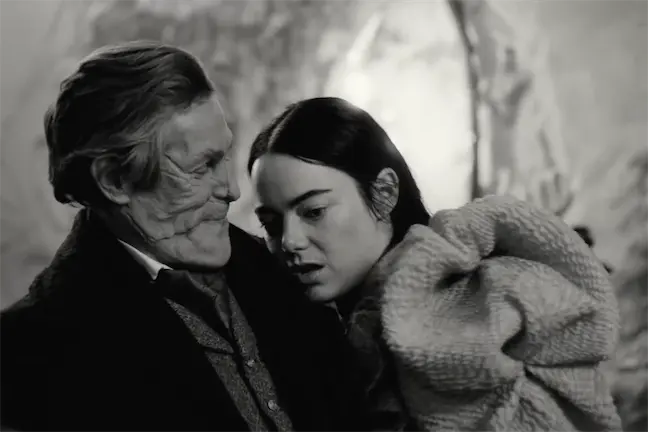
Similarly, in Poor Things, editor Yorgos Mavropsaridis manages the sudden shifts in style and tone by using black and white, then various shades of color that mark out and define Bella’s journey. Color isn’t the be-all and end-all of editing, but it certainly makes its presence known in this year’s category.
Interestingly, Maestro (nominated for categories including best picture and best cinematography) also adopted the use of black and white to showcase the different time periods and storylines, as well as going even further in switching up aspect ratios. It did not get the nomination for best editing, which may reflect the feedback from some audience members that the aspect ratio change was actually quite jarring.
Subtitles? No problem
This was a big year for non-English-speaking films. Through previous nominations, we’ve seen the likes of Roma, Parasite, Minari, Triangle of Sadness and All Quiet on the Western Front all win big (and rightly so). In 2024, for the first time, there’s more than one movie nominated for best picture that is primarily not spoken in English (Anatomy of a Fall, Past Lives, The Zone of Interest).
While many movie-goers may have turned their nose up at foreign language films and the idea of having to read subtitles not so long ago, that trend appears to be less and less existent. Nowadays, perhaps in part thanks to global streaming services such as Netflix, it seems that audiences are much more willing to watch a film from any part of the world, and they don’t mind at all if it isn’t spoken in their native language.
This appetite for non-English speaking films has ensured a fairer distribution of budget, consequently unearthing plenty of gems that may have yet to see the light of day ten or twenty years ago. Long may it continue.
All hail the king
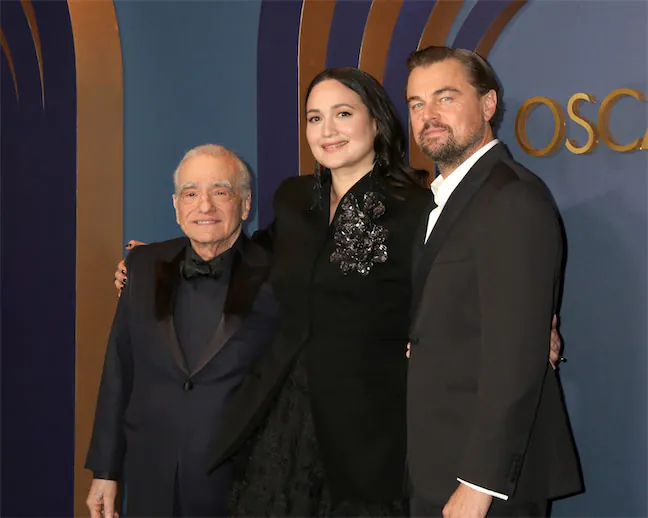
You have to appreciate greatness while you have it. At 81, Martin Scorsese has made history by becoming the oldest nominee for best director. He’s now overtaken fellow legendary director Steven Spielberg as the most Oscar-nominated director with 10 nominations overall.
Like a fine bottle of wine that gets better with age, Marty appears to be at the height of his powers. Killers of the Flower Moon is being hailed by some as his best picture to date, and he certainly considers this his most important thus far. To undertake such large, influential and important projects at his age is phenomenal and worthy of the highest praise. We can only hope he has a few more left in him.
A wealth of talent
When you take a moment to scroll through all of the nominations, what you’re looking at is an astonishing wealth of talent. These awards are about celebrating and recognizing that talent because, without them, we simply wouldn’t get these amazing movies.
Major South African production facility uses EFS and FLOW
Boston, MA, March 4, 2024 – Rapid Blue, one of the leading production companies in Africa, is now using the EFS 300 storage system from EditShare for all its in-house shows. Through the use of EditShare FLOW media management and workflow tools, the company has built a very efficient and cost-effective platform which allows multiple users direct access for review and approval, as well as supporting large post production teams. Rapid Blue’s productions encompass a diverse array of content, spanning from drama serials such as Is’thunzi to studio shows like Family Feud South Africa and Last One Laughing South Africa, as well as location-based reality programs including The Bachelor and Come Dine With Me South Africa. Rapid Blue, who is part of BBC Studios’ international family of production companies, is also the South African producer of international hits such as The Great South African Bake Off and Dancing with the Stars. The result is large volumes of content acquisition, often needing very rapid turnaround times.
When its central storage system reached end of life and began to raise serious issues with reliability, Rapid Blue looked for a system that would deliver content security as the top priority. Workflows needed to be fast, intuitive and cost effective. The EFS platform answered all the questions, and the company installed a 280TB storage network, implementing the system in conjunction with Protea Broadcast & Multimedia, EditShare’s South African partner.
“The whole facility runs off it, and it’s been awesome,” said Jacques Wolfaardt, Rapid Blue Head of IT. “It hosts almost all of our productions, and we can connect all our edit suites – as many as 20 – at the same time on the same content, giving us great productivity and fast turnarounds.”
Rapid Blue uses both Adobe Premiere Pro and DaVinci Resolve non-linear editors, and both are tightly integrated into the EditShare FLOW media management functionality. The relevant parts of the shared storage appear as locations within the software, so editors get direct access to the material they need, and can save cuts directly to the storage network.
“We connect many desktops directly to FLOW, and it automatically generates high-quality proxies” Wolfaardt said, “Producers working on their own computers can select the content they need from bulk ingests before it gets to editors – and reality shows generate a massive amount of content. They can also review and approve cuts, all without tying up edit suites just to look at material. That saves us time and resources, and makes us much more efficient.
“We also use the workflow automation in FLOW,” he continued. “It creates all the deliverables in different formats, and delivers them to FTP sites, without tying up staff or facilities.”
James Macpherson of Protea Broadcast & Multimedia said “Reliability was a key deciding factor for Rapid Blue, and we could clearly show that EditShare leads the field. In production, deadlines are often very tight, and a day’s delay can be catastrophic.
“Jacques and his team would certainly let me know if there had been any issues, but EditShare has delivered the performance they need with no downtime.”
EditShare is an Emmy Award-winning technology leader, supporting storytellers through collaborative media workflows across on-premise, cloud and hybrid architectures. The market-leading open software solutions and robust APIs improve workflow collaboration, third-party integrations and content sharing across the entire production chain. Designed specifically for media applications, the high performance line-up provides shared storage, archiving and backup, and intelligent media asset management.
Through a merger with Shift Media, EditShare now also integrates tools for content review and distribution, the creation of customised and branded pitch reels, and secure preview of high-value pre-release content.