Text-based video editing: Lumberjack Builder, Premiere & Resolve
Text-based editing powered by AI is taking the post-production world by storm. Adobe and Blackmagic Design announced that their respective editing apps would showcase it as a built-in feature. Text-based editing uses artificial intelligence to produce a transcript of your videos that provides a way to edit the video by selecting text. Time savings is the major advantage of text-based editing, especially for documentaries and interviews. The Lumberjack system introduced AI-powered text-based editing scenes several years ago for Final Cut Pro, so the big news is that DaVinci Resolve and Premiere Pro now have it built in. But we’ll look at each system’s strengths and weaknesses so that you can decide which tool is right for your workflow.
The case for text-based editing
The script lays out the story for narrative films and TV shows. AVID’s Media Composer features ScriptSync to help editors match their edits to the shooting script. Their PhraseFind feature then allows you to search your audio clips and find just what you are looking for. But non-scripted shows like reality TV and documentaries operate in reverse. The final “script,” as it were, is really the byproduct of the editing process. It’s even been recognized that documentary editors are writers. Documentaries often cull together an enormous amount of interviews. Those interviews often overlap on common subjects. Those subjects form the building blocks of the film’s story. So there was a real need for more powerful and more cost-effective solutions for text-based editing.
It should be noted that there’s a huge amount of buzz regarding “Text-to-video” tools like Runway. That tool uses AI to create video clips from text prompts. “Text-based editing” uses AI to create a transcript from a video, like an interview. Then you use that transcript to edit your video together by pulling together important clips. These clips might come from a single interview or multiple interviews.
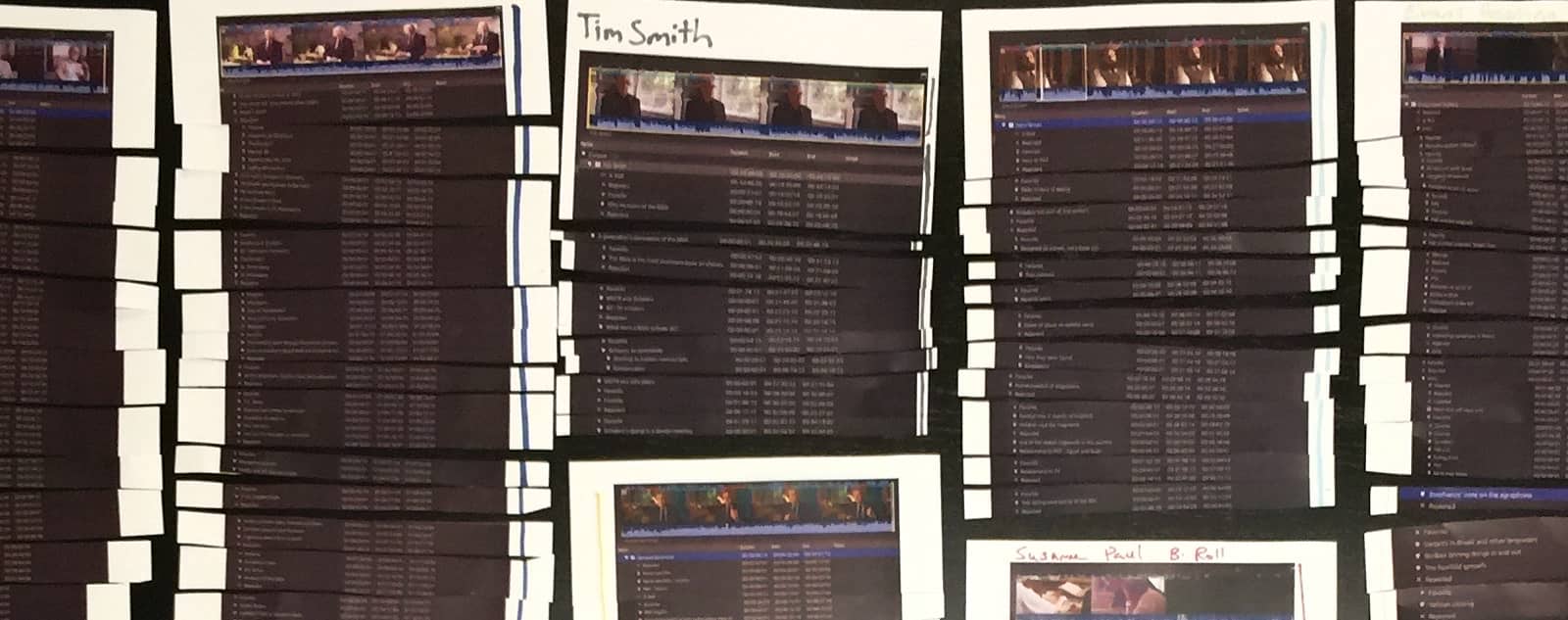
A “paper edit” is the product of using transcripts of interviews printed out on paper to craft an edit. This is the analog method of “text-based” editing. You can actually cut up the portions of the interviews and lay them out, and then group them by topic. This sounds archaic, but it can really help you to see the full story. Another version of the paper edit is to print out a list of markers from the interviews summarizing each point and interviewee discussed. Here’s an example of a paper edit from the 2017 documentary Fragments of Truth.
Paper edit from the Fragments of Truth documentary (2017, Reuben Evans)
In this example, each of the markers was typed out after a portion of an interview had been watched. Then the markers were printed out, and cards were made that listed the common subjects. Those became the building blocks for the film.
Paper edit from the Fragments of Truth documentary (2017, Reuben Evans)
As you can see, this process could benefit greatly from some technological improvements. This is one area where artificial intelligence can shave days, if not weeks, off the time it takes to log and organize your footage.
Those improvements took center stage at NAB 2023 when Adobe and Blackmagic Design announced that text-based editing would ship with their NLEs. You just have to love Adobe’s marketing tagline for Text-based editing, “No more paper cuts.”
DaVinci Resolve
Blackmagic Design included text-based editing in the DaVinci Resolve 18.5 beta. It brings the basics of text-based editing to DaVinci Resolve Studio ($295). Blackmagic calls it “Speech to Text.”
DaVinci Resolve Speech to Text (Blackmagic Design, 2023)
Resolve can automatically create transcripts for you using AI. It will identify silent portions of your clips as well. Simply select a clip in your media bin and click the “Transcribe Audio” button. Resolve will transcribe the text and note silent portions with ellipses. When you highlight the text of your transcription, Resolve will highlight that portion of your clip in the timeline. Resolve can use that transcription to create captions for your video as well. The YouTube channel “Creative Video Tips” has a great tutorial on Speech to Text editing in DaVinci Resolve.
You can see in the video that Resolve only addresses a couple of aspects of text-based editing. The reviewer is having to implement a “hack” where he is using one timeline to organize clips and another to do his edit. That other timeline functions like the “organization cards” in a paper edit. That makes DaVinci Resolve’s implementation pretty good for a single interview or a short video. But it falls a bit short of indexing and organizing the contents of an entire film because it doesn’t incorporate some key metadata. Identifying who is saying what in a documentary interview is highly beneficial. For instance, you may have a host appear in multiple locations or several speakers in a single interview.
Premiere Pro
Just a few days before Blackmagic Design announced Speech to Text, Adobe announced, “Premiere Pro is the only professional editing software to incorporate Text-Based Editing.” While that claim didn’t last long, Adobe’s implementation did go further than Blackmagic’s feature. Premiere Pro automatically transcribes clips and produces captions. Importantly, it allows you to identify the speakers.
It would be nice to see some more advanced tools when it comes to identifying speakers. Currently, the editor has to go through each phrase and identify the speaker. Adobe has shown off the ability for it to identify speakers, but they haven’t shipped that feature to beta yet.
Premiere’s text-based workflow adds a couple of other important features as well. Editors can import a transcript that has been created through a service like Rev.com, and you can associate that transcript with the clip. This is handy if your audio has technical words or foreign languages.
Adobe Premiere Pro Text-based editing, 2023 Adobe
Editors can export the transcripts that Premiere provides as well. This adds value to the transcripts because those transcripts can be uploaded to social media sites along with the video for increased SEO performance.
Both Premiere Pro and DaVinci Resolve allow you to insert clips from the transcription window. You can identify silent sections in your clips in both NLEs.
Adobe also provides a workspace for text-based editing in Premiere, making the feature feel more refined than Blackmagic’s implementation. It feels like Adobe has laid the foundation for more functionality in this workspace in the future. But currently, it is still limited in its ability to function as an organizational tool for a film with common topics across multiple speakers, as is the case with most non-scripted work. So Premiere appears to have the upper hand when it comes to built-in integration.
Lumberjack Builder
In 2018, Philip Hodgets from Intelligent Assistance presented Lumberjack Builder. When you organize footage, it is known as “logging” footage, hence the name Lumberjack.
Lumberjack then grew into a whole suite of logging and editing tools, culminating in the release of their new Lumberjack Builder NLE. Originally released for FCP, the Lumberjack system also works with Premiere Pro. It was the first system to connect AI for transcription with an editing interface and the first text-based editing tool.
Lumberjack combines transcription with keywords and other metadata that allow you to organize an entire project’s worth of footage and cull it together into an actual text-based edit. This comes from a deep understanding of the purpose of a paper edit. It is designed to work with keywords across clips the way an editor uses cards for organizing when doing a paper edit.
The key difference here is that Resolve and Premiere use the text as a “source,” but the “destination” is still the timeline. You read the words in the “source,” but you have to listen in the “destination.” Whereas, Lumberjack features the same interface when you are working through your source interviews or the timeline that you are assembling. The editor is working with blocks of text. This makes it a powerful tool for documentary filmmakers.
For films in languages other than English, Lumberjack offers 16 languages for free. And it integrates with a third-party transcription service for another 50 languages at 25 cents a minute.
Finally, Lumberjack offers real-time logging for interviews with their iOS app. The app enables metadata tagging by people, locations, or other key topics right on set. When combined with AI transcription and text-based editing, it’s a powerful solution. When the editor has finished their “paper edit” in Lumberjack, just send it over to FCP or Premiere and start the process of trimming.
Descript
The AI-powered online video editing app, Descript, uses a text-based editing approach as well. It’s designed to be easily accessible for anyone who needs to make simple videos like presentations. Descript also features an audio mode that is designed for podcasters. One of the big features of Descript is that it will help to identify and eliminate “verbal clutter.” Those are the umms and ahhs that we say when we don’t quite know what to say next.
Descript offers “Scenes” as an easy way to insert your b-roll. The editor inserts a slash into the transcript to identify the beginning and end of a scene. And then you just drag a clip or graphic onto that spot.
Descript now has the backing of OpenAI, so it will be really interesting to see what they come up with in the future.
Conclusion
Text-based editing is nothing new in the sense that Intelligent Assistance has been offering it for years. At the same time, it feels totally new, because far more people have accessed it through Resolve and Premiere Pro in the past few weeks than in the past few years. It is a tool that has proven its worth, whether through the old-school paper edit or the latest AI tech. So many AI-powered features will be coming to post-production professionals that it will be hard to keep up. Some will be of dubious usefulness, while others will transform job descriptions overnight. But the best tools will be the ones that empower storytellers to efficiently work their craft so that we can all do more of what we love.
MediaSilo allows for easy management of your media files, seamless collaboration for critical feedback, and out-of-the-box synchronization with your timeline for efficient changes. See how MediaSilo is powering modern post-production workflows with a 14-day free trial.
You turn in your cut and wait for the inevitable notes. “But my cut was amazing; they won’t have any notes…” and then, the email arrives. There are notes. Pages of notes. Some of them in all caps, some of them in bold. Page three even has some pictures. But it’s okay because, as any experienced editor will tell you, the review process is critical to all forms of filmmaking. And most especially so for television.
Television has come a long way. Traditional broadcast television still exists but is far less prominent than it was a decade ago. Streamers have taken over, and while the concept of television has changed slightly, the majority of shows available to audiences are created in a similar manner.
As an editor working on a television or streaming show, you are likely to work on a small team of post-production professionals who intimately understand the show, even when different directors bounce in and out across various episodes.
Being a good communicator
First and foremost, it is crucial to learn to communicate with your team. Not just your assistants, but your Post-Production Supervisor, other editors working on the show, the VFX and sound mix teams, the executives, showrunners and directors.
Editors working in television tend to be in a unique position. They are the shepherds of the show, supporting the vision of not just the director but the overall show itself, from showrunner notes to executive notes. That’s why TV editors, like editors across all mediums, need to be great communicators.
Here is some advice on how you can effectively communicate with your team and guide the process most effectively.
Set your ego aside
Remember that you are there to support the goals of the show. You may have a vastly different personal style than that of the show or the particular director working on an episode with you, but if you always come from a place of supporting the show, you’ll be able to more effectively pitch ideas that resonate with the team.
Be willing to accept any ideas that come your way, not just the ones that you like the most. Being open to hearing the ideas of others and implementing them into your cuts will help your colleagues and collaborators see the vision of the show and push it forward in the review process.
Internal notes vs. network notes
The process of editing a TV show typically looks like this, although every show can be slightly different. First, the editor will deliver a cut. Then the director will have somewhere from two to four days to spend with the editor to deliver a cut that fits their vision. Notes are then given on the cut, and the editor works directly with the show’s producers and showrunner to prepare a cut to share with the network.
Then the network begins sharing their notes. The network notes can vary greatly depending on the show you are on, the relationship that show has with the network, and how much that show fits the network’s brand and goals. You may be collaborating with your showrunner on how to achieve some network notes while pushing back on others. During this process, you’ll be attending tone meetings, which help align all of the creative goals on the production under the guidance of the showrunner.
Remember that during this process, the show is being given notes as a whole. The showrunner is likely feeling stress from the network notes and needs to decide how to achieve them, whether they are going to push the show too far in one direction or another, and whether or not to fight the notes. As an editor, one of the only people who has seen all of the footage forwards and backward, you can help guide this part of the process by being supportive of any internal workflows your showrunner puts in place to help try out ideas. Being open to receiving notes at this time will help you share ideas and concepts with your team that will help them push the show forward to the network at the next screening.
Showing options
If you have done any sort of client work in the past, you might be familiar with the idea of never saying, “No, we can’t do that.” Instead, if you find an idea is asked of you that you don’t agree with or know won’t work, don’t give a firm “no.” Rather, find a way to achieve something similar but different. Present an option and explain why the original note would have been too complex to accomplish. Presenting an option that is exciting and does work is a great way to showcase your talents as an editor but also diplomatically say, “I’m very supportive of this idea, but the idea that you wanted to do would have been too difficult to achieve.”
Nothing can stop a review process in its tracks like simply saying “no.” Saying “no” is an easy way to get told “just do it” and then forcing everyone down a path of resistance that ultimately will not work. If you spin your wheels on an idea for a long time that ultimately you knew wouldn’t work, then all of that time is lost and could have been better spent punching up other parts of the show. Finding a collaborative way to help directors and executives feel that their idea was still heard helps them push the show in a forward direction.
Working with technology
We live in a world full of technology. Whether your editorial team communicates on Slack, Discord or just a lengthy text thread, here are some great technologies that can be utilized to aid in reviewing episodes.
Messaging tools
Your team will likely need to speak to each other often. In today’s world of remote work, it’s entirely possible that many members of your team are in distant places.
Find a communication tool that works for you. Slack and Discord are great options. If your entire show runs on Microsoft products, you might consider Microsoft Teams. For Google Teams, you might consider Google Meet and Spaces. Whatever you choose, make sure that the communication product you use is easy to set up and that everyone can access it both on their computers and mobile devices.
Meeting tools
Just like communication tools, it’s important to get everyone on the same page about how you will be talking to each other. It can be helpful to guide your team to one singular communication tool for having live conversations to cut down on the difficulty of setting up calls. For instance, if your team is used to using Zoom, then use Zoom for everything.
Alternatively, if your team is entirely a Google team, then consider skipping Zoom and relying solely on Google Meet.
The goal is that you can easily say to anyone on the team, “Let’s meet on Zoom,” and they know exactly what you mean. Sometimes you may just have a question or an idea that can be figured out in less than 5 minutes on a call. This can cut down on lengthy back-and-forth emails.
Reviewing
For reviewing scenes or episodes, it’s important to decide on a tool that will help your team all work together. That’s where a platform like MediaSilo comes in. It’s important for your team to always be looking at the same thing and sharing their ideas in a way that is easy for the editor to understand and accomplish.
Tools like MediaSilo can help consolidate feedback, remove the complexity of writing out timecode notes, and make it easier for everyone involved to know when an idea was shared and have a conversation about that idea. Having all of your feedback and approvals in one place helps expedite the review and approval process by keeping everyone on the team aware of any changes that are being made.
Wrapping up
As an editor, you are the only person who has seen every frame of film that was shot. You know the show forwards, backward, and in some cases upside down (depending on if you flipped some shots). It’s up to you to help guide your team to success. Your role goes beyond simply pushing buttons in the Avid; you are there to help guide your team, discuss ideas, manage schedules and ultimately be the one responsible for crafting the flow of the show.
It’s not an easy job. But with good communication skills, you can be highly effective.
MediaSilo allows for easy management of your media files, seamless collaboration for critical feedback, and out-of-the-box synchronization with your timeline for efficient changes. See how MediaSilo is powering modern post-production workflows with a 14-day free trial.
Avid Media Composer is one of the leading edit software packages in use today, and has some unique features that indexes media so that it can be referenced in projects without knowing the exact path to the media. This can be extremely helpful on large projects but does require a specific media ingest process.
The way that Avid handles content is that each file is given a unique ID reference (known as a Media Object or MOB ID). Ingested media is wrapped into the Material eXchange Format (MXF), and the ID is saved as part of the MXF metadata. The whole of the familiar Avid workflow depends upon this.
On a simple project, the editor sorts material as the content is ingested, and it is automatically formatted and ready to go. But in a busy post environment, this is an inefficient way of working. Most obviously, it ties up an expensive editing workstation and related facilities simply to ingest content. It is also a manual process, so an edit assistant is needed to control the ingest.
EditShare’s integrated production asset management software layer, called FLOW, provides a number of automated tools to simplify this process. The idea is to help users streamline their workflows so they become more productive.
For Avid users, an important tool in FLOW is the ability to create Avid format files, complete with unique ID burnt into the MXF data. This is done not in the Avid workstation but on FLOW servers As soon as the editor sits down to work, all the files are ready in the right format.
Not only is this not taking up edit workstation time, but it can also be completely automated. Set up a watch folder, and new content will be automatically prepared as it arrives on the storage.
More than that, FLOW and its Universal Projects software tool allow you to organize material into universal bin structures that can be synchronized into Media Composer and other editing tools. An editor or edit assistant can structure the bins to suit the specific requirements of the project. All this happens in a web browser that can be accessed by anyone wherever they are located without tying up the suite.
This is a real boost to productivity because it separates organization from creativity. Much of the content preparation and Avid file format conversion happens automatically. Bin structures, markers, subclips and sequences can all be managed from a browser (or even automated). Then all of this appears on the Media Composer screen so the editor can start working right away.
For any busy facility, this is a perfect application of technology. Everything that can be automated is: no one needs to manage file ingest transcoding and rewrapping. Processes that need to be prepared in advance are: content is selected; bins are created and populated; the timeline is set up.
And there is nothing in the way of the creative process. No preparation, no waiting for file conversion or transfers. The editor simply focuses on making the content as good as it can be.
The attention of creatives, lawmakers, and technologists is fixated on generative AI. The ability of a computer to turn a line of text into an image, sound, or video is simultaneously exciting and scary. Adobe has introduced its Firefly (beta) engine in an attempt to empower rather than replace creative professionals. The Firefly page reads, “Adobe is committed to developing creative generative AI responsibly, with creators at the center. Our mission is to give creators every advantage — not just creatively, but practically. As Firefly evolves, we will continue to work closely with the creative community to build technology that supports and improves the creative process.”
Not for commercial use
Adobe is just getting started with generative AI tools. The images produced by the Firefly beta are only for non-commercial use, according to the FAQ page. In this article, we’ve used images produced by Firefly when commenting on them (under Fair Use), but not for the header image (just to avoid any problems). One of the goals of Firefly is for creatives to be able to include imagery created with the help of AI while eliminating this kind of second-guessing.
AI tools for still images
Firefly for still images works on the web and in Photoshop. We’re going to focus on the web version. Adobe allows you to upload your own images to the site or use some of their sample images. Adobe claims that all of the images that Adobe uses to train its AI have been appropriately licensed.
In-painting
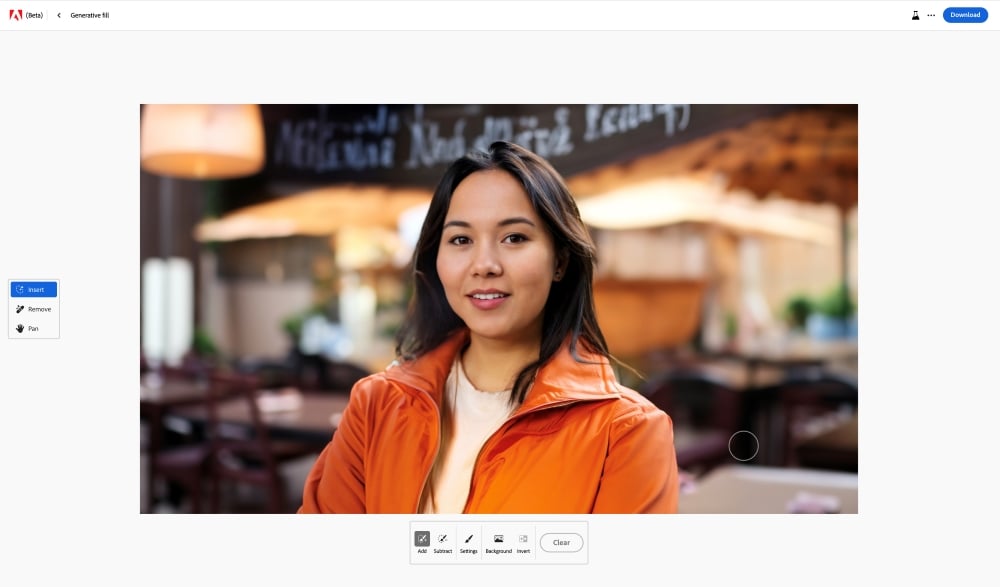
Here’s a sample image that Adobe provided. The woman is wearing an orange jacket and standing in a restaurant. Her portrait has been taken with a shallow depth of field, that’s why the background is blurry, and she is sharp.
You can use the Insert tool to highlight her clothes and describe a new look. The line “A black cocktail dress” is entered into the search box.
Almost instantly, Firefly puts her in a dress appropriate for the evening. Several options are provided. The first one wasn’t great, but this option with the necklace should work.
Changing out the background is just as easy. Click the “Background” button and enter a prompt, like “a cocktail bar.”
And Firefly delivers an appropriate background, with a bit of an awkward attempt at a hand holding a glass with a clutch purse attached.
Is this image going to go up on a billboard anytime soon? Probably not. Could a professional Photoshop artist do it better? Or course. But there will be plenty of uses for this level of imagery. And as time goes on, the AI will keep improving.
Text to Image
The next tool that Adobe offers is called “Text to Image.” You can describe a scene and see what comes up. Just for fun, let’s go across the room and see what Adobe gives us for “a man holding a drink wearing a black suit in a cocktail bar.”
And a dashing selection of well-dressed gentlemen appear. And their hands don’t look too bad, just a little off. Maybe one of them would be a good match for our lady above.
Text effects
Firefly’s next tool lets you experiment with some crazy text effects. In this example, The word “Yum” is filled with a 3D pattern of “Mediterranean cuisine.” The sidebar shows you a bunch of different options like Snake, Ballon or Bread Toast. You can change the background color and then copy and paste the image for use elsewhere.
There are also ways to produce variations on the text effects. For instance, you can change the “fit” from medium to loose. Now you can see how the design spills outside of the letters.
Generative recolor
Adobe has made one more tool available in the Firefly web demo. It’s called “Generative recolor.” You upload an SVG (Scaleable Vector Graphic). And then, you can choose from several tools that allow you to rework the color pallet.
You can choose from the suggested themes or use text to create your own. Additionally, you can select the “harmony” of the color palette, like complementary or triad.
Firefly for video
Firefly is still in beta and focused on still images, but here’s a look at what they have coming for video. There’s an exciting set of features on the way for video editors and motion graphics artists.
Depth
Adobe demonstrated the ability to add depth to an image with a prompt, “A sunlit living room with modern furniture and a large window.”
Firefly then scans the image and appears to understand the dimensional aspects of the space.
This allows for the image to be shown with multiple styling options. I could see this kind of tool being used by production designers to create looks for shoots.
3D to image
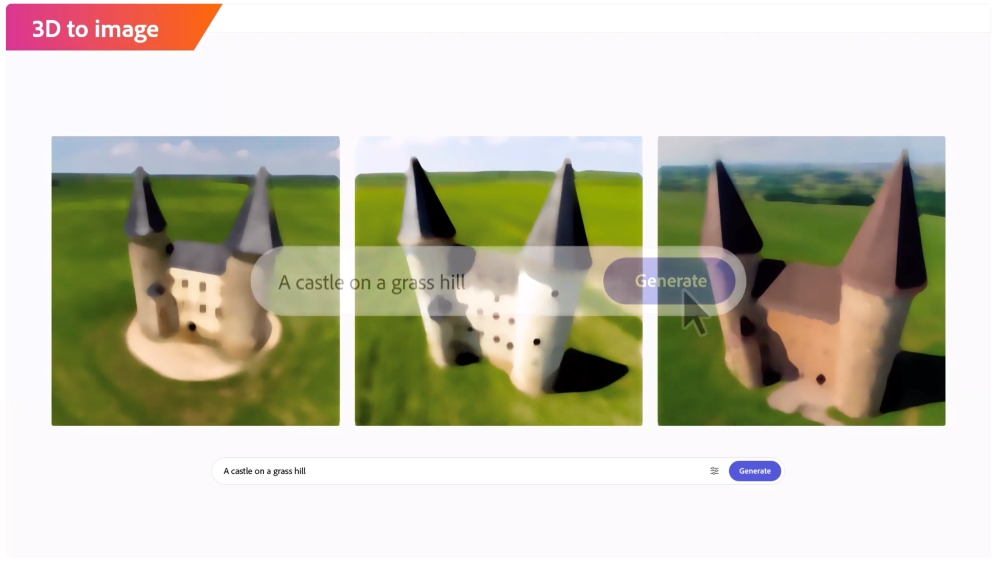
Adobe demonstrates how Firefly will go beyond understanding 3D depth in 2D images. Firefly will actually be able to make 3D objects to place in your scenes.
In this example, they show how a 3D object of a castle can be composited into a generated scene with a prompt.
And then that same model could be restyled into a “castle dessert.” Firefly changes the appearance of both the model and the scene. It understands the context for desserts might be a plate or picnic table.
Conversational editing
Most of the time, the initial image that you get from AI won’t be exactly what you need. But if you refresh the search, you end up back at square one. Conversational editing allows you to keep tweaking the image until you get what you want by “texting” your image. You can become the ultimate annoying client, and your AI designer will never grumble.
The sequence starts with the image of a dog.
The first prompt is to dress the dog in a Santa suit.
And that’s followed by a request to put him in front of a gingerbread house.
Unlimited iterations
Unlimited, instant iterations of artwork have the potential for absolute chaos when it comes to creative deliverables. The mind boggles at the revision requests graphic artists will endure. And then, once they have shipped their work, clients will go to work texting the image to change it further.
VFX artists on “Spider-verse” talked about the cycle of revisions and the long hours that went with that. The executive responded to their concerns: “I guess; welcome to making a movie.” On one side, artists fear losing their jobs to AI. But there is a disconcerting intermediate step. It will be so easy to change art that one’s artistic intent may not be reflected in the “final” project. This may have a chilling effect on people’s desire to enter the arts in a professional capacity. Nobody knows the future, but we know that it will look different than it does today.
Audio production
Adobe’s video showcased many advancements in video production. And they aren’t limited to images. Custom music and soundtracks will be incorporated into Adobe’s tools.
Sound effects based on items in the images will automatically be created. Firefly will understand the elements in your images and suggest appropriate sound effects.
The “effect” this will have on the stock music and stock sound effects industries will be monumental. We’ve already seen many AI tools that can help with voice isolation and noise reduction. Currently, editors subscribe to music and sound effects websites. If Adobe builds AI tools into their video editing apps that automatically suggest sound effects and music from libraries, those sites will have a major uphill climb getting people to purchase music and sound effects files that don’t adapt to the duration of their timelines.
Video Editing
The Firefly engine looks like it will take a significant amount of grunt work out of video editing. Adobe is building workflows to automatically insert B-roll based on the script or voice-over. It would only make sense that those b-roll clips could be generated by AI rather than limited to what you shot that day.
Adobe showed off automated storyboards and previs based on the script. Color grading and relighting based on text prompts. Captions and animated 3D text are just a prompt away.
The high end of the editing world may again coalesce around masters of the craft. However, the medium and low ends of the video editing world will undoubtedly shift, as creators will be able to craft films with nothing more than a keyboard.
Adobe’s goals
Rather than Firefly being a standalone product, Adobe wants to integrate it into its existing tools. We’ll see more generative AI tools throughout their products as they gradually eliminate formerly time-consuming tasks. Adobe has committed itself to an approach to AI that doesn’t steal work and avoids biases. They are putting in tools to help imagery avoid being scanned by AI bots. At the same time, governments like the UK are considering laws to label AI images, and AI sequences like Marvel’s Secret Invasion intro are seeing some backlash. Adobe knows its customers, so hopefully, it can walk that fine line of empowering creatives without displacing them.
Conclusion
Adobe’s vision for the Firefly engine is technically ambitious and thrilling for anyone who wants to create. The desire to turn our words into worlds is as old as time itself. The result may be an explosion of creativity, or it may end up being a mountain of uncanny images. But one thing is for certain; this is just the spark of the AI revolution.
MediaSilo allows for easy management of your media files, seamless collaboration for critical feedback, and out-of-the-box synchronization with your timeline for efficient changes. See how MediaSilo is powering modern post-production workflows with a 14-day free trial.
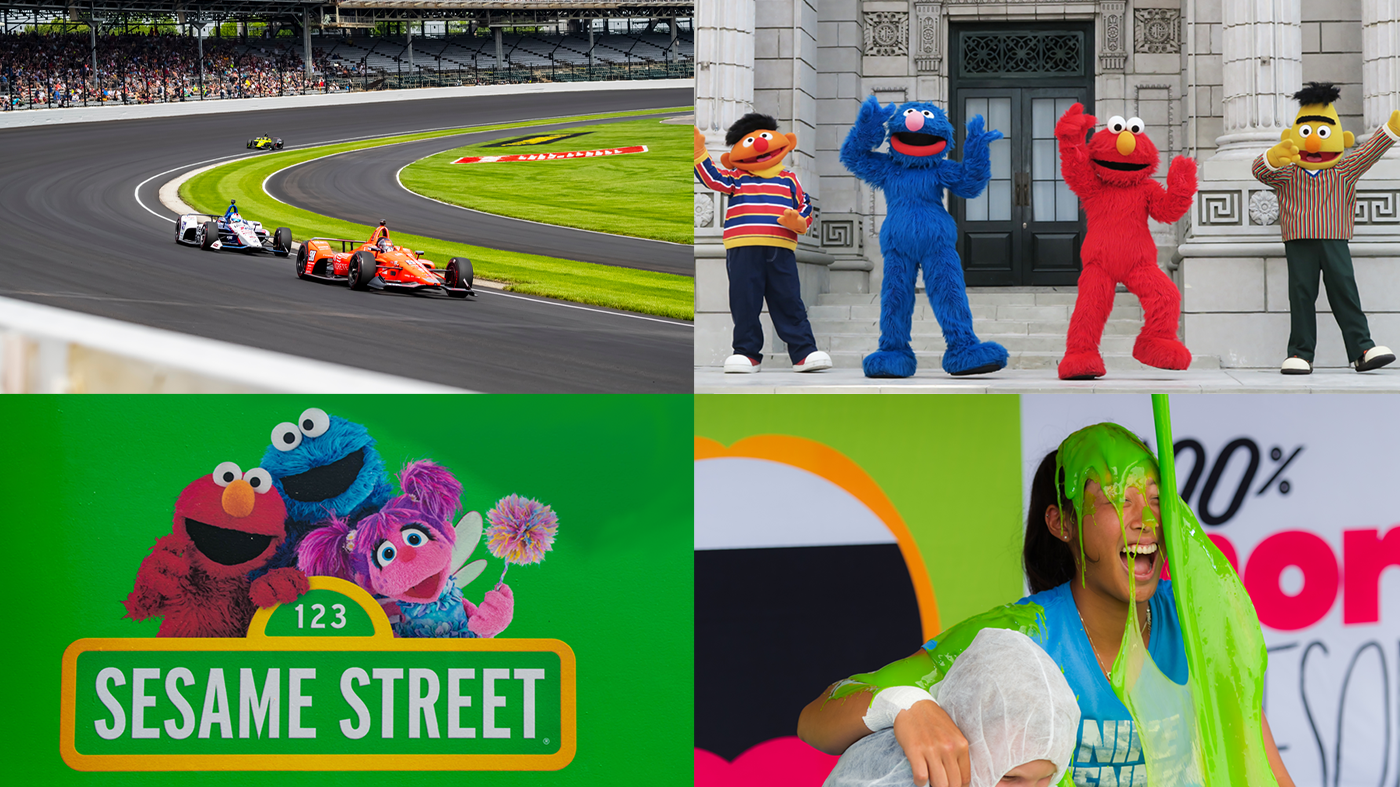
CLIOs. Tellys. EMMY’S. DEFINITION 6 knows what award-winning work looks like because they’ve produced it. Chris Reinhart, the SVP of Post-Production for DEFINITION 6’s Entertainment Business Unit, has helped lead their team to win multiple Daytime Emmy Awards for his work on Sesame Street, in addition to a Sports Emmy for editing ABC’s coverage of the 90th Anniversary of the Indianapolis 500. Behind many of these awards, Chris and his team continually rely on MediaSilo to craft compelling stories and bring their client’s work to the finish line.
Before MediaSilo, Chris and his team constructed their own in-house approval system, in which they would manually digitize their individual video assets and upload them to their site. This process was burdensome and not sustainable. The digital asset management world was evolving, and Chris knew they needed to find a solution that allowed them to seamlessly work on multiple projects at a time and expedite the completion rate of their work to their client’s satisfaction. Having worked with MediaSilo in the past, Chris knew it was a tool that could improve their post-production workflows. Chris led his team to make the switch to begin using MediaSilo for their entire Audio/Visual needs.
“DEFINITION 6 navigates hundreds of versions of assets across dozens of clients with MediaSilo, and it’s incredibly straightforward.”
DEFINITION 6’s work ranges from short promotional ads to documentaries. The lifecycle of their projects varies from a couple weeks to several months. Regardless of project length, the workflows are roughly the same. As content is being shot on location or in a studio, cuts are uploaded to MediaSilo and securely shared with external stakeholders and clients for their actionable feedback and approval in MediaSilo Review Links. During the review and approval process, the editors at DEFINITION 6 will make the necessary revisions to the cuts and then send those back to the customers to take a look at. Additionally, inside the customer Review Links, Chris is able to “stack” multiple cuts on top of each other inside the original link for the client to easily swap between the original asset and the new, edited versions to see if the correct changes were applied. Without this feature, client work can get lost in the shuffle and force clients or execs to go digging in a sea of links and emails in order to tell if their feedback was addressed properly. MediaSilo ensures clients can view all their content and feedback in a single, easy-to-navigate location.
With MediaSilo, Chris and his team have the ability and confidence to work on dozens of client projects simultaneously while keeping all their work organized and moving in the right direction. For Chris personally, he loves to be able to seamlessly switch between his projects at DEFINITION 6 and into his other customer’s MediaSilo workspaces and projects without needing to log out and back in under a different user name. The lack of workspace switching capabilities could take up valuable time better spent on their work.
In addition, MediaSilo’s ease of use for their customers and clients keeps Chris and his team relying on it project after project. Onboarding new users and employees added to their workspace takes very little training time, which makes transitioning from project to project effortless. And MediaSilo’s powerful mobile app allows users to put their work in their pocket and take it on the road while providing peace of mind that their assets are secure.
Chris emphasized DEFINITION 6 works with some of the most globally well-known clients and influential brands in the Media & Entertainment world today. If a piece of media, big or small, is leaked or put in the wrong hands, it could have drastic consequences for all parties involved. Time and time again, their trust is placed in MediaSilo to securely store and share their assets with only the intended users. MediaSilo’s SOC 2 Compliance not only gave Chris and his team peace of mind regarding their client’s work but also gave DEFINITION 6 the confidence to broaden its user base and implement the MediaSilo platform into other departments in their organization, such as Production, Casting and Sales. This grew MediaSilo as not only a place to collaborate on their work-in-progress projects but also a platform to serve as a library to organize and store their finished work. Furthermore, DEFINITION 6’s MediaSilo users are spread out across different project bases, from Entertainment to Public Relations Projects. MediaSilo allows administrators on the DEFINITION 6 workspace, such as Chris, the ability to strictly govern which users have access to which files to make sure all their work is secure and in the right hands.
“You want the thing you’re gonna do over and over again to be reliable and as simple as possible.”
At the end of the day, Chris emphasized that cool new features can only go so far with any platform, and the most important aspect that continues to bring him and his team back to MediaSilo project after project is its reliability. According to their Chief Engineer Luis Albritton, DEFINITION 6 uploaded over10,000 assets, sent nearly 7,000 review links and hosted almost 24,000 viewers of their content in MediaSilo during 2022 alone.
Additionally, Chris pointed out that they send roughly 50-60 MediaSilo review links per day to one of their top clients. With numbers like this, it is imperative for MediaSilo to consistently be a platform that is both reliable and secure. DEFINITION 6 has put their trust in MediaSilo for over half a decade to reach deadlines and keep their clients coming back for all their Media and Entertainment needs. MediaSilo continues to be a tool that checks all the boxes for DEFINITION 6, and we hope to continue this partnership for many more projects and awards to come.
MediaSilo allows for easy management of your media files, seamless collaboration for critical feedback, and out-of-the-box synchronization with your timeline for efficient changes. See how MediaSilo is powering modern post-production workflows with a 14-day free trial.
This summer, three of the major Hollywood unions are negotiating new contracts. The WGA went on strike last month. SAG-AFTRA is currently in negotiations, and speculations are they will join in solidarity with WGA when their current contract expires June 30 (although negotiations may extend past this date). On Friday, June 23rd, the DGA voted (by 87%) to ratify a three-year contract with the studios.
One of the key issues in contention with all three major guilds is the use of AI technologies and how they affect the relative aspects of the film industry. It’s more clear how AI affects writers and actors. For the former, it can be used to complement or even completely supplement aspects of the writing process. For actors, the advancements in AI to create lookalikes and soundalikes are both fascinating and frightening.
What’s less clear is how AI impacts members of the Director’s Guild.
According to The Hollywood Reporter, the contract specifies “that generative artificial intelligence (Gen AI) is not a person and that work performed by DGA members must be assigned to a person. Moreover, “Employers may not use Gen AI in connection with creative elements without consultation with the Director or other DGA-covered employees,” and top entertainment companies and the union must meet twice annually to “discuss and negotiate over AI.” There’s a lot in that little paragraph to unpack. So let’s dig in.
What is “generative” AI?
You’ve heard of ChatGPT. The “G” stands for generative, “generative pre-trained transformer.” Chat refers to the way you interact with it. It can generate original content based on your requests. DALL-E (As in the artist Salvador Dali and the Pixar character Wall-E) generates original art. McKinsey has a great rundown on the basics of AI. And Runway is focused on using generative AI technologies for storytelling. So there’s a lot of concern about the loss of jobs in the creative industries when you have technologies that are designed to emulate the original output of people. Everyone would like technology to make their jobs easier, but we’re wary of its ability to threaten our ability to “generate” an income.
Different kinds of AI
If you ask ChatGPT, it will tell you that there are at least eight commonly recognized forms of AI. Narrow, General, Superintelligent, Machine, Deep, Reinforcement Learning, Natural Language Processing and Computer Vision.
Narrow AI
Apple’s Siri and Amazon’s Alexa fall into this category. They focus on a specific task, and their intelligence allows them to excel at that one thing. These systems can be used for recommendation engines but don’t possess a “general intelligence. Narrow, or weak AI, can provide plenty of value in post-production. It can do things like automatically match the color of two shots or duck the volume of the music. If NAB 2023 was any indication, post-production pros will see new Narrow AI-powered tools coming on everyday.
General AI
Also known as AGI (for artificial general intelligence), is a theoretical AI that is the opposite of Narrow AI. It would be smart across many domains. It could have many skills. Wired reports, “Microsoft Research, with help from OpenAI, released a paper on GPT-4 that claims the algorithm is a nascent example of artificial general intelligence (AGI).” In theory, AGI would have the ability to think on a human level. And the problem with that is how do we align it with our own interests.
Superintelligent AI
Also known as ASI, this is again a theoretical AI that surpasses human intelligence rather than just matching it. This Artificial Super Intelligence would have thinking skills of its own. We don’t know if this is possible to create, and if it is possible, we don’t know if we can control it.
Machine Learning (ML)
Machine learning comes in various forms, including supervised, unsupervised or semi-supervised learning. A machine is trained on a data set, and it may or may not really understand the “right” answer. But machines can begin to spot patterns that might not be apparent to us. Eventually, the system can learn to spot patterns, like identifying a dog in a picture. Generative AI uses machine learning algorithms. It is the foundation for the technologies that we are seeing today.
Deep Learning
This is a subset of Machine Learning. Google’s new generative AI search results say, “Deep Learning structures algorithms in layers to create an “artificial neural network” that can learn and make intelligent decisions on its own.” Statements like this might send a chill down your spine. Those “decisions” have more to do with recognizing and identifying patterns than Terminator-style decisions about who lives and who dies. But how the Deep Learning machine comes to its conclusions can be a bit of a mystery. We know that Deep Learning requires a large set of data. So It is easy to see how a platform like Netflix can use Deep Learning. By analyzing the viewing habits of its members, it can use that analysis to feed a recommendation engine.
Reinforcement Learning
When you put an AI into an unpredictable environment, how does it make decisions? That’s what Reinforcement Learning teaches the machine. It makes decisions and observes the consequences. If rewarded or punished, it learns to do more or less of that. This kind of AI will make a huge impact on online marketing. Multiple iterations of ads will proliferate, and AI will be able to adapt, deploy and adapt again based on whatever is most profitable.
Natural Language Processing (NLP)
This aspect of AI speaks to its ability to understand and output language like a person. By understanding linguistics, the computer learns how to sound like us. This capability is great for things like spell check, transcription and translation. This tech is already taking post-production by storm.
But this capability feels like an existential threat rather than a helping hand for those who make their living writing. This explains why the WGA has focused on the need to refrain from supplanting writers with machines. Writers can use AI to assist their process, but they don’t want the studios to replace them with machines.
Computer Vision
“If AI enables computers to think, Computer Vision enables them to see, observe and understand,” says IBM. Netflix is using Computer Vision to create match-cut tools. This technology provides the input necessary for a computer to “watch” a film. Then Deep Learning begins to understand patterns in those films. VFX tech like rotoscoping and relighting are already being simplified with Computer Vision.
Notice that “generative” is not on that list. This omission is because generative AI combines these different algorithms. The “pre-trained transformer” part of ChatGPT refers to its ability to use statistics to establish relationships between words in a sentence (or a larger body of script) based on an enormous pile of texts written by people. It is trying to copy the way people write by studying their writing. You can see how Netflix uses Machine Learning and Computer Vision in their video about how it is transforming the entire industry from four years ago.
The controversy around “generative” AI in the DGA contract
The specificity of “generative” AI has caused concern among those who feel it is too specific because there are various kinds of AI. Others argue that it is sufficient. The argument is that if AMPTP is using such precise language for “generative AI,” that may open the door to other AI derivative technology that goes by a different name. Others have argued that there are provisions in the contract to prevent that kind of loophole from being exploited. Ultimately, the lawyers will have to battle that out.
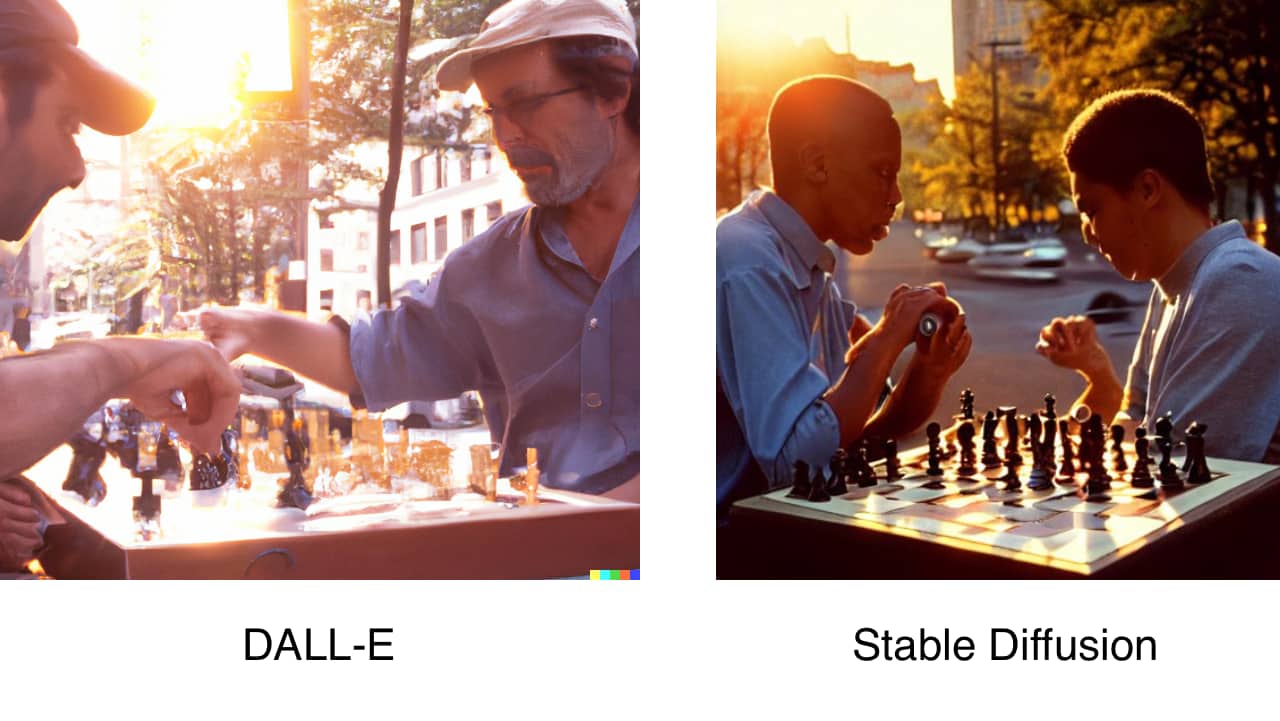
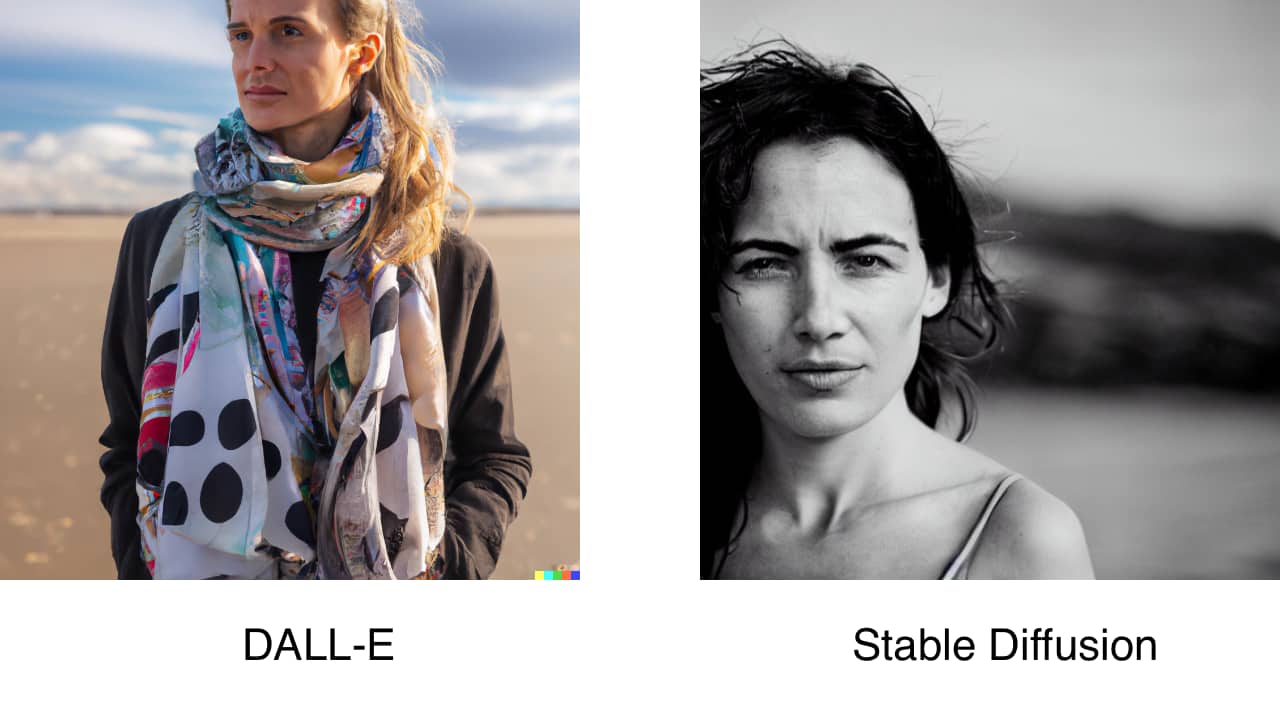
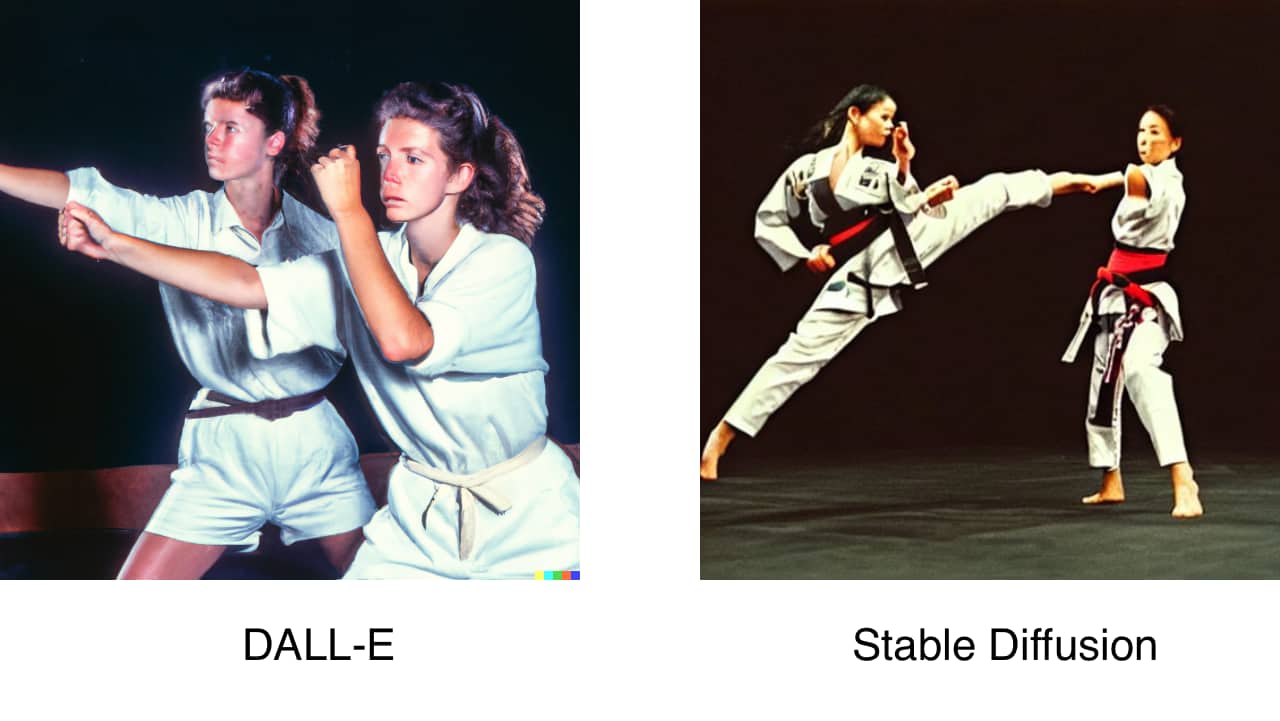
In the meantime, generative AI keeps improving. The internet is full of examples of images created by AI. But what about the aspects of lighting, historical era, costumes, focal lengths, capture medium and lens choices? Here are three examples of prompts of DALL-E and Stable Diffusion that incorporated that kind of language:
Two men playing chess photo at golden hour in New York City with a bounce fill used on a 19mm leica lens at maximum aperture shot on Kodak Kodachrome film.
A portrait of a woman on a beach with a bounce fill used shot on a Leica 50mm lens at f.95
Two women martial arts fighters shot with a telephoto lens from the 1990s.
“Without consultation”
The examples above feel simultaneously laughable and threatening. If AI can reference the characteristics of specific lenses and lighting techniques to generate images, you better believe it will be deployed in all corners of post-production. This is why the agreement stipulates that AI can’t be used “without consultation” with the director. Of course, the concern is that this consultation may not be in good faith. Will directors simply be “notified” (rather than genuinely consulted) when AI is brought in to change or generate imagery? The role of video collaboration/review and approval tools will become exponentially more significant to enable directors to navigate these waters.
Impact on assistant directors and UPMs
The DGA agreement focuses on AI “in connection with creative elements.” This qualifier raised concerns regarding the “non-creative” aspects of the director’s department. Script breakdowns, scheduling and more are a part of the responsibilities of assistant directors and unit production managers. The concern was that much of the work of these “below-the-line” positions may be automated by AI.
Impact on other union negotiations
Forbes points out that it may be easier for the DGA to get concessions regarding the use of AI for their jobs as opposed to other unions. SAG-AFTRA and the WGA will be watching closely because they may feel they are more vulnerable to having their work replaced by AI than directors. The WGA desires assurances that they won’t be replaced by a chat interface. SAG-AFTRA has the concerns of actors, stunt coordinators and background actors to represent. The members of SAG-AFTRA have already authorized a strike if necessary.
Conclusion
The impact of AI will be felt deeply across the entire industry. It will change both the size and shape of the industry as a whole. New roles will be created, and current ones will have their responsibilities reshaped. At the same time, it is imperative that we recognize that it is the human resonance in a work of art that makes it unique. It’s the capturing of creative energy that makes it valuable, and a machine can’t replace that.
MediaSilo allows for easy management of your media files, seamless collaboration for critical feedback, and out-of-the-box synchronization with your timeline for efficient changes. See how MediaSilo is powering modern post-production workflows with a 14-day free trial.
Your film has reached picture lock. The director is happy and the producer is relieved. Now, it is time to move the edit over to the online facility. Whether this is your first film receiving a proper finish, or if you are an assistant editor moving up the ranks and need a refresher, follow along with our online editorial preparation guide to ensure the conform process runs as smoothly as possible.
What is offline editorial?
A video editor often only edits. What we mean by that is: final transitions, effects, color correction, and titles are often handled by a dedicated department broadly referred to as “online.” That is not to say a video editor only handles straight cuts. Quite often, the editor will use color correction to set an overall guide for the production to follow. Or, the editor makes placeholder title cards to establish the timing of elements in the cut. By distributing work across a team, post-production departments can work more effectively.
The department responsible for the video editor bringing the edit to picture lock is referred to as “offline.”
What is picture lock?
Picture lock, or locked picture, is when the timing of each edit is decided. Once this is determined, other departments, including sound, music, color, and visual effects, can start their work.
What is online editing?
Online editing is the process of ensuring every piece of video, image, title, or transition is created at the best possible quality. This is to ensure that footage is ready to be versioned and distributed, looking its best on every screen. Online editors coordinate with distributors and associate producers to add elements such as commercial breaks for television broadcasts and seamless cuts for the streaming release.
They are additionally responsible for technical issues such as mismatched frame rates and dead pixels. They will use the best techniques for speed ramps that blend or morph frames together to look more natural than a frame duplication technique.
Sometimes, online editors will add effects such as glows and blurs, or perform chroma keying for green screen removal. They additionally tend to have many restoration plug-ins at their disposal, such as noise reduction to contend with grainy and underexposed footage or de-flicker to compensate for the interference left by fluorescent lights.
What is the conform?
Conform editing, sometimes just called “the conform,” is the process of relinking each piece of media to the highest possible quality source. This could mean unlinking dailies and connecting to the camera’s original files, or purchasing a stock image that does away with the watermark. Conform editing is either done by the assistant editor at the end of offline or is handled by an online editor during the preparation for final color correction.
What software is primarily used for online editing?
Software used for online editorial varies on the preference of the online editor and the infrastructure of the post-production facility. Any software that can input raw camera files and support professional codecs can be utilized for online editorial.
Adobe Premiere Pro paired with Adobe After Effects is commonly used for finishing. After Effects offers great communication over the Premiere in the form of motion graphics templates (or MOGRTs), which makes text and animation-heavy projects a breeze. The addition of dialog transcribing tools and closed captioning support streamlines the finishing process and uses fewer tools than in recent software generations. Similarly, Final Cut Pro paired with Motion is another strong combination for finishing artists.
Avid Media Composer with the Symphony option had been a popular choice as Symphony was one of the first dedicated online editing tools on the market. A major advantage of using Symphony is that if Media Composer was used during the offline, edit transitions, titles and effects will translate into the new timeline natively. For even more effects, Blackmagic Fusion and Filmlight Baselight offer Avid native plug-ins for online editors.
There are “big-iron” solutions for online editorial; highly specialized combinations of hardware and software that cost north of six figures to deploy in a facility. These suites tend to feature a combination of editing, color, compositing, and restoration features. The most popular of these platforms are Autodesk Flame, SGO Mistika, Digital Vision Nucoda, FilmLight Baselight, and Grass Valley Rio. The advantage of using one of these high-end tools is the feature set paired with excellent performance and real-time playback of complicated effects. However, their somewhat niche status makes learning any of these platforms a bit difficult for newcomers and leaves the job market for talent highly specialized.
And last, but certainly not least, is DaVinci Resolve. The long-popular color correction suite has added video editing and VFX compositing tools in recent years and features a fantastic noise reduction tool for contending with underexposed footage. For ease of use, cost, and overall features, Resolve is tough to beat.
Is online editorial simply software?
There are additional hardware requirements for online editing. Color-accurate monitoring with high bit-depth support is also required to properly view the results. Therefore, broadcast-quality video monitors or digital cinema projects are required during the online.
Online editorial requires the ability to playback and the most demanding camera formats with complicated effects in real time so that directors and producers can approve the work being reviewed. For this reason, online facilities require large arrays of network-attached storage (NAS), whereby dozens of drives work in tandem to facilitate the speed and size requirements of camera raw footage.
How does the online software receive the edit?
Often, the online edit system will differ from the offline system. For example, a show may edit in Avid Media Composer and online in DaVinci Resolve. The key component for this workflow is the Edit Decision List (or EDL). An EDL describes the metadata of every cut made in the picture-lock timeline so that the timeline can be recreated in another piece of software.
The key components of an EDL are:
Source Media Clip Name
Source Media Reel Name
Source Media Timecode In-point
Source Media Timecode Out-point
Edit type (cut, dissolve, etc.)
Timeline Track
Timeline In-point
Timeline Out-point
Edit Decision Lists are human-readable. If you were to print out an EDL and give the results (and source media) to another editor, they would be able to recreate the edit in another piece of software manually. Thankfully, the software does this process for us.
However, EDLs are far from perfect; there are many components in an edit that they do not describe, which are:
Positioning, such as zooms and pans, does not translate.
Effects such as blurs and glows are not maintained.
EDLs do not translate title information.
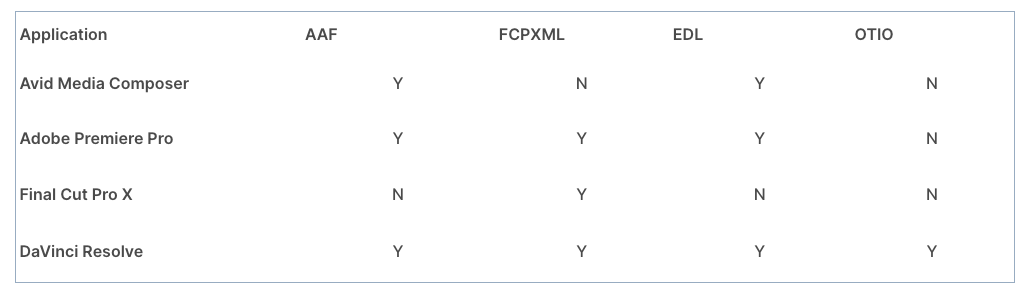
To compensate for these shortcomings, there are more sophisticated interchange formats. These formats offer some effects translation and are better overall formats than EDL. These are the following:
AAF – Advanced Authoring Format. AAF replaces the now legacy OMF framework.
FCPXML – Final Cut Pro Extensible Markup Language. Often referred to as simply “XML.”
OTIO – Open Timeline Input Output. A relative newcomer to video editing software, though used in the visual effects industry, OTIO is an open-source solution offering the benefits found in an AAF or FCPXML. Hopefully, this format will continue to gain traction and see more adoption in the industry.
There are varying levels of support for different interchange formats. The software receiving the interchange may not interpret the edit list correctly. For this reason, we recommend sending an AAF or FCPXML as the primary interchange file and then sending an EDL as a backup.
Timeline preparation for online
Duplicate the picture-lock timeline
Assess the work of the video editor and determine what the methodology is for layer management. Using as few layers as possible, consolidate the timeline onto thematically dedicated layers. For example:
Video 6 – Titles
Video 5 – VFX
Video 4 – Stock Video
Video 3 – Transitions / Bumpers
Video 2 – Primary Video
Video 1 – Primary Video
At this stage, assets such as titles need to be on their own layer (and only their own layer) to quickly be hidden during reviews. It can be additionally helpful if special camera types (such as a GoPro only used on occasion) are isolated onto their own layer, as this footage may require special processing to match other cameras.
Remove unused content
While fleshing out the story, an editor may have unused takes or alternate ideas on the timeline and simply disable them. At this point, delete the unused clips. Not only is this for visual clarity, but it is also important to keep EDLs as minimal as possible to avoid the loading on redundant assets during the conform.
Commit multicam edits
Multicam clips are essentially containers on the timeline, referencing other elements in the project. This is helpful for organization and gathering multiple angles. However, these kinds of clips do not reference metadata in the same way as a video clip and, therefore, do not translate to an EDL. The Multicam “containers” need to be broken down to show only the video angle used. To do this in the following applications:
Premiere Pro
Select all clips in the sequence
Right-click > Multi-Camera > Flatten
Avid Media Composer
Select the sequence in the bin
Right-click > Commit Multicam Edits
DaVinci Resolve
Select all clips in the timeline
Right-click > Flatten Multicam Clip
Add timecode burn-in
Timecode burn-in offers a visual indicator of how metadata relates to the edit. Use a smaller font size and pack away this information in the lower left of the frame so it is not in the way of any screen action. Some suggested fields for the burn-in:
Record Timecode – where clips need to be in the edit and can help troubleshoot any drift or relinking issues
Source Clipname – what video file was used in the timeline
Source Timecode – wherein the video file is used
Export a reference clip
The reference clip is a representation of the timeline for use on other platforms. It is used by the online department to check the integrity of the conform and to ensure effects such as pan and zooms are translated correctly. Sound and music teams will additionally need to use the reference picture.
When exporting a reference clip, be sure to utilize either Apple ProRes Proxy or Avid DNxHR LB codecs, as these formats are optimized for the post-production process. H.264 files are not ideal as they rely on temporal compression to save filespace, which can slow down a computer during playback and could introduce discrepancies at the per-frame level.
What happens if changes need to be made after picture lock?
Do not worry. This happens very often. At this stage, communication is important. Consider the following:
Inform all other departments that a changed reference is coming once a new picture lock is achieved.
Version up the timeline in the editing software.
Avoid “rippling” the timeline whenever possible in the new edit. Try replacing a shot with another that runs the same length to prevent sync issues.
Clearly track every change with a marker and a brief description. Send the timecodes of these changes to the new departments in an email.
Deliver a new AAF, FCPXML, or EDL to each department with only the new changes (remove non-problem scenes from this timeline upon export). Alternatively, a program like Change List X can compare two different FCP projects and generate a list of only what is different between them.
Output a new reference picture of the whole film with the new changes included.
Is online editorial still relevant?
For many years futurists and post-production supervisors thought that the online department would become obsolete and for good reason. Software is increasingly more affordable and computers are exponentially faster, while the prices of storage have plummeted. However, dedicated tools and clearly defined responsibilities during the finishing and distribution processes are more relevant than ever. So for now, keep your bins clean and your timelines tidy, and we wish you a smooth conform to keep the online department moving right along.
MediaSilo allows for easy management of your media files, seamless collaboration for critical feedback and out of the box synchronization with your timeline for efficient changes. See how MediaSilo is powering modern post production workflows with a 14-day free trial.
Keeping post-production on schedule requires continuous communication and coordination. As editorial, sound and visual effects teams are working in-person, remote and hybrid across different vendors, a single review portal keeps producers and artists working without delay. An intuitive workflow is only one component in the post-process; security is arguably even more important. User management and a comprehensive set of permission controls ensure that the right artists have eyes on the right assets.
While there are a number of free tools that can quickly post a video online, using them for coordinating work, versioning and tracking progress quickly becomes difficult. A purpose-built solution for visual effects and editorial teams is ideal to keep post-production moving along. Read on to discover how to quickly lock edits, approve reviews and securely collaborate remotely.
Approvals and feedback
As editorial teams lock cuts and VFX artists render shots, work in progress needs to be showcased for approval. MediaSilo equips editorial, production and post facilities with streamlined tools that get shots and cuts ready for review. Popular delivery codecs, including Apple ProRes, Avid DNX and H.264, are supported for native playback from MediaSilo, without the need to transcode additionally. Some image-sequence formats–such as DPX and EXR–need to be downloaded before they can be reviewed.
In MediaSilo, once a project is created, teams of users can be invited with just a few clicks; and helpful preset templates keep permissions and access controlled. For example, the editorial team can have download access, and the production may have streaming only. Uploading media can be done drag-and-drop straight from the desktop, and folder trees are maintained during the upload to a project.
As creative stakeholders add notes, projects can be easily managed to keep the flow going. Artists and clients need to be in constant communication. Rather than adding new uploads (and having to send out new links), videos can be versioned to show the progress of the latest cut. During review, creative stakeholders can make notes in the form of a comments field, and artists have the ability to mark these comments as incomplete or done. Per-frame annotations can additionally be added.
For media composers and Premiere pros
The amount of supported codecs, formats and wrappers within MediaSilo is extensive. From a standard H.264 to Apple ProRes to Avid DNxHD – there are so many deliverable formats that chances are, you won’t have to do any special outputs to get content online. There is even support for uncompressed graphics formats such as TIFF, CR2, PSD and even vector formats like SVG. Simply drag and drop the desired asset into the portal, and your client (and only your client) will have instant access.
Adobe Premiere Pro editors can enjoy the MediaSilo extension, which can directly generate review links from the NLE straight out to clients, and client notes will automatically sync with Premiere for even fewer mouse clicks. Avid Media Composer editors can import notes coming out of MediaSilo in the form of a .txt file that is optimized for Avid workflows.
Security
Post-production is the central hub for all things related to production. Since the editorial team has the footage at their fingertips, they often receive the first call when an asset is needed. Sometimes, the wardrobe department needs footage from a previous episode to recreate a costume or, a visual effects artist needs to reference the look of a specific location. Whatever the reason, key creatives need immediate access to source footage.
MediaSilo pairs user permissions to specific projects. For example, a production creative might only require stream-only access to a scene, whereas the art department needs download access. Configuring either is easy. Links can also be set to expire after a time window, and custom watermarks can be generated as needed.
Multi-factor authentication is available for situations where device access is a concern, such as remote teams or shared office spaces. With MFA enabled, teams can use an authenticator app like Google Authenticator or Authy to add another layer of security. It’s a simple, safe and straightforward solution to keep assets under lock and key should an account login be compromised.
By providing a single, secure portal for review, many potential vulnerabilities are closed. The post-supervisor isn’t managing email accounts and passwords manually because the platform backend handles those details. Logins and passwords do not ever need to be shared over email, and review links are less essential as the portal-style layout of MediaSilo gives each user a customized view of just the content they need access to.
Stopping leaks
The most unfortunate scenario would be if a production member’s computer were to be hacked and footage gets leaked. Though rare, it certainly does happen. Sometimes a reused password is the culprit; other times, it could be a more serious exploit within a network or facility. Whatever the case, SafeStream within MediaSilo projects offers forensic watermarking that can showcase which user’s account was responsible for the leak.
With usage tracking built-in, security and network admin discover when any unusual activity occurred. This allows the production to quickly migrate off the compromised devices and accounts. Identifying sources quickly helps solve problems and keep production moving.
Can’t I just use a free tool?
There seems to be an expectation that video can be easily and instantly shared for review, in part because user-generated content is absolutely everywhere. However, any assistant video editor will gladly share how cumbersome it is to post unlisted videos to a major sharing site or that cloud storage folders can become cluttered quickly with revisions. In the case of video post-production, a free-to-use video-sharing network is not the best tool to reach client approval. The fact is that these platforms were not designed for production usage.
Once notes start coming in, things can get confusing quickly. Did the producer mean the timecode in the video player toolbar? Or the burn-in timecode? Now that there are creative notes coming in by email, how do those notes get organized and tracked? Who crosses off shots from a spreadsheet as they are approved? All of this coordination adds confusion and can waste time during production.
Remote work is here to stay
In many ways, post-production has always been remote, even before WFH was trending. A film may utilize multiple vendors to divide visual effects and motion graphics or be filmed in one city and posted in another. This concept has only been expanded upon in recent years, with individual artists and coordinators working from home and reporting to a single studio. For the foreseeable future, team reviews are more likely to happen online and less so in the boardroom.
Remote workflows have been demonstrated to be as effective as in-person collaboration, but additional considerations need to be made; communication and coordination being principal among them.
Even if you are a freelancer, you can’t always assume that a review portal will be provided for you. Increasingly, productions are bypassing post-boutiques and hiring artists directly. If coordinating assets or reviews is not your current expertise, it may well soon be.
Getting post-production onto a platform like MediaSilo will get creative teams’ communications and—fingers crossed—get through the client notes. And the assistant editor will most certainly be a lot happier. With simple coordination, ease of use and speed, key creatives will spend more time locking shots and less time digging through emails and crossing off notes in spreadsheets.
MediaSilo allows for easy management of your media files, seamless collaboration for critical feedback, and out-of-the-box synchronization with your timeline for efficient changes. See how MediaSilo is powering modern post-production workflows with a 14-day free trial.
Many content creators find themselves facing the need for organized, secure, shared content storage for the first time. You might be a successful YouTuber, or perhaps a growing corporate communications business.
The common factor is that you have an increasing archive of material which you need to organize. Efficiency means you need to reuse some of that material. Location shooting is expensive; you will wear out your welcome if you keep calling up the CEO to ask about shooting some B roll every time you need it.
Keeping Track of your Assets
So you need to know what you have and how to find it. Keeping track through stick-on labels on USB drives or on camera cards, or at best an Excel spreadsheet, is not a scalable solution. Storing the material on USB disk drives on a shelf is increasingly impractical. And, of course, there is the question of content security: if the shot you are looking for is only on one disk drive and it goes faulty, what can you do?
What you need is a solution which will provide very secure, very resilient storage with asset management so you can search your archive.
You may think that EditShare storage systems are for big production companies, and certainly we do supply some of the biggest in the world. But the good news is that our platform is designed to be scalable, so you can start with something small, confident that it will grow as your business does.
Avoiding Data Loss
And however small you start, you will always have the highest levels of protection for your content. Automatically, within the storage device, RAID protection tuned to the needs of video content will ensure that your material is protected.
Working Out What You Need
The question, then, is how much storage do you need? There are a number of online calculators (https://www.omnicalculator.com/other/video-size, for instance) where you can put in your video format, frame rate and length of the recording and it will tell you how much data you have.
If, for instance, you are planning a five-minute video, and you expect a 10:1 shooting ratio. Your acquisition format is ProRes 422, 1080p/50. The raw footage is going to come out at a little under 100 GB. Add some extra for edits and renders.
Then multiply by the number of projects you have now, and how many you plan in the immediate future – the next year or two. That will give you the capacity to aim for.
The EFS 200 is designed for this sort of production capacity. You can start with as little as 24 TB of storage – room for a couple of hundred of our sample project including room for RAID protection – and you can scale it up to 360 TB simply by adding disk drives as you need them. It automatically manages distributing the data so nothing is lost and no time is wasted.
It is a network device, so whether you are using Mac, Windows or Linux you will see it as a connected device, directly accessible from your favorite edit software. There is no need to learn anything new. Better, because it is on the network, you can have multiple editors working on multiple projects simultaneously, without loss of performance.
Having this sort of content management gives you security, it boosts productivity, and it helps you manage your precious assets. You can start with the right size for your business as it currently stands, confident you can grow in the future without issues, even if your ambition is to be one of the most successful production companies in the world.
When you visit the cinema, there’s always been a certain joy to be had in seeing the trailers for upcoming films (ignoring those who purposefully turn up 10 minutes late). It’s a chance to catch a glimpse of the next big blockbuster and make a mental note of when you’ll be back.
However, in recent years, doesn’t it feel like a lot of movie trailers aren’t up to snuff? Perhaps those turning up 10 minutes late know something. Whether they’re too loud, too confusing, too long, or potentially just ruin the whole plot (this is happening far too much), some movie trailers seem to have lost their way. We’re here to show that with a bit of understanding and knowledge, it’s still possible to make a great trailer for the ages.
The importance of a great trailer?
Studios invest millions of dollars into the marketing and promotion of films in the hope that they’ll sell enough tickets and merchandise to turn a profit. So, before anything else, a trailer is a marketing tool. There’s perhaps no other marketing tool used to promote a film that is as influential as the trailer. If it leaves you wanting more and makes you think, “Yeah, I’ll buy a ticket for that,” it’s a great trailer. It’s just like any other piece of advertising, selling a product.
With that in mind, let’s get into the do’s and don’ts.
Show as little plot as possible
This is the number one problem with a lot of trailers in recent years. For two to three minutes, the trailer seems to act as a “mini-movie,” giving away all the important plot points and leaving you feeling as if you got the whole story already. It defeats the purpose of a trailer because rather than thinking “I can’t wait to see that and find out more,” you’re left wondering, “Why would I go and see that when I already know the whole plot?”
A trailer that felt very guilty about doing this was Spiderman Homecoming (2017). It just felt like an overall summary of the movie, revealing all of the plot points that should’ve been kept hidden to surprise the audience.
The decision to do this is a perplexing one. Can you imagine if the trailer for Star Wars: The Empire Strikes Back (1980) featured Darth Vader delivering the iconic line “No, I am your father”? If you’re making a trailer for a comedy film, don’t give away all of your best jokes. If it’s a sequel, don’t freely reveal huge plot points that the audience didn’t know at the end of the first film. If it’s a horror film, don’t reveal the monster! Why would anyone want to watch your film if you’ve left nothing to the imagination and created no mystery about the story?
Instead, you want to do just enough to tease an audience and leave them wanting more — that urge to fill in all of the blank spaces and explore the world that’s been created. You want to have your audience asking questions such as, “Who is that?”. . . “How does this work out?”. . . “What does that mean?”
The trailer for Dawn of the Planet of the Apes (2014) did an excellent job at this. It’s full of suspense and mystery, none of the plot is given away and we’re left with plenty of questions we want answered.
Show off your best visuals
While you don’t want to reveal the whole plot and ruin the film before release, it’s okay to show off the visuals if you can do so in a sensitive way that won’t give the game away. Ultimately, movies are a visual medium, and you can entice an audience into watching them by showing off some of your best work in the trailer.
This technique can work particularly well if your trailer is for an action film that features huge set pieces and cutting-edge special effects. It’s not a secret that the best way to experience these moments is on the big screen — that’s a major selling point for your film, so don’t be afraid to show it. Rather than revealing the whole action sequence and all the big moments, you can just offer a glimpse or a taste that leaves the audience wanting more — that’s always the goal here.
Check out the trailer for Pacific Rim (2013). It’s big, brash, and bold. This is a film about giant human-controlled robots fighting giant monsters and boy, do we know about it. We’re given plenty of little teasers of the great special effects and action on display, making us keen to see the whole film on the biggest screen possible.
Market your talent
The other main reason an audience might be enticed to come and watch your film is that they’re a fan of a certain actor or director who’s been working on it. Identify your star talent on screen and make them front and center of the trailer, showing off the depth and range of their performance in your film. Even if a “big name” isn’t the main character in the story, just showing their face can be enough — the stamp of approval that makes someone think “Yep, I’ll buy a ticket to see that.” Just look at the trailer for Asteroid City (2023). It’s stacked full of great actors!
Similarly, suppose the film has been produced or directed by a well-known name in the industry (Steven Spielberg, for example). In that case, you might want to feature graphics and text such as “from legendary director Steven Spielberg.” In the case of Wes Anderson, people know immediately because of his unique style, but usually, don’t assume people know the director without telling them.
Another way to do this is to highlight their previous work. For example, in the trailer for The Creator (2023), we’re told that this movie is from the director of Rogue One (2016). I didn’t know that beforehand, but I loved Rogue One, and now, I’m more inclined to go check this out.
When to use graphics and voiceovers
You only have one or two minutes to entice an audience into watching your film, so every second counts. Using graphics and voiceovers in your trailer can help deliver extra vital information, as well as help to aid the story the trailer is trying to tell.
Of course, there are some very overused, tired clichés with this. Hollywood certainly went through a moment where it felt like every trailer used that “voiceover guy” to deliver the cheesy line “in a world…”
His name is Don Lafontaine. While he’s awesome at his job, trailers have evolved and moved on from that style nowadays. Here’s a mashup of Don’s trailers, along with a few other iconic voices who worked the “VO trailer guy” circuit:
What could set your trailer apart and work quite well is to use the voiceover from one of your characters in the film. Leonardo DiCaprio does a great job in this recent trailer for Killers of the Flower Moon (2023). The “Can you find the wolves in this picture?” speaks directly to us, inviting us into this world and this story.
Notice the simple but effective use of graphic text, too. It gives us the following important details:
This is based on a true story
This is directed by academy award winner Martin Scorsese
It’s being released this October
A phrase summing up the story: “Greed is an animal…that hungers for blood”
The title of the film
How to use sound effects
Just like the film itself, music and sound effects can play a massive role in elevating your trailers. One of the most iconic, praised trailers is for the original Alien (1979). There’s no dialogue or music, just the use of terrifying sound effects, conveying the ominous, scary vibe of this iconic sci-fi horror.
Sound effects can go a long way in crafting the atmosphere and tone of a trailer. In what may be a homage to the Alien trailer, the teaser for Godzilla (2014) is equally intense, using simple but-terrifying risers that deliver us into this unsettling world before hearing that iconic roar at the end.
Notice how that trailer also utilizes sound effects that seem to dictate the cut. Various drones, otherwise known as “braaams” in the business set the pace of the trailer and reveal new scenes. This sound effect is now very common in the world of movie trailers, but it was originally used in Inception (2010).
And just to prove it really is being used everywhere, here’s a mashup…
Music matters
If your film is scored by someone as great as Hans Zimmer, then chances are you’d want to make use of that epic soundtrack in your trailer. On the other hand, some trailer editors go in another direction, picking out an iconic song that’s already well-known and either laying it directly over the trailer or remixing it. In The Creator(2023) trailer we hear a remixed version of “Dream On” by Aerosmith throughout.
For the John Wick: Chapter 4(2022) trailer, we’re treated to a very different version of Westlife’s “Seasons In The Sun”. If you listen to the original, there’s no way you’d ever dream of using it for a trailer advertising the heavy-action-thriller world of John Wick.
And yet, this cinematic remix works seamlessly…
Just like sound effects, music can be used as a tool to craft the tone and atmosphere of a trailer, delivering further information to the audience about what type of film this is going to be.
What’s a bumper?
Last but not least, a relatively new phenomenon has happened in trailers in recent years. It’s a trailer… for the trailer. Known as a “bumper,” these 5–10 second flashes happen immediately at the start of the video, showing what’s going to happen in the trailer before the full trailer then plays.
Why on earth would editors cut their trailers like this? In the highly-competitive world of social media, where it’s becoming increasingly hard to hold people’s attention, the bumper is a way to grab someone’s attention and convince them that it’s worth watching the whole 2-minute trailer.
Here are a few examples:
Wrapping up
So, that’s everything you need to know about how to make a great trailer. It’s a fine balance between showing off your best moments and top talent while ensuring the plot remains a mystery and entices your audience, leaving them asking questions and wanting more.
It’s not an easy task, but with an understanding of how to market your talent, master sound effects, perfect music choice, and know when and where to use your graphics and voiceovers (if at all), you can craft something truly memorable, and a whole lot better than some of the trailers currently out there.
MediaSilo allows for easy management of your media files, seamless collaboration for critical feedback, and out-of-the-box synchronization with your timeline for efficient changes. See how MediaSilo is powering modern post-production workflows with a 14-day free trial.