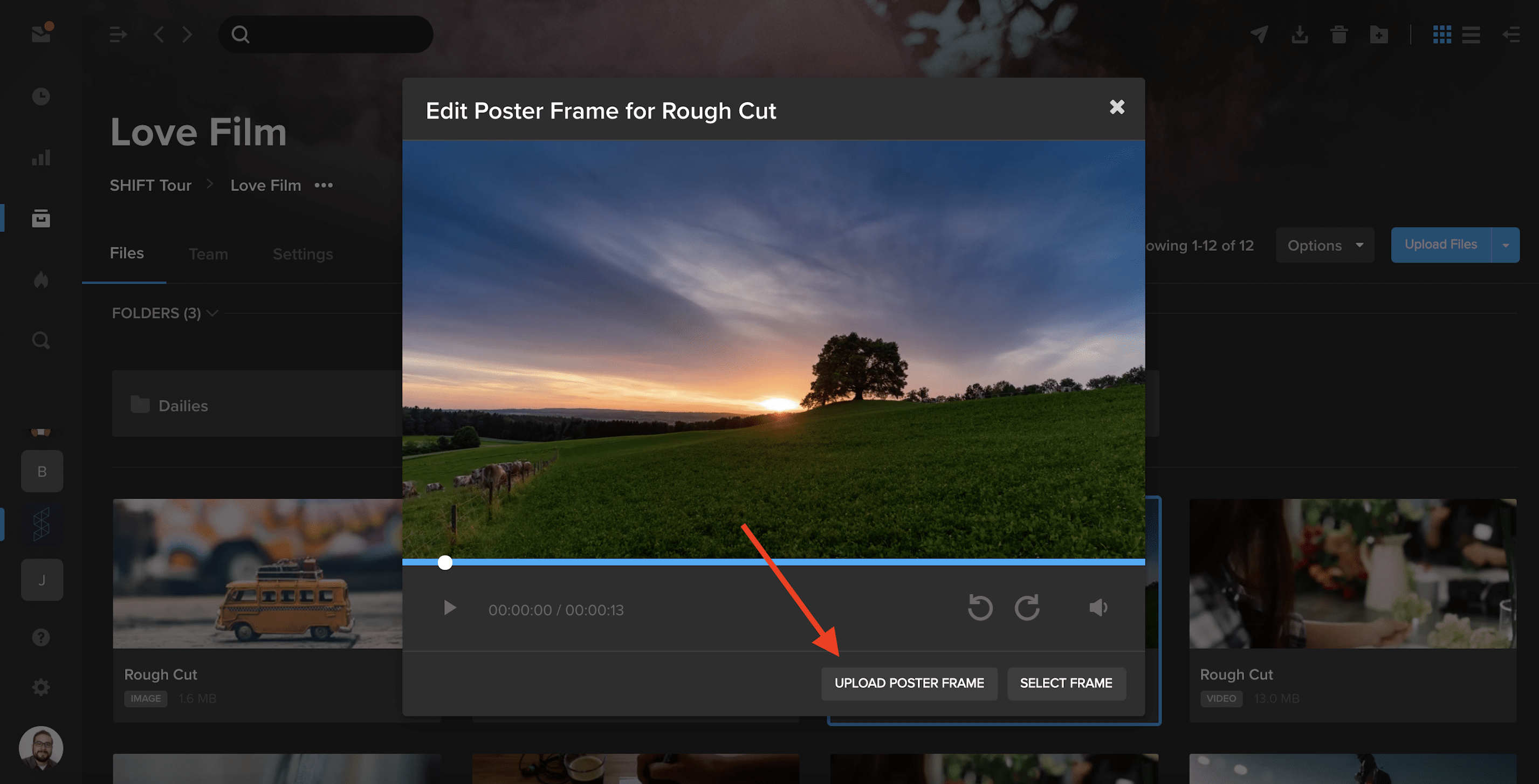
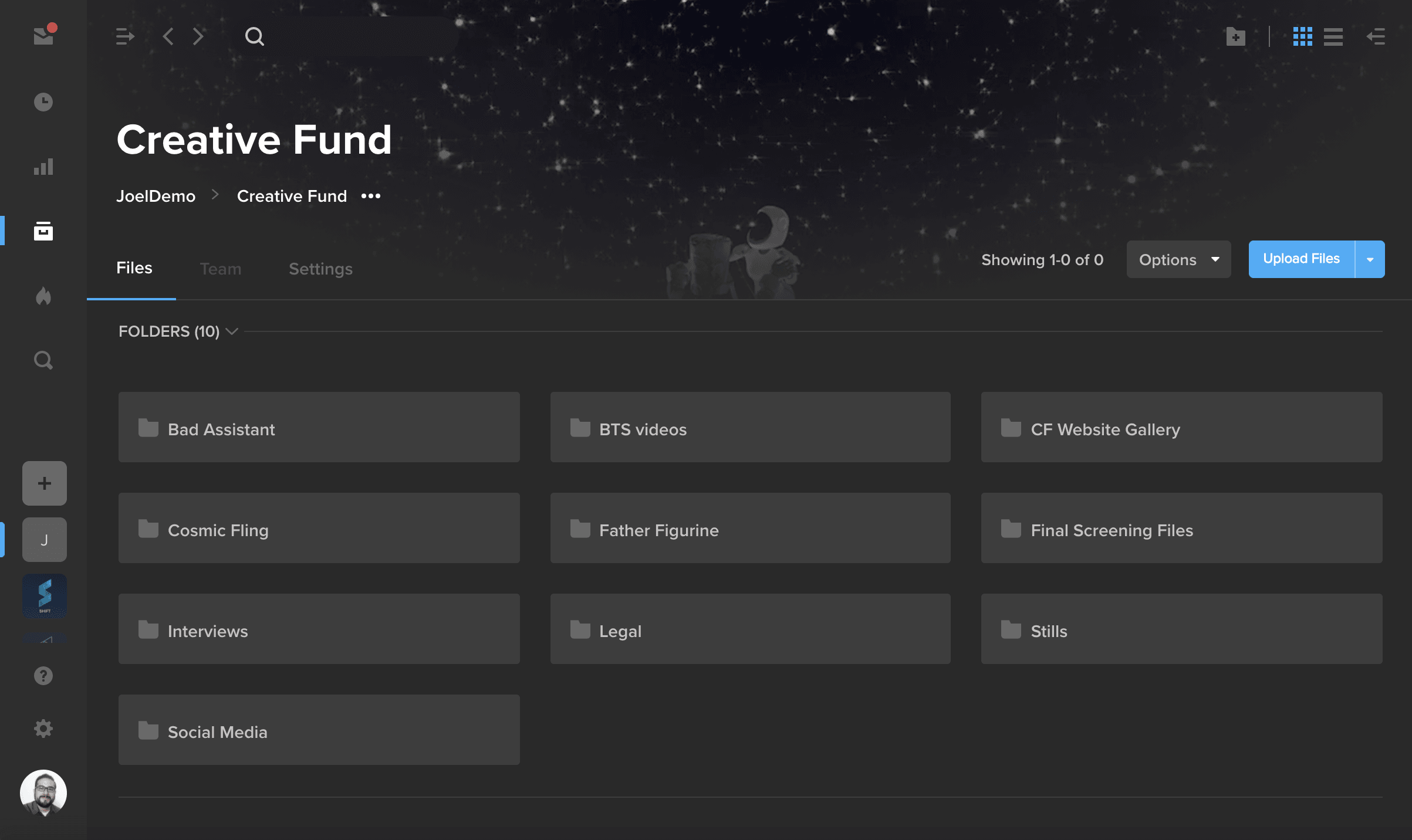
You can now use our Poster Frame tool to upload custom images as your video thumbnails.
- In a project where you have editing permission, select the three dots in the bottom-right of a video asset tile to open the action menu. Choose Advanced, and then select Edit Poster Frame.
- In addition to selecting a frame as your thumbnail, you can now click Upload Poster Frame and choose a .jpg from your computer to display as your video thumbnail.

Our guest Alex Minor talks through how to get started with video at your company, and why it’s so important, no matter your industry.
The following interview is an excerpt from our video series, Marketing – In Conversation. To watch the full interview and see more video content, click here. Or you can listen to the Shift In Conversation podcast here.
Alex Minor – Video Marketing Strategist – Eye AM Media
Grace Amodeo – Marketing Manager – Shift Media
Grace:
Tell us about yourself, and how you got interested in marketing and video production.
Alex:
I started out as a musician growing up. Music led me into going to school in Florida, a school called Full Sail which focuses on various forms of digital media, movies, video games, and audio. I eventually started freelancing in the corporate audio visual market as an audio guy, but I saw there was way more opportunity on the video side of things. I eventually bought some of my own equipment and started shooting my own stuff. I worked on indie films and some documentary shorts, and that really felt right to me. Learning people’s stories and helping them showcase that. And somewhere along the line the concept of video for business came up, and it was just like documentary filmmaking of another sort.
Grace:
Tell us a little more about your company, Eye AM Media.
I feel a kinship with the smaller business owners, the ones that don’t have endless gobs of money to throw at the marketplace, because I feel like I can really make a difference there.
Alex:
We’re a video marketing agency. Most of our clients are either coaches, consultants, or small business owners in the Orlando area. I really like working with the decision maker of the company, I’m not really trying to service humongous brands. I feel a kinship with the smaller business owners, the ones that don’t have endless gobs of money to throw at the marketplace, because I feel like I can really make a difference there. I can really make an impact. And that’s what I want to do at the end of the day, I want to help people grow their brands, change their lives, and help them help more people.
Grace:
Why should all brands be adding video into their marketing strategy?
Alex:
Because if they’re not, they’re already behind. Video marketing or commercials used to be only for the biggest brands, for the people with all the money. That used to be because the barrier of entry was really, really high. These days, the barrier is gone. The internet has become the great equalizer. You don’t need broadcast television, you’ve got multiple channels that are completely under your control where you can put video content. Most of us are walking around with a small creative studio in our pocket.
These days, the barrier is gone. The internet has become the great equalizer. You don’t need broadcast television, you’ve got multiple channels that are completely under your control where you can put video content.
Grace:
How do you decide what type of video is best for each brand?
Alex:
The two main types of content that businesses should be cognizant of are macro content and micro content. Macro content is the stuff you want to call somebody like me for. That’s going to be your highly produced, maybe scripted out, very intentional videos that are supposed to last for several years. They represent your brand in the most epic way possible. But keep in mind that the content shouldn’t be all about you, that content should be focused on your customers, their needs, and the type of change that you can make in their lives. Yes, you’re going to sneak in your products and services, but the main point of the conversation in all of that content should be your customer, it’s really about what’s in it for them. Micro content is the stuff that usually ends up on social media. It’s the top of funnel content, the stuff that keeps you top of mind. Stuff that’s going to be showing people that you’re human, bringing them into the business, giving them good advice. It’s not only going to showcase your expertise, but empower them at the same time. You don’t have to shoot it with a legit camera and have the gorgeous lighting. The message is what’s the most important thing.
Grace:
What are some of the questions you ask as a marketer before you get started on a video project?
Alex:
The first thing that I need to know is why they think they need video content. Why now? Why do you think it’s going to work for your purpose, and what is that purpose? That’s going to inform all the choices that we make. I also have to understand what your business is, and how it works. How have you been acquiring customers before, and how do you want to be acquiring customers now? What is the action that you’re hoping people will take once they see the content? Those conversations can lead in different places. And it might turn out that you don’t need the thing that you think you need.
Grace:
You also offer something called the “video business card”, what is that?
Alex:
The video business card is a multifaceted tool. A lot of people might call this your “about us” video or your “brand” video, your brand story. I don’t like to call it those things because the mistake I see in so many of these videos is that the point of view is very selfish. It’s about us, who we are, what we’ve accomplished. Everything in a video business card should be about the client, it’s about the customer. It’s about the change that you make in people’s lives. It’s about the service and why you do the service. What’s your personal motivation? I work mostly with smaller businesses, individuals who are growing a brand, people who tend to have very close relationships with the people they serve. People want to do business with people, and the video business card does a great job of humanizing you, making you real to somebody, and giving them all the tools and information they need to make 90% of their decision before they even meet with you.
People want to do business with people, and the video business card does a great job of humanizing you, making you real to somebody, and giving them all the tools and information they need to make 90% of their decision before they even meet with you.
Grace:
Talk me through the distribution strategy for a marketing video. What is the difference between all the available channels, and which one is best for a business?
Alex:
It’s about knowing your audience, and knowing where they live. If your target audience is over 30-35 years old, they’re probably on Facebook in some capacity. If you’re targeting early twenties or late teens, then they’re probably on TikTok and Instagram, maybe Snapchat. Everybody in the world is on YouTube, but is YouTube a good place for your business? It really depends on what kind of content you’re trying to put on YouTube. If all you’re trying to do is make sales videos, don’t bother with YouTube, because you’re not going to get any traction there. But if you want to actually inform and educate your customers, or have your videos be a resource that people can find over a long period of time, then YouTube might be the spot for you. Maybe your content doesn’t necessarily live on YouTube, but your commercials do.
Grace:
Do businesses always have to allocate budget for an outreach strategy, or is there a way to do it organically?
Alex:
It depends on your larger strategy. If Facebook is going to be your vehicle of choice and you don’t want to spend time growing a Facebook community or audience like that, then yes you probably need to put money behind your content. Organic reach on Facebook is pretty much dead, people are not on Facebook to look at businesses. If you think you’re just going to post content to your Facebook business page and it’s going to get seen by tons of people, you’re crazy. Unless you already have a humongous audience that are super fans, then maybe you don’t need to pay a lot of money. But even Facebook is trying its best to make it so that you finally give in, and start to pay. And my last piece of advice to anyone in the audience is that if you are a business owner and you’re not on LinkedIn, you should be!
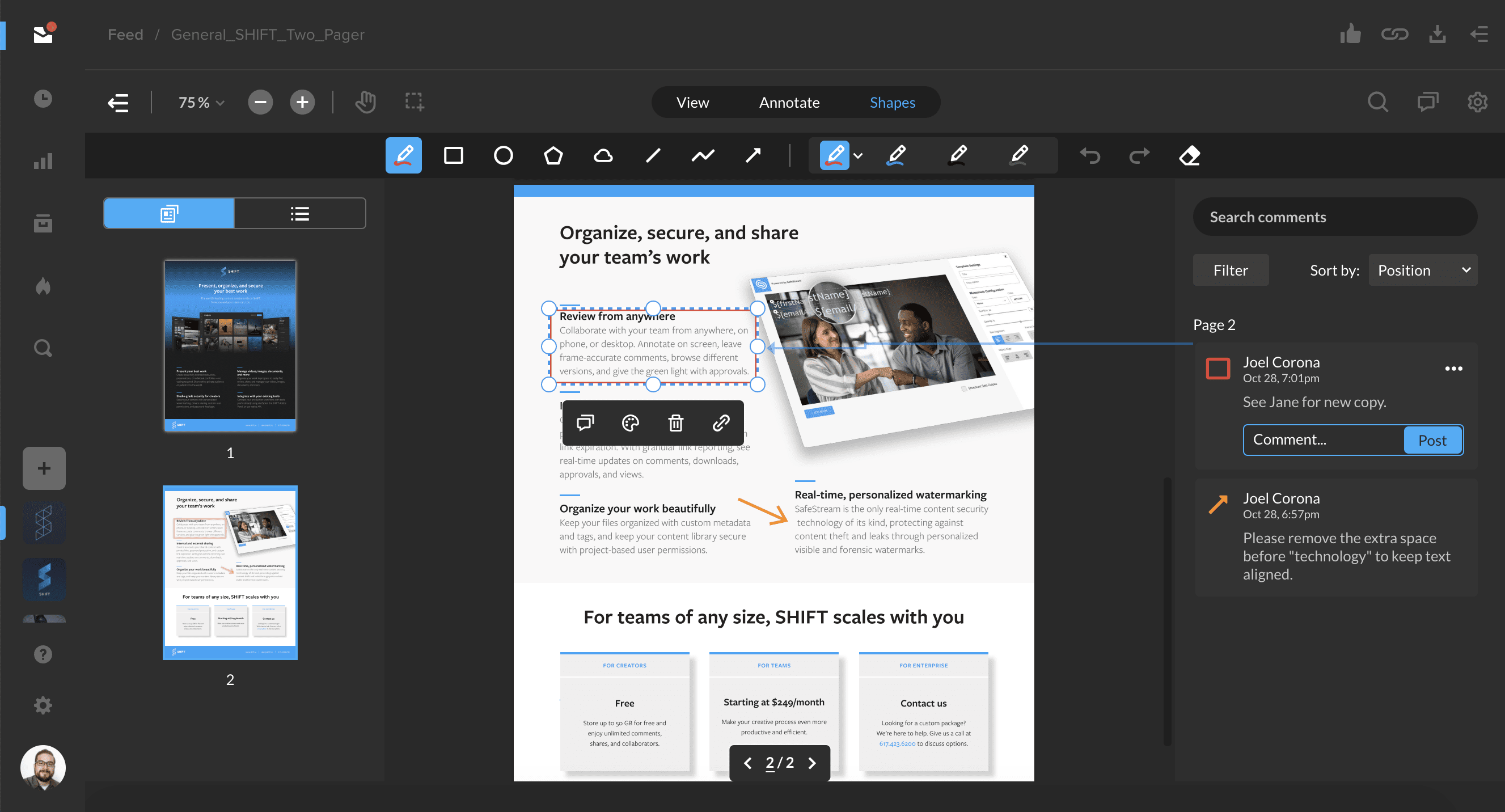
SHIFT now offers review and approval for document files! After sharing a document for review, you and your recipients can now annotate pages with comments, drawings, and a variety of customizable shapes.
Document review is supported for common file types, including PDF, Word Document (doc, docx), PowerPoint (ppt), and Rich Text Format (rtf) files.
Click below to learn all about document review functionality in SHIFT.
You’ll now be able to quickly search through your file metadata on the right-hand side of the Projects screen. With an asset selected, click the filter icon next to the “+” button to display the metadata search bar. Enter a search term to find custom metadata or metadata that is automatically extracted when you upload a file, such as bit rate and codec information.
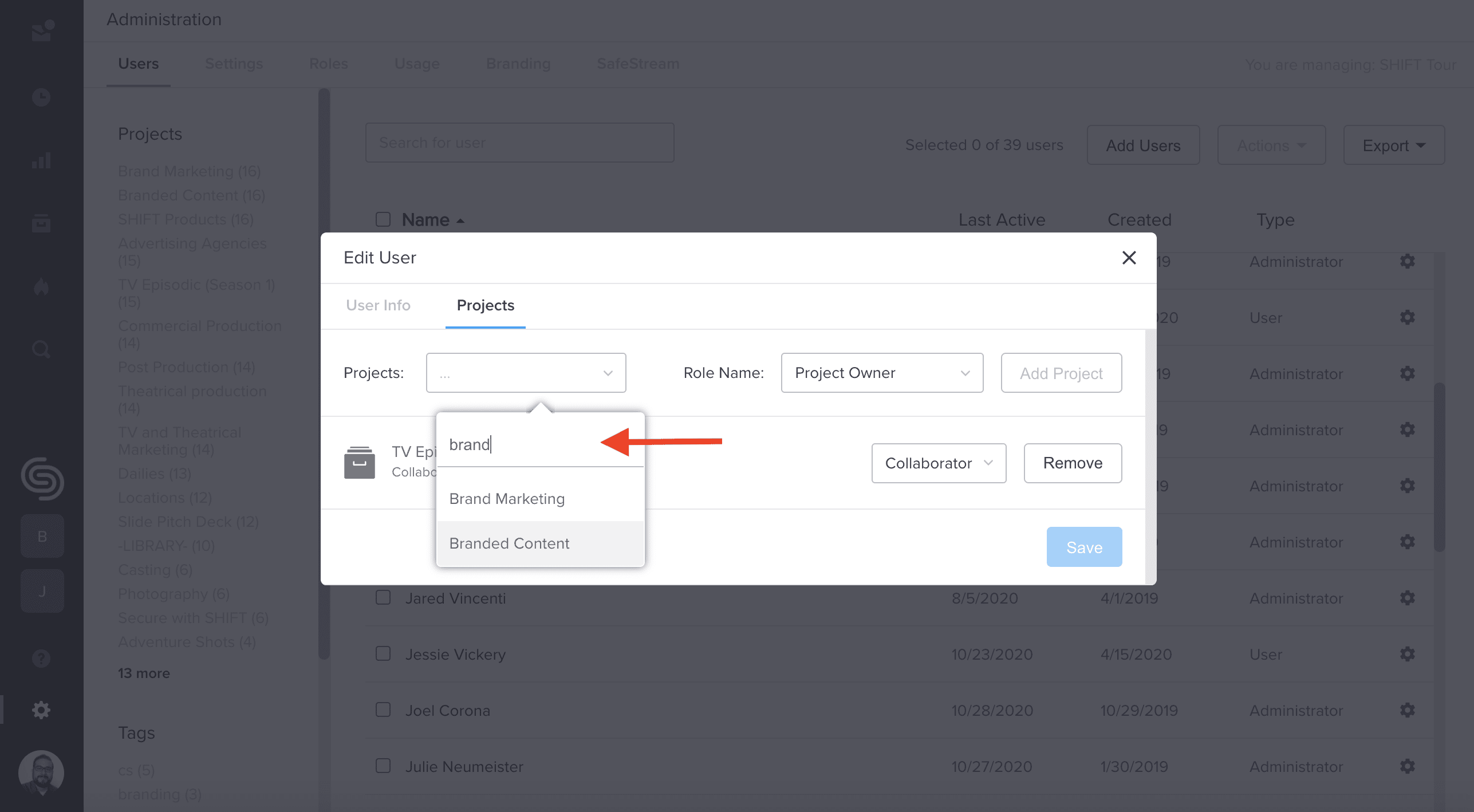
In addition, you can now search for projects in Administration. When assigning projects to new or existing users, you can now use the search bar to easily find specific projects.
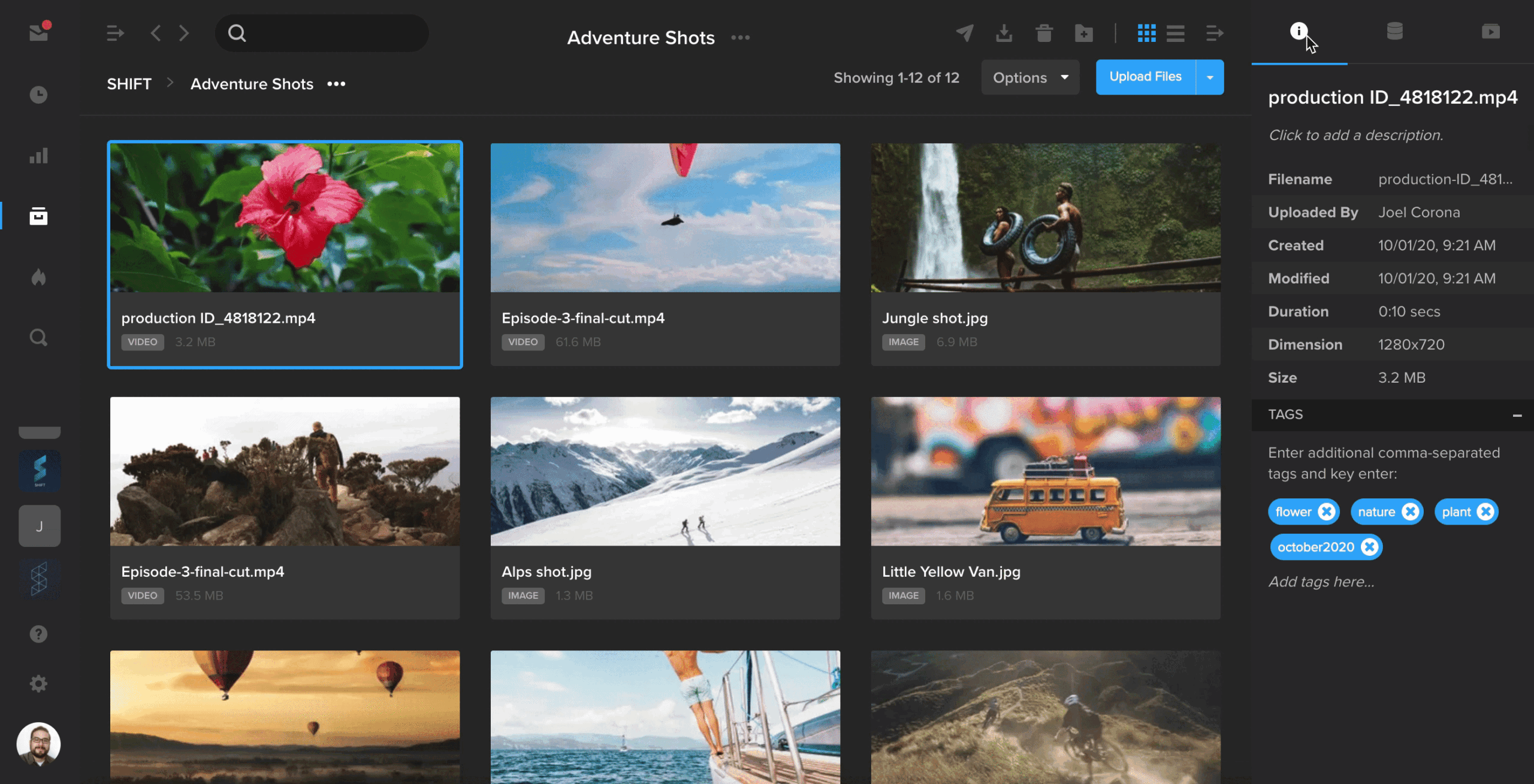
The right-hand drawer in Projects has been expanded to include a separate tab for metadata.
When you have an asset selected, click the first tab to view your asset tags and basic information about your file, including file size, dimensions, and the date and time it was uploaded.
Select the second tab to view all of your asset’s metadata, including the metadata that is automatically extracted when you upload a file. To enter custom metadata, click the blue “+” button and enter your metadata key and value.
Over the past year, we’ve received a ton of feedback from SHIFT users and customers of our legacy platforms MediaSilo and Wiredrive on what they’d like in a media management system. The most common themes were metadata file-tagging, better global search and navigation, and smaller file tiles to make better use of screen space.
Good news: We’ve solved for all of those requests — and more! Take a look at SHIFT’s new and improved Projects. It’s the most secure and user-friendly asset management platform you’ll find to manage your content at scale.
Here are the major improvements you’ll see in SHIFT:
New navigation, global search, and resizable sidebars
The first step to a productive workflow is a clean interface. You’ll notice that the project header collapses as you scroll, and folder tiles are now condensed. The new top navigation includes back and forward buttons, and the search bar helps you find what you need no matter which page you’re on in Projects. Plus, the left and right sidebars are resizable, so you can stretch your folder tree to reveal long folder names or hide it altogether for a more minimalist look and feel.
List view and resizable file tiles
List view is here! That’s right — now you can get a more compact view of your files. In both gallery and list view, you can customize your page size and the number of asset tiles that appear on the page. In gallery view, you can also adjust the size of asset tiles.
New upload manager
Here, we added the option to open a file’s asset detail page or its file location directly from the Upload Manager once the upload has finished processing. Other features remain intact: SHIFT still offers private network uploading, so you can enjoy faster upload speeds than the rest of the Internet.
Need to move or copy files between folders and projects? You can still do that by dragging single or multiple files and dropping them onto the folder tree.
Metadata tagging
When you have hundreds or thousands of files, it’s important for your team to know how to find the right ones at the right time. That’s why we introduced metadata tagging. In addition to plaintext tags, you can now create categories like location, director, and client. Set your categories and tags and quickly find files with the advanced search and filters on every page.
In-line Team and Settings tabs
To make things easier for admins and project owners, we took what previously lived in the Edit Project pop-up window and created a new home for it in your new Team and Settings tabs. Use the Team tab to view, add, or delete project members or to change their roles.
Settings is where you can brand your project thumbnail and banner images, as well as manage things like lifecycle policies and SafeStream (our real-time, personalized watermarking feature for keeping your content cybersecure) if you’re on a paid account.
Explore all these changes and more by logging into app.shift.io. Don’t have a SHIFT account yet? Sign up for a free account or reach out to sales@shift.io with any questions.
You can now use SHIFT’s SFTP integration to upload both files and folders.
To get started, right-click on any project or folder, go to the Advanced options, and select “Create SFTP Credentials.” Enter these credentials in your SFTP application, connect to SHIFT, and start uploading folders to your SHIFT projects.
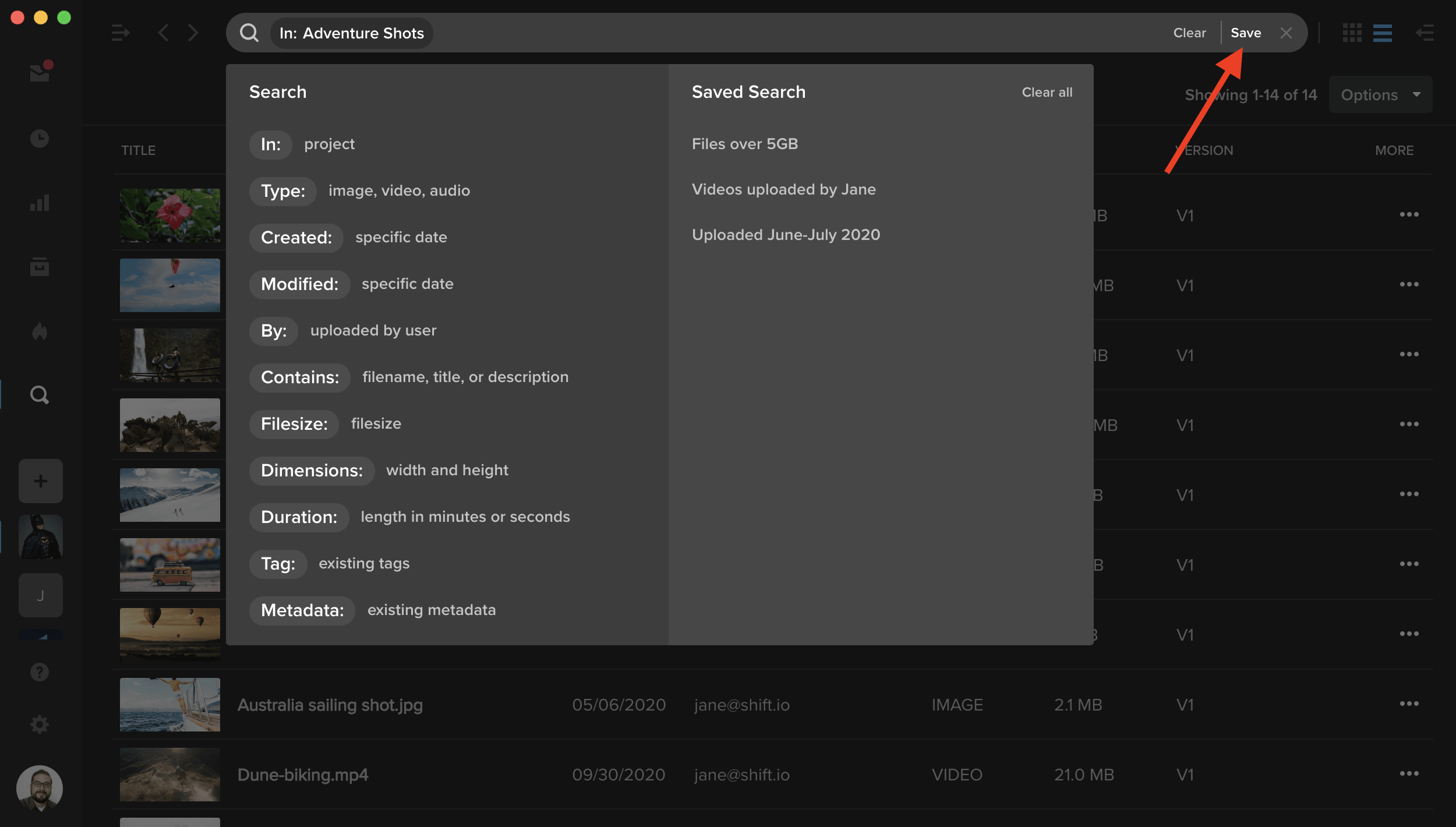
After you perform a search, you can now save the filters you used and reuse it at any time. Simply click the “Save” button on the right side of the search bar, and enter a name for your search. Whenever you access the search menu, your saved searches will appear in the right column.
Note: Searches are saved on a user basis. A saved search is only available to the user who created it.
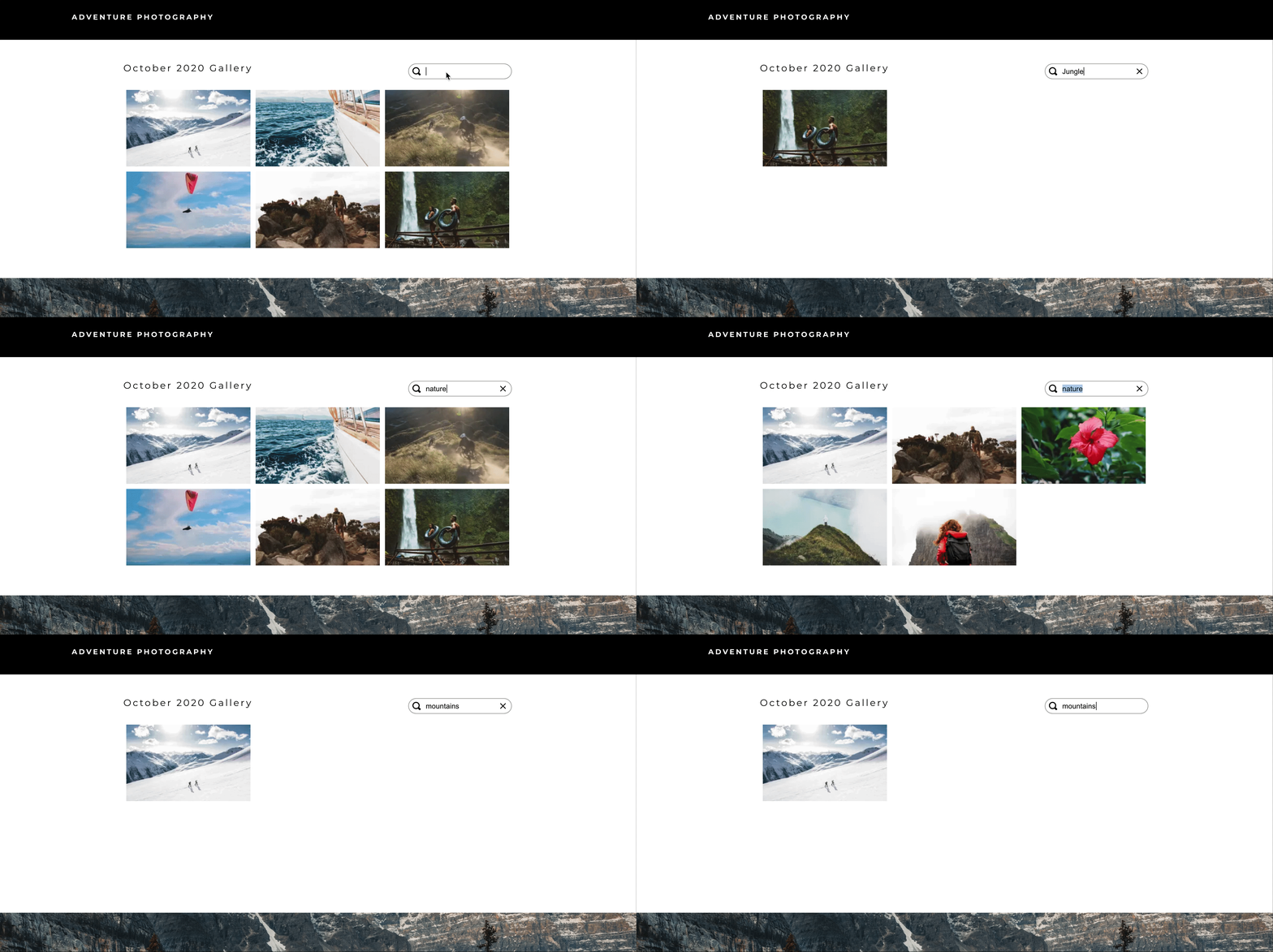
The Spotlight template builder now includes a “Search” element to make your galleries searchable.
- Add a search bar to your template and use the properties panel to link the search bar to a media gallery.
- When your audience enters text in the search bar, your gallery will display any item whose title, description, or tags matches the search term.
D&I is a marathon, not a sprint. We are in it for the long run.
When I first started in my career, I was a lot more forceful. I was the anomaly because I was always the young black female in a sea of white men, trying to get my point across. What I’ve learned over the years is that it’s not a sprint with D&I – it is absolutely a marathon. And, that marathon is far more than getting a certain percentage of underrepresented groups on your team. It’s about earning genuine buy-in from the top down, and broad-sweeping education to counter unconscious bias. This is how we bring about true D&I in the workplace.
While today we have more buy-in from leadership and acknowledgement of essential changes, we still have much work to do.
Our most valuable resource is people
Like most companies, it’s the talent that drives innovation and enables true creativity for EditShare. More and more we are seeing talent likely identify with multiple ethnicities or identify as gender fluid. As we move to a more diverse outlook on the world, the question of a lack of diverse talent in the workplace becomes more pertinent. So, when you extrapolate that notion amongst other diverse people, the question is: how much talent are you losing out on because you haven’t got a diverse workforce? A lack of diversity is destructive to your business.
EditShare journey – we are changing course
D&I is not an HR function. It needs to be embodied in the culture so that everyone is on the same journey. In the first few months since I have been at EditShare, we have rolled out a number of new D&I initiatives and brought forth flexible working policies.
Helping define and drive these initiatives and policies is EditShare’s new D&I working group, which is led by myself and the VP of Product, Sunil Mudholkar. It’s staffed by representatives from each major department to ensure that we have a good cross-section of individuals to brainstorm and soundboard ideas. Together we compile the facts, talk to our colleagues, define the goals and the important projects and partnerships that will help EditShare introduce and embrace authentic D&I initiatives. I am proud to say in the short time since I have been here, we are well on our way to:
- Diversifying the talent pool
- Shutting the door on the pay gap for every person
- Equal maternity and paternity leave for everyone
These programs are not elaborate. They are simple and measurable, and with every step forward, add immense value to our teams and deeper understanding of what it means to be included. It’s authentic, with ownership spread across the company.
Breaking old habits to make lasting change
While we have many exciting D&I projects in motion, there’s a long way to go. Today, 75% of EditShare employees are white males averaging 45 years of age. As an industry, unconscious bias plays can have a big impact on the diversity of your workforce. It’s fewer than six degrees of separation that ultimately can create a one-dimensional workforce; one that ultimately negatively impacts your employer branding to the incredible talent we want to attract.
These habits are hard to break. The first step is recognizing the pattern and stepping outside the comfort zone to mindfully build a diverse and inclusive workforce.
While we are at the beginning of this marathon, I am excited about the journey and about our future. We have amazing support from our CEO, Conrad Clemson, and the senior leadership team. We are small enough to make swift changes and implement policies that can be truly drafted and owned by the people who work here.
We are placing D&I at the core of our culture. It makes us stronger. We all feel it. The whole company is better because of it. I will be back to you in six months to report on the shifts and changes we made to move us forward to a brighter future.
About Jennifer Ashton
Jennifer helps shape the creative, diverse and inclusive culture that defines EditShare. Her talent development and people programs serve as the foundation for its global talent pool. Prior to joining EditShare in June 2020, Jennifer spearheaded D&I initiatives for Amazon, Sainsbury’s, Tesco and most recently the BBC where she was instrumental in supporting to reduce the gender pay gap.





