A Shift in Post-Production Workflow: Taking Audio and Video from Concept to Reality
Once upon a time, post-production teams were colocated, working together in dark rooms staring at a screen. But new and innovative technology, and a global health crisis, have permanently changed our approach to post-production.
Today, it’s not unusual for key players to be sitting in a different country rather than a different room. Remote work environments and the production tools that support creative workflows have created a global talent pool and enabled successful collaboration across time zones and geographies.
Here, we continue to learn about post-production stages 3 and 4, video and audio finishing, and how an all-in-one media management solution streamlines the process from picture lock to final mix.
Workflow Stage 3: Video Finishing
The Online Edit or Conform
The online editing, or “conform,” step is when the original, full-size footage files are inserted into the final cut in place of the smaller, lower-quality proxies. This is the stage when visual effects are created and inserted into the sequence, replacing the placeholder graphics used in the rough cut.
Close collaboration between the offline editor and the finishing and online artists during this stage is critical. When working remotely, they will all need access to the same elements in order to transition accurately from locked rough cut to final online conform.
Visual Effects
Once the picture is locked, the final visual effects and CGI work will be completed by the VFX team. The creation of visual effects is a painstaking process that may require working on each frame of the footage individually.
Tiny details, such as shadows and lighting, can throw off the realism of an effect for even the most casual viewer.
Tiny details, such as shadows and lighting, can throw off the realism of an effect for even the most casual viewer. To ensure every effect is convincing, each visual effect or piece of CGI work will go through multiple rounds of revisions and approvals before being inserted into the online edit.
Graphics and Credits
The online phase of post-production is when the placeholder credits and title cards are swapped out, and real type treatments, fonts, and logos are designed and chosen and overall composition is determined for any graphic elements.
A separate company is often in charge of the titles and graphics. They will provide options of graphics to the entire team, and the team will give input, just as in the other phases of the cut. Once reviewed and approved, usually remotely, the finished elements will be placed into the final piece.
Color Grading
When the colorist and director collaborate during the color-grading phase, they can bring a whole new level of magic to the piece. Good color grading can bring out unseen details in dark scenes or add moodiness and depth to a scene that was overexposed.
At the end of the color-grading work, the team will view the project on monitors of all sizes and qualities to simulate the experience of viewers using a variety of devices. What might seem pleasantly dark and moody on one device may simply be impossible to see at all on another. So it’s usually a good idea to share color-corrected files with team members to view on as many screens as possible.
Workflow Stage 4: Audio Finishing
Scoring and Music
When the editor first starts composing the rough cut, temporary music is often used to give a sense of how the scene will feel with music in place. But once the picture is locked, the final music needs to be locked down too.
If original music is to be created, the composer will begin scoring the picture. This process often includes several rounds of compositions and revisions for each piece or scene, and tracking the versions and evolution of the score can be quite challenging. Team members may be able to visit the studio to hear the music as it’s being developed, but more often, they will access shared files remotely.
If an original music score isn’t used, the team will need to source an existing piece of music from a music library, artist, producer, or record label. As with the offline edit, it’s important to keep track of the score versions; the various edits that are used to demo different options of songs or tracks; and input from the editor, director, producers, and creative team.
Sound Design
In addition to the actual music in the piece, sound design is an important element in bringing a film, TV show, or commercial to life. While the natural production audio captured at the shoot often has the most realistic and natural sounds for the action taking place, filmmakers may need to add sound elements that were not captured on shoot day.
Choosing sounds is a creative endeavor, and having the team review and agree on them is an important part of the post-production process.
There are a number of ways that sound effects and sound design can be added to a film. The simplest is to use effects from a sound effects library. These are usually quite inexpensive and provide a wide range of options.
Sometimes, the perfect effect just doesn’t exist, or your requirements are too specific. In those cases, foley artists can create the unique sounds you need. Choosing sounds is a creative endeavor, and having the team review and agree on them is an important part of the post-production process.
Voice-over and Automated Dialogue Replacement
Voice-over recording happens during the final stages of post-production. Narration and voice-overs are done in tandem with the final mix to ensure the audio lines up with all the other elements of the cut.
Automated dialogue replacement (ADR) is done in a controlled studio environment, but unlike voice-overs, ADR also includes video playback so that actors can try to match dialogue to their own movements and timing of the shots being used. An automated system then helps insert the dialogue in a way that’s lined up as perfectly as possible with the action, so it is difficult to detect.
Final Mix
One of the final stages of finishing a film, episode, or commercial is the final sound mix. This process brings together all the audio elements and balances them so that they work well together.
The key members of the creative team will either attend the mix sessions or weigh in remotely. When working remotely, they can either be patched into the session in real time or use a remote online platform, such as MediaSilo, to help the team compare what was done to the mix with what the elements sounded like beforehand.
How MediaSilo Empowers Post-Production Audio and Video Teams
MediaSilo’s unified platform helps audio and video finishing teams manage all of the final elements of the project, including:
Music and sound design
Voice-over and ADR elements
Final mix assets
Camera source footage
Visual effects
Color-corrected footage
MediaSilo provides seamless collaboration and file sharing between post-production team members regardless of their location. MediaSilo provides a secure yet accessible platform for reviewing mix sessions, voice-over recording, ADR, and even testing final outputs on various platforms. It’s also an excellent platform for reviewing mix graphics and titles, VFX work, and color grading.
Start your free trial to experience firsthand how MediaSilo can help you stay ahead of the rapidly changing needs of your post-production audio and video finishing workflows.
Content production has undergone a sea change in recent years in ways that have impacted both innovation and workflow. In this new era of content creation where key players in the workflow may be scattered across different cities and time zones, production and postproduction have become more complex than ever.
To overcome this complexity and the inherent risk it adds to your projects, it’s time to take a longer view of your current workflows and embrace new approaches to managing assets, sharing works in progress, collaborating with stakeholders, and even selling your projects.
Let’s take a closer look at how post-production workflows are evolving to accommodate changes in how and where we work and the technology available to make it all run smoothly.
Workflow Stage 1: From Camera to Editing Bay
Getting the Dailies to the Editor
Although we no longer have to worry about actual physical cans of film or videotapes, there are still assets from the camera that have to be integrated into the post-production process. This requires obtaining the dailies, camera logs, and production notes from a shared storage platform or physical drive.
Keeping these assets where anyone on the team can review them is crucial in an era when remote workflows are often the norm. Ideally, all of the relevant files will be organized in one place, allowing project managers to add, revise, delete, and update documents as needed so that the entire team is always working from a single source of truth.
Reviewing Dailies
Once the dailies are collected and loaded in the system, the team can narrow down the footage into the best material and moments. Traditionally, the production team watched the dailies on set each day as they became available. But modern remote workflows now make it necessary for some team members to review the dailies from a variety of places and give their input without holding up the production and post-production delivery timelines.
Remote viewing of dailies has become increasingly popular as productions reconsider the need to have a large number of people on set at one time.
Remote viewing of dailies has become increasingly popular as productions reconsider the need to have a large number of people on set at one time. Everyone on the team being able to access the dailies as soon as they are available, whether on-set or remotely, means that input can happen while there’s still time to address any issues.
Logging and Digitizing Footage
After dailies have been viewed, the editing team starts preparing the footage for editing. This may involve creating smaller versions of the footage files for editing so that the offline editing system isn’t slowed down by huge file sizes. These smaller files, or proxies, are used by the offline editor until larger ones are required for finishing, visual effects, color correction, and mastering.
The assistant editor will usually be in charge of logging and digitizing all of the footage as the proxies are created and creating related databases, metadata collections, tags, naming conventions, and storage plans.
Workflow Stage 2: From Raw Footage to Rough Cut
Creating a Rough Cut
The rough cut, or offline edit, is where your show, commercial, or film becomes a story rather than just a sequence of shots. But before the rough cut is complete, it must be reviewed and commented on by multiple team members who are often in different locations.
After the first assembly is created by the editor, the next step is usually to bring in the director, who will work with the editor in creating a “director’s cut” version of the project for review. That collaboration can happen in person in the editing room or remotely by either posting work in progress or using a real-time screen-sharing system. Regardless of whether you are in person or not, all of the comments and input need to be collected and tracked so that revisions can be made efficiently.
Temporary and Placeholder Elements
The rough cut phase is also when temporary or placeholder graphics, sound elements, music, visual effects, and color correction are introduced to the cut for reference. The editor will often source the materials from font libraries, stock footage collections, music libraries, and sound effects catalogs. Other team members may also provide music samples for reference, graphics or copy to try out, or images for visual reference.
Many of the placeholder elements will have temporary visual or audio watermarks from the companies that own them. The watermarks prevent the files from being used in a final piece without official permission and are removed if the element is licensed for use in the final product.
Testing and Versioning
Managing the element selection process is a big part of post-production. As the different ideas are tried, the editor and assistant editor must keep track of all the versions as well as the elements for each option until the final ones are chosen.
Careful file organization, detailed database management, and a well-thought-out naming convention can make the process run more smoothly. Because there are almost always changes made after versioning, using a naming convention that incorporates dates, revision numbers, and sometimes even colors—instead of simply “final”—can help manage a project that has had a large number of changes made to it.
When all of the elements are in place and agreed upon in the rough cut, the cut is locked. This “picture lock” stage means that there will be no more changes made to the overall structure of the edit and that it’s time to move on to finishing.
How MediaSilo Simplifies Post-production
MediaSilo’s unified platform provides a seamless way for the whole team to collaborate during every step of the post-production process, wherever they may be. MediaSilo provides centralized file storage, frame-specific commenting, and intuitive tagging, so it’s easy to keep track of footage, compile input, and create a single, always-up-to-date version of the asset that is accessible to all.
Start your free trial to experience firsthand how MediaSilo can help you stay ahead of the rapidly changing needs of your post-production workflows.
Safer collaboration, easier asset recordkeeping, and a few new commenting fixes – these are a few improvements you’ll find in the latest release of Shift.
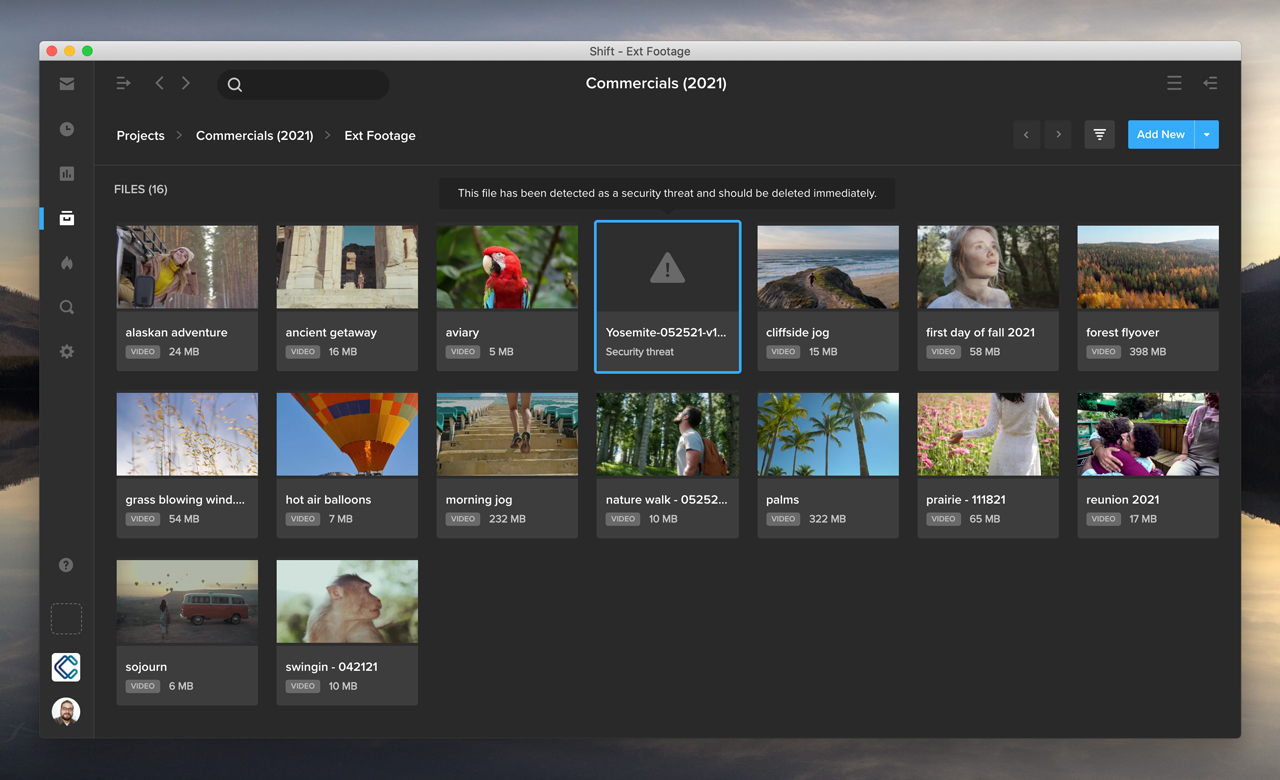
Eliminate risky files: Shift now performs an automatic scan for viruses whenever you upload files. If a security threat is detected, a warning message is displayed on your asset thumbnail, and users are prevented from opening, downloading, sharing, or interacting with the infected file in any way, except to delete it.The virus scanning happens automatically – behind the scenes during upload – eliminating extra steps in the quality control process. This prevents team members from inadvertently passing along a malicious file to others in the organization or to external reviewers and clients.
Additional Updates
Simplify recordkeeping: You can now export asset lists from both the Projects and Search Results pages. For example, you can search for assets matching a particular tag, click the Filter icon in the top right, and select Export to export your list of search results in a CSV or XLS file.
Never miss a comment: This release resolves an issue that displayed only the first ten Review Link comments in Review Mode if more than 10 comments were made.
Make comments easier to read: Users will now be able to add line breaks to their comments when commenting on static files such as documents and images.
We’ve been living in a “digital age” long enough to see our entire virtual ecosystem change, compound, and evolve – not just once, but over and over and over again. And it adds up.
A recent study by market intelligence firm IDC estimates that the sum of data generated globally by 2025 will exceed 175 zettabytes (175 trillion gigabytes). That’s a lot of ones and zeros, in the form of photos, videos, websites, music, audio files, documents, and so much more. And that number will just keep growing, each and every year.
The digital universe has evolved beyond the fringes of our lives. For many living and working in the modern age, the digital world is our life. We work, play, socialize, date, create, and share in a virtual space. It is our primary place for connection.
And not only for connection, but accumulation. Think about it: our events are captured online, our media is created online, our work projects are stored online. We rely so heavily on the storage of the virtual world to hold our most critical assets, to continually add more and more of them, and to recall them for us whenever we need them.
The IDC estimates that more than two-thirds of digital stored data is not readily searchable or available for access after initial use.
Online data asks the ultimate existential question: if you created a digital asset (be it video, photo, text, document, song, email, or otherwise) but you can’t find it, does it really exist at all?
Sadly, this is not a trick question — as the IDC estimates that more than two-thirds of digital stored data is not readily searchable or available for access after initial use.
Gone in a Flash
Imagine if two-thirds of the books on your shelves — *poof* — simply disappeared, or two-thirds of the photos from a lifetime of summer vacations vanished as soon as you put them away. You’d consider that an unacceptable amount of data loss. And it’s not because the items no longer exist – but simply because you don’t know how to find them again.
And that’s why storage is only half of the conversation. You don’t need something rightthis instant, so you put it away. But storage is only as good as its retrieval system. Otherwise, what’s the point of storage at all?
New Generation of Organization
There are two major schools of thought when it comes to digital asset management, structure, and retrieval — and these schools fall very squarely along organizational lines.
People who are accustomed to traditional operating systems often follow the folder hierarchy model. You put a file inside a folder, stick that folder into another folder, label it properly, and save it in the right drive. Want to find that file again? All you have to do is connect to the drive, navigate to the folder in a few clicks, and open the file. It’s easy! This group views asset retrieval as a logical path rather than a magic button.
But what about people who never were indoctrinated into files and folders (electronic or physical)? For these generations, the ability to search for something and simply find it is a basic expectation. There is no folder, no subfolder, no drive — the file just exists. Where? It doesn’t matter. It’s somewhere. And how do you find it? The same way you find anything else in the digital world, you search for it.
For the younger group, the question of somewhere wasn’t even relevant. The assets exist, period. You should be able to find anything with a few simple keystrokes.
This divergence has led to a great deal of frustration between college professors and their young students. The students didn’t understand the concept of folder structures because they never had to use them – but professors didn’t understand any other way to talk about it, because navigating to a file stored somewhere made logical sense to them. For the younger group, the question of somewhere wasn’t even relevant. The assets exist, period. You should be able to find anything with a few simple keystrokes.
We’ve all been in the unfortunate situation of interacting with a digital platform where the search functions simply do not work, and few things are more frustrating. Digital giants like Reddit and Slack have worked tirelessly in the past year to improve their search engines, and turn around their negative image as unsearchable platforms. Bad search can quickly kill a user experience, no matter how amazing the rest of the tool may be.
Just find it
For MediaSilo, finding the media assets you are looking for is one of the most important tasks a video team needs to tackle, and we take it seriously. Our professional cloud platform is designed with robust tools and settings that give you total control over the search process, ensuring that it’s effortless for your users – wherever on the search spectrum they may fall.
For folder navigators Are you more of a traditional thinker? Manage and organize your assets with ease within our standard Projects and Folders, where everything you are looking for is exactly where you left it. The project tree gives a visual representation of your organizational structure in one simple place, and allows you to move or copy individual assets or entire folders into new locations using basic drag-and-drop controls.
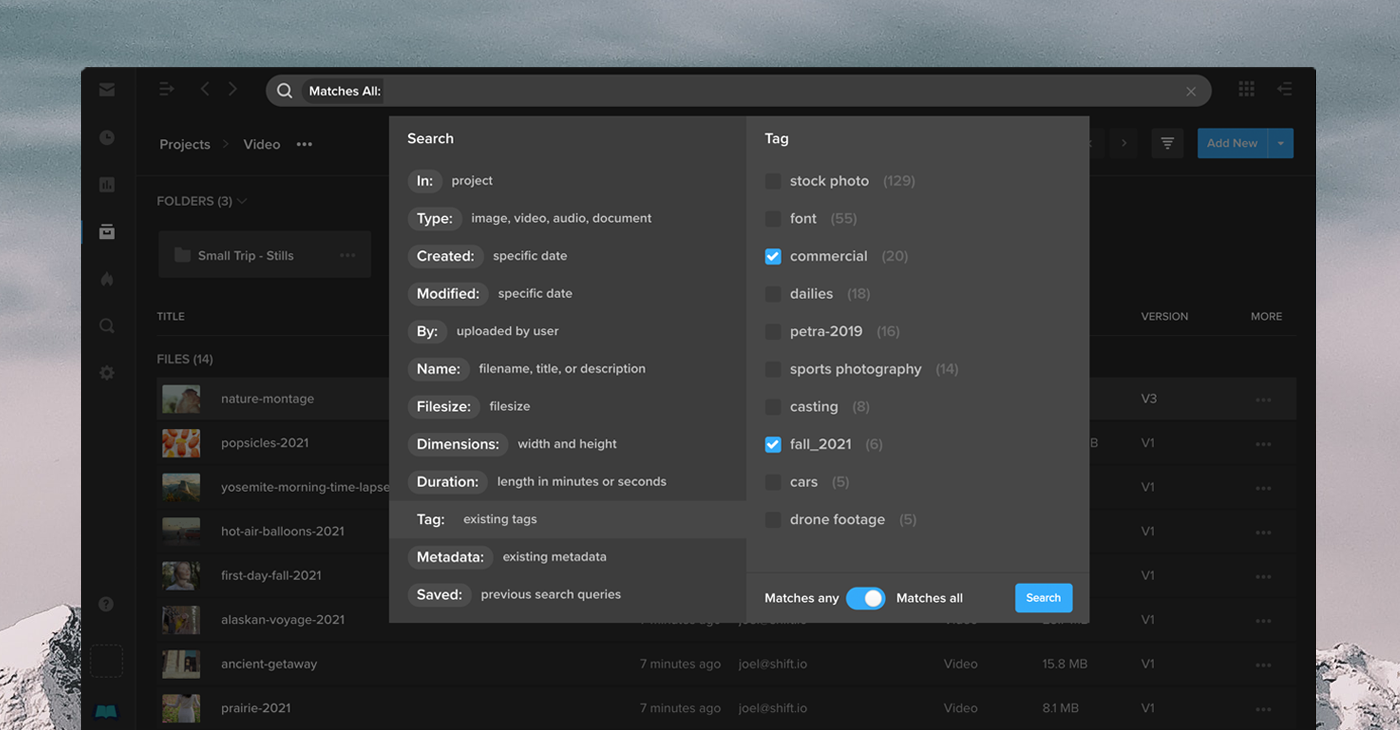
For freeform finders The latest updates in MediaSilo now streamline the search process even further to fulfill any query, with just a few keystrokes:
The search bar defaults to “Starts With” queries, to better deliver the files you are looking for.
Looking for something else? You can easily change this option to “Contains”, “Ends With”, or “Exact Match”
When searching for tags, toggle between “matches all” to see a specific set of criteria or “matches any” for a broader search field
Multi-select search parameters using an easy check-box list, or select “only” to hone in on one field
Toggle between “is” and “is not” queries to narrow your focus, for example “is in Project A” or “was not uploaded by Bob”
We’ve seen that search functions optimally when it’s an extension of the way people intuitively think and communicate, and have built our tools to make that process as streamlined as possible.
We’ve seen that search functions optimally when it’s an extension of the way people intuitively think and communicate, and have built our tools to make that process as streamlined as possible. Working on video projects with other collaborators in your group? MediaSilo is the all-in-one place to not only manage your important content, but also keep it secure, share it with your collaborators, and of course easily find all the assets you need without any hassle.
Keep them close
In this ever more complex digital world, don’t risk losing track of two-thirds of your important assets – especially if those are the foundation of your business, as it is for our customers. Whether you navigate to them logically, or find them intuitively, it’s time to embrace better searches as the next phase of digital organization.
Interested in giving our asset storage and search features a try? Sign up for a free 14-day trial of MediaSilo today!
In March, 2020, as COVID-19 hit, most game industry employees were sent home from the office. Companies scrambled to compensate for the loss of their central office spaces where workers could interact, ideate, and create together.
As the pandemic begins to diminish, it’s become clear that many workers – and even some employers – appreciate the benefits of working from home (WFH), while at the same time, still grappling with its challenges. A core challenge is the ability to maintain the culture and productivity altered by a remote or hybrid workforce.
Tools that seek to bridge physical and temporal distances between workers make remote work possible. But they also bring their own problems. According to Asana’s recent Anatomy of Work report, 60 percent of a person’s time at work is spent on “work about work” and not on skilled work. In other words, people are spending huge amounts of time on communications apps that don’t directly contribute to the worker’s actual function.
The report found that the average knowledge worker spends “103 hours in unnecessary meetings, 209 hours on duplicative work, and 352 hours talking about work.”
The games companies we spoke to invariably reported the same issues, with a tension growing between individual preferences for certain apps, how those apps were being used, and how much time and energy is going into unnecessary communications. Many reported confusion about which apps were best for the constant back-and-fro of creation and approval, as assets are shared, modified, and reshared.
In this report, we’ll dive into what the game industry has done to bridge this gap, some of the remaining issues leaders in the gaming industry face to balance productivity and culture, and tips on how to excel in the new hybrid world.
Disclaimer — We are grateful for the participation of the companies we spoke to, and their candid observations and insights. Their participation does not reflect any endorsement of MediaSilo.
Introduction
The game industry’s technical prowess and culture of innovation proved to be advantageous when the world faced lockdowns and other consequences of the pandemic. Mainly staffed by computer-sophisticates, game companies were able to continue their operations.
But video game companies also found many unexpected problems during COVID, often rooted in the game business’s cultural history, as well as the unique nature of video games as extremely complex artifacts of creation. A rising consumer demand for video game entertainment during the pandemic added pressure to unexpected pain points, as game companies failed to hit milestone targets, and release dates were shifted out of the most lucrative times of the year.
Gaming’s Cultural Singularity
All industries, including creative industries, were forced to cope with lockdowns. Many are now working their way into a future in which many workers are likely to opt for WFH, rather than attending an office every day, if practical and if offered the opportunity.
So why do the experiences of game companies differ from other similar businesses in the entertainment industry?
While it is certainly true that some games in the early years were made by individuals working from home, gaming’s creative culture rapidly morphed into an intensely in-person collaborative endeavor. In fact, game creation and promotion has traditionally relied heavily on multiple in-person teamwork.
Most game companies – whether developers, publishers or service providers – are formed by small teams of friends or colleagues who work closely together, constantly sharing each other’s work. Over-the-shoulder collaboration is central to how games are made.
When you read about the early days of a successful games company, the founders will almost always speak about how much time they spent together, bouncing ideas off one another, and critiquing each other’s work. They will invariably credit this approach to their success. Invariably, they seek to scale this dynamic as their employee base grows.
Any part of a game can be changed at any time during its development, right up to the game’s release, and even beyond (in the form of additional content, patches, modes etc). These alterations might range from a tiny, single sound effect, to the entirety of the lead character, to the very nature of the game itself. Sometimes, alterations can be made after feedback from early reviews to ensure the game delivers against massive expectations.
Venture capitalist Matthew Ball recently noted how much more content games companies offer compared with competitors in other entertainment industries. “Video games are a platform for multiplayer storytelling, rather than a linear narrative. Fortnite has only marginal changes each multi-month season, but the reliance on ‘your friends’ and unscripted narratives means that a player can spend dozens of hours satisfied. The Office is highly rewatchable, but over its nine-year run, it produced less than 75 hours of unique content. Game of Thrones ran for eight years and produced the same. ”
Late in their creation, mystery novels do not suddenly become comedies. Movies that make drastic late changes are assumed to be suffering from creative challenges, and expectations for commercial success are downgraded accordingly. But in games, radical and constant iteration is necessary to the process, and is viewed as financially advantageous.
Games are tactile. Their creators must touch them, in much the same way that a chef tastes a new dish.
Big changes must also be reflected in a game’s marketing, as emphases move from one innovation to another.
Games are tactile. Their creators must touch them, in much the same way that a chef tastes a new dish. Games are complicated amalgamations of processes and assets. But each ingredient can only be added by a specialist. All the other specialists are expected to ensure that any change works with their particular ingredient to the advantage of the whole. One change must necessarily lead to many other alterations.
In game development, iterations are a constant, and involve the agreement and participation of different people. From producers to gameplay designers, to artists and writers, to musicians and programmers, down to testers, this is often done in the moment, collaboratively.
Limitations of generic communications tools
Matt Casamassina is CEO of Rogue Games, a California-based publisher which employs around 20 people, most of whom he speaks to on a daily basis. His normal office routine is to do the rounds and check in on his team members, discussing the wide variety of development clients that the company handles. But when lockdown hit, he found himself having to use Slack as his primary conduit between himself and his staff.
While Slack is a useful tool, it is not a substitute for in-person communication. Many of the companies we spoke to said that its usefulness can be undermined when multiple channels are being created without much oversight, nested within one another, making navigation problematic.
Interested in seeing MediaSilo in action? Contact us to get started on a free 14-day trial today.
It is best understood as an asynchronous conversation. Casamassina learned this after fellow team members gently suggested to him that he was trying to use it as a live-chat device, and that he was too impatient and insistent for immediate responses.
“When you’re at home, sending an email or a slack out into the digital ether, I want a response right away. But sometimes I might not hear back for hours and I start to wonder, ‘hey, where’s my response?’.
“I learned that’s not good behavior from a leader. I’d worked in offices for a long time, and I was programmed for that environment. But those expectations don’t fit when you’re remote. I really had to address something that came across as me being unreasonable, while making sure that our workflow improved.
“So we talked with the team about how to create optimal communication practices, without too much rigidity. We put practices in place that allowed me to loosen up and unlearn those bad habits that I had to really grow out of. At the same time employees stepped up. We built a system together that everyone understands, and that has helped our workflow and our culture.”
Most of the companies we spoke to reported that their Slack usage has become more sophisticated and organized since lockdown, with a larger number of channels, generally serving hyper-specific purposes.
The future of feedback, approvals, and comments is likely to move away from generic solutions like Slack toward specific tools, like MediaSilo, which allows for on-screen annotations, frame-accurate comments, and one-click approvals for video and animated assets.
Most industries now make regular use of video meeting tools like Zoom, Microsoft Teams, Google Meet, and Skype, and Discord to gather ad hoc input throughout the creative process according to a company’s needs.
“I might sometimes be in a [virtual] meeting and I’ll take a screencap from Discord and transfer it into Slack,” said one. “We’re mixing and matching according to the needs of the moment.”
Zhenghua “Z” Yang is founder of Serenity Forge, a Colorado-based developer and publisher. “Our Discord server is a digital office space,” he explained. “Each person on our team has their own voice channel and when you’re working, it’s assumed that you’re on your channel, but if you’re not, that’s okay, it’s just like someone not being at their desk because they went out to get a sandwich or something.
“You can mute Discord, but if you’re there, anyone can pop into your channel and say ‘hey, what’s up … you know like … did you finish that one thing?’ And Kevin can quickly unmute and say ‘oh yeah I just finished it’, and then ‘okay, all right, cool. I’ll see you later’.
While these collaboration tools fill in some of the gaps, they are not without issues. Different functional teams have different needs and levels of adoption for collaboration tools, leading to a disjointed collaborative workflow.
“I might sometimes be in a [virtual] meeting and I’ll take a screencap from Discord and transfer it into Slack,” said one. “We’re mixing and matching according to the needs of the moment.”
Security Protocol Changes
Game companies are notoriously secretive, and for good reason. Releases are highly visible, competition is fierce, ideas are premium, and assets are valuable. Partnerships rely on discretion. Most of the companies we spoke to talked about how they invested a great deal of time and energy into making sure their security was able to withstand entire teams suddenly logging in from home. For some, it took months to get to a situation where they felt comfortable.
Christina Seelye is founder and CEO of California-based publisher Maximum Games, which employs around 50 people. “Making sure that everyone can get into the VPN [Virtual Private Network] properly was an early priority,” she said. “Cybersecurity issues are really important for us. When people are working from home, they all have their own challenges, and it’s essential to talk those over, individually.
MediaSilo works with some of the most sensitive pre-release content on Earth, so security is paramount. We emphasize security from content protection to protecting our client’s Personal Identifiable Information.
“Sometimes it’s just little stuff like people who might let their kids play on the computer, or who have roommates. What is the right thing to do when you’re in a Zoom call and talking about something that isn’t publicly disclosed? So we had to make sure that we were being really careful about understanding that confidentiality and security practices, which work fine in the office, work differently at home. Security has become a major priority over the past year.”
MediaSilo security director, Simon Lamprell, believes that security is crucial internally and externally. “We work with some of the most sensitive pre-release content on Earth, so security is paramount. We emphasize security from content protection to protecting our client’s Personal Identifiable Information (PII). Also, whenever we engage with a new vendor or third party we perform a full security assessment and review their protocols and practices around PII to ensure they meet our security standards.”
Protect and Share the Build
Part of game company security is managing the latest build, or version of a game, or of the various assets that make up the game. Allowing employees to access the most recent version of the game means they need very fast internet connections, while the company must ensure that the build is both easily accessible by the right people and protected from the wrong people.
Many companies use their own servers, or version-control cloud depository services like Perforce. Some use online retail portals like Steam, where they can upload new builds every day which are easily downloaded by team-members. Many use a combination of resources that make sure that every version of the build is protected.
“As a producer I can look at all the graphs and all the data points in the world, but the real progress is the game itself,” said Kerry Whalen, production manager at Piranha Games, which is best known for its Mechwarrior action games.
“We spend a lot of our time looking at the game and playing the game and talking about the version of the game that we’re working with. When lockdown hit, we tried to [play the game] via remote desktop, but that’s no good if you’re at home with a laptop on the kitchen table and a terrible internet connection.
“So we resolved that problem by putting our games on Steam. We set up all kinds of different beta branches and delivery systems so people can access anything securely, play it, and give their feedback.”
Control Meeting Madness
When they were forced into social separation, many companies overcompensated by instigating too many video meetings. Partly, this was driven by a well-meaning anxiety that employees might not be coping with isolation. Another reason cited by interviewees was a concern that, outside the milieu of the office, people might not all be on the same page. Information gaps might start to appear, hampering progress.
“We believe in the creative energy and the synergy of being physically together,” said EA Motive’s Patrik Klaus. “When we’re apart, we message each other when it’s needed. We’ve come a long way in getting better at that, but it remains a challenge to find the right cadence of meetings. Having a tool like Zoom is awesome, but Zoom fatigue is a real thing.”
Having a tool like Zoom is awesome, but Zoom fatigue is a real thing.
Zach Truscott at ArenaNet said: “We’re very used to having hallway conversations in the office, instead of meetings. But when you’re remote, they’re gone. So we set up meetings instead, and what we found is we went from a moderate amount of meetings to so many meetings that nobody was getting any work done. We were overbooking ourselves with meetings.”
Truscott said that the company is resolving the problem by creating working pods which have a responsibility to keep stakeholders informed, while minimizing the amount of time spent in meetings. This is leading to more efficient means of noting and disseminating action points.
“Communication is an important part of game development,” said Farah Coculuzzi, producer at Capy Games, a Canadian developer, currently enjoying success with mobile hit Grindstone. “We want to make sure that everyone has the capacity to do what they need to do [for work] and also to take care of their home life.”
“A big thing for us is the realization that stand-ups don’t always have to be at the same time every day. A few days of the week they’re in the mornings and a few days they’re in the afternoons. If someone regularly misses one or two because of other commitments, that’s just part of how we do things.”
Respect Camera Anxiety
On-screen meetings are now a normal part of office life, but some people dislike being on camera. This can cause friction between managers who want to literally see how their people are doing, and employees who are either naturally shy, or who wish to protect their own privacy.
Joel Burgees at Capy Games said: “One of the great things about Capy is we don’t have a lot of braggadocio and peacock energy in the studio. But we do have some really soft-spoken folks on the team who are introverted. They are mega-talented, big-brains-big-hearts types of people and it’s very rare that they will put their cameras on [during meetings].
“The people who are comfortable having their cameras on are more likely to be social and outgoing and it’s very easy to hear their ideas because they are broadcasting it.
I have to give people space to be heard, especially if they don’t want to be seen.
I have to be more proactive about making sure that the quiet people whose faces we can’t see are encouraged to speak, without feeling like they have to turn on their camera. I have to give people space to be heard, especially if they don’t want to be seen.”
Respecting each employee’s camera sensitivities while still wanting and respecting their feedback during creative sessions is something that can be solved asynchronously through shared collaboration platforms.
MediaSilo provides a simple review and approval process letting stakeholders provide feedback without the hustle and anxiety of live, camera-on sessions.
Meeting in the Middle
A constant refrain from our interviews was the sense that the last 18 months have been a sharp learning curve for everyone, and that business leaders were no more prepared for the shock of the pandemic than anyone else.
The lessons that have been learned did not come from managerial theorists, or from super-bosses, but from trial and error. Most important of all is that physical isolation has only intensified a growing sense in the game industry that companies that try to dictate policy to employees will likely find it difficult to maintain a healthy working culture, and will struggle to retain and to hire talent.
The lessons that have been learned did not come from managerial theorists, or from super-bosses, but from trial and error.
EA Motive’s Patrick Klaus summed up this thinking: “Our evolution during this time has been relatively organic, and I think we’ve succeeded because it was always super important for us to be listening to our teams, and being flexible in our approach.
“The situation needed a bottom-up approach and not a top-down approach. We talked. We listened and we figured the best way forward by meeting in the middle. One of the biggest things that I’ve seen is just an intense level of collaboration and communication at all levels.”
Electronic Arts employs more than 10,000 people around the world, while the Motive studio is around one hundred strong. Klaus said that this presents a challenge, but that a local approach is essential.
“We had some great support coming from the head office but we’ve also been empowered to make our own decisions and to create our own destiny in terms of how we do things. We have found guiding principles that are applied to the whole company but then there is a flexibility built in at a local level.”
Conclusions
In some industries, WFH is leading to anxiety that workers might take advantage of the situation, and decrease their commitment to work. In a competitive, passionate, creative industry like gaming, that is not an issue.
Those leaders we spoke to who are looking forward to “getting back to the office” are all working on plans to allow employees to work from home for either part, or all of the week. Creativity is at its peak in a person-to-person setting and it’s a simple fact that some people prefer to work in a social environment.
There is also a common notion that when a game is in its conceptual, brainstorming stage, stakeholders work better in-person. On the other hand, the specific productivity of content creation – art assets, programming, music, level design, trailers – can just as easily be done from home, if that’s the worker’s preference.
All that explains why gaming is likely to move to a hybrid model in the years ahead. How that happens will be a continuing evolution of best practices, and of useful tools.
Every interview in the report mentioned multiple tools that they were using more extensively when they were away from the office, than when they were in the office. Most of these are familiar to us all, such as Slack, Zoom, Microsoft Teams, Trello, Asana, and Google Docs. But there are plenty of other tools that are either especially suitable for the game industry, or are coming to the fore as particularly good for specific, essential tasks.
We at MediaSilo work with some of the biggest names in gaming to bring the power of visual feedback to life. MediaSilo brings together assets and minds for in-progress creative projects. For example, concept artists use MediaSilo as a place to manage and share files, and marketing teams collaborate and approve campaign assets on their way to promoting highly anticipated titles.
As evidenced in the feedback and insights provided throughout this report, bringing collaboration out of non-stop meetings and chat clients allows for a cleaner feedback loop where everyone can participate. Please contact us to see how MediaSilo can take your workflow to the next level.
Latest Improvements:
The newest release makes some of the most common functions you perform in Shift even faster and more streamlined than before, from typing-ahead recipients’ names to sorting your projects.
You can quickly add auto-suggested users to a Recipients field by hitting the comma, enter, space, or tab keys. This applies to the Distribution List and Share windows.
When you open an options menu by clicking the three dots on a project or asset tile, no need to carefully move your cursor to stay inside the box – the menu will stay open until you either select an option or click outside the menu.
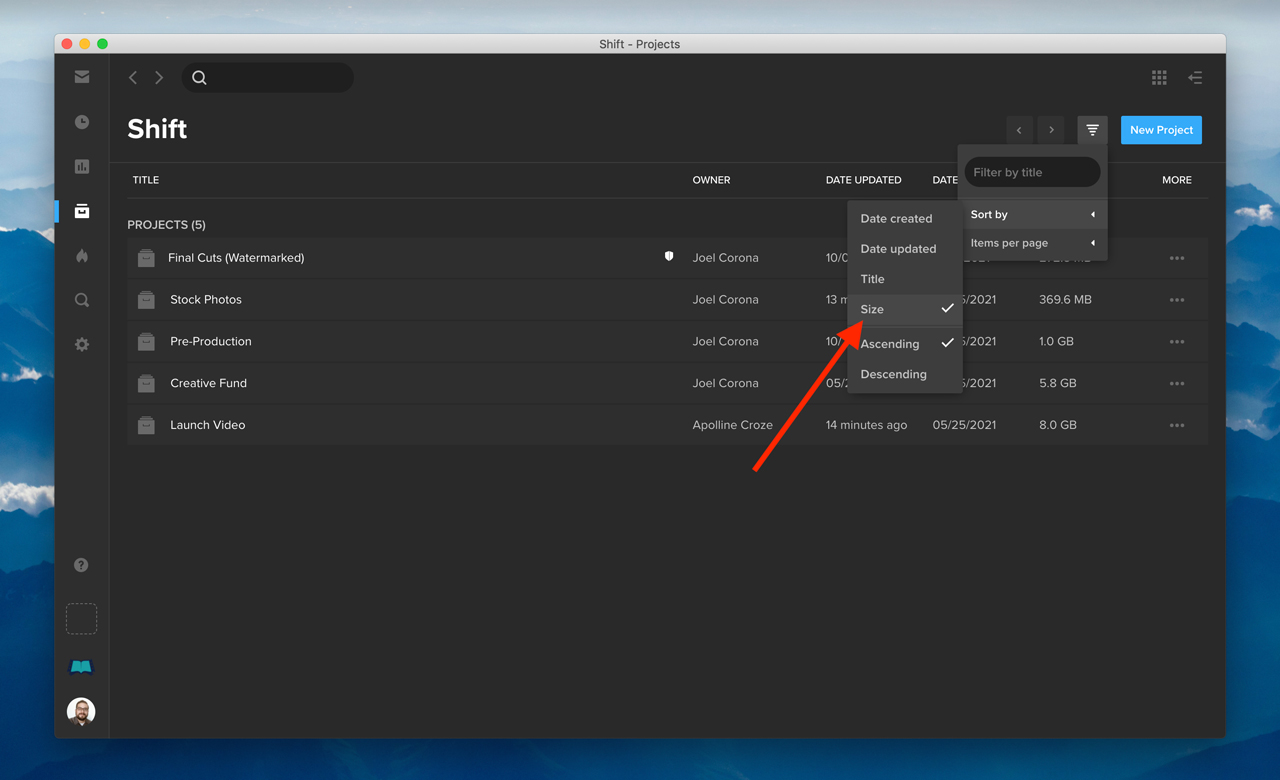
Find what you’re looking for faster. You can now sort your projects according to size. On the Projects landing page, click the filter icon in the top right, and select Sort by > Size. Or, if you’re using list view, just click “Size” in the Size column.
The search menu has been updated to display your newly created asset tags.
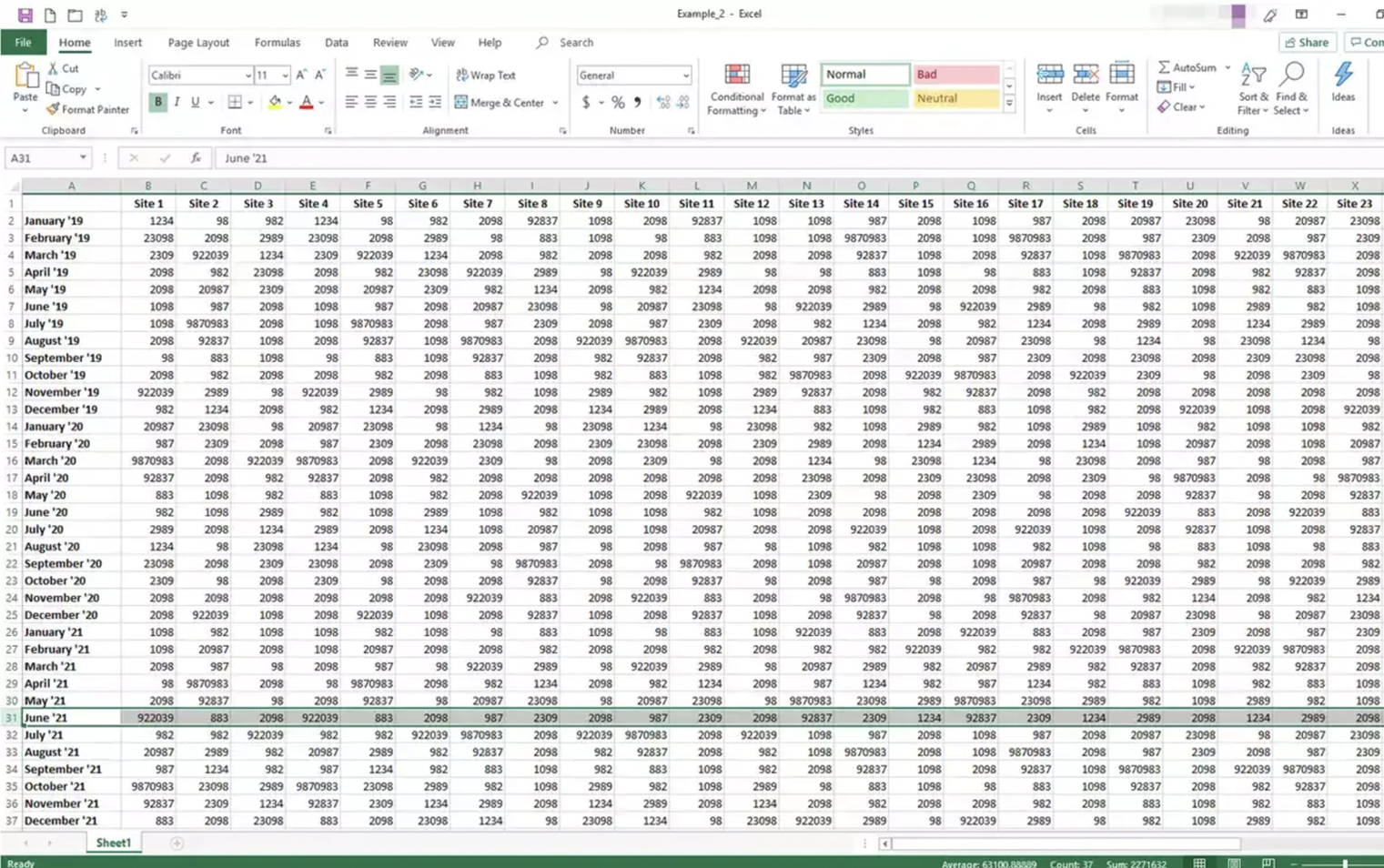
Love it or hate it, one of the most inescapable software tools in all of TV, film and video production is the ubiquitous spreadsheet. Studios, crews, agencies and teams of all types and sizes track their schedules, gear, assignments, call sheets, and locations using the infinite rows, columns and cells of a trusty pivot table.
But when it comes to the media assets that are vital to delivering productions for your business, it’s time to lift the spell of the spreadsheet and shine the light on real insights instead.
Fact #1: Spreadsheets are notorious for errors
From the age-old report that 88% of spreadsheets contain errors, to more recent studies showing that 20% of genetics scientific papers contain errors caused by spreadsheets, it’s commonly known that trusting your important stats to Excel is far from reliable. Even if the data itself isn’t complicated, tiny mistakes – whether from repetitive manual user input, imports of incorrectly formatted data into existing files, or simple miscalculations in formulas – can all make spreadsheets prone to errors.
Fact #2: Spreadsheets require expertise
Unless you and your stakeholders are professional data wranglers, spreadsheets can be difficult to analyze. Why? Because on one hand, rows upon rows of raw data are hard to gain insights from without the necessary filtering, graphing, and sorting it takes to really discern their importance. And on the other hand, although many software tools have visualization features built-in, it’s too easy for anyone to use them to interpret data incorrectly.
Whether you send out a spreadsheet nightly, weekly, or quarterly, it’s outdated the moment you hit “export.”
Fact #3: Spreadsheets are stale
How often do you have to update a dashboard, create a report, or provide analytics on your shared media files? Whether you send out a spreadsheet nightly, weekly, or quarterly, it’s outdated the moment you hit “export.” And that means the knowledge your stakeholders gain from the data may no longer apply – introducing potentially costly delays, and making important decisions too late. Without real-time data, your perfectly formatted, color-coded spreadsheets are simply not actionable.
A better way to track your content
There’s no trick to tracking your shared media assets with Insights, the media analytics engine within MediaSilo.
Insights is accurate.
There’s no mistaking the accuracy of analytics on your project, assets, and viewers; all the data comes directly from your MediaSilo system, not a separate software tool. How much is the file being viewed? Who is viewing the file? When are these people viewing the file? And how often are files being viewed vs. downloaded? No matter how granular you need the data, you never need to create a separate tab, formula, or file. From an entire project, right down to a single asset.
Insights is confusion-free.
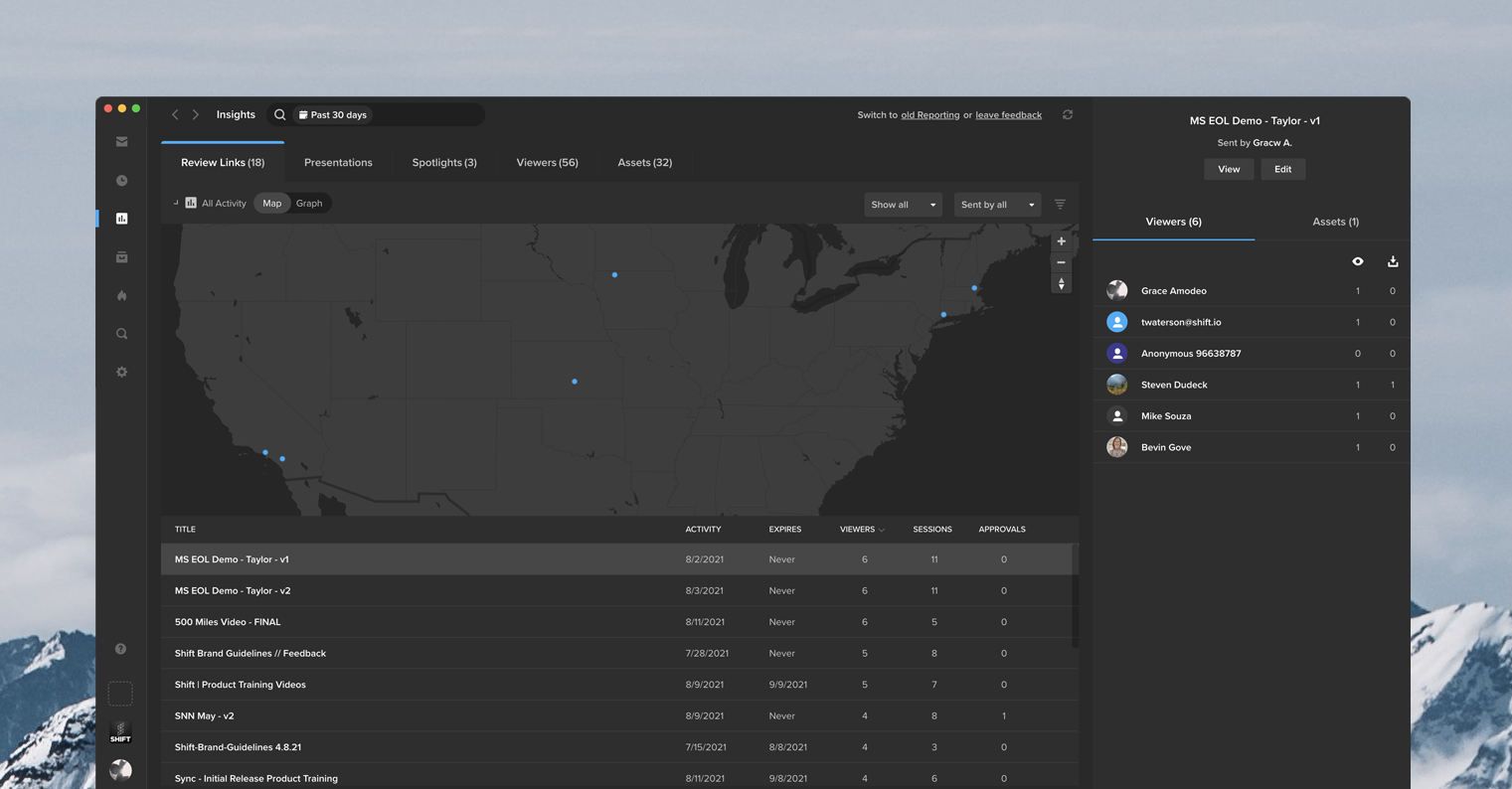
The Insights dashboard is designed to answer questions about your assets, regardless of how you ask them. Want to see where your videos are being viewed? No need to create a graph from scratch — the IP address map will show you. Wonder when a video was viewed the most? Look at the timeline view. Happy that twenty people watched the clip, but you want to know which twenty? See them for yourself. Insights gives you easy access to visualize your data, with tools that can’t be tricked.
Insights is actionable.
One of the most important uses of your data will be in helping your business make quick decisions about your media assets — and better ones, too. You can gain intel, for instance, about how far into clips a viewer gets before viewership drops off, and have your team make changes to the content. Even more immediately, if you notice content activity in locations you don’t recognize, you can pivot your security on the fly by editing expiration dates, password protection, or presentation and link settings in the dashboard. With Insights, media security is like a crystal ball in your hands.
Break the spell
Media assets are the backbone of a studio’s or agency’s intellectual property. So when it comes to quickly tracking, analyzing, and reporting on them, it’s important to avoid the demons that plague spreadsheets. Make your sharing, reviewing and usage data more accurate, more understandable, and more actionable – instantly – using Insights in MediaSilo.
Church services are increasingly attended in living rooms as well as traditional venues. Well produced content can significantly increase the reach of a church and make services, events, and activities accessible to remote audiences.
From gathering in person to connecting online The ongoing global health emergency acted as a giant reset for many aspects of society. Churchgoers unable to attend services in person often found their local house of worship offered online programming of church services and other activities. Like most TV viewers, these online audiences have come to expect polished production values, easy to digest program segments, and ways to engage with the content.
Producing programs for both in-person and virtual congregations involves creating everything from full-length services to byte-sized segments. For this level of production, you need a media infrastructure that enables you to pay attention to lighting, sound, the number of cameras and their positioning, stagecraft, and editing.
Fletcher Garrett
Recommendations from a top house of worship video engineer For nearly 8 years, Fletcher Garret was the engineer in charge of TV operations at The Potter’s House Dallas. In that role, he was charged with setting the direction for technical innovation, and made it all work, under the pressure that will be familiar to anyone involved in live broadcasting.
The 10,000 capacity of The Potter’s House building is dwarfed by the 30,000 strong membership of the church, with a following many times that on social media. Essentially, The Potter’s House has a lot in common with broadcasters, except it produces all its own content.
We asked Fletcher what advice he’d give to churches, big and small, as they embrace TV production.
The importance of planning up front “I’d say it’s crucial for churches to plan their systems properly. They must plan for what they want to do and buy the systems that support the objective. Are you going to merely stream your “conventional” services? Or are you going to make the production more “theatrical”? The more complex your ambitions, the more consideration you need to give to the hardware and the software that are going to bring those experiences to life.”
Fletcher adds, “I have witnessed organizations blame the system for their workflow issues when in reality it was the lack of planning. The equipment has the potential to do what you need, but it’s the plan that enables that potential and makes your media infrastructure work for you!”
The media server is at the heart of your system set up A church typically purchases cameras, a switcher, and some storage. However, everything centers around your media and what ultimately matters is how you manage that content. A production media server is much more than a hard drive. It is the heart of the entire operation that allows you to manage the content and your video production workflow. If you just think of storage in terms of capacity, it’s like walking into a bookshop and saying, “I’d like a book, please”. The media server finds the right book for you and puts it in your hands immediately. You need a media server to effectively manage your media and maximize efficiency.
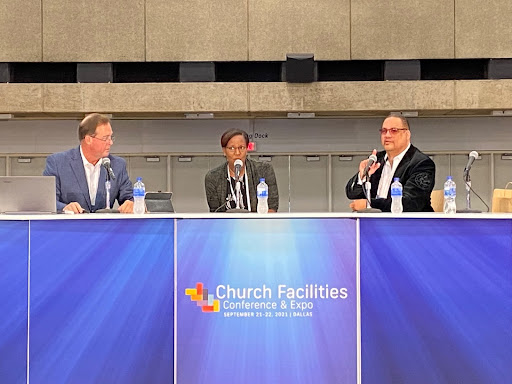
EditShare’s Mike Mahoney, The Potters House A. Ty Ayers Allen and Engineer Fletcher Garrett
Technical experience is important Also, there is a distinction between production staff, and engineers. Essentially, engineers assist in planning and make the technology work. The engineers keep it working, enabling the production staff to make programs. If churches don’t have an engineer on staff, there are good system integration companies out there that they can partner with. Experience matters when dealing with any system planning and engaging a good system integrator early on would be in your best interest.
Plan for ROI To get the best return on your investment, it’s absolutely essential to design your system and your workflow to make the type of material you have in mind but also do it efficiently. The more time you spend on planning, the more time you’ll have to make great programs. So, consider all the types of productions you want to deliver to your audience. Then, talk to EditShare. They’ll help and make sure you get the right system to achieve your goals.
The power of EditShare’s integrated media production platform for church productions While cameras, lighting, video switchers, and audio mixing desks might be the most visible parts of a TV production, it’s the “back-end” that makes it all work together. That back-end is EditShare’s EFS, a media-optimized shared storage solution. EFS connects to a high-speed network and is capable of moving very large files around quickly. It takes the place of tapes, external hard drives, “sneaker-net” and recording devices.
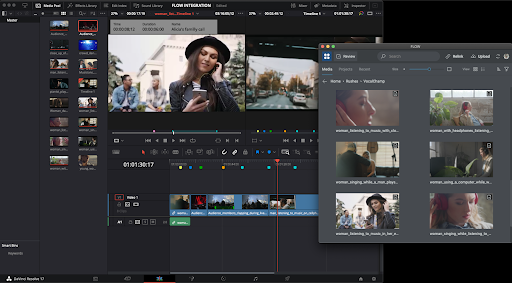
Combine EFS with FLOW, a clever media management solution, and you have an integrated platform for video production.
FLOW Panel for Resolve. FLOW integrates post-production into the workflow.
You can keep track of your files, always with frame accuracy. You can generate “proxies” – small versions of the original files that are still high quality but easy to move over even a broadband connection which are essential for remote working. You can convert files into multiple formats for distribution. The platform also allows multiple people to work on either the same or different projects at the same time, keeping track of permissions so that one editor doesn’t overwrite another editor’s work.
Most of all, EFS and FLOW keep complexity away from the users, and when technical administration is needed, it is highly optimized and easy to learn.
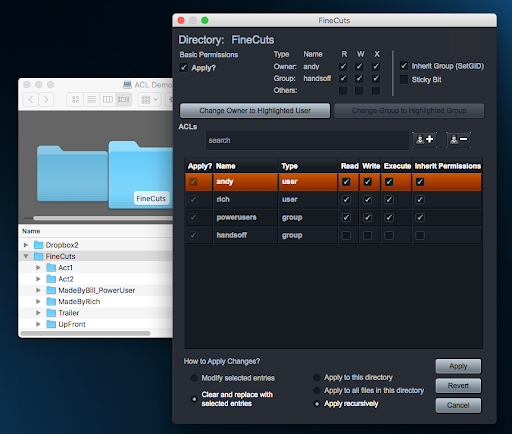
All storage appears as a single volume – a single storage space, even though it’s composed of potentially dozens of drives. Management software allows parts of the space to be allocated to individual users or groups. Security is built in.
EFS Active Directory gives users a familiar windows explorer view.
With so much storage, some of it is used to provide resilience against disk drive failure. If a drive fails, the overall system won’t even slow down while it is removed and replaced. It certainly won’t lose any material.
To sum up, the core of a “back-end” integrated video production system can:
Ingest multiple camera feeds and other files and media
Store the content centrally
Make this content available to authorized users (editors, etc) simultaneously
Allow editors to collaborate on stories
Make small versions of the media files (“proxies”) that can be used remotely
Allow editors to work anywhere
Take the place of tapes and portable disk drives
Look after your content security
Store media long term in an archive
Use AI to search for keywords and phrases making it easy to find relevant material, even from years ago
Keep this extremely advanced technology simple to use, reliable and productive in ways that would be impossible with previous-generation products
Streamlined layout: Shift is optimized to fit better on screens of all sizes. By grouping certain options and reducing excess space throughout the app, it’s easier to see more of your projects and files at once. The “New Folder” button is now located under the “Add New” options, and the delete button remains accessible by right-clicking any file.
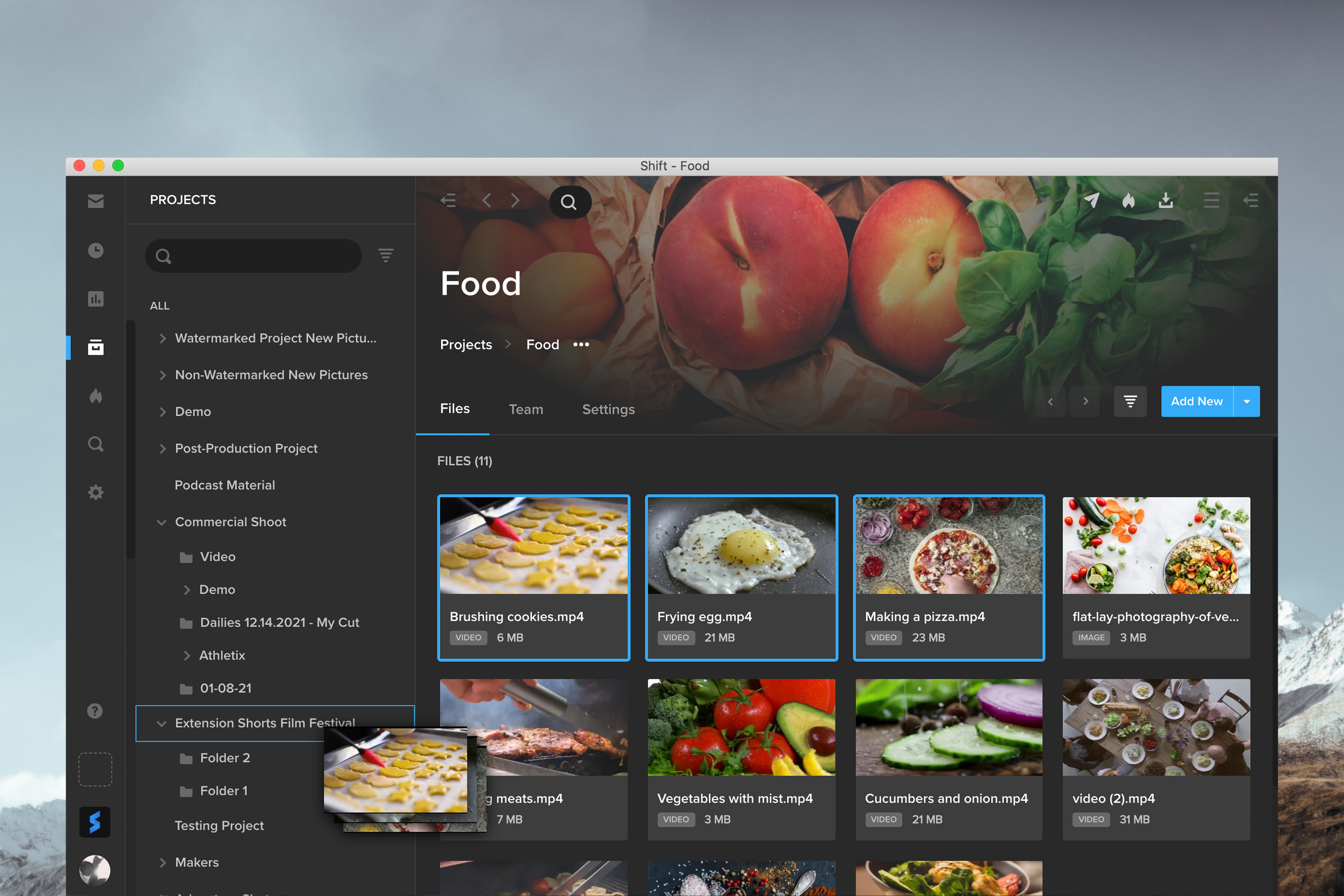
Organize projects – your way: Hovering over a project or folder in the project tree now reveals an options menu, so you can quickly create subfolders and organize your content. To access your project tree, open any project and click the arrow button in the top-left corner of the screen.
Smoother, faster searches: The search menu makes it easier than ever to search using a single tag or multiple tags. Too many results? Narrow down your search by using the “is” and “is not” options. Your saved searches now appear in their own section at the bottom of the search menu.
Bug Fixes:
Review links now send properly when first copying the link before saving or sharing it.
Insights reports exact video views when a Spotlight is viewed on a mobile device.
Long titles no longer overlap with dates in Insights.
Asset thumbnails are displayed without an extra space when your thumbnail preferences are set to “fit.”
When you view a Spotlight, your video starts playing automatically if autoplay is enabled on the video or stage element.
When you share an asset that is protected by an email watermark, the “Create Link” button is disabled until you specify your link recipients.
The Media panel for adding files to a Review Link or a Spotlight now includes text to indicate the Projects menu is searchable.
Content creators put a lot of effort into presenting their work the way they’d like it to be seen, but what happens if the right people aren’t looking?
Add in the fact that your films, videos, creative assets, and pitch decks can be seen on mobile, laptops, tablets, and desktops and can be shared, streamed, and tagged, and it quickly becomes hard to track who is seeing what content where. And, perhaps most importantly, why some content trends more than others.
That’s why the team at MediaSilo has come together to create an all-in-one reporting dashboard to help you measure value, track consumption, and calculate ROI for all of your creative content.
The result?
MediaSilo’s Insights dashboard gives each member of your team the power to dissect data on specific content, weave together trends from across your portfolio, and paint a picture of who your audience is and the types of content they love to consume. Even better? You can customize the data you are looking for to see exactly what you need.
So what does deploying MediaSilo’s Insights mean for each of your teams, and how can they use it to drive next-level value?
Gain Insights for Every Team
From production and sales to editing and content security, Insights puts powerful reporting tools, filters, and analytics at your fingertips, giving every team member the ability to track, understand, and act on your content’s performance.
Use data to help sales and marketing educate, iterate, and win business.
Take a deep dive into your content’s viewership back to day one to see what is resonating with your audience, tagging content with filters and features that can be summarized to enlighten your team and fuel data-driven decisions about what and who to target next.
MediaSilo’s Insights can also help your team keep track of prospects and the types of content that is resonating with them, providing personalized data that can be used to facilitate new connections with potential buyers when they are most engaged.
Finally, step into your customer’s shoes during a sales pitch in real time with viewer-level reporting. Take the feedback to improve your sales pitch and present your most impactful content at the forefront.
Empower production to engage, track, and collaborate.
Looking for additional opportunities to streamline your production lifecycle and amplify the impact of each contribution?
Use Insights to track team viewership across the production lifecycle to develop a deeper understanding of internal engagement with your content to refine your workflows and identify choke points.
Your team can then use the data to remove barriers, hold team members accountable for meeting their timelines, and consolidate engagement and feedback data whether they’re sitting in the office or participating in remote collaboration across the globe.
Waiting for feedback from colleagues or collaborators? Use Insights to discover who is reviewing which assets and who might need a reminder.
Understand, optimize, and evolve content security.
With team members on the go and using a range of platforms, security has never been so critical.
Leverage the power of Insights to validate your security controls to confirm that your content stays in the hands of your intended audience and know the exact point when data began to flow outside of your area of trust, complete with viewer locations on an interactive map.
Seeing content behavior that you don’t like? Pivot your content security on the fly by editing expiration dates, password protection, or presentation and link settings in the dashboard.
Take Production to the Next Level with MediaSilo
Your team works hard to make the best creative content possible for your customers, clients, and audience to enjoy.
Every word, image, and frame has been carefully crafted to be impactful and engaging, so why would you depend on your best guess as to what will strike a chord with your viewers?
When it comes to taking your content to the next level, don’t guess. Drive an intelligent content strategy with Insights.